

How to find and delete empty folders in Google Drive and fix your folder structure

Empty folders in Google Drive use almost no storage, but they are a sign that your folder structure is collecting clutter and losing its logic. This guide explains where they come from, why they make Drive harder to manage, and how to find them, decide what to do with each one and rebuild a tidy structure in three steps.
In this guide
- Where empty folders come from
- Four signs your folder structure needs work
- Step 1: Find empty folders
- Step 2: Delete, merge or keep
- Step 3: Rebuild the folder structure
- Keep it tidy over time
- A short folder guide for your team
- Frequently asked questions
Where empty folders in Google Drive come from
Nobody creates them on purpose. They are traces of work that was started and dropped, or finished and never tidied up. Each one tells a small story about how your Drive has been used.
- A folder set up for a new project that never started
- Every file moved somewhere else, leaving the old folder behind
- Files deleted to free up space while the folder stayed
- Several teammates creating their own folder for the same thing
- A desktop sync bringing over empty system folders
A handful of them is harmless. The trouble starts when there are so many that the folder tree doubles in length and nobody can tell which folders are still in use.
Four signs your folder structure needs work
They rarely come alone. When you see many of them, there are usually other signs that the folder structure needs a rethink.
- Two or three folders with the same purpose and slightly different names, such as Contracts, contracts-2025 and Contract files.
- Folders nested so deep that you click five or six times to reach a file.
- Many files sitting at the root of My Drive or outside every folder.
- New teammates asking where to save files and getting a different answer from each person.
These signs cost time every day: slower searches, files saved in the wrong place and harder handovers when someone leaves. The good news is that you do not need to start over. Clearing out the unused folders and merging duplicates is usually enough.
The link with files outside folders
Unused folders and loose files are often two sides of the same problem. Moving files away leaves folders empty, and deleting a folder can leave files floating outside the structure. The guide to finding Google Drive orphaned files covers that second group.
Step 1: Find empty folders in Google Drive
Drive has no filter that shows only empty folders. You can search by hand, or read the file count next to each folder in Wistorix.
Search by hand with type:folder
Type owner:me type:folder into the Drive search box to list every folder you own, then open each one to see what is inside. The full list of operators is in Google's guide to searching for files in Google Drive.
This works when you have a few dozen folders. With hundreds of nested folders, opening each one takes a long time and it is easy to miss some.
Read the file count in the Wistorix folder tree
The My Drive screen in Wistorix shows your folder tree on the left with a file count next to each folder name. Empty folders show 0, so you can spot them without opening anything.
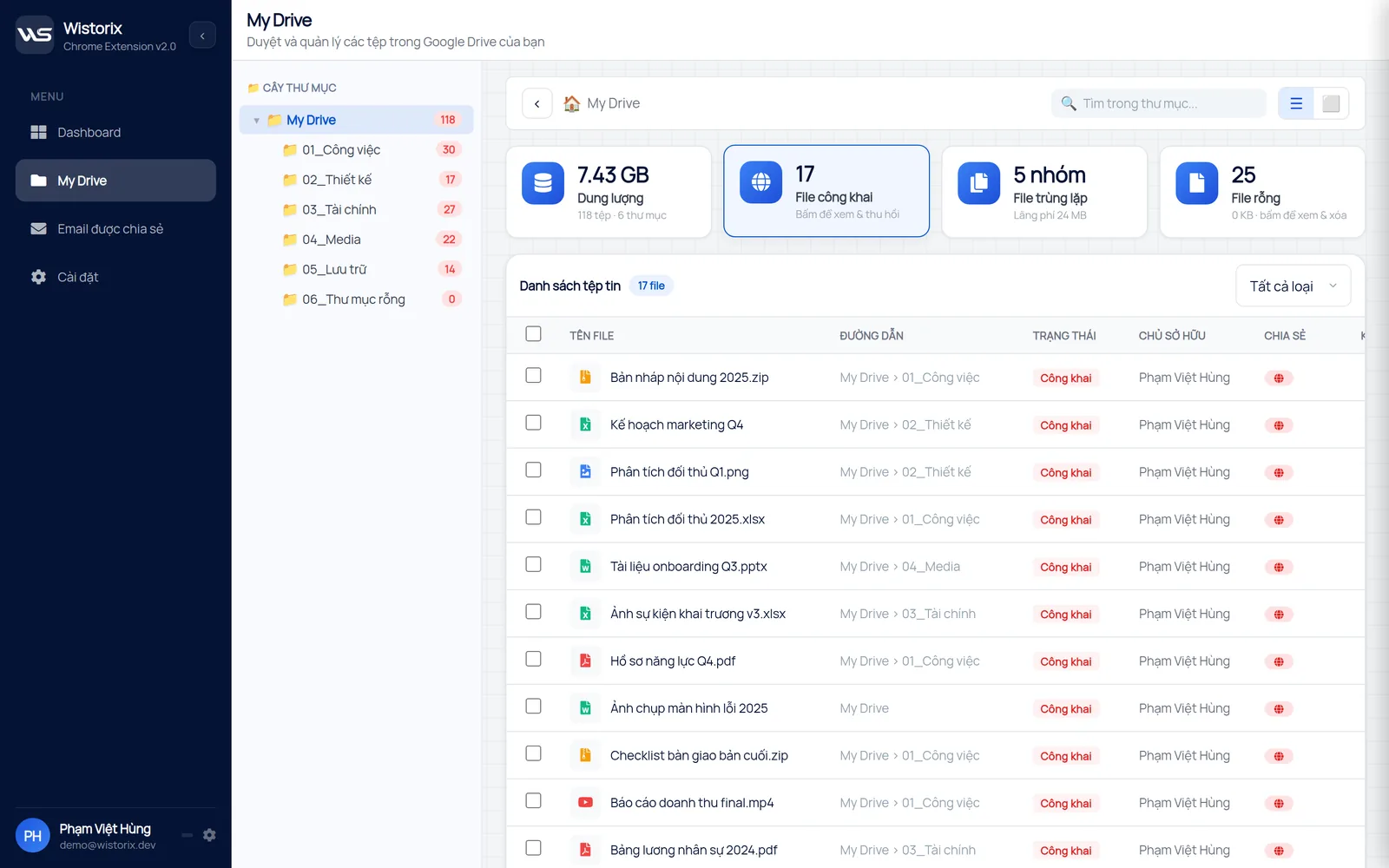
Wistorix only reads metadata such as names, sizes and sharing settings, never file contents. Scans are free with no limit on how often you run them.
Step 2: Delete, merge or keep
Not every empty folder should go. For each one you found, pick one of three outcomes.
- Delete: folders for projects that never started, and old folders whose files moved elsewhere
- Merge: folders with the same purpose as another folder already in use
- Keep: template folders used as a starting point for new projects, and folders waiting for files on a schedule
Before deleting, check whether the folder is shared. An empty shared folder may be where a colleague is about to upload files. A quick message is faster than restoring the folder later.
Delete safely
Deleted folders go to the Google Drive Trash and can be restored for 30 days, as Google explains on its page about how to recover a deleted file. Keep in mind that deleting a folder that still holds files sends those files to the Trash too, so make sure the folder really is empty.
When you delete through Wistorix, nothing happens until you click, and files and folders only go to the Google Drive Trash. They are never permanently deleted.
Empty folders inside shared team folders
In a folder shared with the whole team, unused folders may belong to different people. You can only delete folders you own, so ask colleagues to deal with theirs. This avoids deleting a folder someone is about to use.
On Google Workspace, shared drives reduce the problem, because folders and files there belong to the organization instead of one person. A shared drive manager can clear them out for the whole team without depending on whoever created them.
A small trick: before deleting an empty shared folder, rename it with a DELETE prefix and wait a week. If nobody objects, delete it with confidence. If someone needs it, just rename it back.
Step 3: Rebuild the folder structure
Clearing out empty folders is a good moment to make the folder structure clearer. A good structure does not need to be complex. It only needs to tell anyone who opens it where each file belongs.
The three-level rule
- Level one by area of work: Clients, Internal, Finance, Marketing, Archive.
- Level two by subject: client name, project name or financial year.
- Level three only when needed: Contracts, Design or Handover inside a project.
Keeping the structure to three levels means any file is a few clicks away. Numbering folder names, such as 01 Clients and 02 Internal, keeps the order fixed no matter how long the names are.
If you are cleaning up a whole Drive, deal with folders after duplicates and old files, so fewer files need moving. The storage review in Wistorix groups those first.
Keep it tidy over time
A folder structure stays tidy only when the whole team keeps it that way. A few short rules, written in a document at the root of the shared Drive, stop empty folders from building up again within months.
- Create a new folder only when there is a file to put in it
- Move the whole project folder to Archive when a project ends, instead of leaving an empty shell
- Look for an existing folder before creating a new one with the same purpose
- Review the folder tree each quarter, merging and deleting what is left over
Wistorix is working on scheduled scans with alerts (coming soon). Until then, a look at the folder tree once a quarter is enough to catch new empty folders. The Wistorix features page lists the other checks it runs during each scan.
A short folder guide for your team
The quickest way to keep a structure in shape is a one-page guide that sits at the top of the shared Drive. New teammates read it on day one, and everyone else has something to point to when a folder appears in the wrong place.
- The level-one folders and what belongs in each
- How to name project folders, for example client name followed by year
- Where finished projects go and who moves them
- Who to ask before creating a new top-level folder
Name the file so it sorts first, for example 00 Read me, so it is always the first thing people see.
Keep the guide short enough to read in two minutes. A long rulebook gets ignored, while a short list of examples gets copied. Review it whenever the team changes how it works, such as when a new type of client or service is added.
If your team works across several clients at once, the same guide also makes handovers easier. Someone covering a colleague's projects knows where to look without asking, and the person leaving can hand over whole folders instead of explaining where each file lives.
Frequently asked questions
Do empty folders in Google Drive use storage?
Almost none. They make the folder tree messy and searches slower, but they do not take a meaningful share of your storage.
Does deleting a folder delete the files inside?
Yes. Deleting a folder sends the folder and everything inside it to the Trash. You can restore it for 30 days, but it is best to confirm the folder is empty first.
Should I delete empty template folders?
No. Template folders used as a starting point for new projects are worth keeping. Give them a clear name, such as 00 Project template, so everyone knows what they are for.
How often should I review empty folders?
Once a quarter is enough for most teams. Review again when a large project ends or when the person in charge of a shared folder leaves.


sharing publicly?