

Who has access to my Google Drive? Four ways to check each file, folder and person

To know who has access to a file or folder in Google Drive, you need to look in three places, not one: the people added by email, the link setting and the permissions of the folder that contains the file. This guide walks through four quick ways to check a single file, a whole folder and, when there are too many files to open, a view by person. At the end you will know what to keep, what to downgrade and what to remove.
In this guide
- Where access to a file comes from
- Why checking file by file matters
- Method 1: the Share dialog
- Method 2: the Details panel
- Method 3: folder permissions
- Method 4: a view by person
- Read the results and remove extra access
- When to check again
- Frequently asked questions
Where access to a Google Drive file comes from
Before you check who has access, it helps to know that a person can open a file through three different routes. Each route is recorded in a different place, so skipping one means missing people.
- Added directly by email, as a viewer, commenter or editor
- Opening a link while the file is set to anyone with the link or to your organization
- Being added to a parent folder, which gives access to every file inside it
The third route is the one people forget. You open a file and the list shows two names, while the folder around it is shared with ten more. Those ten people can open the file as well, even though their names were never added to it directly.
Why checking who has access file by file matters
Reviewing an entire Drive is a big job, but most of the time you need an answer for one file: the contract you are about to send, the payroll sheet you just updated or the design folder you are about to open to a new freelancer. Knowing exactly who has access to that file lets you decide in a minute instead of guessing.
This matters more for files that have passed through many hands. A document created last year may have been shared by three different people, each adding a few addresses. Nobody meant to widen access, but together the list is much longer than it started.
Method 1: check who has access in the Share dialog
The fastest way to see who has access to one file is the Share dialog. Right-click the file, choose Share and then Share again. Two parts of the dialog matter.
- People with access: each email address with its role, with the owner at the top
- General access: the link setting, which is Restricted, your organization or anyone with the link
If general access is anything other than Restricted, the email list is not the full story. Anyone holding the link can open the file, and there is no way to list them. The guide to finding publicly shared files in Google Drive explains how to find and close those links across your whole Drive.
Method 2: check who has access in the Details panel
When you need to check several files in a row, the Details panel is quicker because you do not open a dialog each time. Select a file and click the small i icon at the top right. The panel shows avatars of the people with access and a line describing the link setting.
The same panel has an Activity tab that records when a file was shared, had its permissions changed or was moved. That is where you answer the question of who shared this file with whom, and when. On Google Workspace, admins can see far more detail in the Drive log events report.
Method 3: check folder sharing permissions
Folder permissions are the most important part of checking who has access, because one folder shared too widely opens every file inside it. Work from the outside in.
- Open the Share dialog of the project's top folder and note the email list and the link setting.
- Go down into each subfolder and look for people added only at that level.
- For important files, open the file's own Share dialog to see anyone added directly.
One rule helps when you read sharing permissions across several levels: access only adds up as you go down, it never shrinks. Someone with access to the parent folder keeps access to every subfolder. To keep a subfolder limited to fewer people, it has to live outside that parent folder, or inside a shared drive with limited access if your organization has turned that feature on.
Shared drives work a little differently
On Google Workspace, files in a shared drive belong to the organization rather than to one person. Access comes from shared drive membership plus any extra sharing on folders or files inside it. To review a shared drive, open its member list first, then check the folders that were shared with people who are not members. Members with the manager role can change access for everyone else, so keep that role to a small group.
Method 4: check who has access by person
The first three methods answer the question of who can open this file. The reverse question, which files can this person open, is much harder with the built-in tools. Drive search supports to: followed by an email address to find files you shared with someone, but it skips access inherited from folders and files shared by public link. The operator is listed in Google's guide to searching for files in Google Drive.
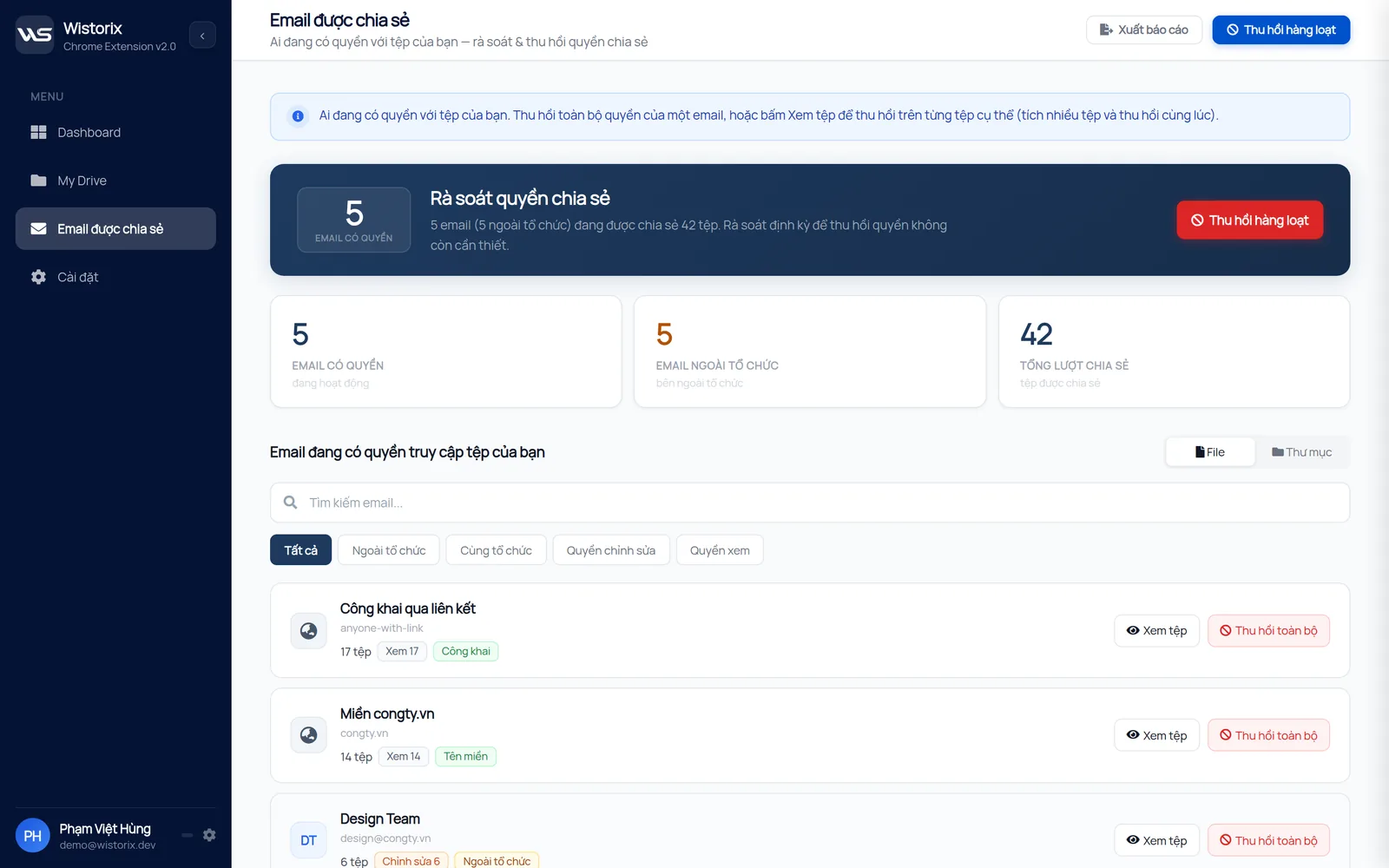
To see who has access across your whole Drive, the shared emails screen in Wistorix groups every permission by email address and lists people outside your organization separately. Click an address to see the files that person can open, then revoke access file by file or all at once. Wistorix reads file metadata such as names and sharing settings, never file contents.
Read the results and remove extra access
Once you know who has access to your files and folders, sort each person into one of three groups so you can decide quickly.
- Keep: people working on the file right now, with their current role
- Downgrade: people who only need to read but are editors, switch them to viewer
- Remove: people who left the project, former employees' personal addresses and unknown addresses
Removing access does not delete the file and does not notify the person. If you remove someone by mistake, add them back, since access can be granted or revoked anytime. When a whole project is finished, the guide on how to revoke access to Google Drive files in bulk gives the full process.
To avoid starting from zero every time, keep three habits: share folders rather than single files, leave links on Restricted by default and review the access list whenever a project closes.
When to check who has access again
You do not need to check every day. Tie the review to a few moments that already exist in your work, so checking who has access becomes a routine step rather than something you only do after a problem.
- Before sending sensitive files such as contracts, quotes or customer data
- When inviting someone new into a folder that already holds many files
- When a teammate, freelancer or partner leaves a project
- When a project ends and its folder moves to the archive
- When the Activity tab shows a share you do not remember
A five-minute check at these moments usually catches problems while you still remember why each file was shared in the first place.
For single files, the four methods above are enough. When a Drive holds thousands of files and years of sharing, start with the view by person to find people who no longer belong, then go file by file. If someone is leaving your team, the Google Drive offboarding checklist covers access, ownership and public links in the right order.
Frequently asked questions
Can people I share with see who else has access?
Editors can see the full list of people with access. Viewers and commenters usually see the owner and limited information about others.
Why can someone open a file when their name is not on the list?
There are two likely reasons. The file is set to anyone with the link or to your organization, or the person has access through a parent folder. Check the file's general access first, then the Share dialog of the folder that contains it.
How can I see who opened a file?
Google Workspace accounts show viewers from inside the organization in the Activity panel. Personal accounts have no list of who opened a file, so the safest option is to keep links on Restricted.
Do I need admin rights to check access on my own Drive?
No. You can always see who has access to files and folders you own. Admin rights are only needed to view logs or permissions on other people's Drives in your organization.



sharing publicly?