

How to find Google Drive orphaned files and put them back in order

Google Drive orphaned files are files you own that no longer sit inside any folder. Some were dropped at the root of My Drive and never moved, and others lost their parent folder when someone deleted it. Either way they slow down search, get left out of handovers and quietly take up storage. This guide shows how to spot them, find them and put them back where they belong in three steps.
In this guide
- What Google Drive orphaned files are
- Why they make Drive harder to manage
- Step 1: Find files outside your folders
- Step 2: File, hand over or delete
- Step 3: Stop new files from falling out
- Orphaned files in shared team folders
- Frequently asked questions
What are Google Drive orphaned files?
In this guide, files without a folder come in two kinds. They look similar in a search result, but you find each kind in a different way, so it helps to know which one you are dealing with.
Type 1: files left at the root of My Drive
These are files created or uploaded straight into My Drive without picking a folder. A new Google Doc started from the Drive home page, an attachment saved from Gmail or a file dragged into the browser window can all land at the root. You can still see them. They are just mixed in with everything else.
Type 2: files that lost their parent folder
This kind is much harder to see. When you create a file inside a folder that someone else owns, the file still belongs to you. If the folder owner later deletes that folder, your file is not deleted with it. It becomes orphaned: it sits in no folder, it does not appear when you browse My Drive, and it still counts toward your storage.
The good news is that Google Drive orphaned files are not lost. A single Drive search operator brings them back into view, and you can move them like any other file.
Why Google Drive orphaned files make Drive harder to manage
A handful of loose files is harmless. Once there are a few hundred, Drive gets harder to use in three specific ways.
- Slower search: you have to remember the exact file name, because no folder hints at which project the file belongs to.
- Gaps in handovers: when you hand a folder to someone else, files outside it do not travel with it, so the new owner is missing documents without knowing it.
- Hidden storage: orphaned files never show up while you browse, yet they use part of the 15 GB that Drive, Gmail and Photos share.
The second point usually causes the most trouble. When someone leaves a team, the person handing over their work moves the project folders and assumes the job is done, while a signed contract still sits at the root of My Drive. Our Google Drive offboarding checklist covers how to hand over a whole Drive without gaps.
Step 1: Find files that sit outside your folders
Each kind of Google Drive orphaned files has its own search, so run both. Together they take a few minutes and catch almost everything.
Find files at the root of My Drive
Open My Drive, switch to list view and sort by name or last modified. Every file shown at this level, outside any folder, needs a home. On an account that has been in use for years, this list can run to several hundred rows.
Find Google Drive orphaned files with is:unorganized
Type is:unorganized owner:me into the Drive search box. The results are files you own that are not inside any folder, most often because their parent folder was deleted by someone else. Google lists the is:unorganized operator in its guide to searching for files in Google Drive.
See the count at a glance with Wistorix
The Wistorix dashboard has a card that counts files outside folders, so you know how big the job is before you start. The same files are part of the junk, orphaned and unfiled group in the list of issues that lower your Drive security score, which shows how much they affect the overall picture.
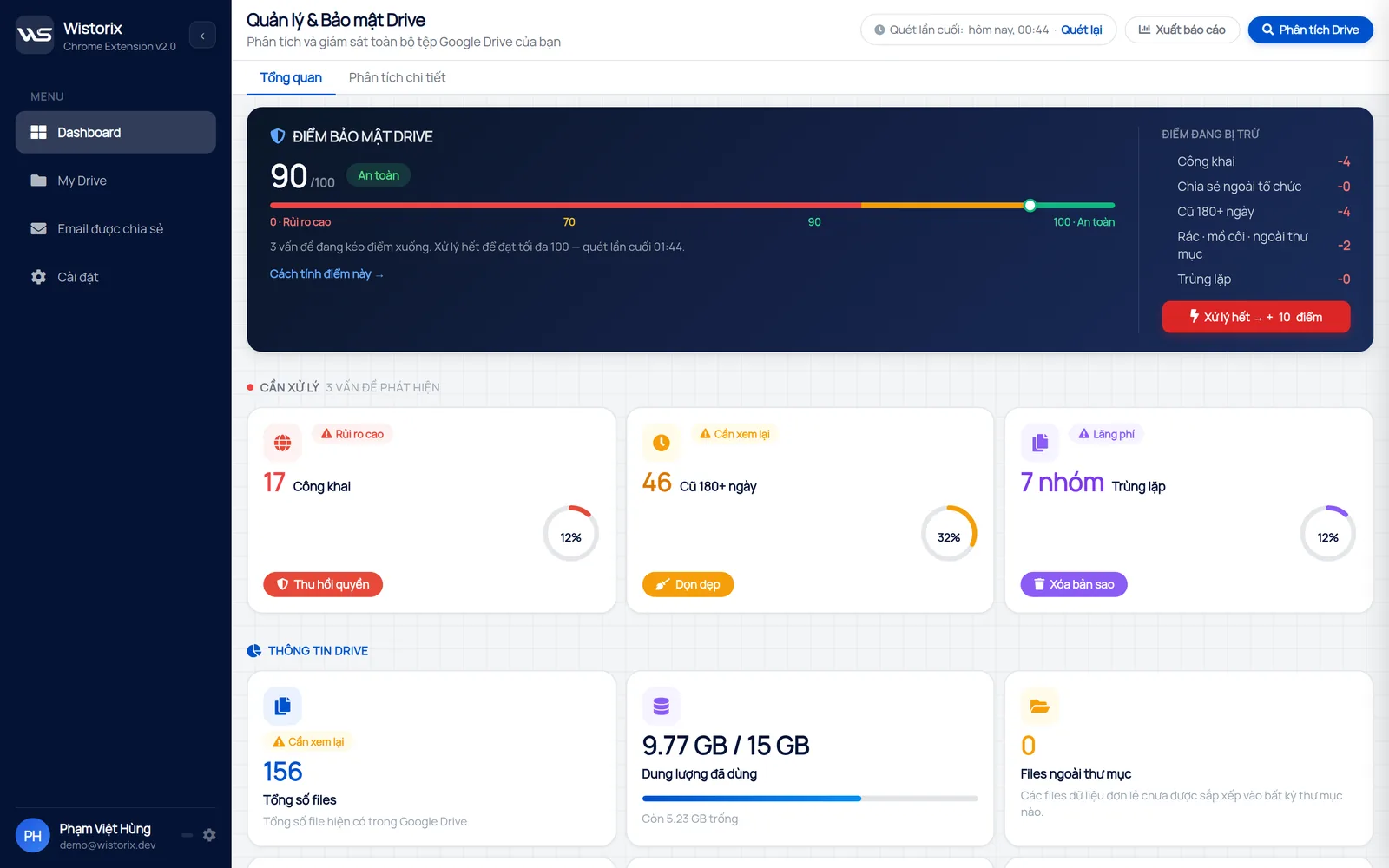
Wistorix only reads file metadata such as name, size and sharing settings. It never reads what is inside your files, and scans are free with no limit on how often you run them.
Step 2: File, hand over or delete
For each of your Google Drive orphaned files, choose one of three outcomes. The path and last modified date are usually enough to decide without opening the file.
- File it: the file is still in use and clearly belongs to a project or area of work.
- Hand it over: the file belongs to a project someone else now runs.
- Delete it: temporary files, old drafts and copies of a file that already sits in the right folder.
Move Google Drive orphaned files back into place
Open the is:unorganized results, select the files and use Move to put them into one of your folders. If a file used to live in a shared project folder, ask the team where that project lives now and move it there.
Delete with a way back
When you delete through Wistorix, files go to the Google Drive Trash and are never permanently deleted, so you can restore them for 30 days. Nothing happens until you click. Keep in mind that files in the Trash still count toward your storage until they are permanently deleted, as Google explains on its page about managing storage in Drive, Gmail and Photos.
Step 3: Stop new files from falling out
Cleaning up once is not enough, because the habits that create Google Drive orphaned files are still there. A few small changes keep the root of My Drive tidy.
- Create new files from inside the project folder, not from the Drive home page.
- When you save a Gmail attachment to Drive, pick the destination folder at that moment.
- Spend a few minutes each week moving whatever landed at the root.
- Before deleting a shared folder, tell everyone who keeps files in it.
- For team projects on Google Workspace, use shared drives so files do not depend on one person's folder.
The fourth habit prevents orphaned files at the source. When the folder owner warns people first, everyone has time to move their own files before the folder disappears.
Loose files and empty folders tend to show up together, since both are signs that a folder structure has drifted. The guide to finding and deleting empty folders in Google Drive shows how to rebuild a simple three-level structure where every file has an obvious place. Wistorix is also working on scheduled scans with alerts (coming soon), so new loose files get caught early.
Google Drive orphaned files in shared team folders
In a team, Google Drive orphaned files appear much faster than in a personal Drive. Everyone creates files in their own way, and shared folders get renamed, merged or deleted as projects change. Each change can leave a few files behind.
A situation that happens all the time
A marketing lead creates a Campaign folder, and three teammates write documents inside it, each owning their own file. After the campaign, the lead deletes the folder to tidy up. The three documents are not deleted. They become orphaned in three different Drives, and nobody sees them when browsing.
A few months later, someone needs those documents and nobody can find them. The fix is simple: before deleting a shared folder, the owner gathers everyone's files in one place or asks each person to move theirs. If the documents are already orphaned, each teammate can still find them with is:unorganized owner:me.
For a full picture of what else needs attention in a Drive, the storage review in Wistorix groups loose files together with duplicates, empty files and files nobody has opened in a long time.
Frequently asked questions
Do orphaned files count toward my storage?
Yes. Orphaned files still belong to you, so they count toward your storage even though they do not appear when you browse My Drive. Search for is:unorganized owner:me to find them and move or delete them.
Why did my file disappear from a shared folder?
Usually because the folder owner deleted or removed that folder. Files you created inside it still belong to you and are not deleted along with it. They simply end up without a folder, and is:unorganized brings them back.
Does Google delete files that are not in a folder?
No. Google does not delete a file just because it sits outside a folder. A file is only deleted when you delete it, or when the account that owns it is deleted.
Is it fine to keep files at the root of My Drive?
A few files you use every day are fine. Anything that belongs to a project or an area of work is easier to find and to hand over when it lives in the matching folder.



sharing publicly?