

How to get a Google Drive permissions report without admin access

A permissions report is a single list of the files in your Google Drive and who can open each one. Google Workspace admins can pull this kind of data from audit logs, but most people do not have admin rights, and personal Gmail accounts have no admin at all. This guide explains what a useful report should contain, three ways to build one without admin access, and how to turn the list into decisions.
In this guide
- What a permissions report should show
- What admins can see that you cannot
- Option 1: a manual spreadsheet
- Option 2: a short Apps Script
- Option 3: a scan and an export
- How to read the report
- A report for a whole team
- Keep a snapshot each month
- Frequently asked questions
What a Google Drive permissions report should show
A report is only useful if you can act on it without opening each file again. For every file, it should answer who owns it, where it lives, how widely its link is open and which people have which role.
| Column | Why it matters |
|---|---|
| File name and folder path | Tells you which project the file belongs to |
| Owner | Only the owner and editors can change sharing |
| General access | Restricted, your organization or anyone with the link |
| People and roles | Each address with viewer, commenter or editor |
| Outside addresses | Flags people outside your company domain |
| Last modified | Separates active work from forgotten files |
The general access column deserves the most attention. A file set to anyone with the link can be opened by people who will never appear in the list of names.
What admins can see that you cannot
On Google Workspace, admins can review sharing activity in the Drive log events report, and some editions add security tools that list files shared outside the organization. These views cover every user in the company, which is exactly what an IT team needs.
If you are a team lead, a freelancer or a small business owner on a personal account, those tools are not available. You still have full control over the files you own, and a permissions report for your own Drive covers most of what matters: the files you created and shared yourself.
Option 1: a manual spreadsheet
For a small Drive, a spreadsheet is enough. Create a sheet with the columns from the table above, then fill it from Drive search.
owner:melists files you own, so you know which ones you can changeto:name@company.comlists files you shared with one addressowner:me type:folderlists your folders, which are worth checking first
For each file on the shortlist, open the Share dialog and copy the general access setting and the people with their roles. This works for a few dozen files. Beyond that, copying by hand becomes slow and it is easy to miss files deep inside subfolders.
Option 2: a short Apps Script
If you are comfortable with a little code, Google Apps Script can build the report for you. Open a new Google Sheet, choose Extensions and then Apps Script, paste the function below and run it. It uses the DriveApp service to list files you own with their sharing details.
function permissionsReport() { const sheet = SpreadsheetApp.getActiveSheet(); sheet.clear(); sheet.appendRow(['File', 'Owner', 'General access', 'Editors', 'Viewers', 'Last updated', 'Link']); const files = DriveApp.searchFiles("'me' in owners and trashed = false"); while (files.hasNext()) { const f = files.next(); sheet.appendRow([ f.getName(), f.getOwner() ? f.getOwner().getEmail() : '', f.getSharingAccess() + ' / ' + f.getSharingPermission(), f.getEditors().map(u => u.getEmail()).join(', '), f.getViewers().map(u => u.getEmail()).join(', '), f.getLastUpdated(), f.getUrl() ]); } }
Running the script does not change any file. It only reads sharing details and writes one row per file into the sheet, which you can then sort and filter like any other spreadsheet.
The first run asks you to approve access to your Drive and Sheets. Two limits apply. A script can only run for a few minutes at a time, so a Drive with thousands of files may stop partway through. The script also lists files without their folder path, so you still need to work out which project each file belongs to.
Option 3: a scan and an export
Wistorix scans your whole Drive through the Google Drive API and builds the report in one table: file name, folder path, owner, size, sharing status and last modified date. Filters split files into public, private, internal and shared, and the shared emails screen turns the same data around to show which files each person can open.
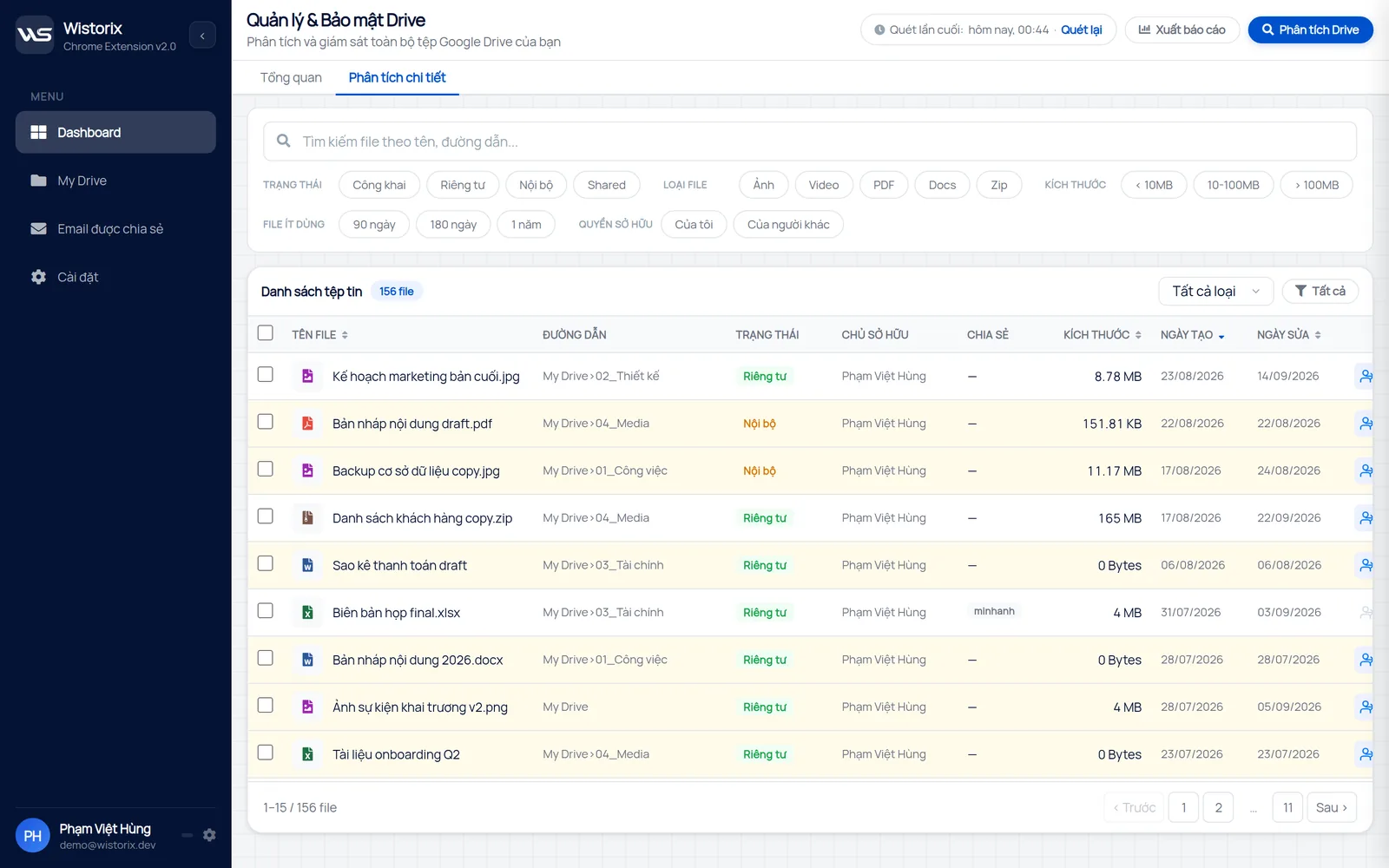
When you need a record, export the report to Google Sheets and keep it in your own Drive before you change anything. Scans are free with no limit on how often you run them. Wistorix reads metadata such as names and sharing settings, never file contents, and nothing changes until you click.
How to read a permissions report
A long report can feel overwhelming. Sort and filter it in this order and the decisions get much easier.
- Filter general access to anyone with the link and check every sensitive file first.
- Filter people outside your company domain and mark the ones from finished projects.
- Look for editors who only need to read and plan to switch them to viewer.
- Sort by last modified to find old files that are still shared.
For each row, decide whether to keep, downgrade or remove. Removing access never deletes the file, and you can share it again anytime. The guide on how to revoke access to Google Drive files in bulk shows how to act on a whole list of people at once, and who has access to my Google Drive explains why a name can be missing from a file yet still open it through a parent folder.
Common gaps in a permissions report
Even a complete export can hide a few things. Keep these in mind before you sign off a report as clean.
- Inherited access: people added to a parent folder can open every file inside, even if the file row shows no names
- Shared drives: membership is managed on the shared drive, not on each file
- Copies and downloads: removing access does not reach copies someone already made
- Files owned by others: shared with you but not yours to change
Checking folders before files covers the first gap. For the others, the report is a starting point for a conversation with the people involved rather than a final answer.
A permissions report for a whole team
Without admin rights, nobody can export the whole company's sharing in one go. A team can still get close by splitting the work. Each person builds a permissions report for their own Drive, using whichever option fits, and saves it in one shared folder with their name and the date.
The team lead then reviews the files that matter most: client folders, finance sheets and contracts. Anything shared with an outside address that is no longer on an active project goes on a short action list, and the owner of each file handles their own rows. It takes an hour the first time and a few minutes each month after that.
This also helps when someone leaves, because their latest permissions report already shows which files they own and who they shared them with.
Keep a snapshot each month
A permissions report is most useful when you can compare it with the previous one. Save each export with the date in the file name and keep them in one folder. Comparing two months shows exactly which files changed sharing and who gained access, which is much faster than reviewing the whole Drive again.
Pair the snapshot with a short monthly review. The guide to a monthly Google Drive sharing audit lists the four questions to ask each time, so the review stays under fifteen minutes.
A simple naming pattern keeps the folder easy to scan, for example the year and month followed by your name. Store the folder in your own Drive with access limited to the people who need it, since the report itself lists who can open your files.
When a client or auditor asks who could open a document on a given date, a dated report is also the easiest answer to give.
Frequently asked questions
Can I get a permissions report for files other people own?
You can see sharing on files shared with you, but you can only change sharing on files you own or can edit. A report of your own Drive covers the files you are responsible for.
Does a permissions report show who opened a file?
No. It shows who is allowed to open a file. Who actually opened it is activity data, which personal accounts do not show and Workspace admins see in audit logs.
Is it safe to run an Apps Script on my Drive?
Only run code you understand. The script above reads sharing details and writes them to the sheet you opened it from. It does not change any sharing or delete anything.
How often should I export a permissions report?
Once a month works for most individuals and small teams, plus an extra export before a project handover or when someone leaves.


sharing publicly?