

How to revoke access to Google Drive files when a project ends

When a project ends, access to its files does not end with it. Taking the time to revoke access for clients, freelancers and partners after each project is a small task, but skip it a few times and dozens of outside people can still open your old documents. This guide gives you a four-step routine that works by person instead of by file, plus a bulk option for large projects.
In this guide
- Why access needs a cleanup at the end of a project
- Who to remove and who to keep
- Step 1: List everyone who worked on the project
- Step 2: Find every file shared with each person
- Step 3: Revoke access by folder or by person
- Step 4: Check again and keep a log
- Revoke access in bulk
- Make the next cleanup shorter
- Frequently asked questions
Why you should revoke access when a project ends
The first reason to revoke access is that sharing has no default end date. An address you added to a project folder last year can still open it today, even if that person has changed jobs. Google Workspace lets you set an expiration date on some email shares, but most access in Drive is still granted with no end date.
With every project, a few more people get access and nobody gets removed. Clients, freelancers, printers and video crews are added whenever files need to move fast. That is why access cleanup belongs in your project close-out, next to sending the final invoice.
The good news is that removing access deletes nothing. Files stay in your Drive, and outside people simply cannot open them anymore. If a client needs a file again later, you can share it in seconds, and you can remove access again anytime.
Who to remove and who to keep
Not everyone needs to lose access on the day a project ends. Sorting people into three groups helps you decide fast and avoid removing someone who still has work to do.
- Remove now: freelancers, suppliers and third parties who handled one part of the work
- Downgrade to viewer: clients during a support or warranty period after handover
- Keep: team members who continue with the same client on the next project
For clients, how long they keep viewer access should follow your contract. When the support period ends, remove access fully and send them the handover files to keep in their own Drive.
Step 1: List everyone who worked on the project
To revoke access cleanly, start with a list of email addresses, not a list of files. Open the project's top folder and click Share to see who has access at folder level. Then add any addresses you remember sharing single files with along the way, such as a printer or a reviewer on the client side.
If the project follows a consistent folder structure, this list is almost complete at the top folder. If files are scattered, the job takes longer, which is a good reason to set up a clear structure from day one.
Step 2: Find every file shared with each person
Folder access is only part of it. A file shared directly with an address keeps that access even after you remove the person from the parent folder, so look for single-file shares before you revoke access.
In the Drive search box, type to: followed by the person's email to list files you shared with them. Repeat for each address from step 1 and mark which files belong to the finished project.
to:name@company.comlists files you shared with that address- Add the project name to narrow it down:
to:name@company.com ACME - Check the project's public links too, since a link is not tied to any email
Links set to anyone with the link are a separate case, because they never show up in a search by email. The guide to finding publicly shared files in Google Drive shows how to list and close them all.
Step 3: Revoke access by folder or by person
There are two ways to revoke access, and the right one depends on how the project was shared. If most access was granted at folder level, removing someone from the top folder also removes the access they inherited on every file inside. If the project relied on many single-file shares, working person by person is faster.
Remove access at folder level
Open the folder, click Share, click the role next to the address you want to remove and choose Remove access. If the client only needs to read, change their role from editor to viewer instead. Set general access to Restricted if the folder was open to anyone with the link.
Remove access person by person
For each address on your list, open the files found in step 2 and remove access one by one. It is slower with many files, but it guarantees no single-file share is left behind. Google covers every option on its page about how to stop, limit or change sharing.
Step 4: Check again and keep a log
After removing access, run the to: search once more to confirm no project files are still shared with that person. Open the top folder and review the access list again. It should now show only your team and the people you kept on purpose.
Add a short log entry to the project's readme file: the date, the addresses you removed, the ones you kept and why. When a client asks why they cannot open a file anymore, you have the answer. The next time you revoke access, you also have a template to follow.
If someone on your own team is leaving, removing their access has to go together with transferring ownership of the files they created. The Google Drive offboarding checklist walks through that case in the right order.
Revoke access in bulk with Wistorix
The manual routine works for a project with a few dozen files. For large projects, or when you want to revoke access across several old projects at once, opening files one by one takes hours. Wistorix groups access by person, so you work from a list of people instead of a list of files.
- The shared emails screen lists every address and link with access, with the number of files and the role
- Addresses outside your organization are listed separately so you can review them first
- Revoke all removes one person's access from every file in a single action
- View files lets you pick only some files when you want to be selective
- Bulk revoke works on your whole Drive, one folder or a list of addresses
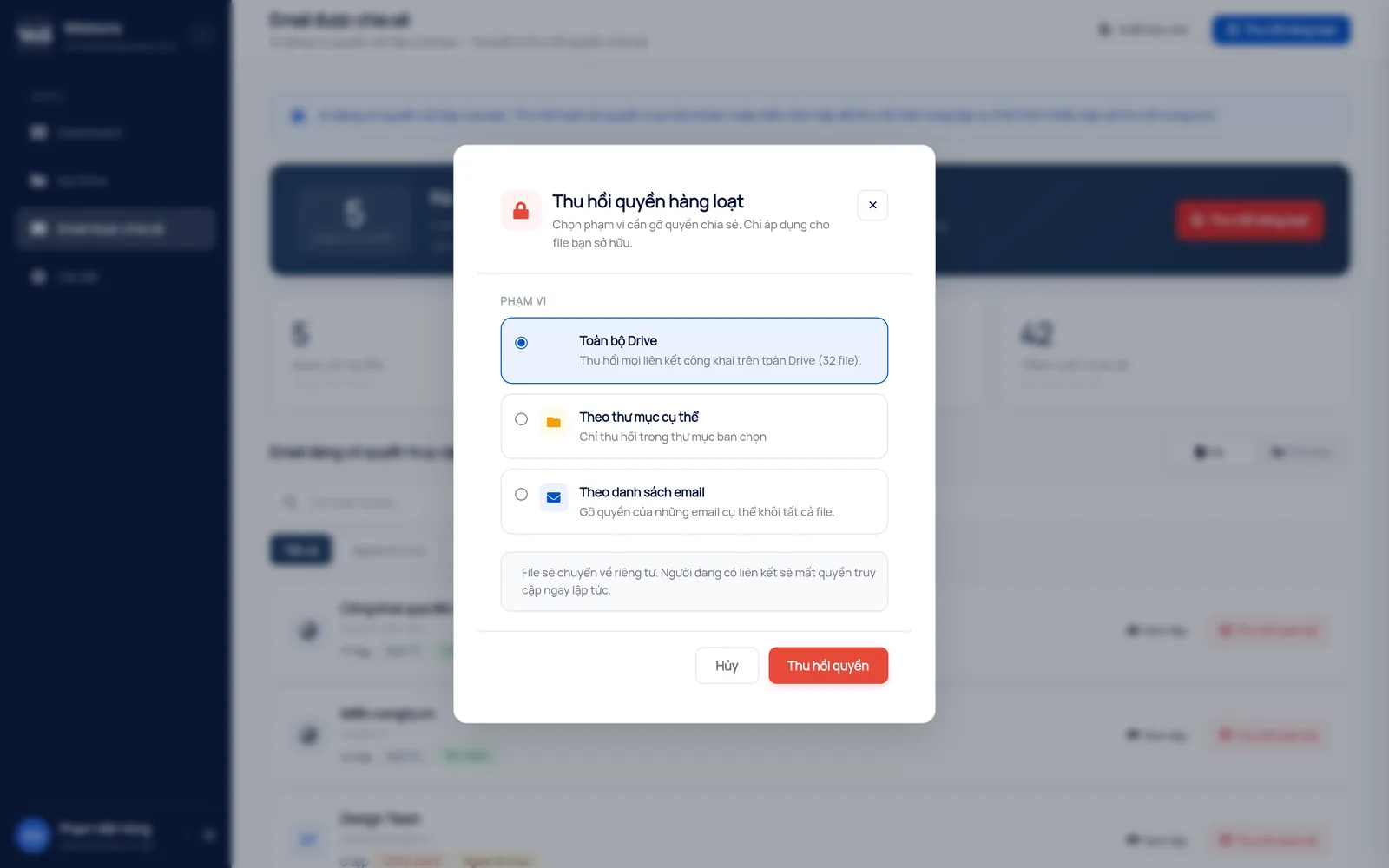
Wistorix reads file metadata such as names and sharing settings, never file contents. Every action runs only after you confirm, and you can remove Wistorix's own access anytime from the Security section of your Google Account. To see which addresses currently reach your files before you start, read who has access to my Google Drive.
Make the next cleanup shorter
Most of the effort in this routine comes from access that was granted in a hurry. A few habits at the start of each project make the end of it much lighter.
- Share the project folder, not single files, so access lives in one place
- Give outside people viewer access by default and raise it only when needed
- Use company addresses for teammates instead of personal Gmail accounts
- Set an expiration date on client access when your Google Workspace plan offers it
- Write down who you added and why in the project readme
When you need to stop sharing a file quickly, the Share dialog is still the fastest place to do it. The routine above is for the end of a project, when you want to be sure nothing was missed.
Teams that run many projects at once often schedule this review once a month instead of waiting for each project to close. It takes about fifteen minutes when the list is short, and it means nobody has to remember the details of a project that ended six months ago.
Frequently asked questions
Does removing access delete files for the other person?
No. Removing access only stops the person from opening the file, which stays in the owner's Drive. If they downloaded or copied the file earlier, their copy is not affected, so for sensitive documents limit downloads when you first share.
Does removing someone from a folder remove access to the files inside?
Yes for access inherited from the folder. If a file inside was also shared directly with that address, the direct share remains. Search with to: and the address to make sure nothing is left.
Can I remove access on a file the client owns?
Only the owner, or an editor allowed to change sharing, can remove other people. On a file the client owns, you can remove yourself, while everyone else's access is the client's decision.
What if the client needs a file again after cleanup?
Share that file or folder again by email with viewer access. You can remove access again once they are done.



sharing publicly?