

How to find publicly shared files in Google Drive and close the links you no longer need

Most publicly shared files in a Google Drive were never meant to stay public. They were opened up for a quick send to a client, a printer or a new hire, and nobody switched them back. This guide shows how to find every file set to anyone with the link, how to tell which ones still need to be open, and how to close the rest safely. You will see the manual way inside Google Drive and a faster way for Drives with thousands of files.
In this guide
- How Google Drive sharing levels work
- Find publicly shared files by hand
- Scan your whole Drive in one pass
- Which public files to keep
- Stop public links from piling up again
- Frequently asked questions
How Google Drive sharing levels work
Every file in Drive has a general access setting with three main states. Restricted means only the people you added by email can open it. Your organization means anyone signed in to your company account can open it. Anyone with the link means exactly that: no sign-in, no approval, just the link.
What counts as a publicly shared file
In this guide, publicly shared files are files whose general access is set to anyone with the link. Whoever holds the link can view the file, and if you granted edit rights, they can change it too. Sharing by email is tied to a specific person, while a public link is tied to whoever has a copy of it. You know who you sent the link to, but not who they forwarded it to.
Why public links build up over time
Most public links do not come from a deliberate decision. They come from moments when you needed to send something fast: a quote for a client, a photo set for a printer, onboarding documents for someone who does not have a company email yet. Switching to anyone with the link takes one click, and switching back is the step everyone forgets.
After a few years, a normal working account can hold hundreds of publicly shared files spread across many folders. The good news is that sharing can always be changed, and closing a link never deletes the file.
- Contracts and quotes sent to clients as a link
- Photo sets and design files sent to outside partners
- Spreadsheets shared for an event that ended long ago
- Handover folders given to freelancers or agencies
- Training documents sent to new hires before they had an account
Find publicly shared files by hand in Google Drive
Google Drive has no page that lists all of your publicly shared files. You can still check with the tools it gives you, it just takes longer as your Drive grows. The method below works well when you have a few dozen files to review.
Narrow the list with Drive search
Open drive.google.com and use the search operators Google supports. owner:me limits results to files you own, which matters because only the owner and editors can change sharing. type: filters by file kind, for example type:spreadsheet or type:pdf. The full list is in Google's guide to searching for files in Google Drive. On Google Workspace accounts, search also offers filters for files shared outside your organization.
Open each file and read its general access
With a shortlist in hand, open each file, click Share and look at General access. If it says anyone with the link, that file is public. Note the file name, the folder it lives in and what you plan to do with it.
This gives you part of the picture, with three limits. Search does not separate public files from files shared by email. Files deep inside subfolders are easy to miss. And opening files one by one only works for dozens of files, not thousands.
Close a link in Google Drive
To close a public link, open the Share dialog, change General access from anyone with the link to Restricted and save. People you added by email keep their access, only the public link stops working. If you close one by mistake, open the dialog again and switch it back, and the old link works as before. Google walks through the steps on its page about how to stop, limit or change sharing.
For folders, remember that files inside inherit the folder's access. Fixing the folder first saves you from editing every file below it.
Scan your whole Drive for publicly shared files
Wistorix reads the sharing settings of every file through the Google Drive API and collects all publicly shared files in one table, with the folder path, owner, size and last modified date. You can close links one at a time, or select many and close them in one action.
Closing a link does not delete anything: the content and the owner stay the same, and you can share the file again or revoke access anytime.
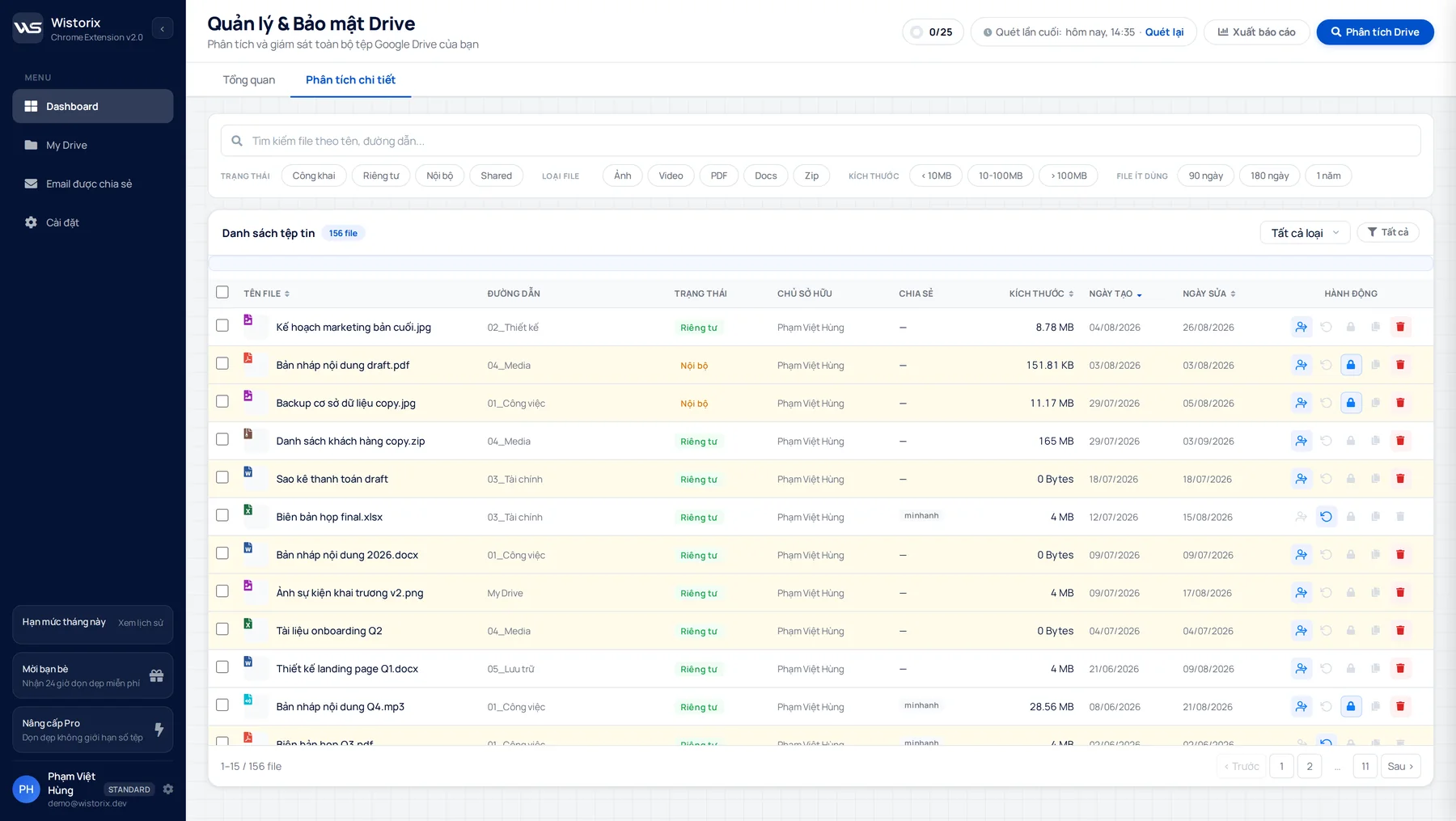
In practice, Wistorix helps you:
- List every file set to anyone with the link
- Filter files shared outside your organization separately
- Close many public links in a single action
- Preview a file inside Wistorix before you decide
- Export a report to keep a record before you change anything
A four-step review
- Add the Wistorix extension to Chrome and sign in with Google on Google's own consent screen.
- Run a scan. Scans are free with no limit on how often you run them.
- Open the Public status filter to see all publicly shared files in one table.
- Select the files whose links should close, click Stop sharing and confirm.
The table shows which folder each file sits in and when it was last edited. That makes it easy to tell a link that serves current work from one that was forgotten years ago. The sharing risk scan page shows the other risk groups Wistorix checks at the same time.
Does Wistorix touch your file contents?
No. Wistorix reads file metadata such as name, size and sharing settings, never the contents. Nothing changes until you click, and Wistorix never closes links or deletes files on its own. You can remove its access anytime from the Security section of your Google Account.
Which publicly shared files to keep
Not every public file needs to close. Some files exist so anyone can read them, and closing the link would break things for the people using it. The right question is not whether a file is public, but whether it still needs to be.
- Keep: product brochures, sign-up forms and files linked from your website
- Move to email sharing: documents for an active project with a specific client
- Close now: files with personal data, contracts, quotes and customer records
- Close: links from finished projects and partners you no longer work with
For files that stay public, set the link to viewer rather than editor. The guide on how to revoke access to Google Drive files in bulk covers the cleanup for people added by email.
Stop public links from piling up again
One review is not enough, because every new share adds to the list. The simplest habit is to check sharing on a schedule: monthly for a personal Drive, every two weeks for a team. Each review after the first is faster, because only a handful of new publicly shared files need a look.
Each review only needs to answer a few questions, which keeps it to a few minutes:
- Which files switched to anyone with the link since the last check?
- Which of those belong to a project that has already ended?
- Are any links set to editor when viewer would be enough?
- Did someone outside your organization get access to a folder recently?
If a file still needs to reach many people, consider sharing it with their email addresses instead. Email sharing keeps a list of who can open the file, which a public link never does.
Pick a fixed moment you already have, such as month-end reporting or the first team meeting of the month. Wistorix is also working on alerts for new public files (coming soon), so you will not need to remember.
Frequently asked questions
Does closing a public link delete the file?
No. Closing a link only changes access. The file stays in your Drive, people added by email can still open it, and only people relying on the public link lose access.
Can I see who opened a public link?
On a personal account, Drive does not show who opened a public link. Google Workspace has activity data and audit logs for admins, but anonymous viewers who came through a link still appear without a name. That is why closing links you no longer need is safer than waiting to find out.
What if I close a link someone still uses?
Open the Share dialog for that file and set General access back to anyone with the link. The old link starts working again and nobody needs a new one.
Do I need admin rights to scan my Drive?
No. You can scan your own Drive with the Google account you use every day. Changing sharing applies to files you own or can edit, because Google only lets owners and editors change those settings.


sharing publicly?