

What is a Google Drive audit tool, and who really needs one?

A Google Drive audit tool takes stock of your whole Drive: which files exist, who owns them, who has access, which links are open and what is taking up storage. This guide explains what an audit tool does, how it differs from the Google Workspace audit log, the four groups of people who really need one, and how to read an audit report so you know what to fix first.
In this guide
- What a Google Drive audit tool is
- What the tool checks
- How it differs from the Workspace log
- Four groups that need a Drive audit
- Who does not need one yet
- Prepare before your first audit
- Read the report and fix things in order
- Frequently asked questions
What a Google Drive audit tool is
In this context, an audit means taking stock and assessing, not a financial audit. A Google Drive audit tool scans your Drive and collects the metadata of each file, such as the name, size, owner, sharing settings and last modified date. It then groups that information so you can judge what needs attention.
What sets it apart from opening Drive yourself is the overall view. Drive shows you one file at a time. The tool shows you the whole Drive at once and answers questions like how many files are public, which outside addresses have access, or how many gigabytes are duplicate files.
The result of a Drive audit is usually an audit report: summary numbers, a list of issues grouped by type, and a priority for each. The report is the starting point for the cleanup, not the end of it.
Think of it like a stocktake in a warehouse. Nobody expects the shelves to be perfect on the day of the count. The point is to know what is there, so that every decision afterwards rests on real numbers rather than on memory.
What a Google Drive audit tool checks
The scope differs from one tool to another, but a complete one usually covers the five areas below.
- File inventory: total files, storage by file type, files that sit outside any folder
- Exposure: files open to anyone with the link or to everyone in the organization
- Outside people: addresses outside the company domain that have access, with file counts and roles
- Ownership: who owns which files, and which files belong to people who have left
- Data hygiene: duplicate files, old files nobody opens, empty files and empty folders
Many tools combine these five areas into one number, such as a security score out of 100. The score helps you track progress from one audit to the next, but the detailed lists are what you actually need to fix things.
Each area answers a different question. Exposure and outside people tell you who can read your documents today, ownership tells you what could be lost when an account is closed, and data hygiene tells you where your storage went. Looking at all five together is what turns a pile of files into a clear picture.
How an audit tool differs from the Workspace audit log
Google Workspace includes a Drive log events report in the Admin console. It records who viewed, edited, shared or deleted a file, and when. You can see every event type in Google's documentation on Drive log events in Google Workspace.
The two answer different questions. The log answers "what happened", which is right for investigating a specific incident. An audit tool answers "what is the situation now", which is right for regular reviews and for removing access nobody needs anymore.
- Workspace log: organized by time, needs admin rights, only available on Workspace accounts
- Audit tool: organized by current state, usually runs on each person's own Drive, works with personal Gmail accounts too
Businesses on Workspace benefit from having both. Individuals and freelancers have no Admin console, so an audit tool is the only way for them to see their whole Drive at once.
Four groups that need a Google Drive audit tool
Not everyone needs to audit their Drive often. The four groups below gain the most, because their Drive changes a lot and involves many outside people.
Freelancers who work for many clients
Each client gets a folder, and each folder has been shared with the client, with collaborators and with a printer. After a few years, the list of outside people with access is much longer than the list of clients you still work with.
Agencies and creative studios
Large files, many drafts and many parties reviewing the same work. Agencies need an audit to keep Drive tidy and to make sure a client's unreleased material is not open to the outside.
Small companies with frequent staff changes
Every departure means files whose ownership must be transferred and access that must be removed. An audit after each change shows what was missed. In a small company, the same person often handles both the handover and their regular work, so a quick check afterwards catches the files and shares that slipped through.
Teams that report to clients or partners
Some large clients ask suppliers to show how their data is handled. An audit report is concrete evidence, and it is easier to present than a promise.
Who does not need an audit tool yet
If your Drive is mostly personal documents, rarely shared, with fewer than a few hundred files, the built-in features of Drive are enough. One manual check a year using the Google Drive security audit checklist covers most of the risk.
Likewise, if your company already has an admin who uses the Admin console regularly and enforces a strict sharing policy, such a tool plays a supporting role, helping each employee review their own Drive. In that setup, the admin keeps the policy and the log, while each person cleans up the shares they created themselves.
Prepare before your first audit
The first audit is more useful if you prepare three small things. Each takes a few minutes, but it helps you read the report faster and decide with more confidence.
- List the folders that hold sensitive documents, so you can look at them first in the report
- Write down the clients, partners and collaborators you currently work with, to compare against the list of addresses with access
- Note the files that are public on purpose, such as brochures, so you do not spend time reviewing them
With this list in hand, a Google Drive audit tool stops being a long table of numbers. You can match each line of the report against your real work, and you know which lines need action and which can stay as they are.
Read the audit report and fix things in order
The first report usually lists a lot of items. Do not try to fix them all in one sitting. Follow the order below, from what needs action now to what can wait.
- Public files that contain sensitive information, such as contracts, payroll or customer data
- Outside addresses no longer connected to your current work
- Files owned by people who have left or are about to leave
- Duplicate and old files that take up a lot of storage
- Files outside any folder, empty files and empty folders
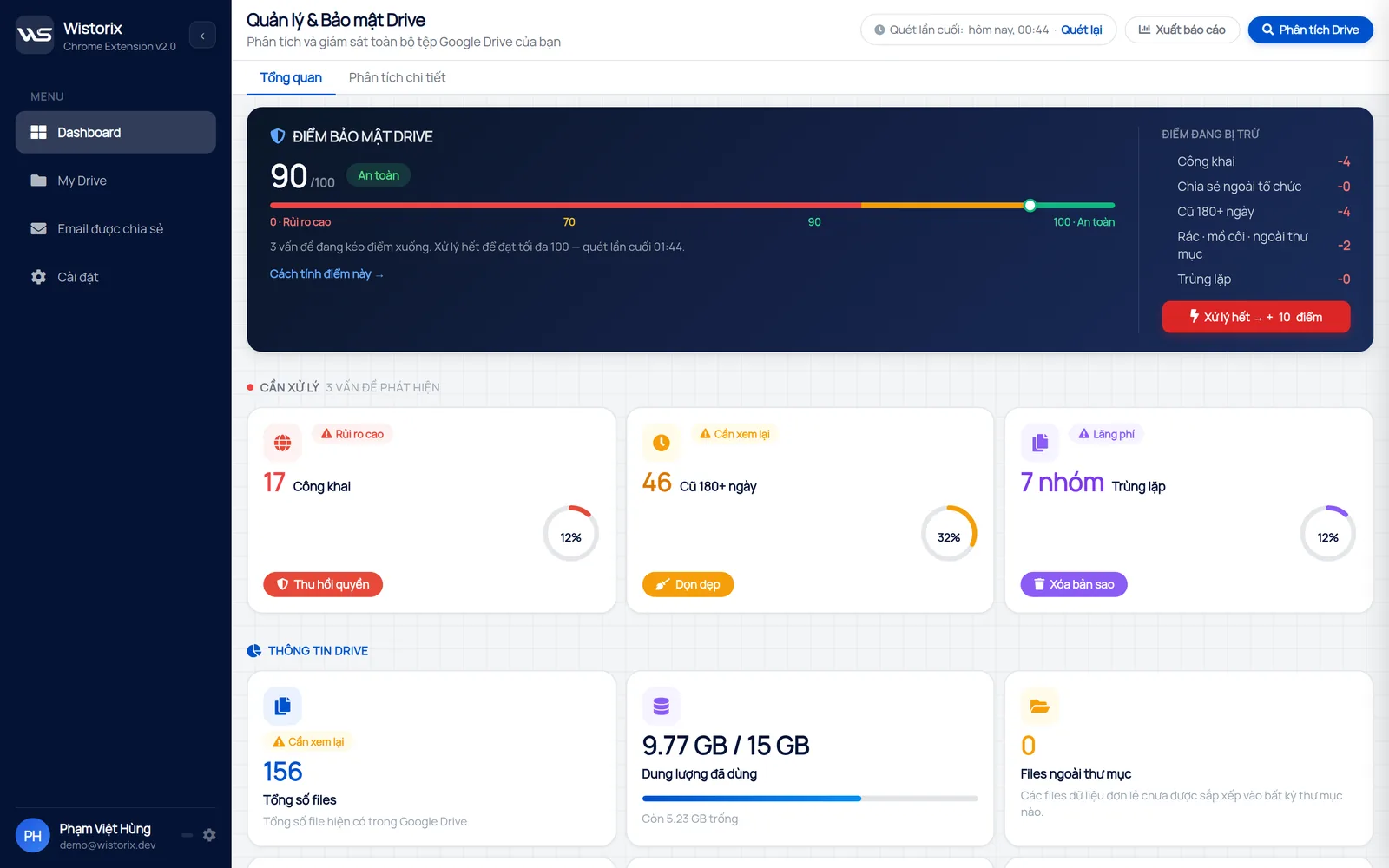
Wistorix presents its results in this same order: a security score from 0 to 100, the groups that are lowering the score, and a fix button for each group. You can export a file list report before making changes, to keep a record or send it to a manager. Wistorix reads file metadata only, never file contents, and never revokes or deletes anything until you confirm. Files deleted through Wistorix go to the Google Drive Trash and can be restored for 30 days.
After the first audit, set up a recurring schedule. The guide to a regular Google Drive sharing audit suggests a frequency for each team size. If you are comparing different kinds of tools, see the overview of a Google Drive management tool.
Later audits are much shorter than the first one. Most of the work is done once, and each review after that only has to look at what changed since the last report.
Frequently asked questions
Does a Google Drive audit tool read my file contents?
It depends on the tool. An audit only needs metadata such as names, sizes and sharing settings, so choose a tool that does not read contents and check the permissions it requests on Google's consent screen.
How often should I audit my Drive?
Once a quarter is reasonable for most teams. Add an extra audit after each staff change or when a large project ends.
Can I audit a personal Gmail account?
Yes. An audit tool that runs on each person's own Drive needs no Workspace account or admin rights. You only sign in and allow it to read your Drive metadata.
Do I have to fix every item after an audit?
No. Many items are deliberate decisions, such as marketing documents that are public on purpose. Mark those as accepted and focus on the rest. Accepted items will still show up in later reports, but you will recognize them at a glance and move on quickly.


sharing publicly?