

Google Drive management tool: which kind fits individuals, teams and businesses

Choosing a Google Drive management tool starts with knowing which question you need answered: where your files are, who has access, what is taking up space, or who did what. This guide sorts the options into four groups, shows what each group does well and where it stops, and suggests how to combine them for individuals, small teams and larger businesses.
In this guide
- Four questions a Drive tool must answer
- Group 1: Built-in Google Drive features
- Group 2: The Google Workspace Admin console
- Group 3: Scripts and spreadsheets
- Group 4: Third-party apps and extensions
- The four groups side by side
- Five criteria for choosing a third-party tool
- Combining tools by size
- Frequently asked questions
Four questions a Google Drive management tool must answer
Managing Drive sounds like one job, but it is really four different jobs. A typical Drive management tool is good at one or two of them and rarely covers all four.
- Organization: where files live, whether they sit in the right folder, whether they are duplicated
- Access: who can open which file, and which links are public
- Storage: what is taking up space, and which old files nobody uses anymore
- History: who created, edited, shared or deleted a file, and when
When you evaluate a tool, ask which of these four questions it answers, and whether it answers them for your whole Drive or only one file at a time. The difference between one file and the whole Drive is exactly the line between built-in features and specialized tools.
Keep these four questions in mind as you read the rest of this guide. Each group below is described by what it answers well, so you can match it to the problems you actually face instead of to a long list of features.
Group 1: Built-in Google Drive features
Drive ships with a free set of management features that need no installation. They are enough for a small Drive, or when you only need to check a handful of files.
- Advanced search: filter by file type, owner, date modified and the people a file is shared with
- The Details panel and Activity tab: see who has access and the change history of each file
- The Storage page: sort files by size, largest first
- Trash: keeps deleted files for 30 days before they are removed for good
The limit of this group is that everything is viewed file by file. Drive has no screen that lists every public file, no view that groups access by person, and no built-in way to spot duplicates.
For many people that is fine for daily work. You search for a file, open the Share dialog, adjust it and move on. The trouble starts when the question is about the whole Drive, such as which of your three thousand files are still open to anyone with the link.
Group 2: The Google Workspace Admin console
On Workspace accounts, administrators also get the Admin console. It is the most powerful Drive management tool at the organization level, but only people with admin rights can use it.
- Sharing policies: block or warn when people share outside the organization
- Drive audit log: who viewed, edited or shared which file
- Ownership transfer: move all of one employee's files to someone else
- Storage reports for each user
The Admin console is strong on policy and logs, but it is not designed for the everyday reviews each employee should do on their own Drive. Regular users cannot open it, and personal Gmail accounts do not have it at all.
Group 3: Scripts and spreadsheets
Many teams write Google Apps Script code to export a list of files and permissions into Google Sheets. This approach is flexible: you pull exactly the columns you want, then filter and color them however you like.
The trade-off is maintenance. A script needs someone who can write code, it easily runs into execution time limits on a large Drive, and the spreadsheet is only a snapshot of one moment. When you need to change permissions, you still go back to Drive and fix files one by one, or write another script.
The article on Google Drive permission management looks closely at the point where a spreadsheet stops being enough.
Group 4: Third-party apps and Chrome extensions
The last group of Drive management tool options covers web apps and any Chrome extension that connects to Drive through the Google API. They fill the gap between built-in features and the Admin console: they scan the whole Drive, group the results, and let you act in bulk.
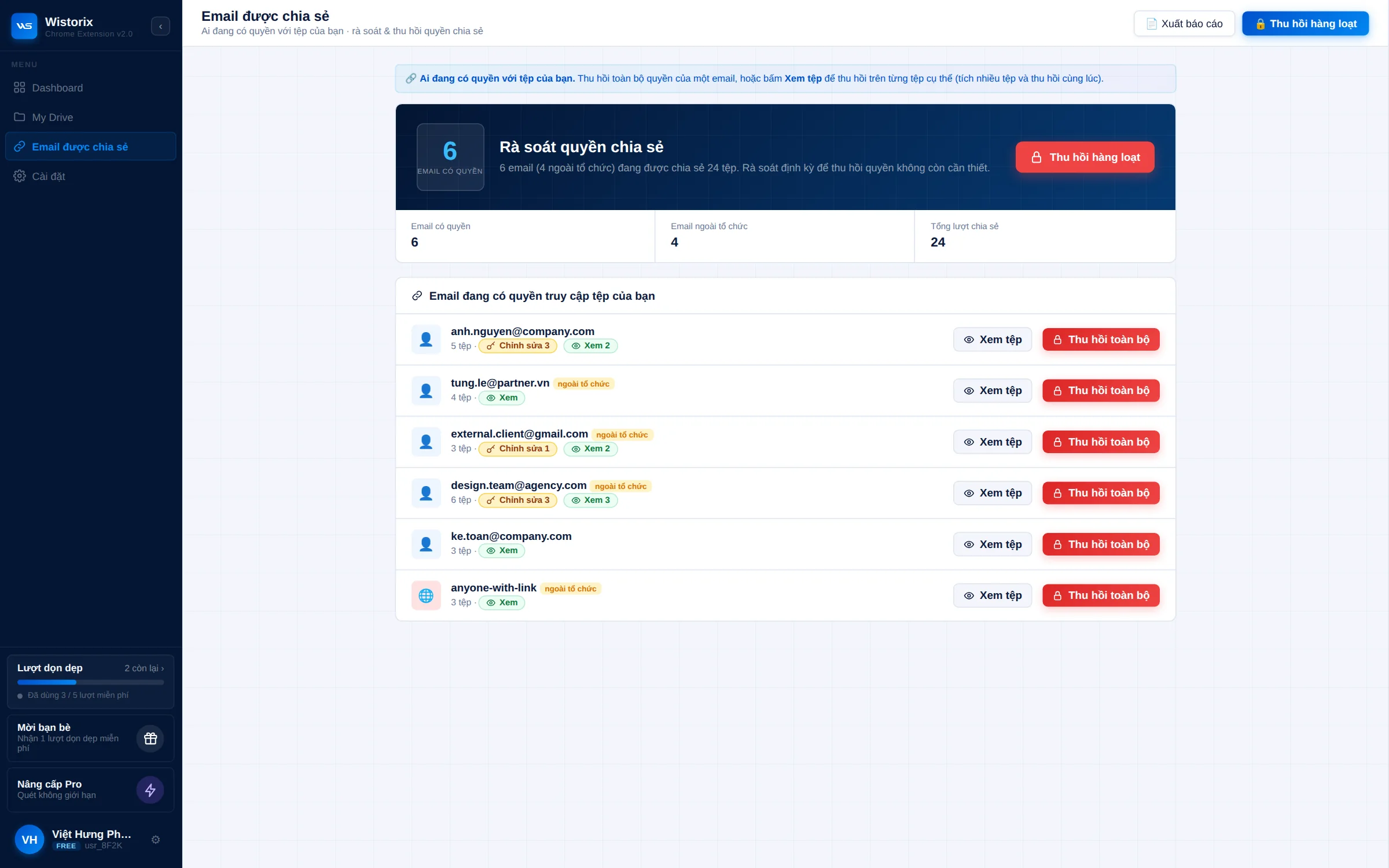
Wistorix belongs to this group. The extension scans your Drive, gives it a security score from 0 to 100, and groups what needs review: public files, sharing outside your organization, old files, duplicates and orphaned files. Each person uses it on their own Drive with no admin rights needed, and every action runs only after you confirm.
If your main goal is to free up storage, the guide to choosing a Google Drive cleaner lists what to check beyond the storage number.
Each Google Drive management tool type side by side
Put the four groups next to each other against the four questions from the start, and you will see that each kind of Drive management tool fills a different gap.
- Built-in features: good for organizing and for the history of a single file, weak when you need to see the whole Drive
- Admin console: good for policy, logs and bulk ownership transfer, only available to Workspace administrators
- Scripts and spreadsheets: flexible for any question, but costly to write, rerun and maintain
- Third-party apps: good for access and storage across the whole Drive, but need careful vetting of permissions and data handling
A common mistake is to pick a Drive management tool by the longest feature list. A tool with twenty features that cannot answer the question you face every week will not get used. Write down the three questions you need answered most often, then choose the tool that answers all three for your whole Drive.
The second mistake is using too many tools at once. Each Drive management tool you add is one more place to remember and one more app with permission to read your Drive. For most individuals and small teams, the built-in features plus one scanning tool are enough.
Five criteria for choosing a third-party Drive management tool
A third-party tool needs permission to read your Drive, so evaluate it carefully before you install it. These five criteria quickly rule out the options that do not fit.
- Permissions on the Google consent screen: it should ask only for Drive access, not for Gmail or Contacts as well
- Data it reads: only metadata such as name, size and sharing settings, never file contents
- Actions: nothing is deleted or changed automatically, and every action needs your confirmation
- Deletion with a way back: deleted files go to the Drive Trash so you can restore them when needed
- Easy disconnection: you can remove the app's access in your Google Account anytime
The last criterion applies to every app, not just a Drive management tool. Google has a page on managing connections between your Google Account and third-party apps, where you can review and remove access for each connected app.
It is worth opening that page once even if you do not plan to install anything new. Many accounts still list apps that were connected years ago for a single task, and removing the ones you no longer use takes only a few clicks.
Combining Drive management tool types by size
No single Drive management tool replaces all the others. The practical approach is to combine them based on your size and on the questions you run into most.
- Individuals and freelancers: built-in features for daily work, plus a tool that scans the whole Drive every few months
- Small teams on Workspace: add a shared folder convention, and have each person scan their own Drive regularly
- Businesses: the Admin console for policy and logs, plus a scanning tool for each employee's own review
Whatever mix you choose, give each tool one clear job. The built-in search finds a file, the scanner shows the whole picture, and the Admin console sets the rules, so nobody has to guess which tool to open.
If you are still torn between doing it yourself and using a tool, the guide to cleaning Google Drive manually compares the time and accuracy of both approaches on the same Drive.
Frequently asked questions
Are the built-in Google Drive tools enough?
They are enough for a small Drive and for checking single files. When you need to see all sharing permissions or duplicates across thousands of files, you will need a script or a specialized tool.
Is it safe to install a third-party tool?
It depends on the tool. Read the permissions on the consent screen carefully, choose a tool that reads only metadata and never acts on its own, and remember that you can remove its access anytime.
Can a personal Gmail account use the Admin console?
No. The Admin console is only available with Google Workspace. Personal users rely on built-in Drive features and third-party tools.
Should I use a script or a tool with an interface?
Scripts suit teams that have someone who writes code and very specific needs. If you want results quickly and want to act on the same screen, a tool with an interface saves more time.


sharing publicly?