

Google Drive security audit: a ten-point checklist for small businesses

A Google Drive security audit needs no technical background, only a clear idea of where to look. Google takes care of the servers and encryption. Most of the risk in a Drive comes from sharing settings, public links and files with no clear owner. This guide turns the audit into a ten-point checklist in four groups, with a manual way to run it and a faster way using a security score.
In this guide
- What a Drive security audit covers
- Group 1: account and connected apps
- Group 2: public links and sharing
- Group 3: ownership and loose files
- Group 4: old data and copies
- Run the audit with a security score
- The ten-point checklist
- Frequently asked questions
What a Google Drive security audit covers
When people hear security audit, they think of passwords and malware. Both matter, but they belong to your Google account as a whole. For Drive itself, the main question is simpler: who can open your documents right now, and do you still want them to?
Every click on Share is a small decision about access. After a few years, those small decisions add up to hundreds of permissions nobody remembers granting. A regular security audit is a pass over all of them, keeping what is still needed and removing the rest.
The checklist splits ten items into four groups: account, sharing, ownership and old data. You do not need to do all ten in one sitting. Group 2 usually has the most work and is the best place to start.
Group 1: account and connected apps
How safe your Drive is depends on the Google account that holds it. The first three checks live in the Security section of your Google Account, and Google's own Security Checkup gathers them in one place.
- Two-step verification is on, and your recovery phone and email are current
- Third-party apps with access to Drive are limited to apps you still use
- The list of signed-in devices has no unknown or old devices you sold
The second check is the one most often skipped. Each time you sign in to a tool with Google and allow it to see your Drive, it keeps that access until you remove it. Remove apps you no longer use, since you can always grant access again later.
Group 2: public links and sharing
This is the most important part of the security audit, because it decides who can open your files. Four checks:
- Files set to anyone with the link, especially customer data, finance and contracts
- Files and folders shared with outside addresses, or with personal addresses of people who left a project
- People with editor access who only need to read
- Sensitive documents that still let editors change permissions and share further
Drive has no built-in list of public files, so you either search folder by folder or use a scanning tool. The guide to finding publicly shared files in Google Drive covers both. For outside addresses, the to: search operator followed by an email lists files you shared with that person.
When you find access that is no longer needed, set the link back to Restricted, remove the address or downgrade the role to viewer. None of these deletes the file, and you can share again or revoke access anytime. Google explains each option on its page about how to stop, limit or change sharing. For a full cleanup after each project, see how to revoke access to Google Drive files in bulk.
Group 3: ownership and loose files
Every file in Drive has exactly one owner, the person with the most control over it. A security audit should check who owns the files that matter.
- Important team files owned by a personal account or by someone who has left
- Files outside every folder, which inherit no shared permissions and are easy to miss in reviews
Files outside folders show up with the is:unorganized search. They are usually files created in a hurry at the root of My Drive, or files that lost their parent folder when someone deleted a shared folder. Move them back into the right folder so they follow the project's sharing.
Group 4: old data and copies
Old files and duplicates rarely make it onto a security audit list. But a forgotten copy of a customer list in an old folder, still shared with last year's freelancer, is a real risk.
- Files older than 180 days, or copies holding sensitive data, that are still shared outside
You do not need to delete every old file. Remove sharing from files nobody uses, move them to an Archive folder and only delete copies you are sure are extra. Deleted files stay in the Google Drive Trash for 30 days, so you can restore them if needed.
Run the security audit with a security score
Running the ten checks by hand on a Drive with thousands of files takes hours. Wistorix scans the whole Drive and turns the results into a security score from 0 to 100, so you know where your Drive stands and which group to handle first.
The score starts at 100 and goes down across five risk groups, each with its own weight: public files 40, sharing outside your organization 20, files older than 180 days 15, junk, orphaned or unfiled files 15, and duplicates 10. The deduction for each group depends on the share of files affected.
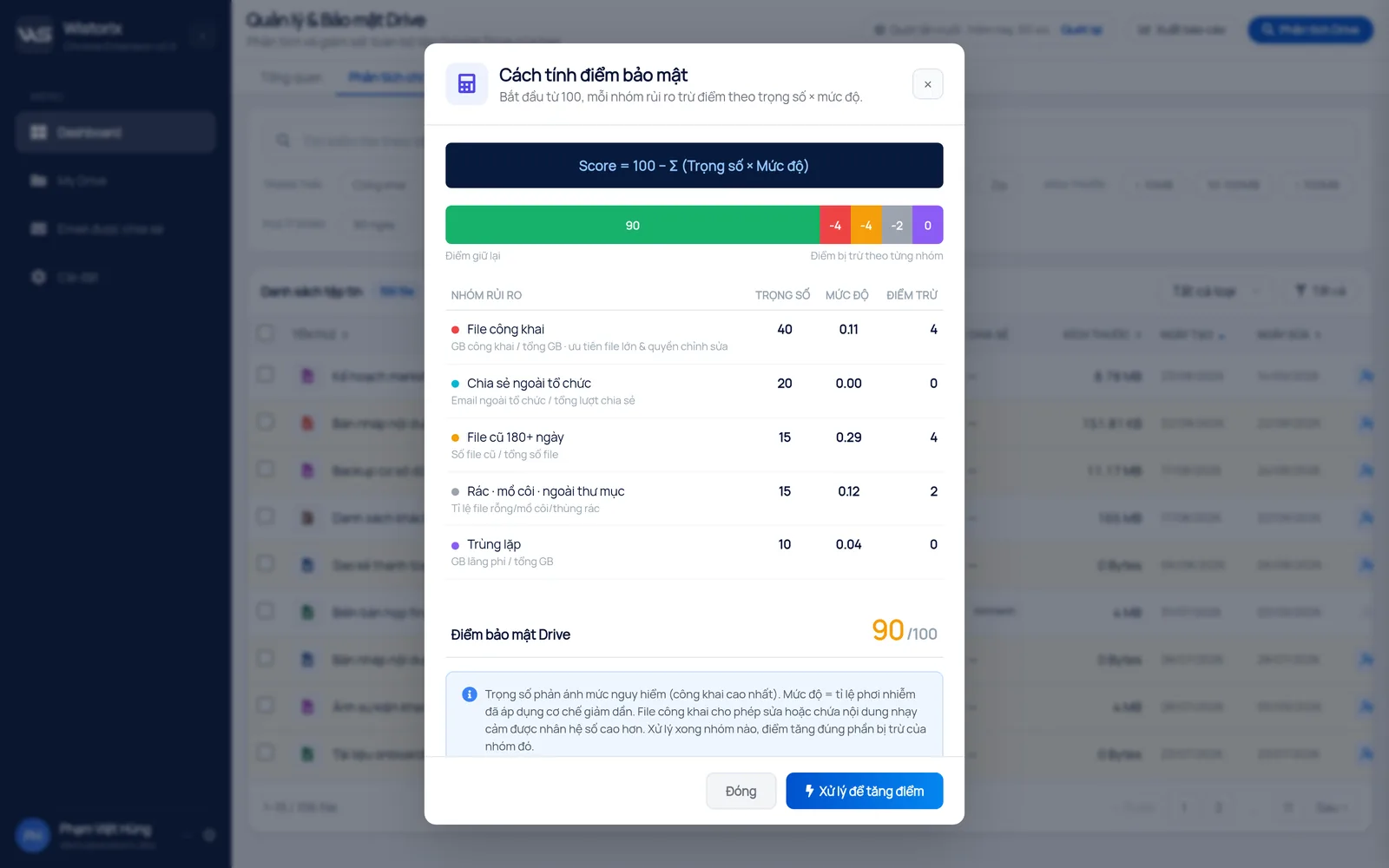
On the dashboard, the section listing what lowers your score shows which group costs the most points, with a fix button on each group. The weights make it obvious why public files come before duplicates. Every new scan updates the score so you can compare it with the last one.
Wistorix only reads metadata such as names, sizes and sharing settings, never file contents. Scans are free with no limit. Nothing changes until you click, and you can remove Wistorix's access anytime from your Google Account.
Where to start when the score is low
A low first score is normal for a Drive that has been in use for years. It reflects old habits, not a breach. Work through the groups in order of weight and the score usually climbs quickly.
- Close public links on files with customer, finance or contract data.
- Remove outside addresses that belong to finished projects or former partners.
- Take sharing off old files and move them to an Archive folder.
- File or delete loose files, then remove duplicates you are sure about.
The free plan covers changes to 25 files a month, which is usually enough for the most sensitive files in a first pass. Scanning and reading the report stay free however often you run them, so you can check progress after each step.
Keep a short note of the score and the date after each audit. Over a few quarters, that note tells you whether sharing habits are improving or whether the same problems keep coming back in the same folders.
The ten-point Google Drive security audit checklist
Here is the full checklist in one place. Save it or print it, and tick each item after every security audit.
- Two-step verification is on and recovery details are current
- Only third-party apps you still use have access
- No unknown devices are signed in
- No sensitive file is set to anyone with the link
- No unnecessary outside addresses have access
- Roles match what people need, with no extra editors
- Sensitive documents do not allow resharing
- Important files are owned by the right person or by the organization
- No files sit outside every folder
- Old files and sensitive copies are no longer shared outside
For most individuals and small teams, a good rhythm is the full checklist once a quarter and a quick look at Group 2 every month. The guide to a monthly Google Drive sharing audit explains why a small regular check beats one big cleanup. Scheduled scans with alerts for new public files (coming soon) will make the monthly part lighter.
Frequently asked questions
Google already secures Drive, so why audit it myself?
Google protects its servers and your data in transit, but it does not decide who should open your files. You grant sharing, so only you know which access is still needed and which should go.
How often should I run a security audit on Google Drive?
Run the full checklist once a quarter and check public links and outside access each month. Add an extra review when a large project ends or someone leaves the team.
What is a good security score?
The closer to 100, the lower the risk. More important than the number is which group lowers it: a few duplicates matter far less than a handful of sensitive files set to public.
Will removing access or deleting files during the audit lose data?
Removing access never deletes a file, and you can share it again anytime. Deleted files go to the Trash and stay there for 30 days so you can restore them. Wistorix never removes access or deletes anything until you click.


sharing publicly?