

How is a public Google Drive link different from Restricted?

Every Google Drive link you send carries a setting that decides who can open the file: only the people you added by name, your whole organization, or anyone who has the link. This guide explains how those three settings differ, when to use each one, how to change the setting in a few seconds and how to check which links are open across your whole Drive.
In this guide
- What a Drive link really is
- The three general access settings
- Public links compared with Restricted
- Which setting to use when
- Change the link setting in four steps
- Five common misunderstandings
- Check every open link in your Drive
- Frequently asked questions
What a Google Drive link really is
Many people think of a Google Drive link as a key: whoever has it can get in. In fact, a link is only the address of a file. Whether the person who opens it can see the file depends on the General access section of the Share dialog, not on the link itself.
This explains a familiar situation. You send the same link to two people, one opens it right away and the other sees a Request access screen. The two links are identical. The only difference is that the first person was added to the sharing list and the second was not.
So before you send any Google Drive link, the question to ask is not who you are sending it to, but who the link is open to. The two questions sound alike, but they lead to very different results.
The three general access settings for a Google Drive link
In the Share dialog, the General access section has up to three options. Personal Gmail accounts see two of them, while Google Workspace accounts also see an option named after their organization.
Restricted
With Restricted, only people added by email can open the file. Anyone else with the link has to click Request access and wait for you to approve. This is the default for new files and also the safest setting.
Your organization
With a Google Workspace account, you can open a Google Drive link to the whole company. Anyone signed in with a company email who has the link can open the file, while people outside the company cannot. This setting suits internal documents everyone uses, such as processes, forms and the employee handbook.
Anyone with the link
When you choose anyone with the link, the file opens for whoever has the link, including people who are not signed in to Google. You do not know who opened it, and the link can be forwarded many times without you knowing. This is what most people mean by a public Google Drive link.
Besides the access setting, each link also comes with a role. The role decides what the person who opens it can do with the file:
- Viewer: can only read, but by default can still download, print and copy
- Commenter: can read and leave comments or suggest edits
- Editor: can change the content and, by default, can also share the file with others
How a public Google Drive link differs from Restricted
The biggest difference is who controls the list of viewers. With Restricted, you decide person by person. With a public link, the link decides for you: whoever has it gets in.
- Viewer list: Restricted keeps a clear list of email addresses, while a public link has no list at all
- Sign-in: Restricted requires signing in with the right email, while a public link needs no sign-in
- Forwarding: a Restricted link sent to the wrong person still cannot be opened, while a public link sent to the wrong person opens right away
- Removing access: with Restricted you remove people one by one, while a public link can only be closed by changing the whole setting
Public links are not bad. They fit documents you really want anyone to read, such as a product brochure or a company profile. The problem only appears when a Google Drive link is made public for a temporary task and then forgotten once the task is done.
A common example is a folder opened to anyone with the link so a printer or a video crew could download large files quickly. The job ends in a week, but the link stays open for years, and new files keep landing in that folder. Nobody made a bad decision, yet the result is a public folder that nobody is watching.
Which setting to use in each situation
One simple rule helps you choose quickly: start with Restricted and widen access only when there is a specific reason. The list below suggests settings for common situations.
- Contracts, private quotes and HR records: Restricted, adding exactly the recipient's email
- Internal documents the whole company uses: your organization, with the Viewer role
- Files sent to a client for review: Restricted with the client's email, with the Commenter role
- Marketing material you want to spread: anyone with the link, with the Viewer role
- Working folders shared with freelancers: Restricted, with access granted by folder rather than by file
If you need to send a file to someone without a Google account, a public link is the only option inside Drive. In that case, put the file in a separate folder and close the link as soon as the recipient has downloaded it. The guide on how to share Google Drive files safely adds more on expiration dates and client permissions.
How to change a Google Drive link setting in four steps
Changing the setting takes a few seconds and applies immediately to everyone who holds the link. The steps below are for a desktop browser, following Google's guide on how to share files from Google Drive.
- Right-click the file or folder, choose Share and then Share again
- Find the General access section in the lower half of the dialog
- Click the name of the current setting and choose Restricted, your organization or anyone with the link
- Choose the role on the right, then click Done to save
When you switch from public to Restricted, people you added by email keep their access. Only people who opened the file through the link without being on the list lose access, and if you change the setting by mistake, you can share it again any time.
Five common misunderstandings about shared links
The misunderstandings below are the most common reasons a file stays public even though its owner believes it has been closed.
- Deleting the message that contained a link does not close the link. It keeps working until you change the setting
- Files inside a folder inherit the folder's access. Making a folder public makes every file inside it public
- A shortened link does not change access. It is just another address pointing to the same file
- Editors can share the file further. To prevent it, turn off the option that lets editors change permissions
- A link nobody can guess is not a link nobody has. Links get pasted into emails, group chats and other documents and travel further than you think
The second point deserves the most attention. A project folder made public last year may now contain files added this week, because new files automatically take on the access of their parent folder.
Check every open Google Drive link in your Drive
With a handful of files, you can open each Share dialog to check. With hundreds of files, that is not realistic. Google Drive also has no built-in filter that lists every file set to anyone with the link.
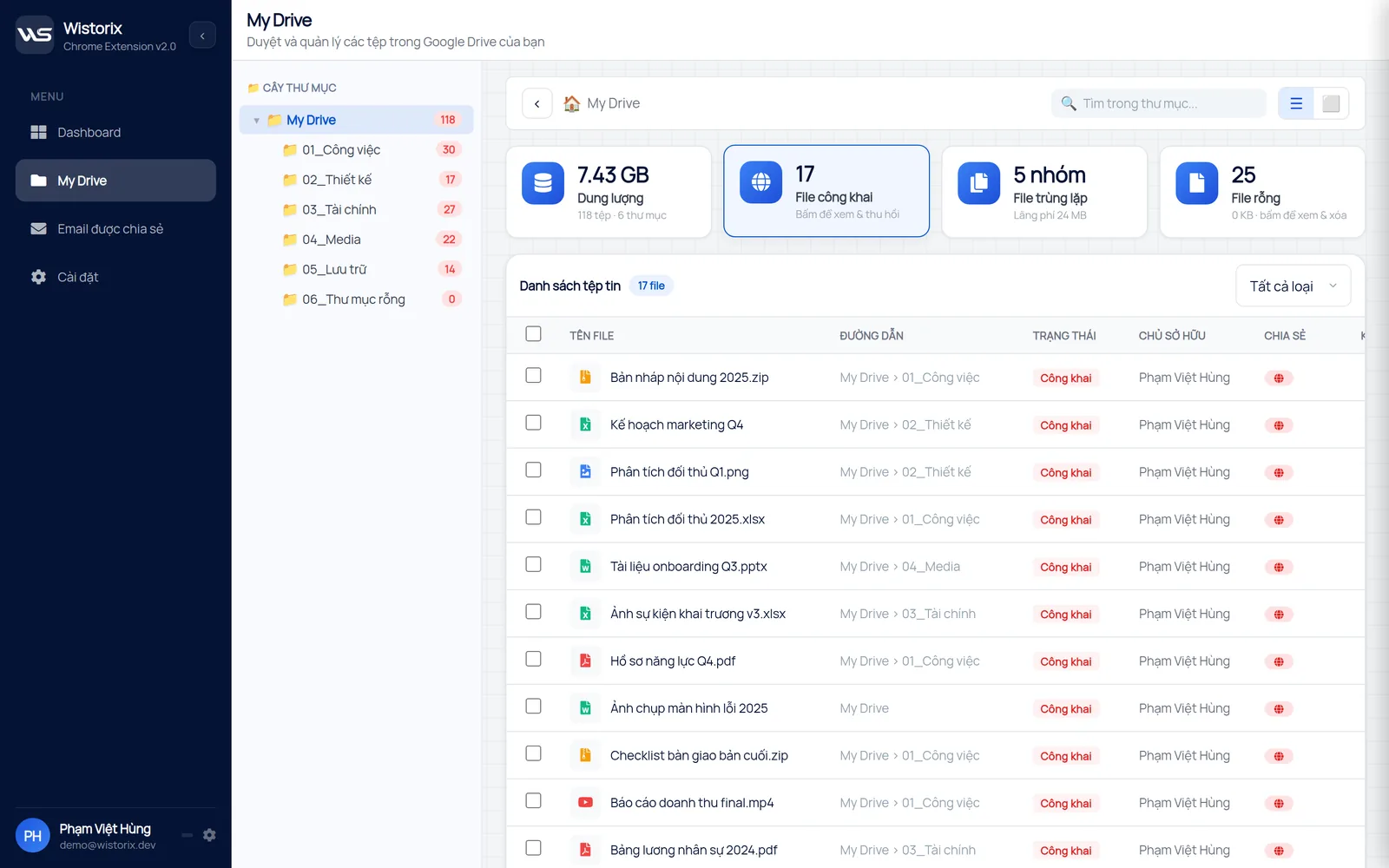
Wistorix scans your whole Drive and gathers every file with a public link into one list, with its folder path, owner and last modified date. You select many files and switch them back to Restricted in one action. Wistorix reads file metadata such as names and sharing settings, never file contents, and you can remove its access any time from your Google Account.
Scanning is free and works with personal Gmail accounts and Google Workspace accounts without admin rights. Nothing changes until you confirm, so you can review the list first and decide which Google Drive link should stay public.
If you prefer to do it by hand, the guide to finding publicly shared files in Google Drive walks through each step using the Drive search box. When you need to see exactly who has access to one file, read who has access to my Google Drive.
Frequently asked questions
Does a Google Drive link expire on its own?
No. A link keeps its setting until you change it. Google Workspace accounts can set an expiration date on an individual person's access, but not on the anyone with the link setting.
Can I see who opened a public link?
Usually not. People who open a public link without signing in show up as anonymous viewers, and personal accounts do not have the detailed activity logs that Google Workspace offers.
Does switching to Restricted remove access for people added by email?
No. People added by email keep their role. Only people who opened the file through the link without being on the list are blocked.
Should I use a public link for a project folder?
Only if every file in the folder can be public, including files added later. For working folders, Restricted with a list of email addresses is safer and easier to clean up when the project ends.



sharing publicly?