

How to share Google Drive files safely: set limits, pick roles and revoke

A few simple rules let you share Google Drive files safely while working just as fast as before. This guide walks through three core principles, the settings in the Google Drive Share dialog that most people never notice, and how to keep the list of people with access short and tidy.
In this guide
- It starts with the Share dialog
- Step 1: Share by email and limit public links
- Step 2: Give the right role, never more
- Step 3: Schedule a review
- Checklist to share Google Drive files safely
- Sharing with clients and partners
- Frequently asked questions
To share Google Drive files safely, start with the Share dialog
Every time you share, you are really making two decisions. The first is who gets in: specific people by email, or anyone with the link. The second is what they can do: view, comment or edit.
The general access setting has three options: Restricted, your organization (only on Workspace accounts) and Anyone with the link. Restricted means only people added by email can open the file. That is the best starting point whenever you share Google Drive files.
Google describes every option on its page about how to share files from Google Drive. The three steps below turn those options into habits you can follow every day.
Step 1: Share by email and limit public links
The first rule to share Google Drive files safely is to share by email. Access is then tied to a specific account, you can remove it anytime and you can see who has opened the file. A link set to Anyone with the link works the other way around: whoever holds the link can get in, and you have no idea where the link has traveled.
When a public link still makes sense
Public links are not always wrong. They make sense for documents that are meant for everyone, such as a public product overview, a public form or a file attached to your website. For those files, sharing safely means setting the role to Viewer and checking that the file contains no internal information.
- Use a public link for marketing material, public forms and files offered for download on your website
- Share by email for contracts, quotes, customer data and project documents
- Share with your organization for internal documents meant for the whole company on Workspace
If you suspect your Drive holds many forgotten public links, the guide to finding publicly shared files in Google Drive shows how to find them and close them in bulk.
A small habit before you send a link
Before you paste a link into a team chat or an email, open the Share dialog once and check the general access level. It takes five seconds and prevents most sharing mistakes. If you are sending to a large group, add each email address instead of turning on a public link.
When you get an access request from an address you do not know, do not approve it right away. Ask the person you sent the link to whether they forwarded it, then decide. This simple habit helps you share Google Drive files safely in your everyday work.
Step 2: Give the right role, never more
Google Drive has three roles: Viewer, Commenter and Editor. Make Viewer your default and only raise it to Editor when it is truly needed. Setting the right role from the start is how you share Google Drive files safely without having to clean up later.
Choose the role by what the person needs to do
- Viewer: can read the file and download it if allowed, but cannot edit
- Commenter: can read and leave feedback, but cannot change the content
- Editor: can change the content and, by default, can also share the file with others
The last line is the one people miss. By default an editor can add other people to the file, which means access can spread beyond your control.
Three settings that make sharing safer
In the Share dialog, click the settings icon to see the advanced options. Only the owner of the file can change these settings.
- Uncheck the option that lets editors change permissions and share, so only you decide who gets in.
- Stop viewers and commenters from downloading, copying and printing on sensitive documents.
- On Workspace accounts, set an expiration date for each person's access, up to one year from the day you set it.
An expiration date only applies to people you share with by email, not to public links, and it is not available on personal Google accounts. Google explains the details on its page about how to stop, limit or change sharing.
Sharing a folder needs more care than sharing a file
Files in a shared folder always inherit the folder's access. When you add someone to a folder, they see every file in it today and every file added later. Move sensitive documents into a separate folder before you share a project folder with a partner.
Step 3: Schedule a review
To share Google Drive files safely over the long term, remember that sharing does not expire on its own. Without a review, the list of people with access only grows over time. A good habit is to check every quarter, and always when a project ends.
A review never removes your work: taking away access only closes the door, the file stays in your Drive, and you can share it again or revoke it any time.
Review by person instead of by file
Opening files one by one to see who has access is the slowest way to review. A faster way is to look by person: which addresses have access to how many files, and which of them no longer work with you. The shared emails screen in Wistorix does exactly this and lets you revoke all of one address's access in a single action.
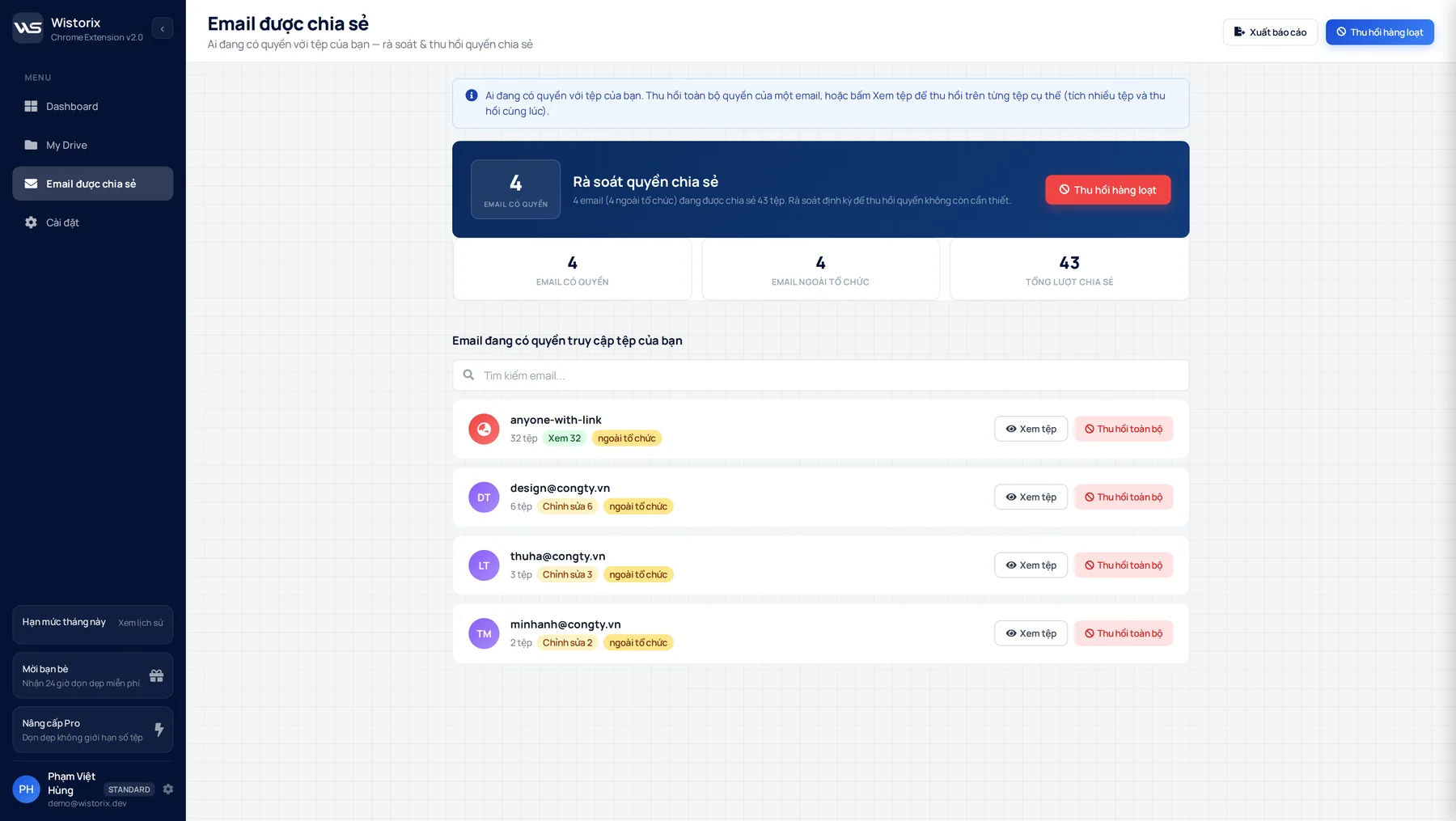
If you revoke access by mistake, just share the file again in Drive as usual. Wistorix only changes permissions when you click and never reads file contents. See which risk groups each scan flags on the sharing risk scan page.
Checklist to share Google Drive files safely
Here is the short version to keep next to your desk:
- Share by email rather than with a public link
- Make Viewer the default role
- Turn off resharing by editors on important documents
- Limit downloads on sensitive documents
- Keep sensitive documents out of folders shared with partners
- Review the list of people with access every quarter
- Revoke access as soon as a project ends
Wistorix is working on time-limited sharing (coming soon), with links that stop working after 24 hours or 7 days, so you will not need to remember to revoke them by hand. Until then, a quarterly review is the simplest way to share Google Drive files safely for the long run.
How to share Google Drive files safely with clients and partners
Agencies and freelancers share the most, and their access tends to last the longest. When a project ends, the client often still has edit rights on the working folder, and the printing partner still holds a link to the source files.
- Sending drafts to a client for feedback: use Commenter instead of Editor
- Delivering the final work: transfer ownership or send a copy, then revoke access to the working folder
- Working with short-term contractors: share by email and put the date to revoke access in your calendar
A simple rule helps here: give every client project one shared folder, created at kickoff and reviewed at handover. When you share Google Drive files through that one folder instead of file by file, closing access at the end takes a minute instead of an afternoon. It also makes it easy to tell a client exactly which files they can still open.
When someone on your own team leaves, the list to check is much longer. The guide on how to remove employee access in Google Drive has a full checklist for that case.
Frequently asked questions
Can I set an expiration date on a Drive sharing link?
Google Drive lets you set an expiration date for people you share with by email on Workspace accounts, up to one year. Links set to Anyone with the link have no expiration date, so you need to revoke them yourself when they are no longer used.
Does blocking downloads stop viewers from copying the content?
This setting hides the download, copy and print options for viewers and commenters. It lowers the risk but cannot block every method, such as taking a screenshot. For truly sensitive documents, limit who can view them from the start.
How do I share safely with someone who does not use Gmail?
Share by email as usual. The recipient needs to sign in with a Google Account linked to that email address, which they can create for free using their existing address. This is still safer than sending a public link.
Does Google notify people when I remove their access?
Google Drive does not send a notification when you remove someone's access. They only find out when they open the file again and see a message that they need access.



sharing publicly?