

How to check and remove employee access in Google Drive during offboarding

The checklist below helps you review and remove employee access in Google Drive in a systematic way when someone leaves your organization, so no file is lost and no permission is overlooked. You will see which three groups of files to review, the order to work in, and what records to keep once you are done.
In this guide
- Why Drive needs its own offboarding check
- Step 1: Files they own
- Step 2: Files shared with them
- Step 3: Public links they created
- Shared folders and shared drives
- Offboarding checklist and timeline
- Make the next offboarding lighter
- Frequently asked questions
Why you need to check employee access in Google Drive
A typical offboarding process has a clear list for devices, email and paid software. Google Drive is different, because access does not live in one place. It is spread across individual files, folders and links that were sent out years ago.
Locking the company account closes the main door, but not every door. If the person was ever given documents through a personal email address, or still holds a public link, they can open those files after their last day. The good news is that all of this access can be removed, and the check only needs to follow the right order.
The right order: hand over first, lock later
The most important rule is not to lock or delete the account before the files are handed over. In Google Workspace, files owned by a deleted user are kept for only 20 days and can only be reached again by restoring the account. Google lists several ways to keep a former employee's data on its page about data retention options for former employees.
Step 1: Files they own
This is the most important group when you review employee access, because these files go away when the account is deleted. Filter by owner, hand the files over first, then lock the account, never the other way around.
For this group, the person leaving can list their own files by typing owner:me in the Drive search box. Google Workspace admins also have the data transfer tool in the Admin console to move everything to one recipient in bulk.
- Client documents and contracts that are still active
- Spreadsheets with figures and recurring reports
- Project folders that other people are still working in
- Google Forms that are still collecting responses
The detailed steps for changing owners, including what to do when the recipient has not accepted yet, are in the guide on how to transfer ownership of Google Drive files when an employee leaves.
Step 2: Files shared with them
The second step in reviewing employee access is to look at internal documents the account can still view or edit. If the person ever used a personal email address to open them, locking the company account will not cut off that access.
Check employee access by email address
The most effective way to review employee access is to look by person rather than by file. Make a list of every email address the departing person used, including their company address and any personal addresses they used for work. Then find every file shared with those addresses.
In Google Drive, the to: operator followed by an email address shows the files you have shared with that person. It is useful, but it only covers files you own, so each team member needs to check their own Drive as well.
Remove access by email with Wistorix
The shared emails screen in Wistorix lists every address with access to your Drive, along with the number of files and the role for each one. Addresses outside your organization are listed separately, so you can remove all of one address's access in a single action, or open the files and remove access selectively.
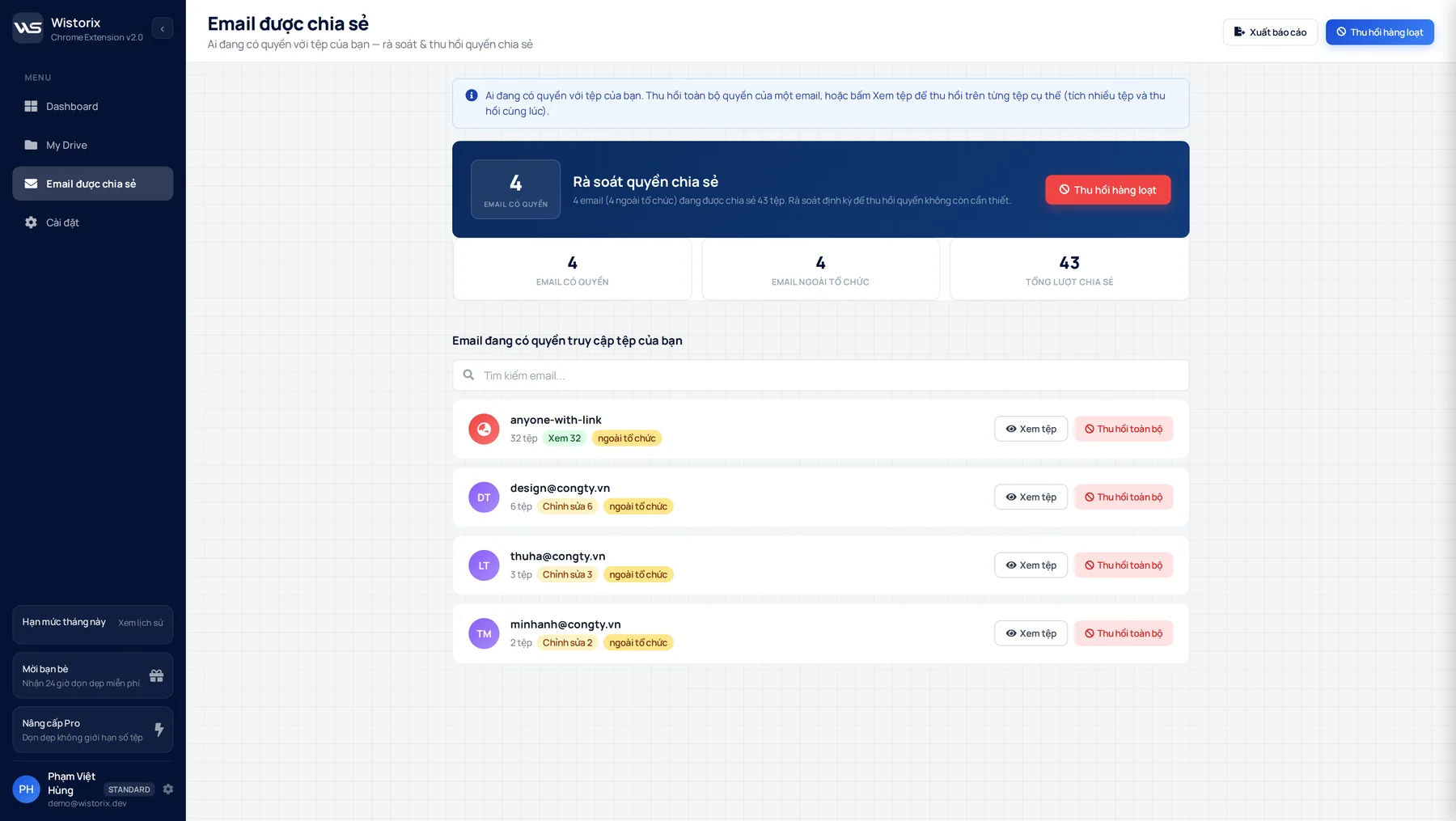
If you remove access by mistake, simply share the file with that address again in Drive. Google's guide to stopping, limiting or changing sharing covers every option. Wistorix only changes permissions after you confirm, and it reads file metadata, never file contents.
Step 3: Public links they created
Links set to anyone with the link that this person created keep working after they leave. This is the part that is most often forgotten, because a link is not tied to anyone's name. The person may have saved links in notes or chat history, or sent them to partners the company no longer works with.
For files the person owned, public links move with the file to the new owner. So the recipient should check for leftover employee access on the files they just received and close any public links that are no longer needed. The guide to finding publicly shared files in Google Drive shows how to find and close them in bulk.
Employee access in shared folders and shared drives
Shared folders are where employee access lasts longest. If the departing person owns or manages a folder, every file inside inherits its sharing. Review folders before single files, since fixing a parent folder applies to everything below it.
In a Google Workspace shared drive, files belong to the organization, so they stay when an account is deleted. The person can still be a member or manager of that shared drive, though. Remove their membership and make sure at least one other active manager remains.
- Folders the person created: transfer ownership of the folder and the files inside
- Folders the person was invited to: remove them at folder level
- Shared drives: remove their membership and add a replacement manager
Shared folders with clients deserve a second look. If the departing person was the one who invited the client, the client may now have no clear contact on your side, so decide who takes over that relationship before you change any access.
Offboarding checklist for employee access in Google Drive
Your review should cover the following items:
- The list of files the account owns
- Access that is still active on internal documents
- Public links the account created
- Shared folders the person manages
- Personal email addresses the person used to open company documents
- A saved handover log
Suggested timeline
- One week before: list the related email addresses and the files the person owns.
- Three days before: move ownership to the recipients and follow up on pending requests.
- Last day: remove access on internal documents and close public links that are no longer needed.
- After they leave: suspend the account, run a final employee access check and save the log.
- A few weeks later: delete the account once you are sure nothing else needs to be kept.
This timeline can be shorter for someone who worked with few documents, or longer for a manager. What matters is that each step has a named person responsible and leaves a record.
Keep the log simple: the date, the addresses you removed, the files that changed owner and who received them. When a former colleague or a client asks why a link stopped working, the answer is already written down.
Make the next offboarding lighter
A regular review works better than a review after something goes wrong. Many organizations only find gaps once documents have been shared outside the company for a long time. If you check employee access every quarter, the next offboarding will only involve a few small tasks.
- Use Google Workspace shared drives for team documents, since files there belong to the organization, not to one person
- Share with company email addresses and avoid granting access to personal ones
- Make viewer the default role and raise it only when needed
- Name an owner for each project folder
After each scan, Wistorix gives your Drive a security score from 0 to 100, so you can see its current state at a glance. The sharing risk scan page shows the risk groups it looks for.
Scanning is free and works with personal Gmail accounts as well as Google Workspace accounts. Nothing changes in your Drive until you review the results and confirm an action, and you can remove Wistorix's own access anytime from your Google Account.
Frequently asked questions
Does locking the company account remove all Drive access?
Not entirely. Locking the account removes that account's own access, but not access granted to the person's personal email address, and it does not close public links. You need to remove those two groups separately.
Who should review employee access when someone leaves?
The person leaving reviews the files they own, the direct manager decides who receives them, and the Workspace admin handles the data transfer and the account suspension. Each colleague should also check the files they shared with the person leaving.
Do I need admin rights to use Wistorix?
No. Each person uses Wistorix on their own Drive and signs in through Google's consent screen. The Workspace admin still handles organization-wide data transfers.
How long should a suspended account be kept?
It depends on your organization's policy, usually from a few weeks to a few months. Suspending gives you time to spot missed files before deletion, because after deletion you only have 20 days to restore the account.



sharing publicly?