

How to transfer ownership of Google Drive files when an employee leaves

When someone leaves your team, you need to transfer ownership of their Google Drive files to a colleague before the account is suspended or deleted. This guide walks through a three-step process, the limits Google sets for each type of account, and how to handle the job in bulk when the files number in the hundreds.
In this guide
- Why ownership matters before someone leaves
- Step 1: Find the files the departing person owns
- Step 2: Move ownership to the people who stay
- Step 3: Keep a handover log
- A handover timeline for departing employees
- Common handover mistakes
- Frequently asked questions
Why you should transfer ownership before the last day
In Google Drive, every file has exactly one owner. The file counts against the owner's storage, and what happens to the file is tied to what happens to that account. Everyone else, even people with edit rights, is only a collaborator.
In Google Workspace, when an admin deletes a user, the files that user owns are kept for 20 more days and can only be reached again by restoring the account. After that window, the files are deleted unless they were moved to someone else first. Google explains the admin side in its guide to transferring Drive files to a new owner.
So the decision to transfer ownership is not a formality. Done early, everything stays tidy and every document has a clear home. Those 20 days are a last safety net, not a plan.
The same logic applies to smaller teams on personal Gmail accounts. If a freelancer or a teammate closes an account that owns your shared project files, those files leave with the account. Moving ownership while the person is still around is the only step that keeps the documents with the team.
Step 1: Find the files the departing person owns
Sharing and owning are two different things. Someone can share a file with you as an editor and still be its owner. You need to filter by the owner field to know exactly which files depend on the account that is about to close.
Filter by file owner in Google Drive
The person leaving can list their own files by typing owner:me in the Drive search box. As a manager, you can type owner: followed by their email address to see the files they own that are also shared with you. That result is not complete, because you only see files that were shared with you.
A more reliable approach is to have the departing person review their own Drive, or to have a Google Workspace admin use the data transfer tool in the Admin console. Start at least one week before the last working day, while the person can still answer questions about each folder.
Group the files by recipient
- Client documents: to the person who manages that client
- Files for active projects: to the project lead
- Templates and internal processes: to the department head
- Personal files unrelated to work: the person downloads them
- Drafts and duplicates: review and handle them before the handover
Grouping first means you transfer ownership once per recipient instead of file by file. It also gives each recipient a clear picture of what they are taking on, and it shows early whether any file has no obvious new home.
Step 2: Transfer ownership to the people who stay
To change the owner directly in Google Drive, open the file, click Share, find the recipient in the list of people with access and change their role to Owner. The recipient must already have access to the file. After the change, the previous owner becomes an editor.
Personal accounts and Google Workspace accounts
With a personal Google account, ownership only changes once the recipient accepts the request. Until then, you stay the owner and can cancel the request. You cannot move a file from a personal account to a work or school account.
With a Google Workspace account, you can only transfer ownership to someone in the same organization, and the recipient does not need to accept. Google covers each case in its guide to making someone else the owner of a file.
Watch out when you hand over a folder
When you change the owner of a folder, the files inside it still belong to you. For a complete handover, you have to transfer ownership of the files inside the folder, not just the folder itself. This is where many teams believe the handover is finished when only the outer shell has moved.
For a handful of files, doing it by hand is fine. For several hundred files spread across nested folders, you need a way to select in bulk and review the list before anything changes.
Move files in bulk with Wistorix
Wistorix lets you select many files or a whole folder and transfer ownership in one action, after you review the list and confirm. It reads file metadata only, such as names, owners and sharing settings, never file contents. It works with personal Gmail accounts and Google Workspace accounts, with no admin rights needed.
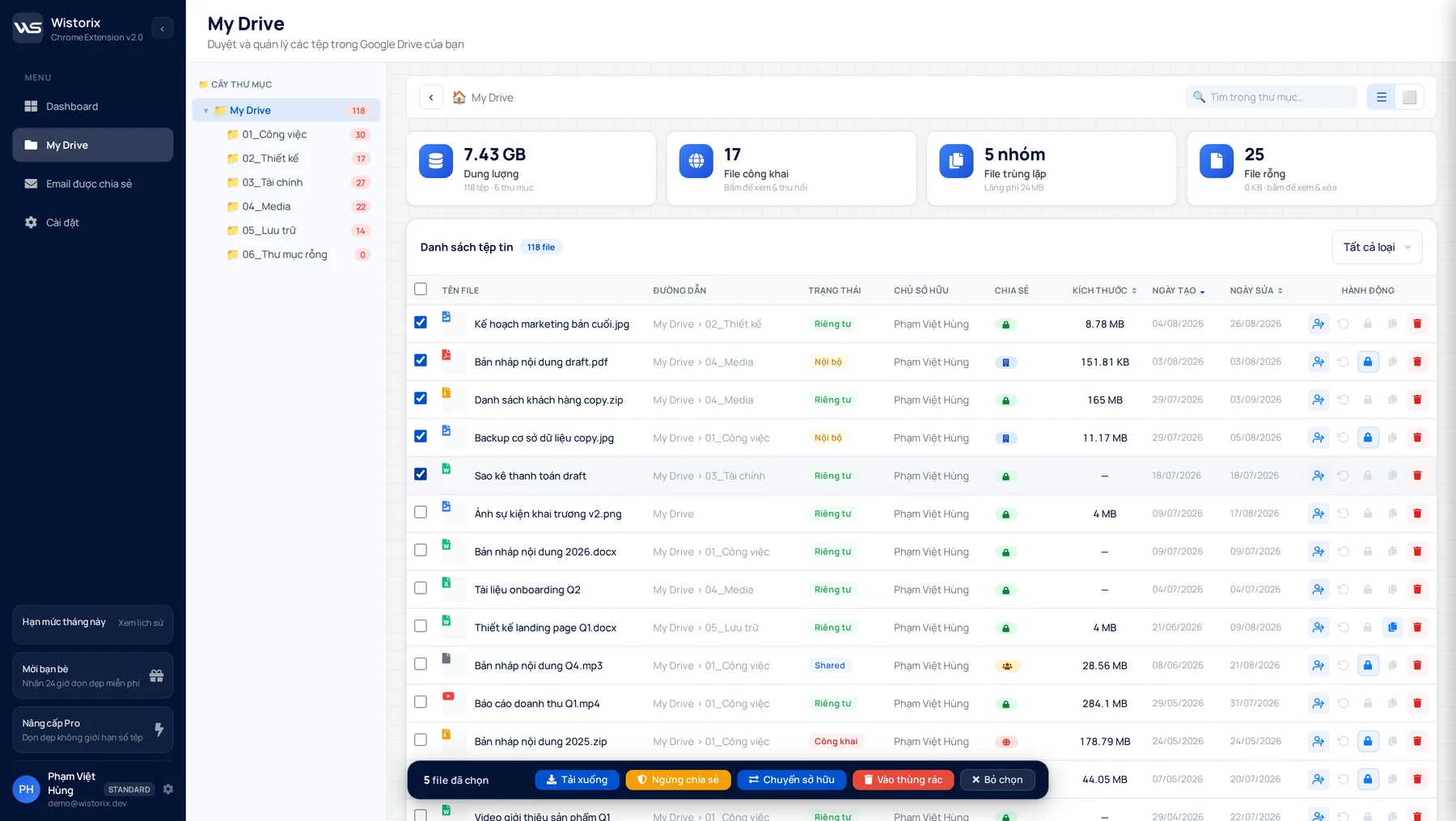
See how it works on the ownership transfer page. Nothing runs until you click to confirm, and you can remove Wistorix's own access anytime from the Security section of your Google Account.
Step 3: Keep a handover log
Once the files have moved, keep a record of which files were handed over, who received them and when. You will need it if questions about a document come up months later. A handover log also tells each recipient what they now hold.
Wistorix can export a report of the file list before you act on anything, which makes a good starting point for the log. If you work by hand in Drive, a simple spreadsheet with four columns is enough: file name, folder path, recipient and transfer date.
A clean offboarding process for Drive looks like this:
- Filter every file the departing person owns
- Choose a recipient for each group of documents
- Transfer ownership in bulk in one pass
- Remove the old account's access
- Export the handover log and file it with the employee records
A handover timeline for departing employees
Do this work before the person's last day, not after. Once the account is locked, the person can no longer sign in to confirm anything or explain which files matter. A sensible timeline for a departing employee looks like this:
- Two weeks before: tell the person and their direct manager that a Drive handover is coming.
- One week before: filter files by owner and group them by recipient.
- Three days before: transfer ownership for each group and follow up on pending requests.
- Last day: check the list again, save the log and remove the old account's access.
- After they leave: the admin suspends the account first and deletes it only once nothing else needs to be kept.
Suspending the account instead of deleting it right away gives you time to spot files that were missed. Removing leftover access and checking public links are covered step by step in the guide to removing employee access in Google Drive.
The timeline can be shorter for someone who worked with few documents, or longer for a manager who owns years of team files. What matters is that each step has a named person responsible and leaves a trace in the log.
Common mistakes when you transfer ownership in Google Drive
Most problems during a Drive handover do not come from clicking the wrong button. They come from starting too close to the last day, or from skipping a step. Here are the most common mistakes and how to avoid them.
- Deleting the account first and moving files later: suspend the account first, delete it only after the handover is done
- Moving only the folder and forgetting the files inside: check the owner of each file after the transfer
- Sending requests the recipient never accepts: follow the pending list until it is empty
- Forgetting public links the person created: review links before closing the account
- Not recording who received which file: write the log as you go, not when someone asks
Each of these mistakes can be fixed if you catch it early. Access you removed by mistake can be granted again, since you can share it again in seconds. A pending request can be sent again, and files that have not been deleted are still there to move.
Storage is worth a thought as well, since a file counts against its owner's quota. When you transfer ownership, that storage moves to the recipient's account. Check that the recipient has enough free space, especially for large videos and design files.
Finally, there is no undo button for an ownership change itself. If a file went to the wrong person, that person has to make you or the right colleague the owner again, so check each group before you confirm.
Frequently asked questions
Does the recipient have to accept the new ownership?
With a personal Google account, yes: the recipient has to accept the request before anything changes. With Google Workspace, a transfer inside the same organization does not need the recipient to accept.
What access does the previous owner keep after the transfer?
The previous owner becomes an editor. The new owner can keep that access or remove it, depending on what the handover needs.
Can I get files back after the account has been deleted?
In Google Workspace, an admin has 20 days to restore a deleted user, and files that were not moved come back with the account. After that, the data cannot be recovered, so transfer ownership before you delete the account.
Can I transfer ownership to someone outside the company?
In Google Workspace, Google only allows ownership changes inside the same organization. If you need to hand documents to a client or partner, share access or send a copy instead.



sharing publicly?