

Client file management across the whole project lifecycle

Client file management is something freelancers and agencies do every day, yet few of them have a clear process for it. Client files arrive by email, chat apps and Drive links, drafts go out over many review rounds, and when the project is done, access is still wide open. This guide splits the work into the four stages of a project, each with specific tasks to do in Google Drive.
In this guide
- Why client files are different from internal files
- Stage 1: Take on the work and open the client folder
- Stage 2: Collect inputs from the client
- Stage 3: Send drafts and collect feedback
- Stage 4: Sign-off, handover and closing the folder
- Client file management for freelancers and agencies
- Common mistakes when working with client files
- Frequently asked questions
Why client file management is different from internal files
Only your team looks at internal files, while client file management always involves people outside. Client files have at least two sides, you and the client, and sometimes freelancers, printers or video crews as well. Each side needs to see a different part, and that part changes as the project moves through its stages.
The second difference is responsibility. Documents a client gives you, such as their customer data, photos of products that have not launched yet or internal pricing, are things you are holding on their behalf. When the project ends, the client expects those documents not to be scattered across the Drives of your freelancers.
So good client file management has to answer three questions at any moment: where this client's files are, who can open them, and where they will go once the project is done. The four stages below help you answer those questions without keeping everything in your head.
Stage 1: Take on the work and open the client folder
The first step of client file management is to create a top folder for the client as soon as they confirm, with one subfolder per project inside it. Name them with a client code and a project code, for example ACME, then ACME_2026_Website. That way every file for a client sits in the same branch, however many projects you do for them.
Inside each project, set up a fixed set of folders such as Contracts, Inputs, Production, Client delivery and Reports. If you do not have a template yet, the guide to a Google Drive folder structure includes a three-level tree you can copy.
- Create the client folder and the project folder using consistent codes
- Write a short readme file with the client contact, the email to share with and the delivery deadline
- Save the signed contract and the approved quote in the Contracts folder
- Decide in advance which folders the client is allowed to see
That last task saves you from fixing permissions later. Usually the client only needs to see the Client delivery folder, while the Production folder is where the team works on drafts.
Stage 2: Collect inputs from the client
Inputs usually arrive through many channels: email attachments, links to the client's own Drive and files sent through messaging apps. At this stage, client file management means bringing everything into one place, the Inputs folder, and renaming each file by your naming rule as soon as it arrives.
For files the client shares from their own Drive, you have two options. Keep the link if the client is still updating that file, or make a copy in your Drive if you need a fixed version. You own the copy and it counts toward your storage, so only copy what you really need.
If you need the client to send you files, create a separate subfolder inside Inputs and give Editor access to the client's exact email address. Avoid turning on anyone with the link with editing rights, because anyone with the link could drop files in or change the files already there.
Stage 3: Send drafts and collect feedback
In client file management, this is the stage with the most files and the most confusion. Every review round produces a new version, the client comments on an old one and the team edits yet another. The simplest rule is to make each delivery to the client its own subfolder inside Client delivery, with the date in the name: 2026-09-10_Round-1, 2026-09-17_Round-2.
Share with the client at the level of the Client delivery folder, using the Commenter role. The client can open every delivery and leave comments directly on the files, but cannot edit or delete your versions. When a new round is ready, you just place the files in the folder and the client sees them without being shared again.
Keeping review rounds in dated folders also gives you a record of what was sent and when. If the client asks which version they approved, the answer is the folder name rather than a search through old emails.
If you need to send files to a third party such as a printer, share exactly those files by email and remove access once they have received them. Settings that limit downloading, copying and printing are covered in Google's guide on how to stop, limit or change sharing.
Stage 4: Sign-off, handover and closing the folder
The last stage decides whether client file management is complete. If the project is done but the folder is never closed, access stays open, drafts stay where they are and six months later nobody remembers which file is final.
- Collect the final delivery files in a separate folder with Handover and the date in its name
- Transfer ownership of the handover set to the client, or send them a copy, as agreed in the contract
- Remove access for freelancers and third parties from the entire project
- Lower the client's access to Viewer, or remove it fully after a support period
- Move the project folder into your Archive area
In client file management, removing access is the step most often skipped, because you have to open each file to see who still has access. Working by email address instead of by file is explained in the guide on how to revoke access in Google Drive after a project ends. Removing access does not delete files, and you can share them again any time if the client needs to look back.
Client file management for freelancers and agencies
Freelancers and agencies go through the same four stages, but they need to watch different things. Knowing the difference helps you decide which tasks to prioritize.
For freelancers
Freelancers often use one personal Google account for every client. The biggest risks are files from different clients getting mixed together and the free 15 GB filling up quickly with heavy design files and videos. One top folder per client, plus the habit of moving finished projects into an Archive folder and downloading them with Google Takeout when needed, keeps Drive tidy.
For agencies
At an agency, many people touch the same client's files, and staff change often. The point to watch is ownership: a file created by an employee belongs to that employee's account. If you use Google Workspace, each client should get its own shared drive, so the files belong to the company and do not leave with the person who leaves.
For both freelancers and agencies, one shared set of rules, like the ones in the guide on how to organize Google Drive across many projects, means every client is handled the same way.
Common mistakes when working with client files
Most problems in client file management do not come from a wrong click, but from small things that get skipped again and again.
- Sending the client a public link for convenience, then forgetting to change it back after the project
- Letting freelancers work in their own personal Drive, so the original files cannot be recovered at the end
- Sharing single files one at a time, so you never know exactly what the client can see
- Not recording the final handover set, so you have to ask the client later
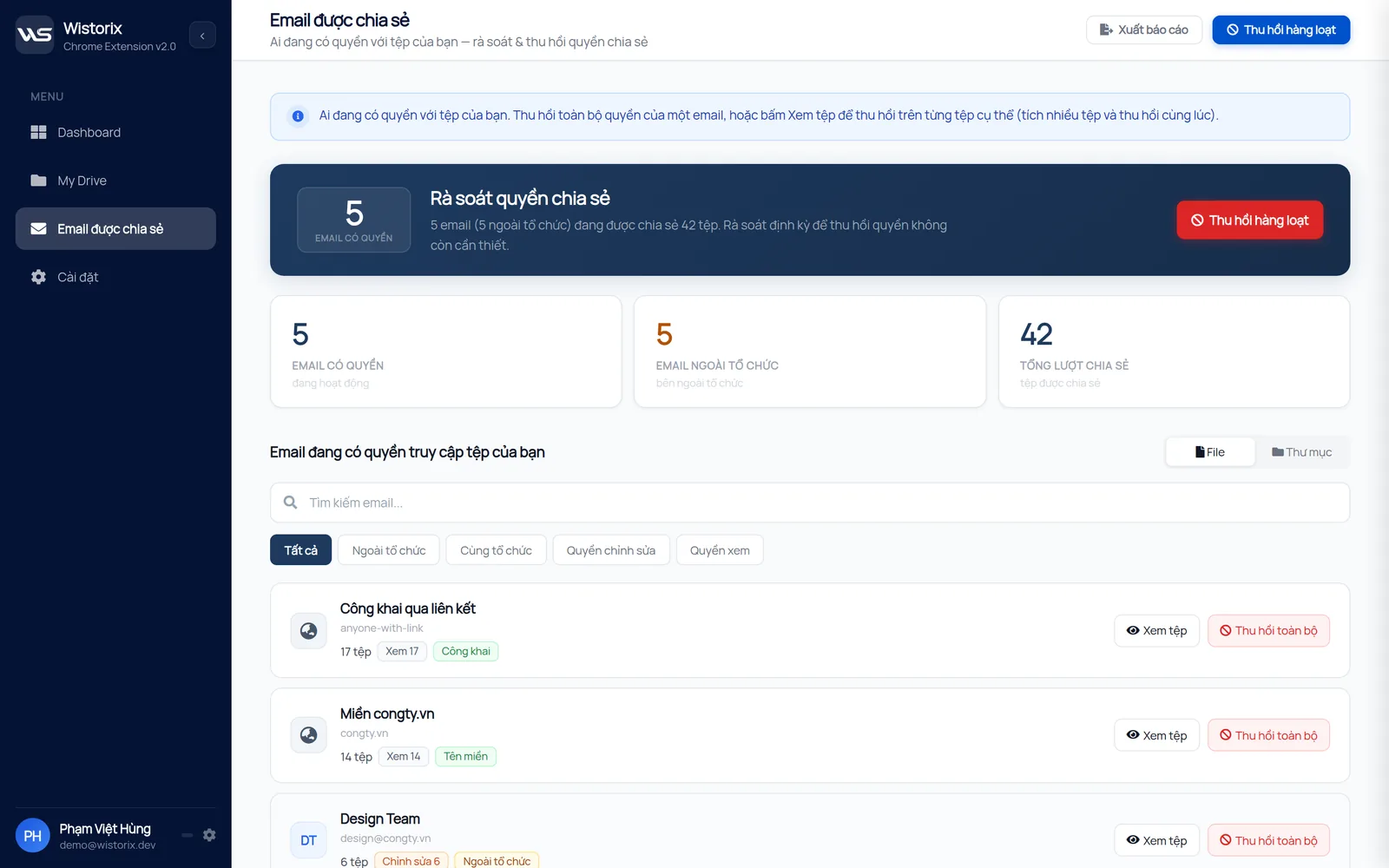
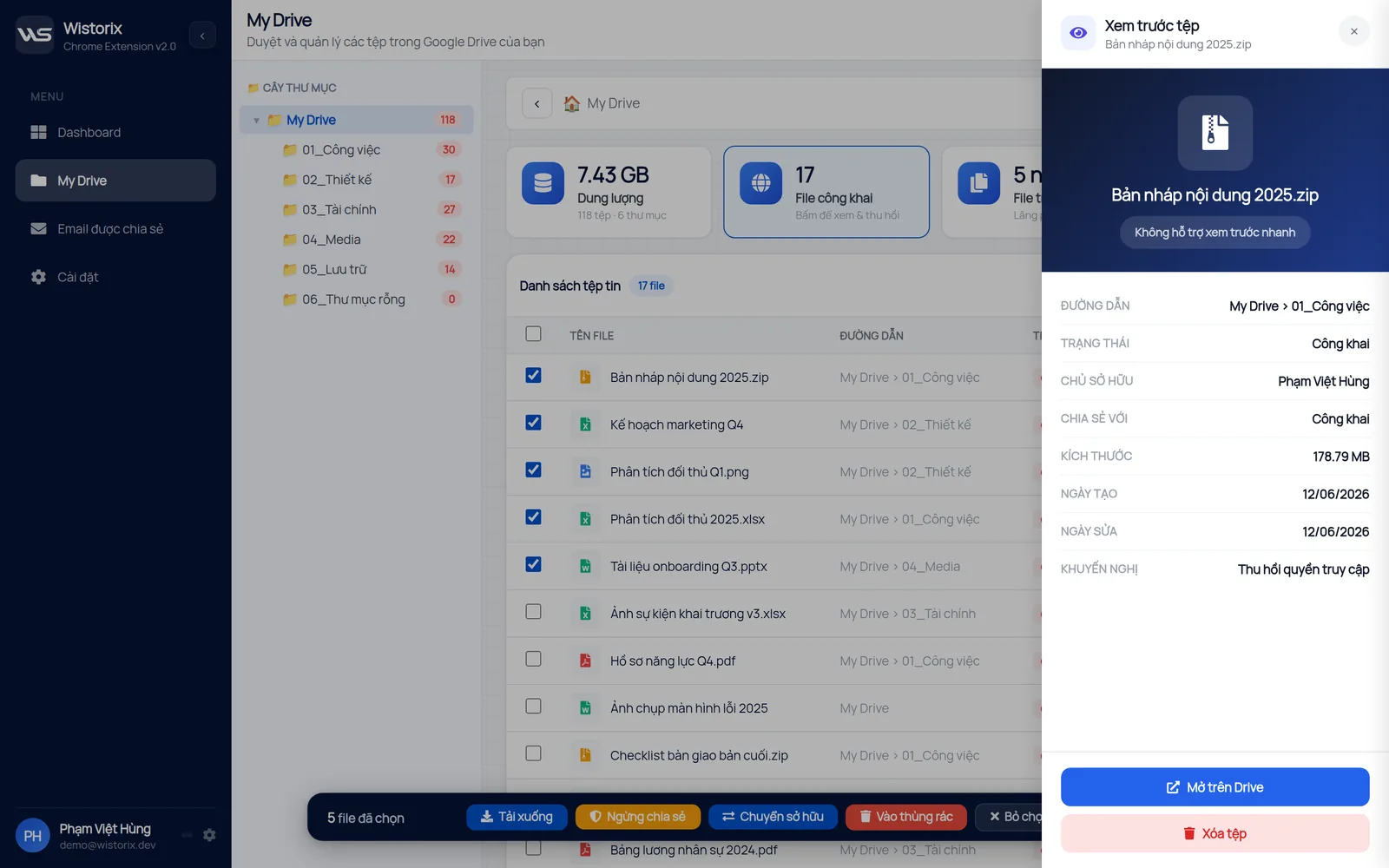
Each of these mistakes can be fixed if you catch it early. Wistorix lists every email and link with access to your Drive, shows addresses outside your organization separately and lets you revoke all of one email's access at once. Every action runs only after you confirm, and files moved to the Trash can still be restored for 30 days.
Frequently asked questions
Should I share the whole project folder with the client?
No. The client only needs to see the Client delivery folder with the Commenter role. The Production folder holds drafts and internal documents, so keep it for the team.
How long should I keep client files after a project ends?
Follow your contract and the support period. Usually you keep the final handover set and the contract, while drafts can be deleted after the client signs off. Deleting in Drive moves files to the Trash, where Google keeps them for 30 days before removing them for good.
Do freelancers need Google Workspace for client file management?
Not necessarily. A personal account with one folder per client and sharing by email is enough. Google Workspace helps when you need email on your own domain, shared drives or expiration dates on access.
How can I tell which files a former client can still see?
Search Drive with to: followed by the client's email to see the files you shared with them. Wistorix groups this by email for you, with the number of files and the role, plus a View files button for selective removal.


sharing publicly?