

How to organize Google Drive when you run many projects at once

It is easy to organize Google Drive when you have one project, and it gets harder with three, five or ten projects running side by side. This guide brings together five rules that keep your Drive searchable, shareable and easy to hand over as the workload grows, with a manual approach and a quick way to review everything with Wistorix.
In this guide
- Why Drive gets harder to manage over time
- Rule 1: One root folder per project
- Rule 2: One naming convention for files
- Rule 3: Keep work in progress apart from finished files
- Rule 4: Share folders instead of single files
- Rule 5: Review regularly so Drive does not drift
- A checklist for many projects
- Frequently asked questions
Why it gets harder to organize Google Drive over time
Drive does not impose any structure on you. You can create files anywhere, name them however you like and share each file separately with each person. When you organize Google Drive, that freedom is handy in the first week, but after a few months it turns into a pile of files nobody fully understands.
When you run many projects at once, three problems tend to show up together. Files from project A end up in project B's folder. The same document has three different names because three people named it. And the list of people with access grows every time someone clicks Share to send something quickly.
So the way to organize Google Drive is not a tool, it is a few small rules kept consistently. Each rule below solves one of those three problems. You can apply them to new projects first, then fix older projects over time.
Rule 1: One root folder per project
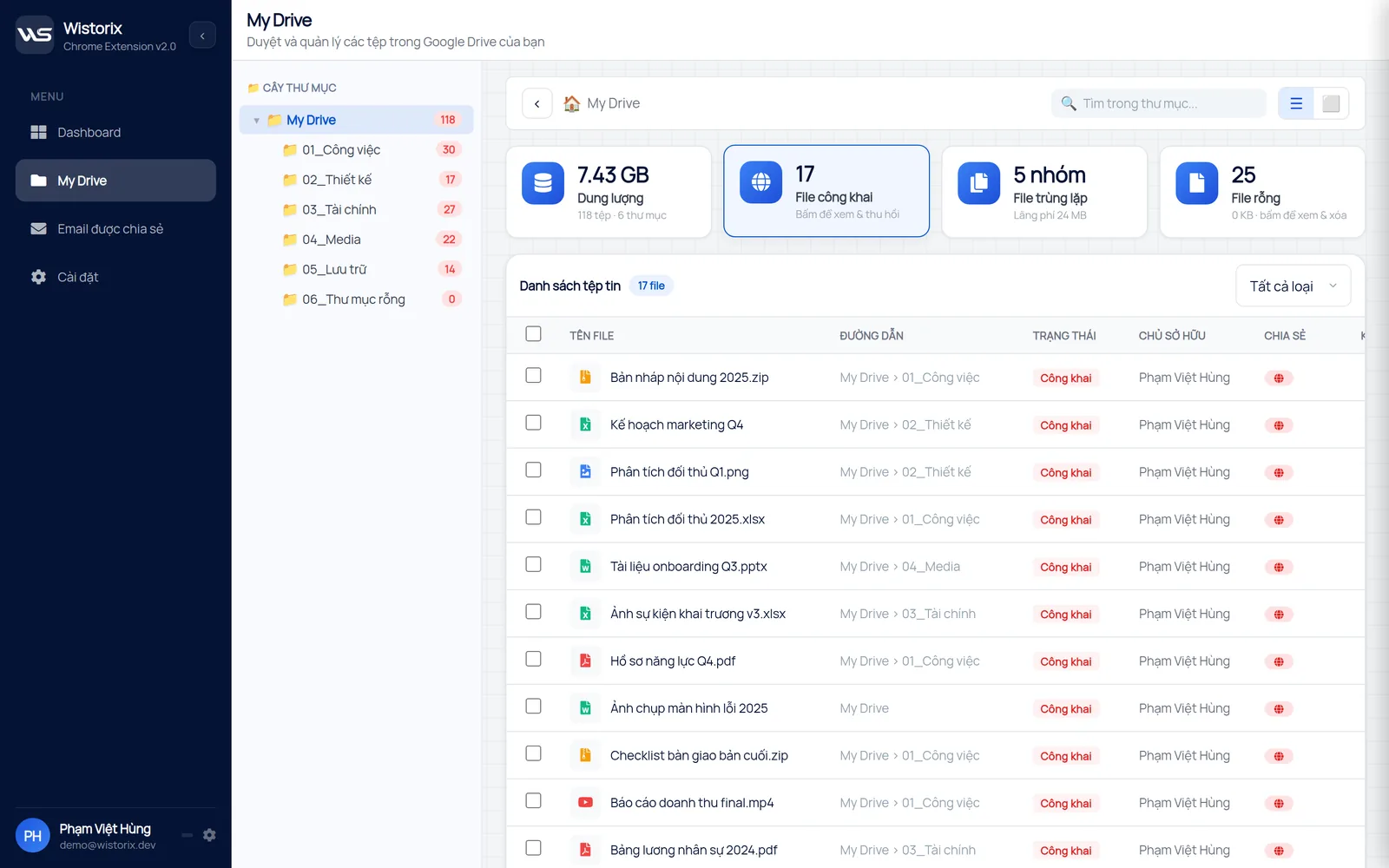
The foundation of any effort to organize Google Drive is that every file in a project lives under a single root folder named after the project. The root folder is a boundary: what belongs to the project goes inside, what does not stays outside. When you need to hand over, archive or remove access, you only act on one folder.
Below the root folder, keep as few levels as you can. Two to three levels are enough for most projects: the first level for work areas such as Contracts, Design and Reports, the second for phases or deliverables. The deeper the tree, the harder it is for a new teammate to guess where a file lives.
If you want a concrete template to start from, the guide to a Google Drive folder structure for projects has a ready-made three-level tree and a numbering scheme that keeps folders in the right order.
Put numbers in front of folder names
Drive sorts folders by name. Adding a number at the start, such as 01_Contracts, 02_Design and 03_Reports, keeps the order fixed no matter who created which folder first. It is the simplest way to organize Google Drive so the whole team sees the same structure.
Rule 2: One naming convention for files
A file name is what you search with, so it should answer three questions: which project the file belongs to, what kind of document it is and which version it is. A simple naming convention to organize Google Drive has this shape: project code, document type, short description, date.
- ACME_Contract_Services_2026-09-01
- ACME_Quote_DesignPackage_2026-09-05
- ACME_Report_September_2026-10-02
Write dates as year, month, day so files sort in time order when sorted by name. Avoid words like "final", "new version" or "edit 2": they are true for a day and wrong the day after. If you need versions, Google Docs, Sheets and Slides already keep a version history, so you do not need a new copy.
A naming convention only works when the whole team uses it. Write it in a short file in the root folder and mention it again when someone new joins. For files uploaded from outside, renaming them at upload time is faster than fixing them in bulk later.
Find files fast with search operators
Once file names follow a rule, the search box becomes the most useful way to organize Google Drive day to day. Type the project code to list every file in that project, add type:pdf to keep only PDFs, or after:2026-09-01 to see recently changed files. The full list of operators is in Google's guide to searching for files in Google Drive.
Rule 3: Keep work in progress apart from finished files
Project folders tend to swell because drafts, reference files and approved files sit in the same place. Whoever opens the folder cannot tell which file is the current one. A tidier way to organize Google Drive is to split each project into clear zones.
- In progress: drafts, files being edited, temporary reference material
- Final: versions sent to the client, signed contracts, submitted reports
- Archive: finished projects, moved here as a whole folder
When a file is approved, move it to the Final zone and deal with the related drafts. Review old drafts before removing them, since they sometimes hold content a client asked to drop and then wanted back. Deleting in Drive only moves a file to the Trash, which Google keeps for 30 days, so you can still restore it if needed.
With many projects running in parallel, the Archive zone makes My Drive much lighter. When a project ends, move its whole folder into Archive, and the list of active projects shows only what you really need to open every day.
Rule 4: Share folders instead of single files
When you organize Google Drive, sharing single files is the fastest way to lose control. Every time you send one file to one person, you add one more permission to remember. After a few months, nobody knows how many files a client can see, or where a former freelancer can still edit.
Sharing by folder works differently: files inside a folder inherit the folder's access. You add the client to the Final folder, and every file you put there is visible to them automatically. When the project ends, you remove access from one folder instead of opening each file.
For clients, keep a separate folder that holds only what the client is allowed to see. How to organize files by client and by project phase is covered in more detail in the guide to client file management in Google Drive.
Rule 5: Review regularly so Drive does not drift
However good your rules are, Drive still drifts: a file created in a hurry at the top of My Drive, empty folders left after a cleanup, a public link nobody closed. A monthly review of about 20 minutes is enough to organize Google Drive again and bring everything back where it belongs.
Three things are worth checking in each review: files outside any folder, files shared publicly or with outside people, and files nobody has opened in a long time. Files outside any folder show up with the is:unorganized operator, and the guide to Google Drive orphaned files explains how to handle them.
A quick review with Wistorix
Wistorix scans your whole Drive and gathers the groups worth reviewing in one dashboard: public files, files shared outside your organization, old files, orphaned files and duplicates. The detailed analysis screen lets you filter by sharing status, file type, size and how rarely files are used, then select many files to act on at once.
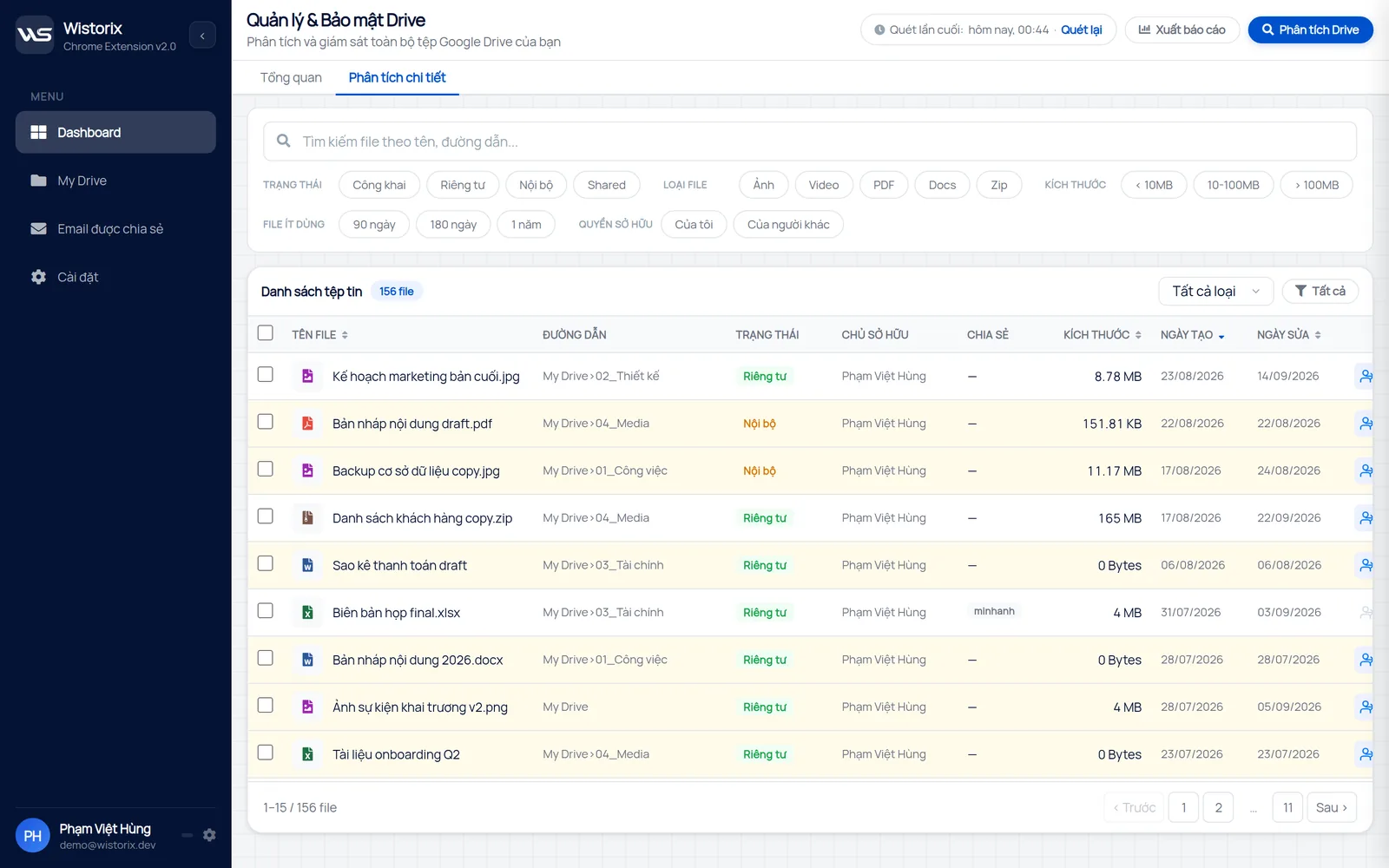
Wistorix reads file metadata only, such as names, sizes and sharing settings, never file contents. Every action runs only after you confirm, and you can remove Wistorix's access anytime from the Security section of your Google Account.
A checklist to organize Google Drive across many projects
The list below turns the five rules into concrete tasks. Print it or save it as a file in the root folder so the whole team follows the same steps.
- Create one root folder for each new project, named with the project code
- Use at most three folder levels and number the start of each folder name
- Agree on one file naming convention: project code, type, description, date
- Split each project into In progress, Final and Archive zones
- Share by folder and avoid sharing single files
- Do not use "anyone with the link" for internal documents
- Move finished project folders into Archive in the week the project ends
- Review monthly: files outside folders, public files, old files
You do not need to apply all eight tasks in one day. To organize Google Drive without a big push, start with your newest project, then fix older projects as you reopen them. Once the basics are in place, the guide to cleaning up Google Drive step by step helps you deal with the backlog.
The most important thing when you organize Google Drive is to keep the rules simple enough for everyone to remember. A perfect rule that nobody follows is worth less than an ordinary rule the whole team uses every day.
Frequently asked questions
Should I use My Drive or a shared drive for project files?
If your organization uses Google Workspace, a shared drive suits team projects better because files belong to the organization and stay when someone leaves. With a personal account, My Drive with a root folder per project and folder-level sharing covers most needs.
Should I rename all my old files to match the new naming convention?
There is no need to rename everything. Apply the convention to new files and to projects that are still running. Files from finished projects can keep their names and move into the Archive folder, since you rarely need to search for them.
How do I find files sitting in the wrong folder?
Use the is:unorganized operator to find files outside any folder, and search by project code to spot files from one project sitting in another project's folder. The Wistorix dashboard also counts orphaned files for you.
How often should I review Drive when running many projects?
Once a month suits most teams that run many projects. Add a review whenever a project ends, to move its folder into Archive and remove access for clients or freelancers who no longer need it.


sharing publicly?