

A Google Drive folder structure your team can find and hand over
A good folder structure lets a new teammate find any file in seconds and lets you hand over a project without leaving documents behind. This guide gives you a three-level template that fits most Google Drive projects, a three-step way to build it, and three variations for creative agencies, software projects and events.
In this guide
- Why every project needs the same folder structure
- Principles of a folder structure people actually use
- Step 1: Build level 1 by type of work
- Step 2: Build level 2 by phase or deliverable
- Step 3: Set sharing by folder level
- Templates for agencies, software and events
- Keep the structure clean until handover
- Frequently asked questions
Why every project needs the same folder structure
When each project has its own layout, anyone who works on several projects has to relearn where files live every time they switch. One project keeps contracts in a Legal folder, another keeps them in Shared Docs, and a third leaves them at the top level. Without a shared folder structure, the lost time is one problem, but missing files at handover is the bigger one.
A consistent folder structure answers the question "where does this file go?" before anyone has to ask it. Every project uses the same skeleton, and only the content inside changes. New people learn the layout once, and people who leave know exactly which folders they need to hand over.
The third benefit is less obvious: access. When folders are split by purpose, you can grant access by folder instead of by file. Clients only see the delivery folder, freelancers only see the folder they work in, and financial documents stay visible to the management team alone.
It also helps when you look back. Six months after a project closes, someone will ask for the signed contract or the final version of a deliverable. With the same layout across every project folder, you open the same numbered folder each time instead of searching through someone else's habits.
Principles of a folder structure people actually use
Before you build anything, agree on four principles. They keep the folder structure simple enough for the whole team to follow, including people who rarely use Drive.
- No more than three levels below the project's top folder
- A number at the start of each folder name so the order never changes: 01_, 02_, 03_
- One purpose per folder, clear from the name alone
- No files at the top level, except one short project readme
The last rule matters more than it looks. A file at the top level belongs to no group, and after a few weeks the project root starts to look like a cluttered desktop. A short readme with the project name, the owner, the naming convention and links to the main folders is all the top level needs.
If you run several projects at once and want a wider set of rules, the guide on how to organize Google Drive across many projects adds file naming and sharing habits on top of this template.
Step 1: Build level 1 by type of work
Level 1 is the shared skeleton of your folder structure, split by type of work rather than by person. Here is a level 1 template that works for most service projects:
- 00_About: the project readme and contact list
- 01_Contracts: contracts, amendments and approved quotes
- 02_Inputs: files the client sent, briefs and source data
- 03_Production: work in progress from the team
- 04_Delivery: final versions sent or shared with the client
- 05_Reports: progress reports, meeting notes and sign-offs
- 06_Archive: old versions and reference material no longer in use
Pick one naming convention for folders and use it everywhere. Hyphens and underscores keep paths tidy when you download a folder or paste a path into another tool, while plain words with spaces are easier for people who dislike abbreviations. Either works, as long as every project follows the same choice.
Create the whole of level 1 as soon as the project starts, including folders that are still empty. Empty folders at the start are intentional, which is different from the empty folders that pile up after a cleanup. If some folders are still unused when the project ends, the guide to empty folders in Google Drive shows how to deal with them.
Step 2: Build level 2 by phase or deliverable
Level 2 is where the folder structure starts to differ between project types. Choose one of two ways to split it and keep that choice for the whole project. Do not mix them.
- By phase: 01_Research, 02_Concept, 03_Execution, 04_Finishing. Best for projects that run in sequence.
- By deliverable: 01_Logo, 02_Website, 03_Brand-identity. Best for projects with several outputs running in parallel.
Use level 3 only when you really need it, for example to separate original photos from edited ones inside a deliverable. If you find yourself creating a fourth or fifth level, that is a sign to split the work into two projects or merge some folders. A deep tree makes files harder to find and sharing harder to control.
Step 3: Set sharing by folder level
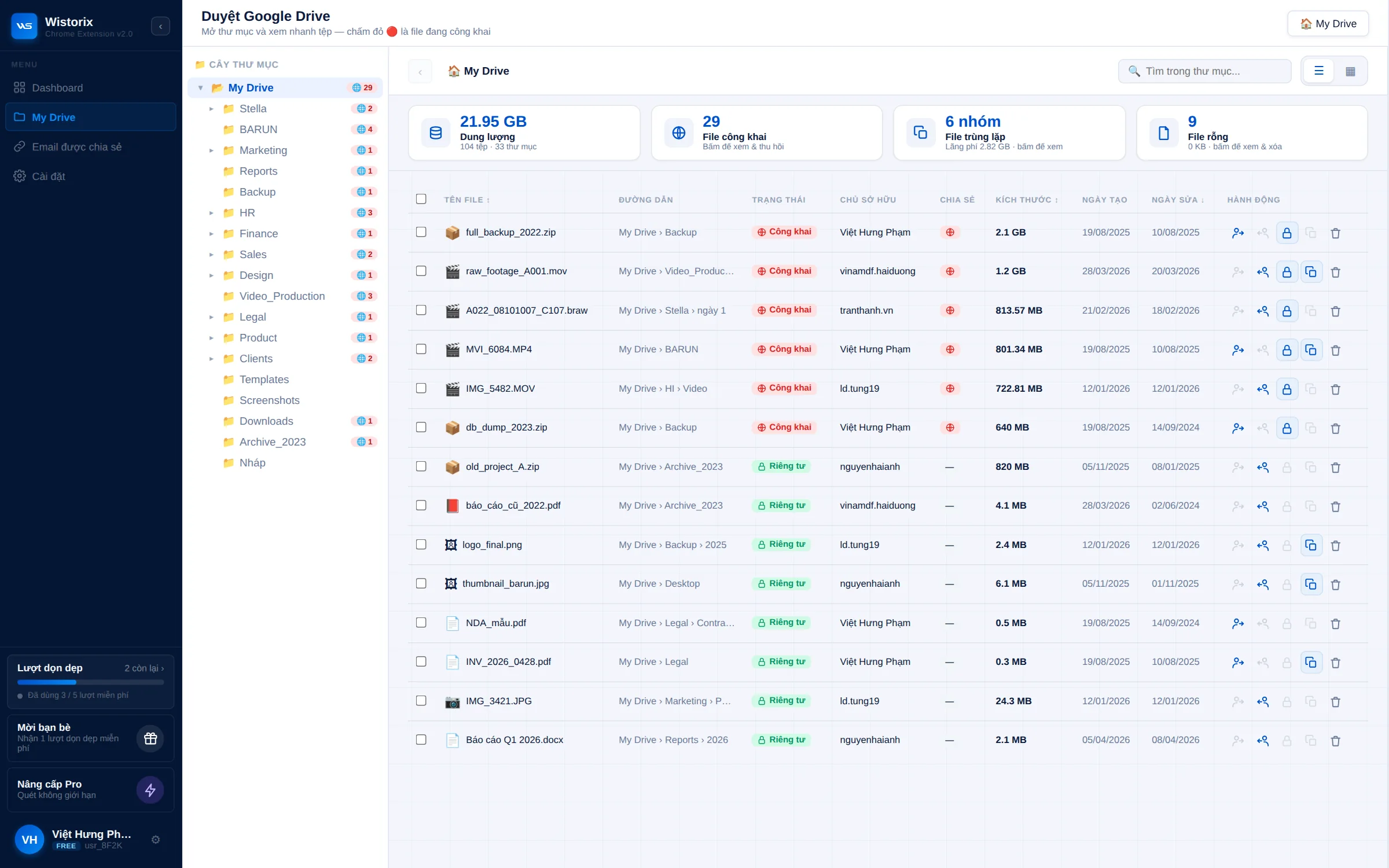
In Google Drive, files inside a folder inherit the access of the folder that holds them. That is why the folder structure and access should be designed together. You grant access at folder level, and every file you add later gets the right access automatically.
- The whole project team: editor on the project's top folder
- The client: viewer or commenter, only on 04_Delivery
- Freelancers: editor, only on the deliverable they own inside 03_Production
- Accounting: viewer on 01_Contracts
Avoid sharing a project folder with "anyone with the link". That kind of link needs no sign-in, works for whoever has it, and stays open until you change it. Sharing by email takes a few seconds longer, but you always know who has access. Google explains each setting in its guide to sharing files from Google Drive.
For sensitive documents, the owner can turn off the option that lets editors change permissions and share. That stops a freelancer from adding other people to the folder on their own. Every permission can be removed, so you can revoke access anytime without touching the files themselves.
Folder structure templates for agencies, software and events
Level 1 of the folder structure stays the same, and the changes happen at level 2. The three templates below are starting points, so rename the folders to match the words your team already uses.
Creative agency
Inside 03_Production, split by what the client ordered: 01_Key-visual, 02_Social, 03_Video, 04_Print. Each deliverable can have Source and Export subfolders if the source files are heavy. Split 04_Delivery by dated rounds so the client and the team can both see the feedback history.
Software project
Source code lives in your code repository, not in Drive. Drive keeps the documents: split 03_Production into 01_Requirements, 02_Design, 03_Testing and 04_User-guides. Regular meeting notes go into 05_Reports, with one folder for each month.
Event project
Events run on a timeline, so split 03_Production by phase: 01_Before-event, 02_Event-day, 03_After-event. Photos and videos from the event are usually very large. Keep them in their own folder and check their size before you share them with the client.
Keep the folder structure clean until handover
A folder structure is only useful if it is still accurate at the end of the project. In the final week, set aside 30 minutes to check three things before you hand over or archive.
- Every file sits in the right folder, and nothing is left at the project's top level
- Access for clients and freelancers has been removed or lowered to viewer
- Files owned by anyone leaving the team have been transferred to someone who stays
The third check is the one most often skipped. Each file in Drive has exactly one owner, and moving a folder does not transfer the files inside it. If the handover involves someone leaving the company, follow the process in the guide to transferring ownership in Google Drive.
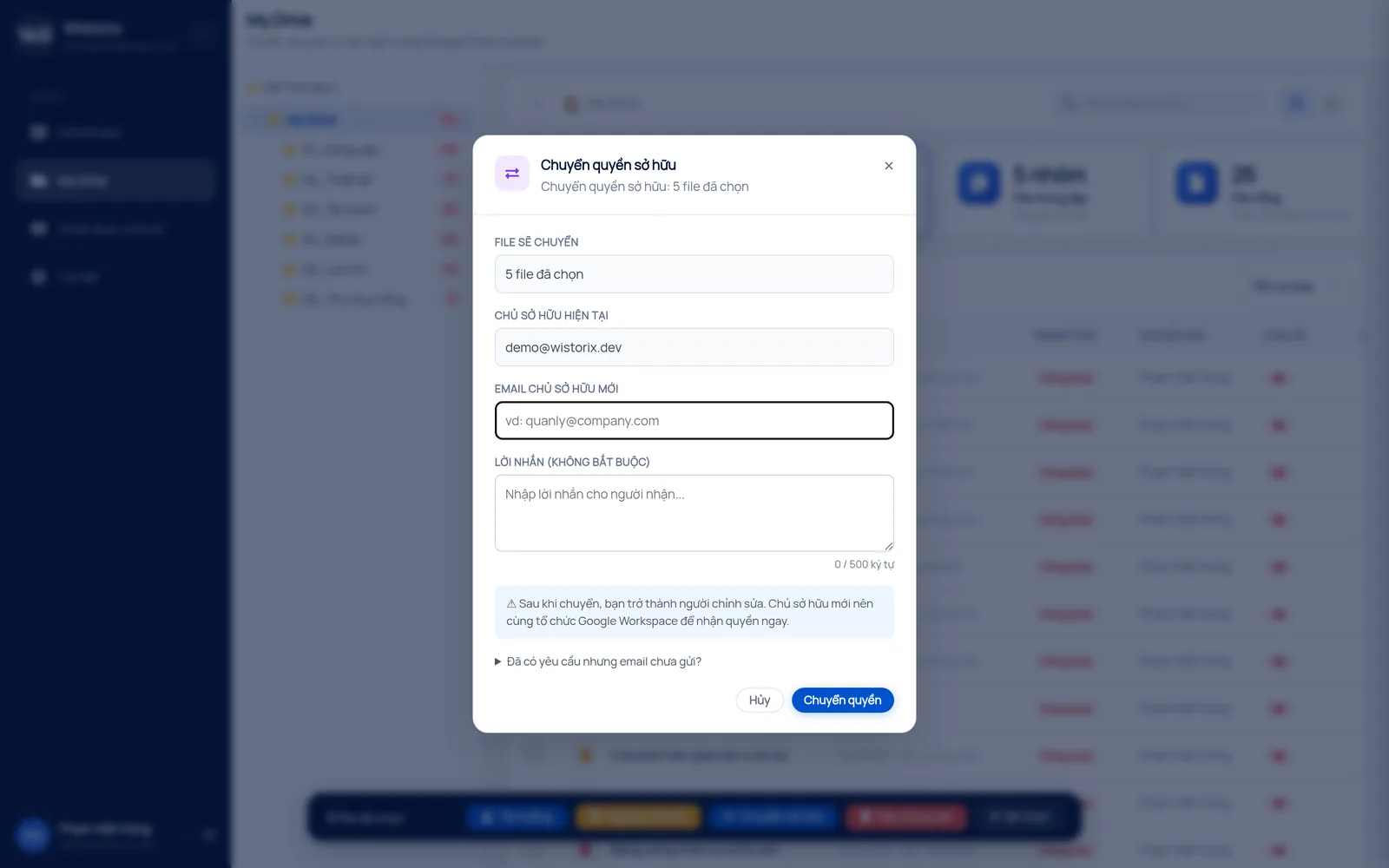
Wistorix makes the final check faster. The My Drive screen shows how many files each folder holds, the Files outside folders card counts files that have drifted away from any folder, and you can select many files to transfer ownership or stop sharing in one action. Nothing runs until you confirm, and files you move to the Trash can be restored for 30 days.
Once a project closes cleanly, copy its empty skeleton for the next one. Over time, the same folder structure becomes a habit, and the end-of-project check shrinks to a few minutes because almost nothing is out of place.
Frequently asked questions
Should folder names use spaces, hyphens or underscores?
Any of them works, as long as the whole team agrees. Hyphens and underscores keep paths short when you download or paste them, while spaces read more naturally for newcomers. What matters is that every project uses the same convention.
Should I create folders I do not need yet?
Yes, create all of level 1 when the project starts, because it shows the whole team where each file belongs from day one. At the end of the project, delete or keep any folder that is still empty, depending on how you archive.
Does this folder structure work for shared drives?
Yes. With Google Workspace, each project can be its own shared drive with the same level 1 skeleton. Files in a shared drive belong to the organization, so they stay in place when a member leaves.
How do I keep the whole team on the same template?
Keep an empty template project and copy it for every new project. Write the rules in the readme at the top of each project, and review once a month to move stray files back where they belong.



sharing publicly?