

Old files in Google Drive: when to review them and when to archive
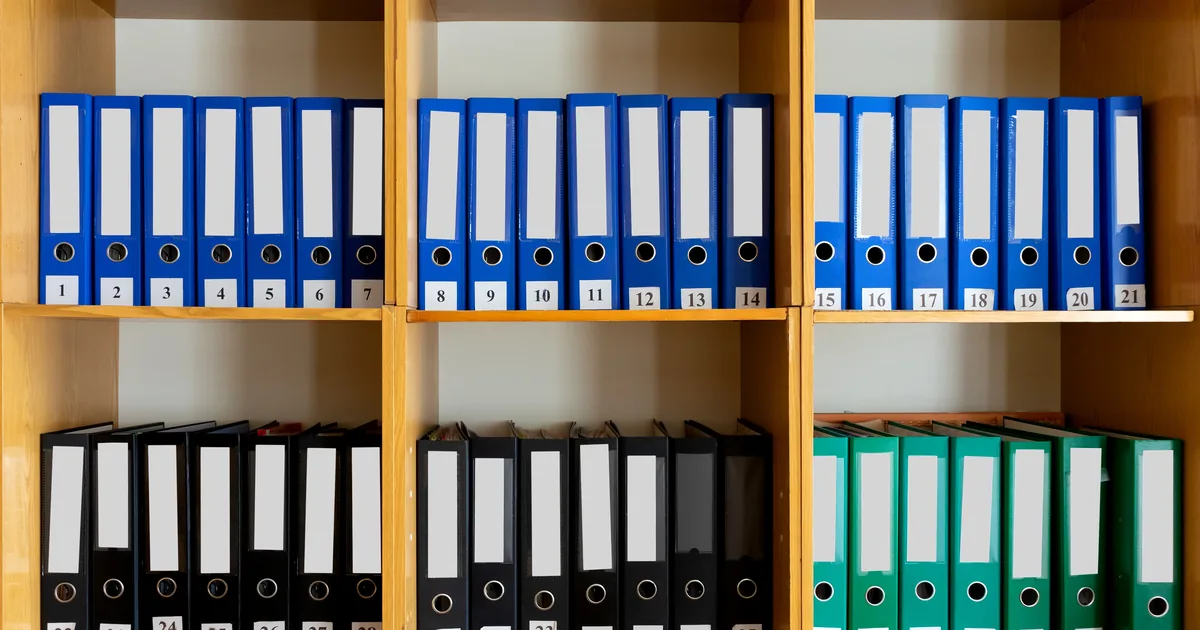
Old files in Google Drive take up space and clutter your search results, but not every one of them should be deleted. This guide helps you find files nobody has opened in a long time, sort them into keep, archive or delete, and do it in three steps without losing documents you still need.
In this guide
- Why old files pile up
- Old does not mean useless
- Step 1: Find old files
- Step 2: Decide to keep, archive or delete
- Step 3: Archive properly before deleting
- A review schedule for rarely used files
- Frequently asked questions
Why old files pile up in Google Drive
Drive never cleans anything up on its own. Every file you have ever created or uploaded stays until you delete it, even if nobody has opened it in years. Projects end and people change roles, but the project folders stay exactly where they were in My Drive.
After a few years, these files often make up most of your file list. They make search results longer, lead you to open an outdated document by mistake and count toward the 15 GB of storage that Drive shares with Gmail and Google Photos. The good news is that they are easy to filter by modified date, which makes them a good place to start.
- Folders from finished projects that nobody has archived
- Recurring reports from previous years
- Drafts, test exports and temporary documents
- Photos and videos from events that are already over
- Documents handed over to you by colleagues who moved on
Old files are not the same as useless files
This is the most important difference from duplicate files. With duplicates there is always one extra copy, while an old file may be the only copy of a document you have. Signed contracts, invoices, handover records and legal documents are rarely opened, but they are very hard to get back once they are gone.
Four common groups of old files
- Keep for the long term: contracts, invoices, receipts and legal documents
- Reference material: processes, templates and company profiles opened a few times a year
- Finished projects: keep the final version, not every draft
- True clutter: temporary files, test exports and screenshots with no remaining value
Of these four groups, only the last one should be deleted right away. The other three need a different decision: keep them in Drive, move them to cheaper storage, or keep the final version and delete the drafts. That is why they need to be reviewed in context rather than deleted by date.
Step 1: Find old files in Google Drive
You can find old files with the Drive search box or with the rarely used files filter in Wistorix. Both methods rely on the date a file was last changed or opened.
Search with the before operator
Type owner:me before:2025-01-01 into the search box to see the files you own that were last modified before January 1, 2025. Add type:video or type:pdf to narrow the results by file type. The full list of operators is in Google's guide on how to search for files in Google Drive.
The limit of this method is that the results do not tell you whether a file is large or small, who it is shared with or which folder it sits in. You have to open each file to check before you decide.
Filter rarely used files with Wistorix
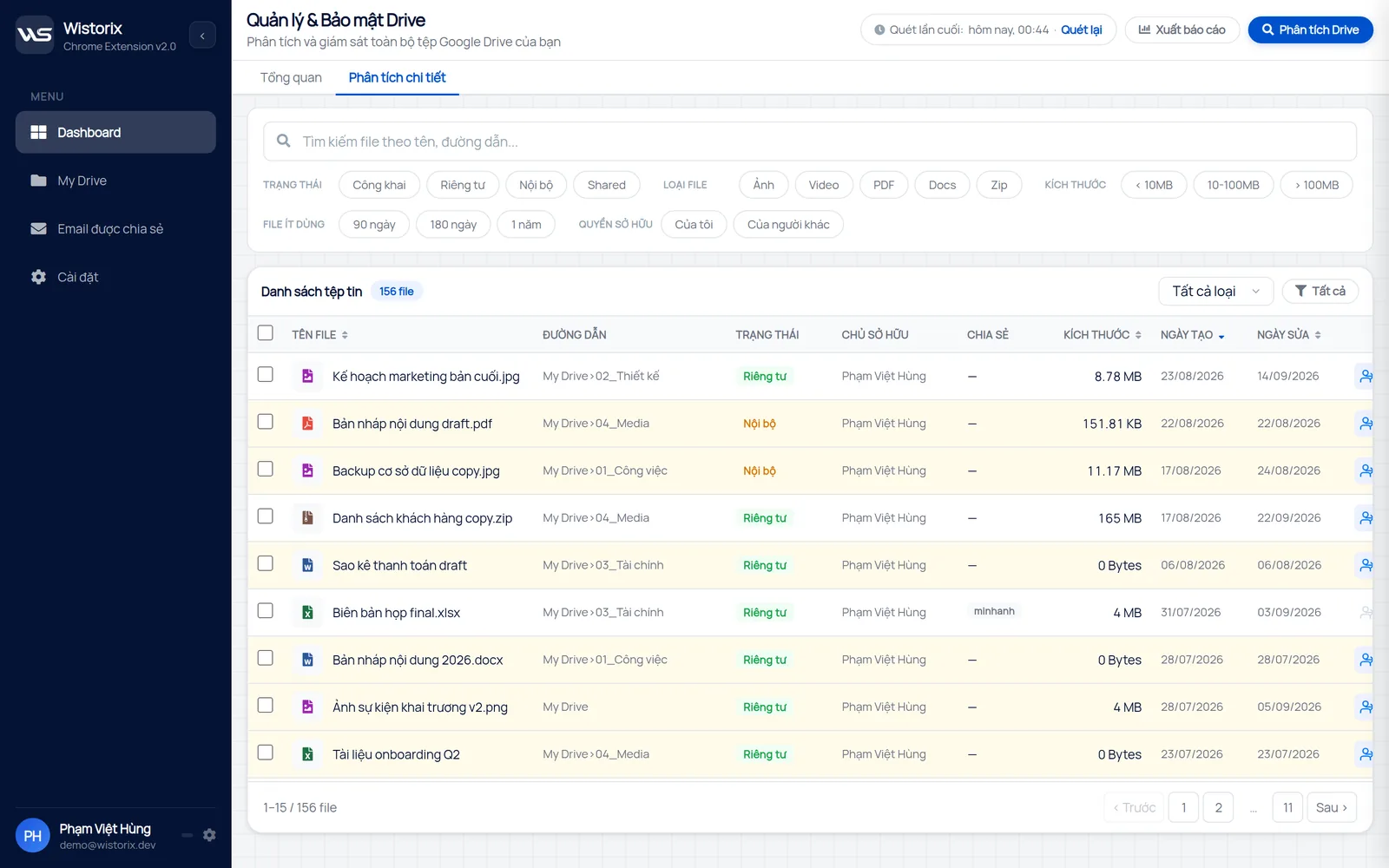
On the detailed analysis screen in Wistorix, the rarely used files filter separates files nobody has opened in 90 days, 180 days or one year. Combine it with the size filter to see large old files first, with the path, owner and sharing status on the same row.
Step 2: Decide whether to keep, archive or delete
For each old file, you only need to answer three questions. The answers put the file into exactly one of three groups.
- Does this file need to be kept because of a regulation or a contract? If yes, keep it or archive it.
- Is anyone else using this file, for example because it is shared? If yes, ask them before you do anything.
- Is there a newer version of this file? If yes, keep the newer one and delete the old one.
A file that does not need to be kept, that nobody uses and that has a newer version is safe to delete. A file that must be kept but is rarely opened belongs in the archive, which is the next step.
Watch out for old files that are still shared
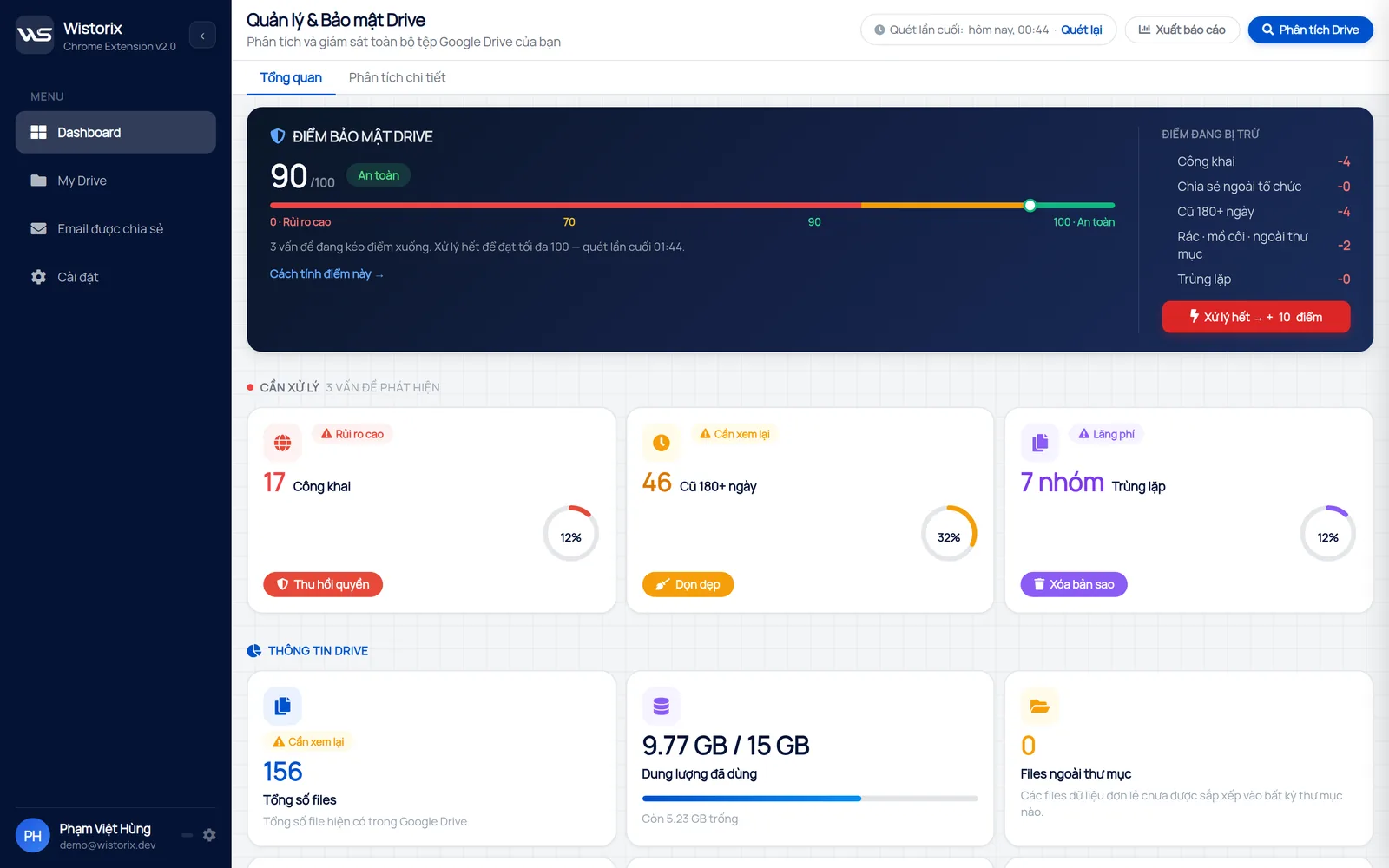
An old file whose link is still open to a client or partner is worth handling early, because that access may no longer be needed. Wistorix lowers your security score for the Old 180+ days group and the Public group, so you can quickly spot old files that are still open to others.
Stopping sharing on an old file does not delete it, and you can share it again any time if needed. To find and close public links in bulk, read the guide to finding publicly shared files in Google Drive.
Step 3: Archive properly before deleting
Archiving means keeping a copy somewhere else before you delete it from Drive, so Drive gets lighter while the document survives. There are three common ways to archive, depending on how many files you have and how often you need to open them again.
- A yearly Archive folder inside Drive: everything stays in Drive and is simply grouped together, so storage does not go down
- Download to an external hard drive or a NAS: storage in Drive goes down, which suits heavy videos and design files
- Google Takeout: download all or part of your Drive data to your computer in one go
Google explains how to use Google Takeout on its page about how to download your Google data. Only after you have an archived copy and have checked that it opens should you delete the version in Drive.
Delete with a way back
When you delete old files with Wistorix, they go to the Google Drive Trash and are never permanently deleted on the spot. Google keeps files in the Trash for 30 days, so you can restore them if you find you still need them. Files in the Trash still count toward your storage, so only empty the Trash when you are sure.
If the files belong to someone who has left the company, transfer ownership to someone who stays before you archive them. The guide on how to transfer ownership in Google Drive when an employee leaves covers the steps.
Old files in a team's Drive
In a team, old files are usually spread across many people's Drives. Each person can only delete or archive the files they own, so agree in advance on who handles which part. Otherwise everyone waits for someone else to do it.
A simple approach is for each person to filter rarely used files in their own Drive, while the team lead decides which project folders get archived. If your team uses Google Workspace, consider moving project documents to a shared drive, because files there belong to the organization and stay put when someone leaves.
A review schedule for rarely used files
Files like these appear at a steady pace, and every finished project adds another folder. That is why a scheduled review works better than one big cleanup every few years. The first round may take an afternoon, while later rounds take only a few dozen minutes.
- Every quarter: filter rarely used files older than 180 days and clear out true clutter
- Every year: archive the previous year's project folders
- When a project ends: keep the final version, delete drafts and close sharing links
- When someone leaves: transfer ownership first, then archive
Wistorix is building scheduled automatic scans with alerts (coming soon). In the meantime, set a quarterly reminder and use the rarely used files filter to work quickly. If you are cleaning up your whole Drive, the guide on how to clean up Google Drive gives an order for handling the other file groups.
Frequently asked questions
How long without being opened before a file counts as old?
There is no single cutoff for everyone. 180 days works well for everyday working documents, while one year is a good cutoff for finding project folders that have closed.
Should I delete all old files to get storage back?
No. Sort them first, archive the files you need to keep and only delete the true clutter. Large files you need to keep are better downloaded to an external drive than deleted outright.
Does Google Takeout delete files from Drive?
No. Takeout only creates a copy for you to download, and the files in Drive stay exactly as they are. You decide whether to delete them after you have checked the archive.
What should I do with old files that are still shared?
Ask the people using them before you delete anything. If nobody needs them anymore, stop sharing first and then archive or delete, because the people they were shared with lose access once a file is permanently deleted.



sharing publicly?