

How to clean up Google Drive systematically, from a full Drive to duplicates, old files and clutter

The right way to clean up Google Drive does not start with deleting. It starts with knowing what your Drive actually contains. This guide splits a messy Drive into five groups of files you can measure and handle, gives you an order that moves from low risk to higher risk, and shows how to do it both by hand and with Wistorix.
In this guide
- Why Drive gets messier the more you use it
- Five groups of files to handle
- A safe order to clean up Google Drive
- The manual way to clean up Google Drive
- Review the whole Drive with Wistorix
- Keep Drive tidy after the first cleanup
- Frequently asked questions
Why Drive gets messier the more you use it
A messy Drive is rarely the result of one bad decision. It comes from thousands of small actions: uploading a file again just to be safe, making a copy to try an edit, creating a folder for a project and then abandoning it. Each action made sense at the time, but after a few years nobody remembers which file is the real one.
The usual cost is not only running out of storage. You lose time looking for files, send an old version to a client by mistake and pay for more storage to keep things nobody uses. The good news is that most of these problems follow a few familiar patterns, so you can clean up Google Drive with a system instead of guesswork.
Tell symptoms apart from causes
A full Drive and files that are hard to find are symptoms. The causes sit in the groups of files below, and each group needs a different approach. If you only look at the symptoms, it is easy to pick a fast but wrong fix, such as buying more storage or deleting in bulk on instinct.
- A full Drive: usually caused by large files, duplicate files and files sitting in the Trash
- Files that are hard to find: usually caused by duplicate names, files without a folder and a confusing folder structure
- Mixed-up versions: usually caused by several copies existing side by side with nobody marking the main one
Five groups of files to handle when you clean up Google Drive
Each time you clean up Google Drive, look at it through the five groups below instead of file by file. This view tells you right away which group takes up the most space and which one is easiest to deal with.
1. Duplicate files
The same document exists in two or three places, with an identical name or with "Copy of" added in front. Google Drive allows many files with the same name and has no built-in duplicate finder. This is the lowest-risk group to handle, because you always keep one copy. The detailed method is in the guide to finding and removing duplicate files in Google Drive.
2. Old files nobody uses
These are documents nobody has opened in 180 days or a year. An old file is not the same as a useless file: contracts, invoices and legal documents often need to be kept for a long time. That is why this group needs a review in context before you archive or delete anything, as explained in the guide to finding old files in Google Drive.
3. Empty files and empty folders
These are 0 KB files created by mistake and then abandoned, and folders with nothing left inside. They take up almost no space, but they clutter the folder tree and leave new team members unsure where to save things. The article on empty folders in Google Drive explains why they are a sign that the structure has a problem.
4. Files without a folder
Your files can end up floating outside every folder, usually because someone else deleted the parent folder or because they were created quickly at the root of My Drive and forgotten. This group makes searching and handover much harder. The way to find them with the is:unorganized operator is covered in the guide to orphaned files in Google Drive.
5. Large files
Videos, compressed backups and original design files belong here. Just a few files of this kind can take up several GB, so this is the group that frees up storage fastest. On the other hand, large files are often important assets, so look at them carefully before you act.
A safe order to clean up Google Drive
When you clean up Google Drive, order matters more than speed. Work from the low-risk groups toward the ones that need more thought, and always review before you delete. Even if you need to free up space urgently, do the first two steps first, because they are safe and often recover a good amount of storage.
- Duplicate files: keep one copy, preferably the one that is shared with other people.
- Empty files and empty folders: delete what you are sure is unused, and merge folders that serve the same purpose.
- Files without a folder: move them back into the right place in your structure, or deal with them if they are no longer needed.
- Old files nobody uses: review them in context, and archive the copies you must keep before removing them from Drive.
- Large files: look at each one, and download to an external drive the copies you need to keep but do not need in Drive.
- The Trash: empty it only when you are certain, because this is the one step you cannot reverse.
The last step deserves a clear explanation. Deleted files stay in the Trash and still count toward your storage until they are permanently deleted, which Google does automatically after 30 days. Because of that, you always have a way back during those 30 days if you delete something by mistake.
The right way to clean up Google Drive is to review first, act second, and empty the Trash only at the very end.
The manual way to clean up Google Drive
You can clean up Google Drive with the tools it already has. This is a good way to clean up Google Drive when it is still small, or when you only need to handle one specific group of files.
The Storage page for large files
Open Drive and click Storage in the left column. Google lists your files by size from largest to smallest, which is the fastest way to see what is taking up space. Keep in mind that the free 15 GB is shared between Drive, Gmail and Google Photos, as Google explains on its page about managing storage in Drive, Gmail and Photos.
Search operators to filter by group
The Drive search box accepts several useful operators. owner:me limits results to files you own, before:2024-01-01 filters files last modified before a date and type:video shows only videos. is:unorganized finds your files that sit outside every folder, and the full list is in Google's guide to searching for files in Google Drive.
The limits of a manual cleanup
Drive has no single place that collects duplicate files, empty files or empty folders. You have to compare names yourself, open each folder and keep notes. That is manageable with a few hundred files, but when you try to clean up Google Drive with thousands of files built up over many years, a manual cleanup is easy to get wrong and takes a lot of time.
Review the whole Drive with Wistorix
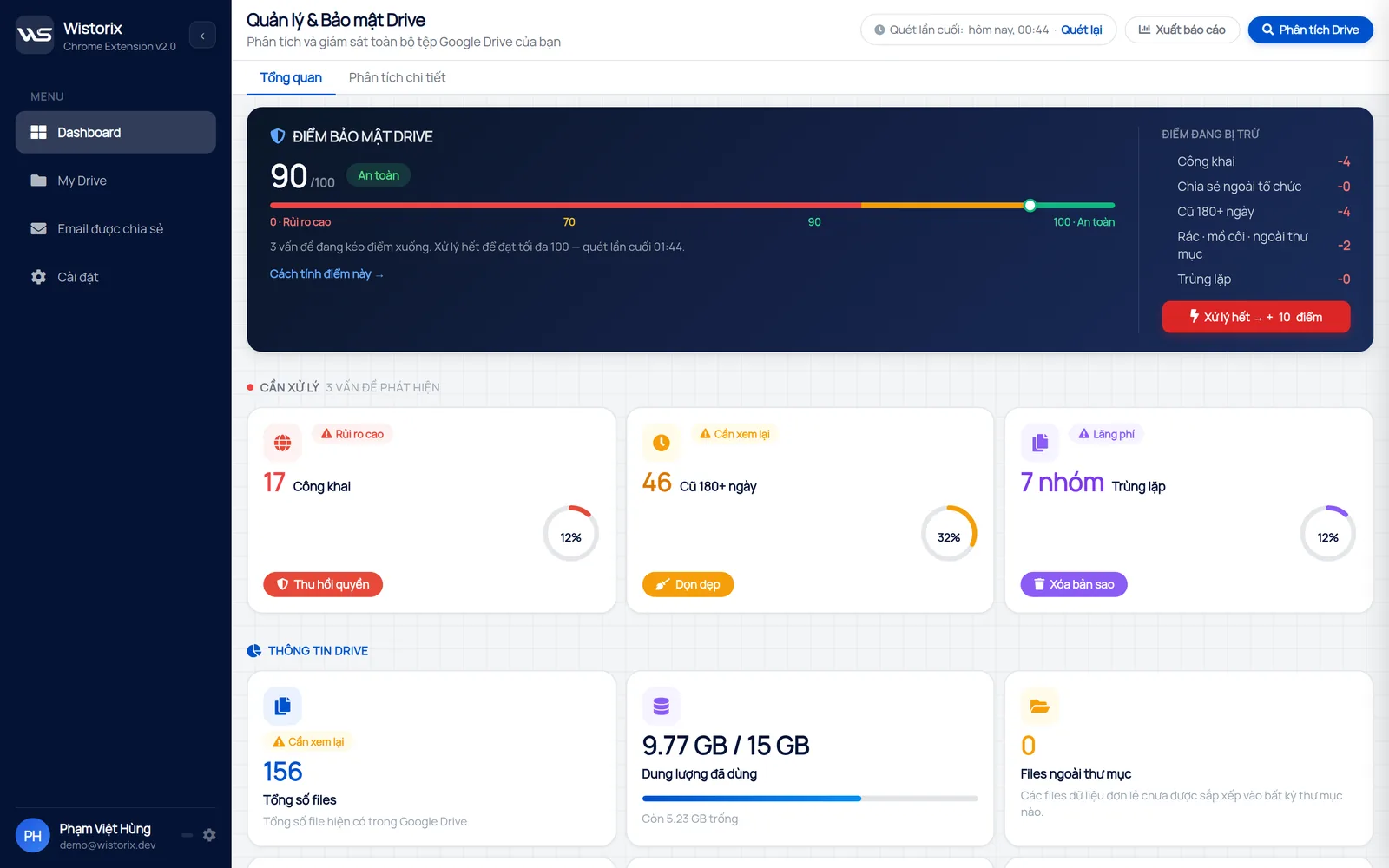
To clean up Google Drive when you have thousands of files, Wistorix scans the whole Drive and returns a security score from 0 to 100. The panel showing where points are lost tells you right away which groups pull the score down: files older than 180 days, duplicates, and the group of junk, orphaned and unfiled files. Each group has an action button on the same screen, so you go straight from finding a problem to fixing it.
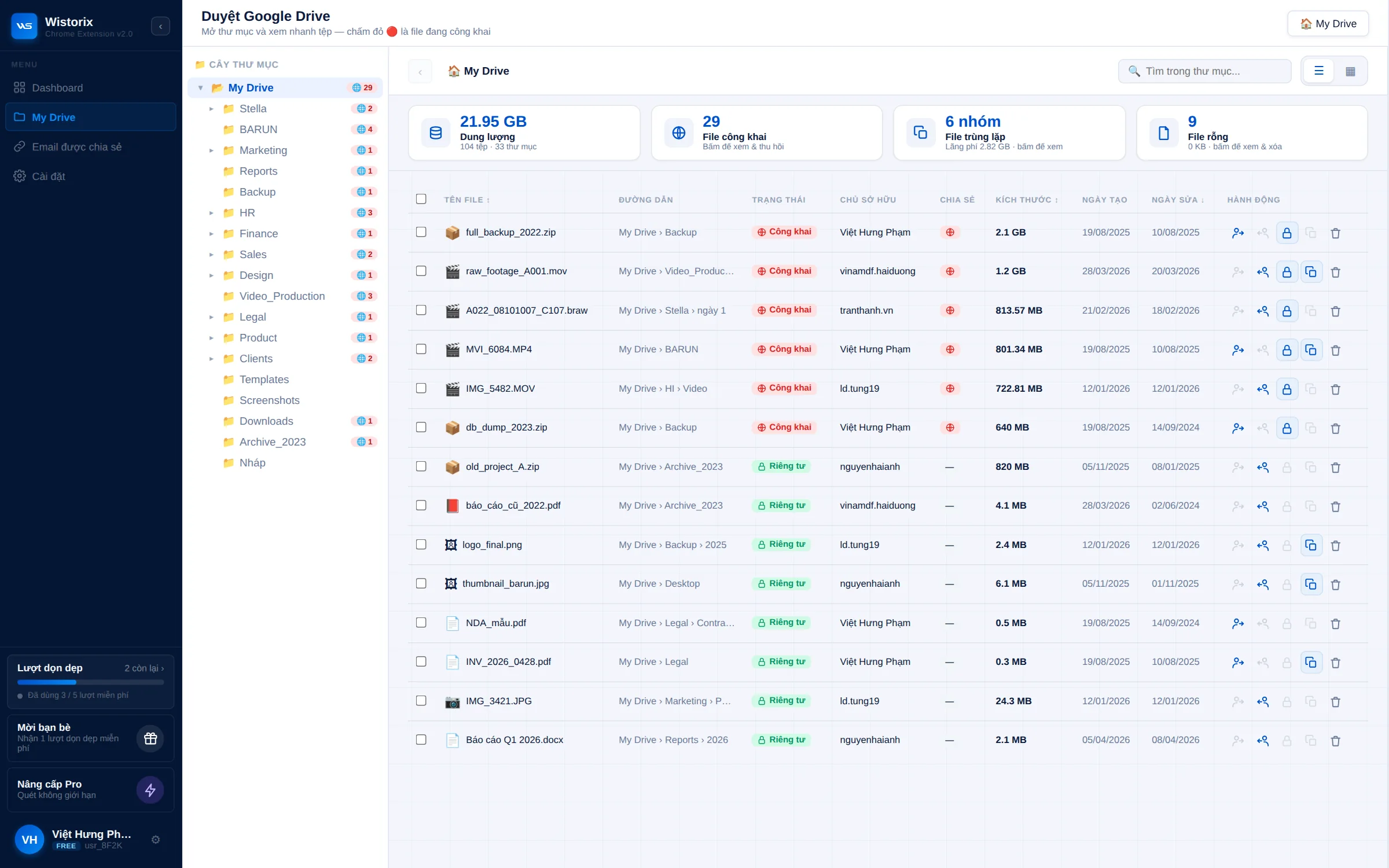
The Drive explorer screen shows the folder tree on the left, with a file count on each folder. Summary cards show storage used, public files, groups of duplicate files and empty files. You can select many files and handle them in one go, instead of opening folder after folder.
Staying safe while you clean up
Wistorix reads only file metadata such as names, sizes and sharing settings, never file contents. Nothing runs until you confirm it. Files you delete with Wistorix go to the Google Drive Trash and are never permanently deleted by Wistorix, and you can remove Wistorix's access anytime from your Google Account.
Scanning is free, so you can see exactly what is in each group before you decide to change anything. A good way to start is to try the routine on one group of files, such as duplicates, before you work through the whole Drive.
Keep Drive tidy after the first cleanup
The first time you clean up Google Drive is always the biggest job. After that, only a handful of new files need a look each month. What matters is turning the cleanup into a short habit instead of one big effort a year.
- Name files with a date and a status, for example "2026-09 Monthly report final"
- Use one folder per project, and archive the whole folder when the project ends
- Do not upload a file you already have, and use a shortcut instead of making a copy
- Review your Drive once a month, for about 15 minutes each time
- Empty the Trash only once you are sure, not right after you delete something
Wistorix is building scheduled automatic scans with alerts (coming soon). In the meantime, a monthly reminder in your calendar is enough to make sure the habit to clean up Google Drive does not slip.
Frequently asked questions
How often should I clean up Google Drive?
For individuals, once a month is enough. Teams running many projects should review every two weeks and always clean up when a project ends.
Should I buy more storage instead of cleaning up?
Clean up Google Drive first, then decide. If most of your storage is duplicates and junk files, buying more only lets you keep more things you do not use. After the cleanup, you will know whether you really need a larger plan.
Can I get back a file I deleted by mistake?
Yes, within 30 days. Deleted files sit in the Google Drive Trash and can be restored until you empty the Trash or Google deletes them automatically after 30 days.
Does cleaning up affect the people I share files with?
It can if you delete a shared file, because recipients lose access once the file is permanently deleted. That is why, when you handle duplicates, you should keep the copy that is shared and remove the others.



sharing publicly?