

Gmail storage full: why it happens and how to get your inbox working again
You open Gmail and see a warning that your storage is full, yet your inbox holds only a few thousand emails. When you hit a Gmail storage full warning, the cause is often not your inbox at all. It is usually Google Drive or Google Photos, because all three share one storage limit. This guide explains what happens when your account goes over quota, how to find where the space went, and the order to clear it so your inbox receives mail again.
In this guide
- Why Gmail storage fills up with a small inbox
- What happens when you go over quota
- Step 1: Find where your storage went
- Step 2: Clear emails with large attachments
- Step 3: Clean up Google Drive
- Step 4: Clean up Google Photos
- Step 5: Empty the trash and wait for the update
- Keep your inbox from filling up again
- Frequently asked questions
Why you see Gmail storage full with a small inbox
Gmail does not have its own separate storage. According to Google's guide to managing storage in Drive, Gmail and Photos, your Google storage is shared across Google Drive, Gmail, WhatsApp backups and Google Photos. A personal account has up to 15 GB for all of them together. So a Gmail storage full message can come from a few videos in Drive or a year of phone photo backups.
Shared storage follows one important rule: only the files you own count toward your limit. Files that other people share with you count toward their owner's storage. Emails in your Gmail Spam and Trash folders still count until they are permanently deleted.
This table shows what can cause Gmail storage full, since each item draws from the same limit as your inbox:
| Service | What counts | What usually takes the most space |
|---|---|---|
| Gmail | Emails, attachments, Spam, Trash | Emails with large attachments |
| Google Drive | Files you own, including files in Trash | Videos, archives, backups, duplicate files |
| Google Photos | Backed up photos and videos | Videos recorded on your phone |
| Device backups | WhatsApp backups, device backups | Old backups from phones you no longer use |
What happens when Gmail storage is full
When your account reaches its limit, Google says Gmail stops working normally. You cannot send or receive email, and messages sent to you are returned to the sender. Returned mail is the part that hurts most. A client or partner who writes to you gets an error notice, and you never learn the email existed.
Other services are affected too. According to Google's page on how storage works, when you are over quota:
- You cannot upload new files or images to Google Drive.
- You cannot back up photos and videos to Google Photos.
- Nobody can edit or copy your affected files until you reduce your usage.
- You can still sign in to your Google Account, and your existing files stay where they are.
If your account stays over quota for 2 years, your content in Gmail, Google Photos and Google Drive may be deleted. Google says it will contact you at least 3 months before content is eligible for deletion. So a Gmail storage full warning gives you time to act, but act early so you do not miss new mail.
Step 1: Find where your storage went
Do not start by deleting emails. Open your Google storage page at one.google.com to see how your total splits across Drive, Gmail and Photos. That breakdown tells you which service is behind your Gmail storage full warning.
Based on what you see, pick where to start:
- Gmail uses the most: start with Step 2 and look for large attachments.
- Google Drive uses the most: start with Step 3. This is the most common case.
- Google Photos uses the most: start with Step 4, beginning with videos.
If you are new to the storage page, our guide to checking your Google Drive storage walks through each number on it.
Step 2: Clear emails with large attachments
If your Gmail storage full problem comes from the inbox itself, check attachments first. In a mailbox, attachments take far more space than the text of your emails. Google suggests a few search operators to find heavy messages fast. Type each one into the Gmail search bar:
| Search | What it finds |
|---|---|
| has:attachment larger:10M | Emails with attachments larger than 10 MB |
| filename:.pdf larger:5M | Emails with PDF files larger than 5 MB |
| older_than:2y has:attachment | Emails with attachments older than 2 years |
Before you delete an email, save any attachment you need to Drive or download it to your computer. One file stored once in Drive takes less space than many copies spread across reply threads. Then delete the emails you have saved files from.
Last, empty your Gmail Spam and Trash folders. Emails in these folders still count toward your storage until they are permanently deleted. For many inboxes, this step alone is enough to start receiving mail again.
Step 3: Clean up Google Drive
For most accounts, Drive is where the space actually goes. On drive.google.com, click Storage in the left menu. Google lists your files from largest to smallest, so you see the heaviest ones right away.
The Storage view only sorts by size. It does not group duplicates, filter files you have not opened in a long time, or show which folder a file lives in. In a Drive used for years, the space usually hides in these groups:
- Duplicate files: the same document uploaded several times or saved in several folders.
- Videos and archives over 100 MB that you no longer use.
- Files nobody has opened in a long time, such as old drafts and backups.
- Deleted files that are still sitting in the Drive Trash.
For a detailed cleanup order for each group, read what to clear first when Google Drive is full. That guide starts from a full Drive, while this one starts from the symptom in your inbox.
Find the heaviest file groups with Wistorix
Wistorix is a Chrome extension for Google Drive that works with personal Gmail accounts and Google Workspace accounts. Scanning is always free. Wistorix reads only file metadata such as name, size, owner and sharing settings, never file contents. It does not scan Gmail or Google Photos, so you still clean those two in Google's own apps.
After a scan, the Dashboard splits your storage by file type, such as videos, images, documents and archives. Size filters for under 10 MB, 10 to 100 MB and over 100 MB show the large files right away. Groups for duplicate files, empty files and files not opened in 90 days, 180 days or 1 year each show a count and total size.
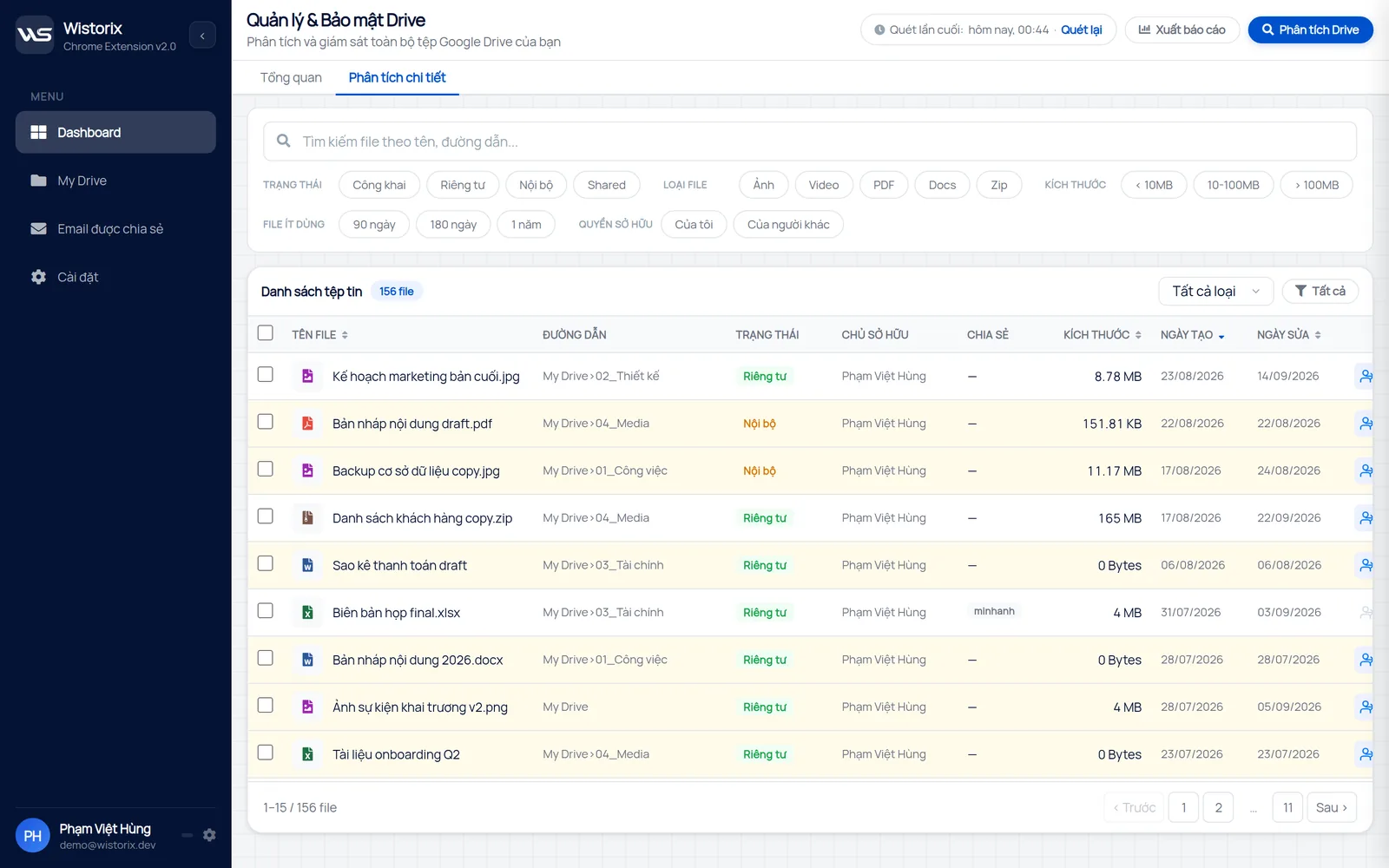
Wistorix separates files you own from files shared with you. Only the files you own count toward your limit, so you do not waste time on other people's files. Nothing runs until you confirm, and files you delete with Wistorix only move to the Google Drive Trash, where you can restore them for 30 days.
Step 4: Clean up Google Photos
If Photos is behind your Gmail storage full warning, start with videos. Phone videos weigh many times more than photos, and one long clip can equal hundreds of pictures. Review duplicate videos, test clips and old screenshots.
Deleted photos and videos stay in the Photos trash. Google says items in trash still count toward your limit until they are permanently deleted. Empty the Photos trash once you are sure you do not need anything back.
Step 5: Empty the trash and wait for the update
Deleting a file in Drive does not free space right away. The file moves to the Drive Trash, where you can restore it for 30 days, and it keeps counting until you empty the Trash or the 30 days pass. If your Gmail storage full warning means you need mail urgently, empty the Trash after a final check.
After you delete many files at once, Google says storage can take up to 48 to 72 hours to update. If you have cleaned up and the number still has not moved, our guide on Google Drive storage not updating lists the causes and fixes.
Keep Gmail storage full from coming back
One cleanup gets your inbox working again, but storage fills up slowly if your habits stay the same. A few small changes help you avoid another Gmail storage full warning:
- Send a Drive link instead of a large attachment, so the file is stored once.
- Check your storage page every quarter, before Google sends a warning.
- Scan your Drive on a regular basis to catch new duplicates and large files.
- Review the Photos and WhatsApp backup settings on your phone.
- Empty Gmail Spam and the Drive Trash after each cleanup.
To sum up, when you see Gmail storage full, first find which service takes the space, then clean the right place: large attachments in Gmail, duplicates and large files in Drive, videos in Photos. Empty the trash and give storage time to update. For most accounts, cleaning Drive frees the most room for your inbox.
Try it: Google Drive storage analyzer, a free scan that shows which file groups take your inbox's space.
Frequently asked questions
Do I lose incoming emails when my Gmail storage is full?
Emails sent to you while you are over quota are returned to the sender and do not reach your inbox. Your existing emails stay where they are. Once you free up space, new mail arrives normally again.
Why does Gmail still say storage is full after I deleted emails?
Deleted emails stay in Gmail Trash and still count until they are permanently deleted. Also, most of your storage may be in Drive or Photos, not in your inbox.
Do files shared with me count toward my storage?
No. A file only counts toward its owner's storage. Files you copy, or upload yourself into a shared folder, do count toward yours.
Can Wistorix clean up Gmail?
No. Wistorix works with Google Drive, which is usually the biggest part of a Gmail storage full problem. It helps you find duplicates, large files and files you no longer use. You clean Gmail and Photos in Google's own apps.



sharing publicly?