

Google Drive storage not updating after you delete files: 6 reasons and fixes

If you see Google Drive storage not updating after a big cleanup, the cause is rarely a bug. Usually the files are still in the Trash, Google has not recalculated yet, or what you deleted is not what takes up the space. This guide lists six reasons in the order you should check them, how to recognize each one and how to fix it so the storage number matches what you actually cleared.
In this guide
- Why the number does not change right away
- Six common reasons
- The order to check them in
- When nothing on the list helps
- Work accounts
- Avoid it next time
- Frequently asked questions
Why you see storage not updating right after you delete
In Google Drive, the Remove button does not delete a file for good. It moves the file to the Trash, where it stays for 30 days so you can restore it if you deleted it by mistake. During that time, the file still counts toward your storage. This is the most common reason behind storage not updating.
Beyond the Trash, the free 15 GB is shared with Gmail and Google Photos. You can delete a lot in Drive, but if most of your space sits in your inbox or photo library, the storage bar will barely move. So before you delete anything else, find the actual reason.
Six reasons for Google Drive storage not updating
The six reasons below run from most common to least common. Each one comes with a sign to recognize it and a fix you can apply in a few minutes.
1. The files are still in the Trash
Open Trash in the left sidebar of Drive. If you see the files you just deleted, they still count. Once you are sure you do not need them, click Empty trash or select files and delete them forever. According to Google's guide to deleting and restoring files, files in the Trash count toward your storage until they are permanently deleted.
Before you empty trash, scroll through the list once more. After this step you can no longer restore those files yourself, so this is the moment to keep anything you still need.
2. Google has not recalculated yet
After you delete a large number of files, Google needs time to recalculate. Google One help notes that an accurate update usually takes 48 to 72 hours. If you just emptied the Trash and still see storage not updating, wait out that window before you do anything else.
3. The files you deleted belong to someone else
Files in Shared with me, and files other people created inside your folders, count against their owner's storage. Deleting them only removes them from your view of Drive. To check, open the file details and look at the Owner line. Only files you own free up space when you delete them.
This often happens after a client project, when you clear out a large shared folder that the client created. The folder disappears from your Drive, but the files were never part of your quota in the first place.
4. Your space is in Gmail or Google Photos
Open the Google One storage page to see how much Drive, Gmail and Photos each use. If Gmail takes a lot, search for large attachments with has:attachment larger:10M, delete the messages you do not need, then empty the Gmail Trash and Spam folders. If Photos takes a lot, review long videos and screenshots, then clear the separate Photos trash as well.
5. Files you own sit outside any folder
When you create a file in someone else's folder and that folder is deleted, your file is not lost. It becomes an orphaned file: it no longer appears in any folder tree but still counts toward your storage. Type is:unorganized owner:me in the Drive search box to list this group, and see the guide to Google Drive orphaned files for how to handle them.
6. You deleted a shortcut or a copy, not the original
A shortcut in Drive only points to the original file and uses almost no space, so removing it frees nothing. Likewise, if you delete a small copy while the large original remains, the number barely changes. Open the Storage page in Drive to make sure the large file you targeted is no longer on the list.
In what order to check storage not updating
To save time, check from the quickest step to the slowest. Each step takes a few minutes and rules out one group of reasons.
- Open the Drive Trash and empty it once you are sure
- Wait 48 to 72 hours if you just deleted a large amount
- Look at the Google One chart to see whether Drive, Gmail or Photos uses the most
- Open the Storage page in Drive and check whether the largest remaining files are yours
- Find orphaned files with
is:unorganized owner:me
Most cases of storage not updating are solved at step 1 or step 3. Steps 4 and 5 matter for a Drive used for years, with many folders shared back and forth with clients and colleagues.
Write down the number on the storage bar before you start and after each step. It takes a few seconds, and it tells you which step actually made a difference, which is useful the next time the same thing happens.
If you still see storage not updating after every check
If you have gone through all five steps and waited more than 72 hours with storage not updating, sign out and back in, or check in another browser to rule out a cached page. Also make sure you are looking at the right account, since many people use a personal account and a work account side by side.
If the number is still clearly wrong compared with what you see, you can contact Google Drive support from the help center. Have a screenshot of the Storage page and the time you emptied the Trash ready to speed things up.
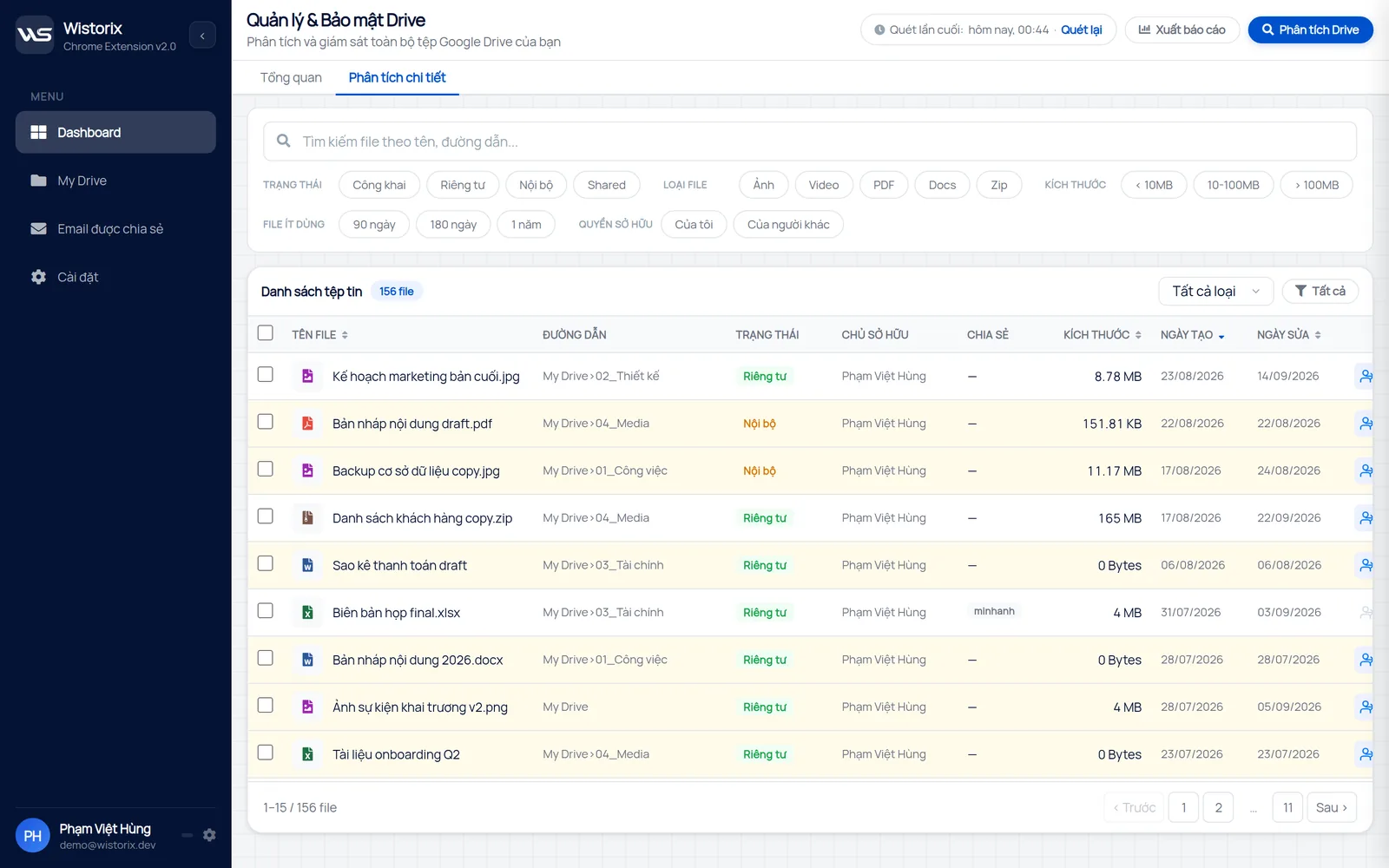
For a Drive with thousands of files, Wistorix speeds up steps 4 and 5. One scan shows the files you own by size, including orphaned files, along with the owner and sharing status. Wistorix reads file metadata only, never file contents, and any file you choose to delete goes to the Google Drive Trash, where you can restore it for 30 days.
Scanning is free, and nothing is deleted until you confirm. The free up storage page shows how the large, old, duplicate and empty file views fit together.
Storage not updating on a work account
Google Workspace accounts have a few extra cases. Files in a shared drive belong to the organization, not to you, so deleting them does not change your personal storage. Files deleted from a shared drive also go to that shared drive's own trash, not to the Trash in My Drive.
Many organizations use pooled storage for the whole company. In that case, the number you see may be the shared total, and the files you delete only move it a little. If you see storage not updating on a work account, ask your admin whether the organization uses per-user limits or pooled storage before you clean up further.
One more point for work accounts: files from employees who have left may still belong to their old accounts until someone takes over ownership. Storage not updating at the organization level sometimes comes from this group of files, not from the Drives of people who are still working.
Avoid storage not updating after your next cleanup
Three small habits make your next cleanup show results right away. Check the owner before you delete, empty trash a few days after a cleanup instead of waiting for the automatic removal after 30 days, and look at the Google One chart before you start on Drive. If your Drive is already full, the guide on what to clear first when Google Drive's 15 GB is full sets out the priorities.
It also helps to clean up in smaller rounds. A short session every month, with the Trash emptied at the end, gives you a clear before and after number instead of a big cleanup followed by days of waiting.
In short, when you see Google Drive storage not updating, think about the Trash, the update delay and file ownership first, then Gmail, Photos and orphaned files. Very few cases need Google support.
Frequently asked questions
How long after emptying the Trash does storage go down?
Usually within a few hours. After a very large deletion, it can take 48 to 72 hours before the number is accurate.
Does deleting files shared with me free up space?
No. A file counts against its owner's storage, so deleting it only removes it from your Drive.
Why does my account say it is full when Drive looks almost empty?
Because the 15 GB is shared with Gmail and Google Photos. Check the Google One storage chart to see which service uses the most.
Can I restore files after I empty the Trash?
Not by yourself. A Workspace admin may be able to restore them for a limited time, while personal accounts can only try contacting Google support.


sharing publicly?