

How to check Google Drive storage and read the numbers correctly

To check Google Drive storage, you have four places to look: the storage line in Drive on the web, the Google One storage page, the Drive app on your phone, and the admin console for work accounts. Each one gives you a different view. This guide shows how to check in each place, how to read the numbers to see where your space goes, and when it is time to start cleaning.
In this guide
- When to check your storage
- Way 1: In Drive on the web
- Way 2: On the Google One page
- Way 3: On your phone
- Way 4: In a work account
- How to read the storage numbers
- Keep a storage log
- When Drive is almost full
- Frequently asked questions
When to check Google Drive storage
Most people only look at their storage when Google sends an email saying it is almost full. By then you usually have to clean in a hurry, which makes rushed deletions more likely. If you check Google Drive storage on your own at a few fixed moments, you have time to make calmer decisions.
- Before uploading a large amount of data, such as event videos or a new project folder
- When emails sent to you bounce or your phone photos stop backing up
- Before deciding to buy more storage
- Once a month, to see whether your storage is growing quickly or slowly
A regular check takes less than a minute once you know where to look. The four places below cover every kind of account, from a personal Gmail account to a company Google Workspace account.
Way 1: Check Google Drive storage on a computer
Open Google Drive in your browser. At the bottom of the left column you will see a storage bar with a line showing how much you have used out of the total. This is the fastest way to check Google Drive storage, and the number is the total for Drive, Gmail and Google Photos together, not Drive alone.
Click the storage bar or Storage to open a list of files you own, sorted by size from largest to smallest. From here you can see right away which files take the most space in Drive. The list only includes files you own, because files other people share with you do not count against your storage.
This view is the best starting point for cleaning Drive itself. If the largest files at the top of the list are videos or archives you no longer need, you already know where most of your Drive space is going.
Way 2: Check Google Drive storage on the Google One page
The Google One storage page shows a chart that splits your storage across three services: Drive, Gmail and Photos. This is where you answer the most important question when you check Google Drive storage: where is most of the space going? You do not need a paid plan to see this page.
The same page has a section to free up account storage, which groups deleted emails, spam, large attachments, large files in Drive, and large photos and videos. If the chart shows Gmail taking more than Drive, start with Gmail. Google explains how each type of data is counted in its guide to how Google storage works.
Way 3: Check Google Drive storage on your phone
In the Drive app on Android or iPhone, open the menu and choose Storage to see the total storage used. The Google One app on your phone shows the same chart split by service as the web version, which is handy when you are away from your computer.
On a phone, it is best to check Google Drive storage for a quick look. When you need to compare many files and choose which ones to delete, a computer browser is still much easier, because the screen is larger and selecting many files is simpler.
If your phone backs up photos automatically, check the backup settings in Google Photos while you are there. Phone backup is one of the most common reasons storage grows without you noticing.
Way 4: Check storage in a work account
In a Google Workspace account, storage may be assigned per person or pooled for the whole organization, depending on how your administrator set it up. The storage bar in Drive still tells you how much you are using. Administrators can see the storage used by each member and by each shared drive in the admin console.
Files in shared drives belong to the organization, so they do not count against your personal storage. If your company says the shared storage is almost full, the most effective approach is for each person to check Google Drive storage for their own account and handle their large and duplicate files. The manager of each shared drive then cleans that drive.
How to read the numbers when you check Google Drive storage
The total only tells you how much room is left. To know what to do next, read three more things:
- The split between Drive, Gmail and Photos: tells you which service to clean first
- The ten largest files under Storage: if they take more than half of your Drive space, handling this group is enough
- Monthly growth: write down the number each time you check so you know how long until the storage is full
Keep in mind that files in the Trash still count until they are permanently deleted. If you just deleted many files and the number has not dropped, look at the Trash first. After deleting a large amount, the number can take 48 to 72 hours to update accurately, as explained in the guide to Google Drive storage not updating.
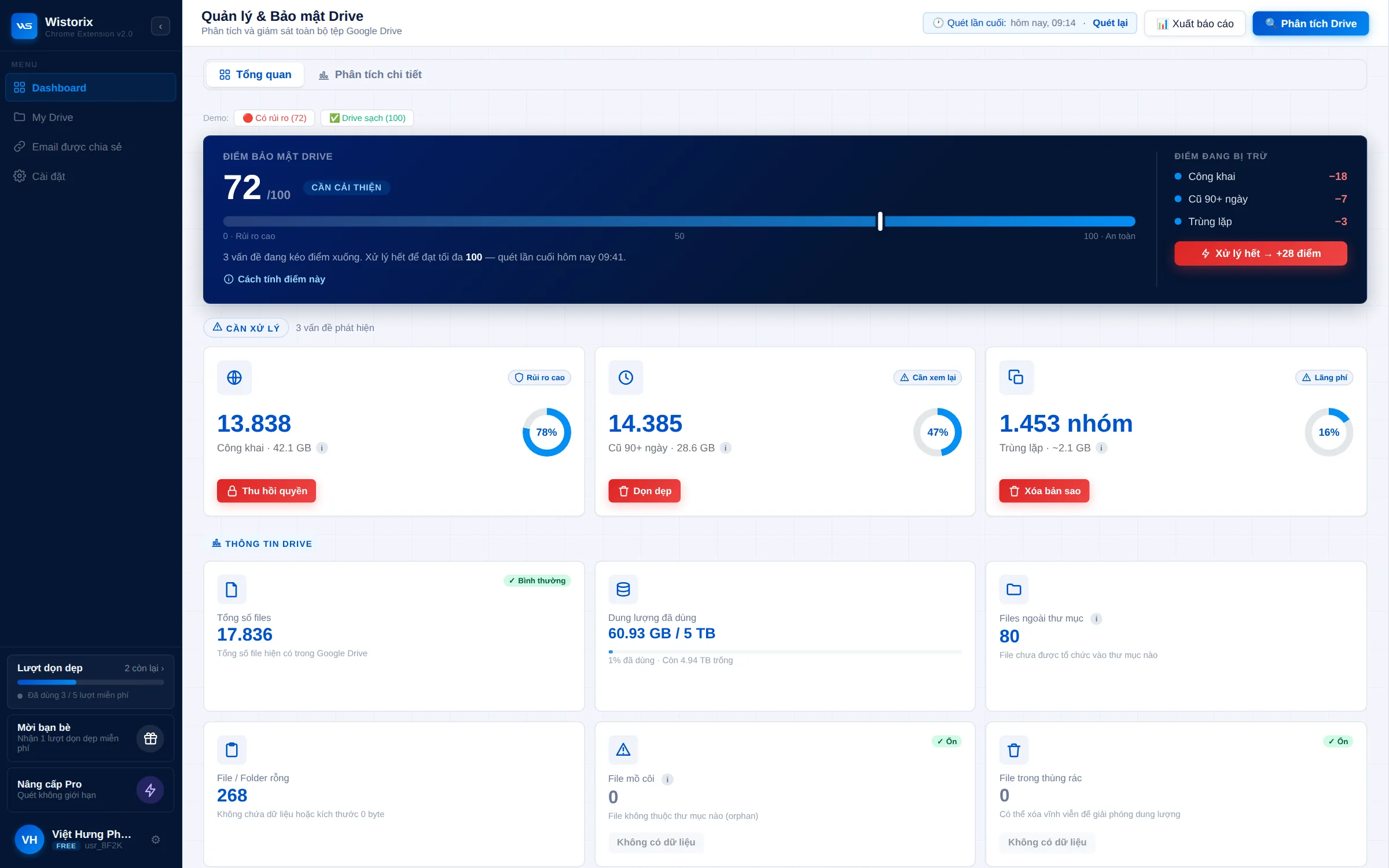
Drive's Storage page tells you which files are large, but not how much space is taken by duplicates or files nobody opens. Wistorix adds that view: after one scan, the dashboard shows storage by each group to review, so you know which group will free the most space. Wistorix reads file metadata only, never file contents, and scanning is free.
Keep a log each time you check Google Drive storage
A small spreadsheet makes each check much more useful. Each time you look, add a row with five columns: the date, total storage used, the Drive share, the Gmail share and the Photos share. After three or four entries, you can see which service is growing and how fast.
| Date | Total | Drive | Gmail | Photos |
|---|---|---|---|---|
| July | 11.2 GB | 6.1 GB | 2.3 GB | 2.8 GB |
| August | 12.0 GB | 6.2 GB | 2.4 GB | 3.4 GB |
| September | 12.9 GB | 6.3 GB | 2.5 GB | 4.1 GB |
In this example, Drive barely moves while Photos grows every month. Cleaning Drive would not help much here, and the right move is to review the photo and video backup settings on your phone. Without a log, it is easy to spend a whole afternoon cleaning the wrong place.
If you use Drive for work, add a notes column for big events such as receiving new project videos or ending a contract with a client. The next time you check Google Drive storage and see a sudden jump, you know the cause right away without searching for it.
When you check Google Drive storage and it is almost full
When the storage is full, you cannot upload new files to Drive, Gmail stops receiving new email and Google Photos stops backing up. Google sends a notification email before this happens, so you usually have time to act. A sensible order is to empty the Trash, handle the largest files, and then clean up large attachments in Gmail.
Before you delete anything, sort the files you found into three groups: keep, archive to an external drive, and delete. Deleting is the last choice, not the first. Files from finished projects can often be downloaded and stored outside Drive, which frees the space while you keep a copy.
Files you delete go to the Trash and can be restored for 30 days, so you do not need to worry about mistakes in the first round. A detailed, prioritized plan is in the guide on what to clean first when Google Drive is full.
In short, to check Google Drive storage properly, look beyond the total. Use the Google One chart to see where the space goes, open Storage to find the largest files, and write down the numbers every month to catch unusual growth early.
Frequently asked questions
Does the storage number in Drive include Gmail?
Yes. A free account has 15 GB shared by Drive, Gmail and Google Photos, so the storage bar in Drive shows the total for all three.
Do Google Docs count toward my storage?
Docs, Sheets and Slides files created or edited since June 1, 2021 count toward your storage. Most of them are very light compared with videos and photos.
Can I see the size of each folder?
Drive does not show storage by folder. You only see the size of each file, or you can use a scanning tool that adds up sizes by folder.
How often should I check my storage?
Once a month is enough for most people. If your Drive grows quickly because of videos or phone photos, check every two weeks.


sharing publicly?