

Google Drive 15GB full: what to clean first to get space back fastest
When your Google Drive 15GB storage is full, most of the space is usually taken by files you forgot about long ago, not by the documents you use every day. This guide explains how the 15GB is counted, which groups of files to clean first, and how to get space back without deleting something you need to keep.
In this guide
- How your 15GB is counted
- Step 1: Duplicate files
- Step 2: Empty files and empty folders
- Step 3: Large files and files nobody opens
- When Gmail and Google Photos fill the space
- The order to clean in
- The Trash: the last step to free the space
- Upgrade or clean first
- Frequently asked questions
How your Google Drive 15GB is counted
The free 15GB that comes with a Google account is not reserved for Drive. That space is shared by Google Drive, Gmail and Google Photos. So when the Google Drive 15GB limit is reached, email and photos can be just as responsible as the files in Drive.
Only files you own count against your storage. Files other people share with you, listed under Shared with me, count against the storage of their owner. Google explains the details on its page about managing storage across Drive, Gmail and Photos.
What happens when the space runs out
When you run out of space, you cannot upload new files to Drive, Google Photos stops backing up, and Gmail cannot send or receive email. Your existing files stay where they are and still open normally. According to Google, content may be deleted only if an account stays over its limit for 2 years, so you have plenty of time to sort things out.
See where the space is going
Open Drive and click Storage in the left column. Google lists your files by size, from largest to smallest, which is the best place to start. On your account's storage page, you can also see how much Drive, Gmail and Photos each take.
- Drive takes the most: follow the three steps below
- Gmail takes a lot: find emails with large attachments with has:attachment larger:10M
- Photos takes a lot: delete duplicate videos and consider the Storage saver backup quality
Before you start, write down how your Google Drive 15GB is split between the three services. When you finish, compare them again so you can see which step freed the most space and where to look next time.
Step 1: Duplicate files in your Google Drive 15GB
This is the easiest group to clean because you lose almost nothing. Duplicate files usually appear when you download the same document several times, sync a folder again, or someone sends the same attachment twice. When your Google Drive 15GB space is full, Wistorix compares names, sizes and modified dates to group these copies together, so you only need to keep one.
How to spot duplicate files
The easiest signs are file names ending in (1) or (2), or starting with Copy of. But many duplicate files have different names, such as a monthly report saved twice in two folders. In a Drive used for many years, this group can take several GB without you noticing.
Before deleting, check which copy is shared with other people. If you delete the copy someone else is using, they can no longer open it. Keeping the shared copy and deleting the others is the safest approach.
If you want a deeper look at this group, the guide to finding duplicate files in Google Drive explains how to choose which copy to keep.
Step 2: Empty files and empty folders
These are 0 KB files, documents created by mistake and then abandoned, and folders with nothing left inside. They do not take much space, but they clutter your lists and make search noticeably slower.
After each scan, Wistorix puts empty files in their own group so you can review them in one list. You select the whole group or untick the files you want to keep, such as a blank document you use as a template. This usually takes less than a minute.
Cleaning this group will not solve a full Google Drive 15GB quota on its own, but it makes the next steps faster. Once your lists are tidy, large files and old files are much easier to spot.
Step 3: Large files and files nobody opens
Videos, design files and compressed backups: just a few of these can take several GB. Sort by size from largest to smallest and compare with the last time each file was opened. A 2 GB file nobody has opened in two years is usually the first candidate.
For design files and videos, ask one more question: has the final version been sent to the client or stored somewhere else? If so, the working versions in between usually do not need to stay in Drive. If you are not sure, download them to an external drive before deleting them from Drive.
Filter by size and by time
In Wistorix, you can filter files by three size ranges: under 10 MB, from 10 to 100 MB, and over 100 MB. The rarely used filter separates files nobody has opened in 90 days, 180 days or 1 year. Combining these two filters is the fastest way to find what is filling your Google Drive 15GB space.
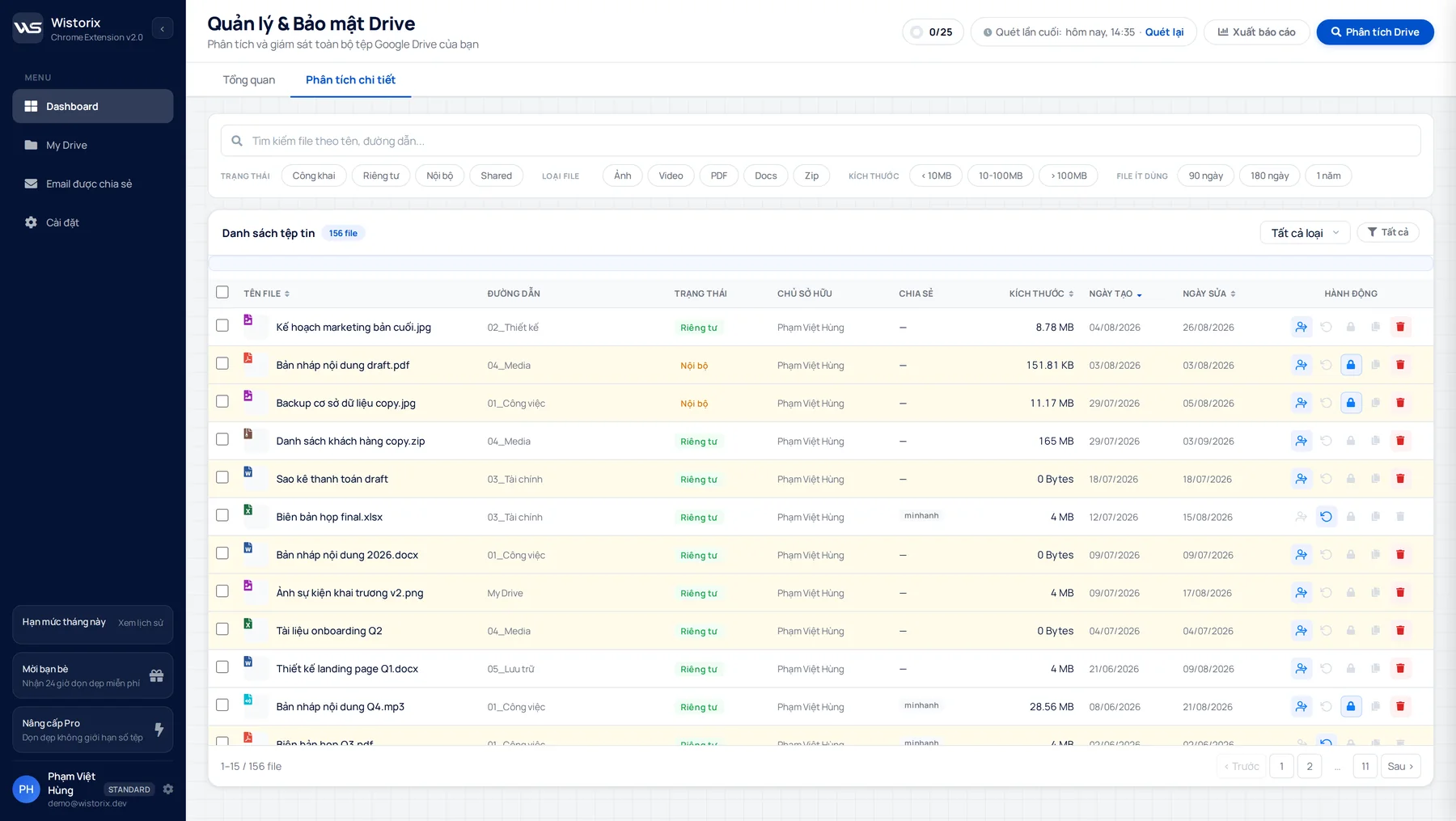
Before you act, export a report of the file list to keep a record. If you ever need to find a file you deleted, the report tells you its name and where it used to be.
When Gmail and Google Photos fill the Google Drive 15GB
If your storage page shows that Gmail or Google Photos takes most of the space, cleaning Drive will not be enough. The good news is that both services also have quick ways to find the heaviest items.
Gmail: find emails with large attachments
Type has:attachment larger:10M into the Gmail search box to see every email with attachments over 10 MB. Emails with design files, videos or scanned contracts usually show up here. Save the attachments you need to Drive once, then delete the duplicate emails.
Emails in Gmail's Spam and Trash folders also count toward your storage. Emptying both takes a few seconds and can sometimes free a few hundred MB.
Google Photos: videos and screenshots
Videos recorded on your phone are the heaviest group in Photos. Review long videos, videos recorded twice and old screenshots. If photos are the main reason your storage is full, the Storage saver backup quality compresses new photos to use less space from now on.
The order to clean a full Google Drive 15GB
When your Google Drive 15GB space runs out, clean in this order:
- Duplicate files: delete the extra copies and keep one
- Empty files and folders with nothing left inside
- Videos and compressed files over 100 MB that you no longer use
- Files in the Trash, which still count toward your storage
- Drafts and temporary files not opened in 12 months
This order goes from the lowest-risk group to the groups that need more thought. You free the most space with large files, but duplicate files are the safest place to start.
Work through one group at a time and check your storage after each one. Often the first two or three groups free enough space that you can stop there and come back to the rest another day.
The Trash: the last step to free the space
Deleted files still count toward your Google Drive 15GB storage until they are permanently removed from the Trash. Google deletes files in the Trash automatically after 30 days, or you can empty it sooner yourself. The details are on Google's page about deleting files in Google Drive.
When you delete files with Wistorix, they only move to the Google Drive Trash, and Wistorix never permanently deletes anything. During those 30 days you can still restore a file if you change your mind. Empty the Trash only when you are sure you do not need anything in it.
Google Drive 15GB full: upgrade or clean first
Upgrading to a Google One plan is the fastest way to get more space, but it does not make your Drive any tidier. If most of the space is duplicate files and old files, you end up paying to store things you never use. Cleaning first and then deciding helps you choose the right plan, or shows that you do not need to upgrade yet.
- Clean first: a Drive that has not been organized in years, with many duplicates and temporary files
- Upgrade: after cleaning, the space you really need still goes over 15GB
- Do both: you work with many videos or heavy design files
See how Wistorix finds files you can clear on the free up storage page. After the first cleanup, a regular review keeps your Drive from filling up again quickly, as described in the guide to a regular Google Drive review.
Frequently asked questions
Why does Google Drive still say it is full after I deleted files?
Because deleted files sit in the Trash and still count toward your storage. The number only drops when the files are permanently deleted, either when you empty the Trash or when Google removes them after 30 days.
Do files other people share with me count toward my 15GB?
No. Only files you own count against your storage. Files under Shared with me count against the storage of the person who owns them.
Does a full Drive affect Gmail?
Yes. Because the storage is shared, you cannot send or receive new email once the space runs out. Your existing emails are still there and you can still read them.
Does Wistorix delete files on its own to free up space?
No. Wistorix finds and groups files for you to review, and nothing is deleted until you select files and confirm. Deleted files go to the Google Drive Trash and you can restore them for 30 days.


sharing publicly?