

How to find and remove duplicate files in Google Drive without losing the ones you use
Duplicate files in Google Drive do more than waste storage. They make you send an outdated version, edit the wrong copy and lose time guessing which file is the real one. This guide shows how to spot, find and remove the extra copies in three steps, both by hand and with Wistorix, without losing the files you actually use.
In this guide
- Why duplicates build up in Google Drive
- Step 1: Know the kinds of duplicates
- Step 2: Find duplicates in Google Drive
- Step 3: Choose which copy to keep and remove the rest
- Keep duplicates from coming back
- Frequently asked questions
Why duplicate files build up in Google Drive
Google Drive allows several files with the same name in one folder, and it has no built-in duplicate finder. So each time you upload a document again, Drive keeps both without asking. After a few years, the same photo set or contract can exist in three or four different places.
- Saving the same email attachment several times
- Making a copy to try out edits, then forgetting to remove it
- Syncing a folder from your computer again after reinstalling it
- A colleague sends you a file you already have, and you save another copy
- Exporting the same document to PDF after every round of edits
The real cost of duplicates
Storage is only the visible part. The bigger cost is version confusion: you edit an old copy while the team works on the new one, or you send a client a quote that is no longer valid. In a team, extra copies also leave new members unsure which file to open.
The good news is that duplicate files are the safest group to handle when you clean up Drive, because you always keep one copy. If you are cleaning your whole Drive, start with this group, as suggested in the guide to clean up Google Drive step by step.
Step 1: Know the kinds of duplicate files
Not all duplicate files in Google Drive have exactly the same name. Before you search, it helps to know which kinds you are looking for so you do not miss any.
Same name versus same content
The most obvious kind is two files with identical names and the same size. The second kind is a copy Drive created for you, with "Copy of" at the start of the name. The third kind has the same content under a different name, such as Q3 Report and Q3 Report final, which you usually only notice by comparing size and date modified.
Not every duplicate is clutter
Some copies are made on purpose: a version sent to a client with editing locked, a backup saved before a big revision, a translation into another language. Before you remove anything, check which folder the file is in and whether it is shared with anyone. Those two details usually tell you which copy has a role of its own.
If you are unsure about a copy, leave it for now and come back to it at the end. It is better to finish the clear cases quickly than to stall on the one file nobody can explain.
Step 2: Find duplicate files in Google Drive
There are two ways to find duplicate files in Google Drive: by hand with the Drive search box, or by scanning the whole Drive with Wistorix. Searching by hand suits a few specific files you suspect, while scanning suits a Drive with thousands of files.
Search by hand
Type the file name, or part of it, into the search box and add owner:me to see only files you own. Type "Copy of" to find copies Drive created. Use type:pdf or type:image to narrow by file type, then sort by name so similar files line up next to each other.
The full list of search operators is in Google's guide to finding files in Google Drive. The limit of this method is that you need to know the file name in advance. Copies with different names, or ones scattered across many subfolders, are almost impossible to gather by hand.
Scan your whole Drive with Wistorix
Wistorix finds duplicate files across your whole Drive and groups each set of copies together. The Browse Google Drive screen shows how many duplicate groups you have and how much storage they waste, next to a folder tree so you can see where each copy lives.
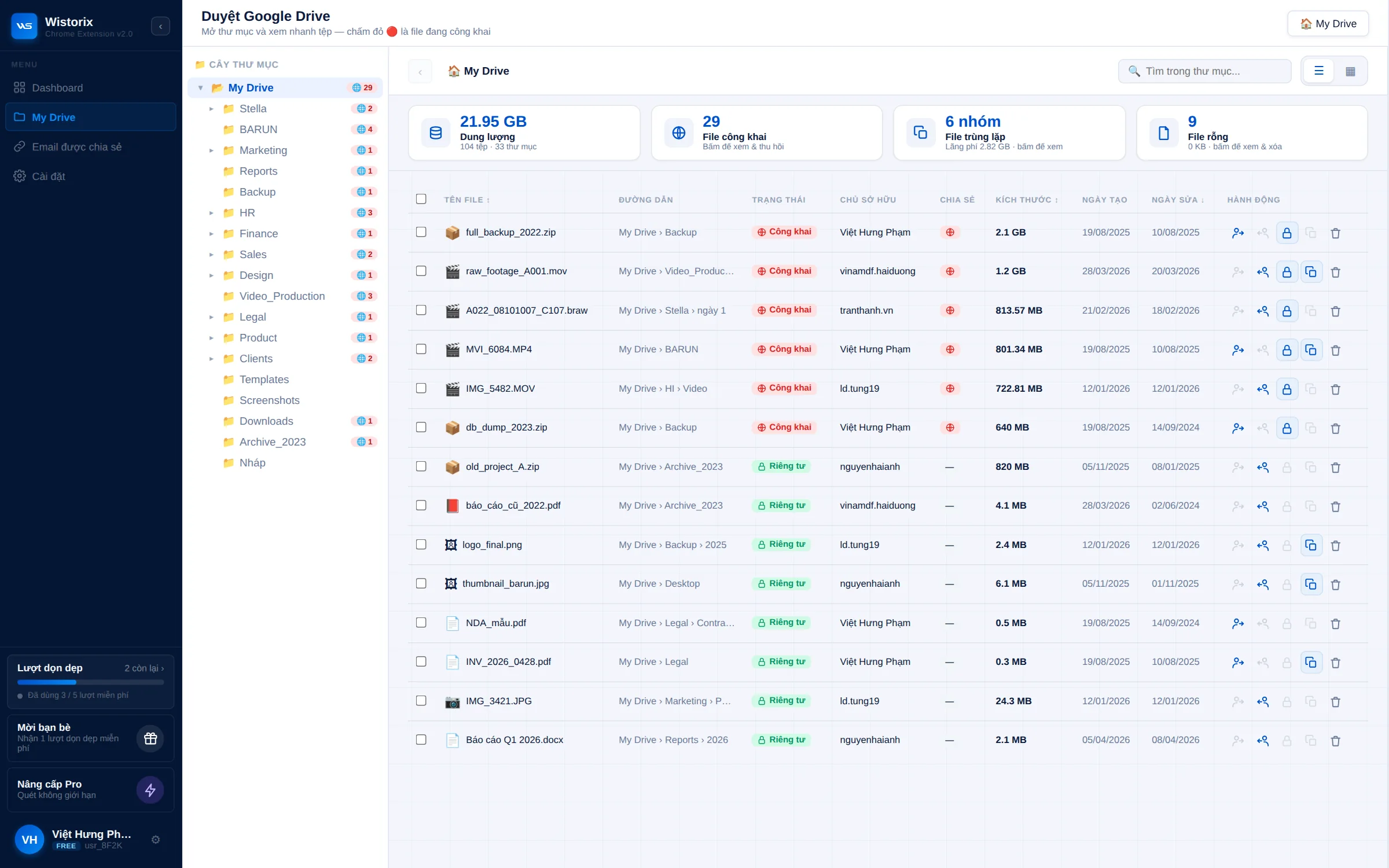
Scanning is free, and you can scan as often as you like. Wistorix reads only file metadata such as name, size and sharing settings, never file contents.
Step 3: Choose which copy to keep and remove duplicate files
This is the decisive step, and also the easiest one to get wrong if you rush. For each group of copies, choose one to keep using the order of priority below.
- Keep the copy that is shared with other people, so nobody loses access.
- If no copy is shared, keep the one in the right project folder.
- If it is still unclear, keep the copy with the most recent date modified.
- Open both copies for a quick look if their sizes differ, because they may not be true duplicates.
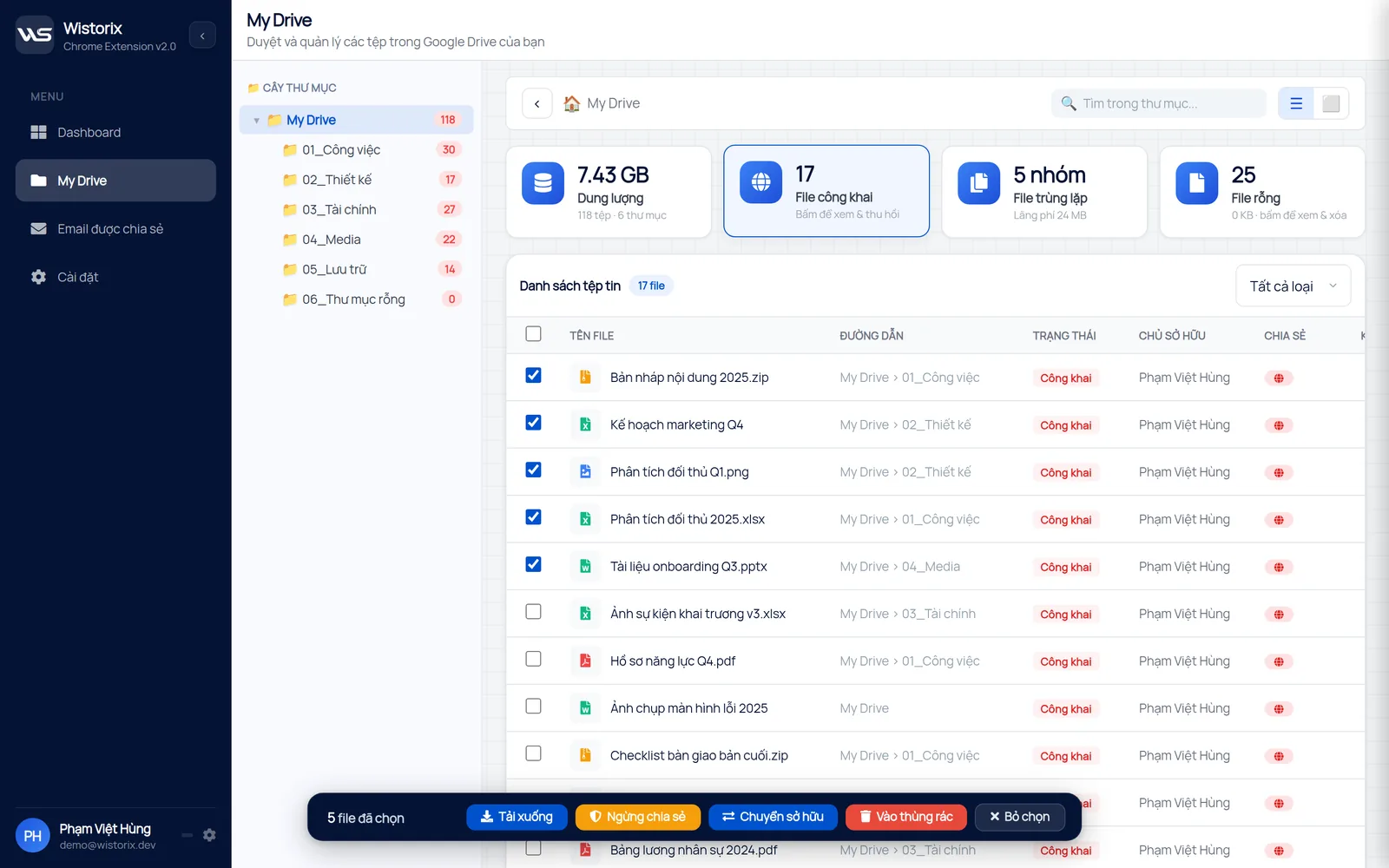
Once you have chosen, remove the other duplicate files in the group. In Wistorix, you tick several files and click Move to trash once, instead of opening folder after folder.
Remove duplicates with a way back
When you remove copies with Wistorix, the files only move to the Google Drive Trash and are never permanently deleted at that point. Google keeps files in the Trash for 30 days, so you can restore anything you picked by mistake. The details are on Google's page about how to delete and restore files in Google Drive.
Note that files in the Trash still count toward your storage. Empty the Trash only when you are sure, and that is when the space really comes back. If your Drive is nearly full, the guide on what to clear first when Google Drive 15GB is full sets out the order for other groups of files.
Duplicates in a shared folder
A shared folder used by the whole team is where duplicate files pile up fastest. Each person uploads their own copy of the same document, and every file counts toward the storage of whoever owns it. The result is that one photo set can take up space in three different people's Drives.
In a shared folder, you can only remove files you own. In Wistorix, filter by Ownership set to Owned by me so you see only your copies, then ask the owners of the other copies to handle theirs. This avoids removing a document someone else still uses.
Keep duplicate files from coming back
One cleanup is not enough, because the habits that create duplicate files are still there. A few small changes keep extra copies from piling up again over the next few months.
- Share a link to the original file instead of sending an attachment for others to save
- Use a shortcut when you need a file to appear in two folders, instead of making a copy
- Rely on the version history of Google Docs instead of saving files named final and final 2
- Name files with a date and a status, for example 2026-09 Contract signed
- Review your duplicate groups once a month
Version history is the most overlooked tool on that list. Every time you edit a Google Doc, Sheet or Slides file, Drive keeps the older version, so you never need a copy just in case you want to go back.
If you manage Drive for a team, agree on one naming rule and one place for the master copy of each type of document. That rule alone prevents most of the copies that appear when everyone saves their own version.
Review duplicate files on a schedule
The first cleanup always has the most groups. After that, each month brings only a few new ones, and you can handle them in minutes. Wistorix is building scheduled automatic scans with alerts (coming soon), so you will not need to remember the review date yourself.
A monthly review also keeps the decisions easy, because the copies are recent and you still remember why they exist. If your first scan turns up many groups, see how Wistorix finds files you no longer need on the free up storage page.
Frequently asked questions
Does Google Drive find duplicates on its own?
No. Drive allows many files with the same name and has no tool that groups duplicate files together. You need to search by hand or use a scanning tool such as Wistorix.
Will removing duplicates make other people lose access?
Only if you remove the exact copy shared with them and then delete it permanently from the Trash. That is why you should always keep the shared copy and remove only the ones nobody uses.
What about two files with the same name but different sizes?
They are most likely two different versions, not copies. Open both for a quick look before you decide, and keep the newer one if the content has been updated.
Do copies of Google Docs count toward my storage?
Yes. Every file you own counts toward your storage, copies included. Removing unused copies and then emptying the Trash gives that space back.



sharing publicly?