

How to check a Google Drive folder size when Drive does not show it

Google Drive tells you how much storage you use, but not which folder takes most of it. When you try to check a Google Drive folder size, the size column shows a number for every file and leaves the folder rows blank. This guide explains why Drive skips that number, four ways to find it, from manual to automatic, and how to read the result so you free up space in the right place.
In this guide
- Why Drive does not show folder size
- Four ways at a glance
- Step 1: Add up file sizes in your browser
- Step 2: Use Drive for desktop
- Step 3: Open the Details tab of a shared drive
- Step 4: Scan your Drive with Wistorix
- Read the numbers correctly
- Deal with the heaviest folder
- Frequently asked questions
Why Google Drive does not show folder size
In Google Drive, a folder is a container for files, not a file with its own size. In list view, the size column only fills in for files. To get the folder size, you have to add up every file inside it, including the files in its subfolders.
Google does have a Storage page, but it works file by file. According to Google's guide to managing storage, when you click Storage in the left menu, your files list from largest to smallest. That list tells you which files are heavy. It does not tell you which folder they live in, so you still cannot see a folder size there.
| Where you look | What you see | What is missing |
|---|---|---|
| File list on drive.google.com | The size of each file | The total for a folder and its subfolders |
| Storage page | Your files, largest first | Which folder each file sits in |
| Google One storage page | Total use split across Drive, Gmail and Photos | Any detail by file or folder |
One point before you start. Your Google storage is shared across Drive, Gmail and Google Photos, and only the files you own count toward your limit. A folder someone shared with you can be very large and still use none of your space.
Four ways to check a Google Drive folder size
Each method fits a different situation. Pick one based on how many folders you need to check and what kind of account you use:
| Method | Best when | Limit |
|---|---|---|
| Add up file sizes in the browser | A small folder with few subfolders | Slow, easy to miss files in subfolders |
| Drive for desktop | The app is already installed | Your computer's number can differ from the cloud number |
| Details tab of a shared drive | Google Workspace accounts that use shared drives | Covers the whole shared drive, not one folder |
| Scan with Wistorix | A large Drive with many folders that you want to clean up | Needs a Chrome extension |
Step 1: Add up file sizes in your browser
The simplest way to find a folder size is to open the folder on drive.google.com, switch to list view and read the size column. Click the column header to put the largest files first. For a folder with a few dozen files, you can estimate the total in a few minutes.
This gets slow once a folder has several levels. You have to open each subfolder, note its total and add everything up. If you check folder size on a regular basis, copy the numbers into a spreadsheet so next time you only update what changed.
- Start with the folder you suspect is heaviest, such as a video or backup folder.
- Skip small Google Docs, Sheets and Slides files: they are rarely the main cause.
- Note which files someone else owns, because they do not count toward your storage.
Step 2: Use Drive for desktop
If you have Drive for desktop installed, your Drive folders show up in Finder on a Mac or File Explorer on Windows. Your computer's file manager can show the size of a folder: on a Mac choose Get Info, on Windows choose Properties. This is a quick way to get the folder size of a deep folder without adding numbers by hand.
Read this number with care. According to Google's page on storage with Drive for desktop, your computer calculates "size on disk" differently than the cloud counts exact bytes. So the number on your computer can differ from the one on Google's Storage page.
Google also separates two sync modes. Streaming files uses almost no space on your computer, but those files still count toward your cloud storage. Mirroring downloads a full copy, which fills your hard drive. Syncing with Drive for desktop uses your computer's disk and does not change your Google storage limit.
Step 3: Open the Details tab of a shared drive
On Google Workspace, many teams keep files in shared drives instead of My Drive. According to Google's page on shared drive limits, your administrator might set a storage limit on shared drives. To see the limit, if any, and how much storage is used, open the Details tab in Drive.
That number covers the whole shared drive, not a single folder inside it. If your team gives each project its own shared drive, this is the fastest way to compare projects without checking each folder size. If every project sits in one place, you still need one of the other methods.
Step 4: See folder size with Wistorix
Wistorix is a Chrome extension for Google Drive. It works with personal Gmail accounts and Google Workspace accounts, with no admin rights needed, and scanning is free. Wistorix reads file metadata only, such as name, size, owner and sharing settings, never file contents.
After a scan, the My Drive page in Wistorix shows a folder tree on the left, with the number of files in each folder. Click a folder to see four summary cards for it. The Storage card (Dung lượng) shows the total storage, the number of files and the number of folders, so you get the folder size in one click.
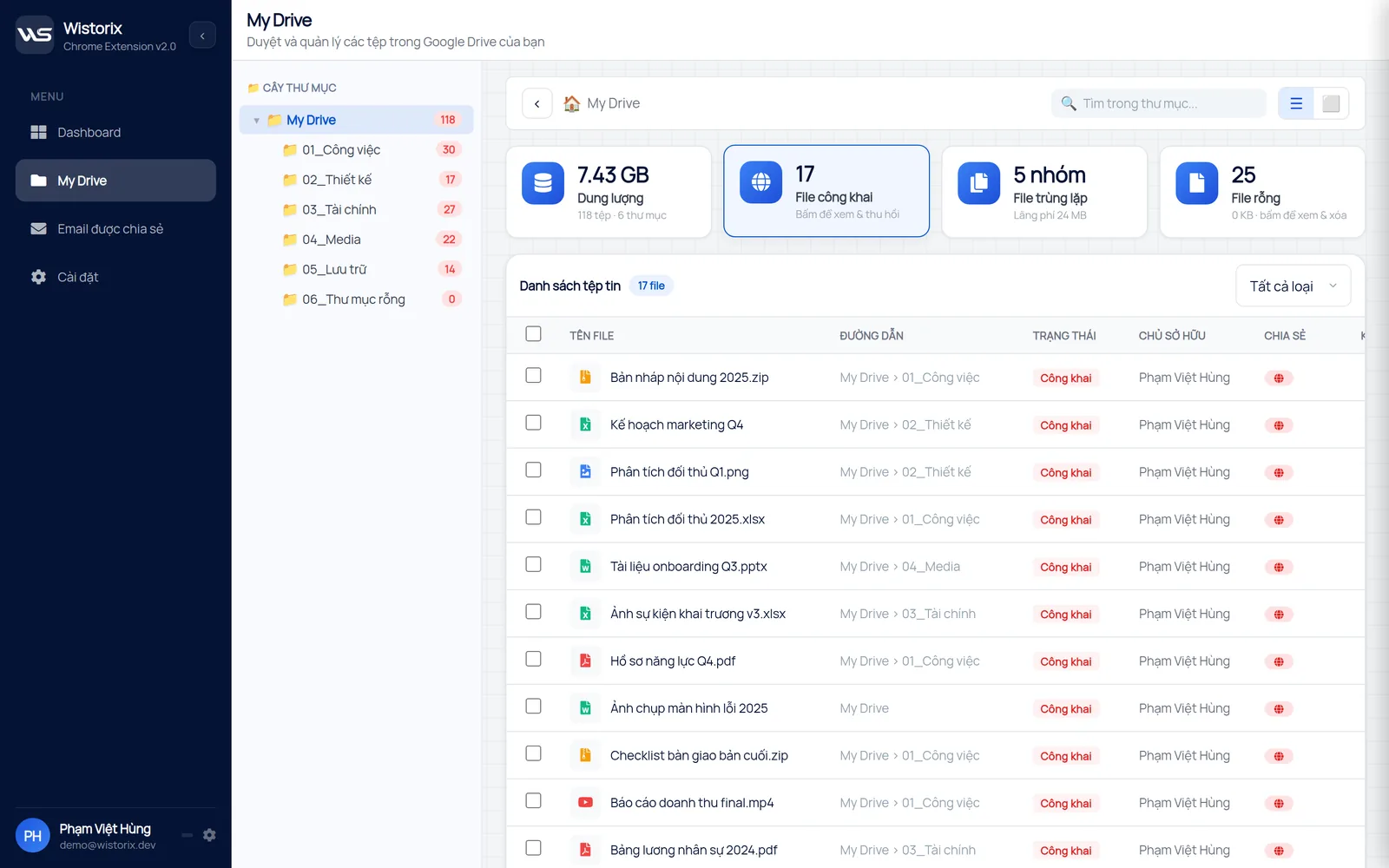
The other three cards show how many public files, duplicate files and empty files that folder holds. So you see what is worth fixing inside a heavy folder, not just one total.
To look at a folder size file by file, open the Detailed analysis tab (Phân tích chi tiết) on the Dashboard. Type the folder name into the search box, which matches names and paths, then click the Size column (Kích thước) to put the largest files first. Add the Mine filter (Của tôi) to keep only the files you own, the ones that count toward your storage.
Read the numbers after you check folder size
Once you know a folder size, compare it with the total on the Storage page. The two numbers often do not match, and each gap has a clear reason:
- Files shared with you do not use your Google storage. They only count against the storage of the person who created or owns them.
- Files you copy, files you add to a shared folder yourself and files you become the owner of do count toward your storage.
- Files in the trash still count toward your storage until you empty the trash.
- After you delete many files at once, Google says your storage can take up to 48 to 72 hours to update.
If you deleted files and the number has not moved, the guide on Google Drive storage not updating lists the causes and how to fix each one.
Deal with the heaviest folder
Knowing the folder size is only the first step. For your heaviest folder, work in this order to win back space without deleting the wrong thing:
- Filter the large files in the folder, starting with videos and archives.
- Check which files are shared with clients or teammates who still need them.
- Look for duplicates and files no one has opened in a long time.
- Download files you want to keep but rarely use to an external drive.
- Move the rest to the trash, then empty the trash once you are sure no one needs them.
Deleted files stay in the Google Drive trash for 30 days, so you can restore anything you change your mind about. In Wistorix, nothing runs until you confirm. To find the largest files across your whole Drive, read how to find large files in Google Drive.
In short, to check a Google Drive folder size, add up file sizes for small folders, use Drive for desktop if you have it, open the Details tab for shared drives, and scan with a tool when your Drive has many levels of folders. Repeat it every quarter so heavy folders do not build up again.
Try it: Google Drive storage analyzer, free scan.
Frequently asked questions
Does Google Drive have a size column for folders?
No. In list view, the size column only shows a number for files. You need to add up the files inside or use a tool to see the total for a folder.
Does a folder someone shared with me count toward my storage?
Not if the files in it belong to someone else. Files only count against their owner's storage. Files you upload to that folder yourself still count toward yours.
Why does my computer show a different number than the Storage page?
Your computer calculates size on disk differently than the cloud counts exact bytes. Use Google's Storage page as the reference number for your limit.
Can I check a folder size on my phone?
The Drive app on your phone shows the size of each file, not the total for a folder. Comparing several folders is easier on a computer.

sharing publicly?