

How to find large files in Google Drive and decide what to keep or delete

The fastest way to get storage back is to find the large files in Google Drive and deal with them first. In most Drives, the few dozen biggest files, mostly videos, design files and compressed archives, take more space than thousands of small documents combined. This guide covers four ways to find them, from Google's built-in tools to a grouped view, and how to decide which files to keep, archive or delete.
In this guide
- Why start with the biggest files
- Way 1: Drive's Storage page
- Way 2: The Google One storage page
- Way 3: Filter by file type
- Way 4: Use a Drive scanning tool
- Keep, archive or delete
- Find big files across a team
- Keep big files from piling up again
- Frequently asked questions
Why you should find large files in Google Drive first
Cleaning Drive by opening one folder after another takes a lot of time and usually frees little space. Deleting a hundred text documents may not even free a few dozen megabytes, while a single ten-minute phone video can weigh several gigabytes. That is why finding large files is the first step of any cleanup, especially when your Drive is almost full.
The most common groups of heavy files are:
- Original videos from phones and cameras, plus edits and exports in several versions
- Layered design files, 3D project files and the asset folders that come with them
- ZIP archives that bundle a whole project folder to send to a client
- Photo backups and folders synced from a computer
- Scanned PDFs with many pages and high-quality print files
Knowing these groups helps you guess where the space is going before you even open Drive. If you work with video, start there. If you send many project archives to clients, check those next.
Way 1: Find large files on Drive's Storage page
This is the fastest built-in way. In a computer browser, click the storage line or Storage in the left column. Drive shows a list of files you own, sorted by storage used from largest to smallest.
This list has two limits worth knowing. It only includes files you own, so files other people share with you do not appear here. It also does not add up sizes by folder, so you see individual files but cannot tell which project folder is the heaviest.
Even so, for most people the Storage page is enough to find what is taking the most space. You can open each file from the list, check what it is, and delete it right there if you no longer need it.
A small tip: do not work through the whole list. Handle only the first 20 to 30 files. Once you reach files of a few dozen megabytes, each deletion frees much less space.
Way 2: Find large files on the Google One page
The Google One storage page has a section to free up account storage, which groups deleted emails, spam, large attachments in Gmail, big files in Drive and large photos and videos in Photos. The advantage is that you see the heaviest items from all three services in one place.
If the chart shows that Gmail or Photos takes more than Drive, deal with those first. You can clean Drive carefully and still see little change if your inbox is full of attachments. Google explains how storage is counted across the three services in its guide to how Google storage works.
Way 3: Filter by file type
The Drive search box cannot filter by size directly, but filtering by file type narrows things down quickly. Click the Type filter under the search box and choose Videos, or type type:video. Combine it with the People filter set to Owned by me, so only files that count against your storage are left.
- Filter by video and look for names that suggest originals, test edits or old exports
- Filter by archives, because a ZIP file is often a copy of a folder that is still in Drive
- Filter by PDFs and images in scan folders or folders synced from a computer
Switch to list view to see the file size column next to each file. This is slower than the Storage page, but useful when you want to find large files within one group, such as only the videos from one project.
Way 4: Find large files with a Drive scanning tool
The three ways above all look at one file at a time. When your Drive holds thousands of files and years of data, a scanning tool gives you the full picture: which folder each big file sits in, how long since anyone opened it, who it is shared with, and whether it has a duplicate.
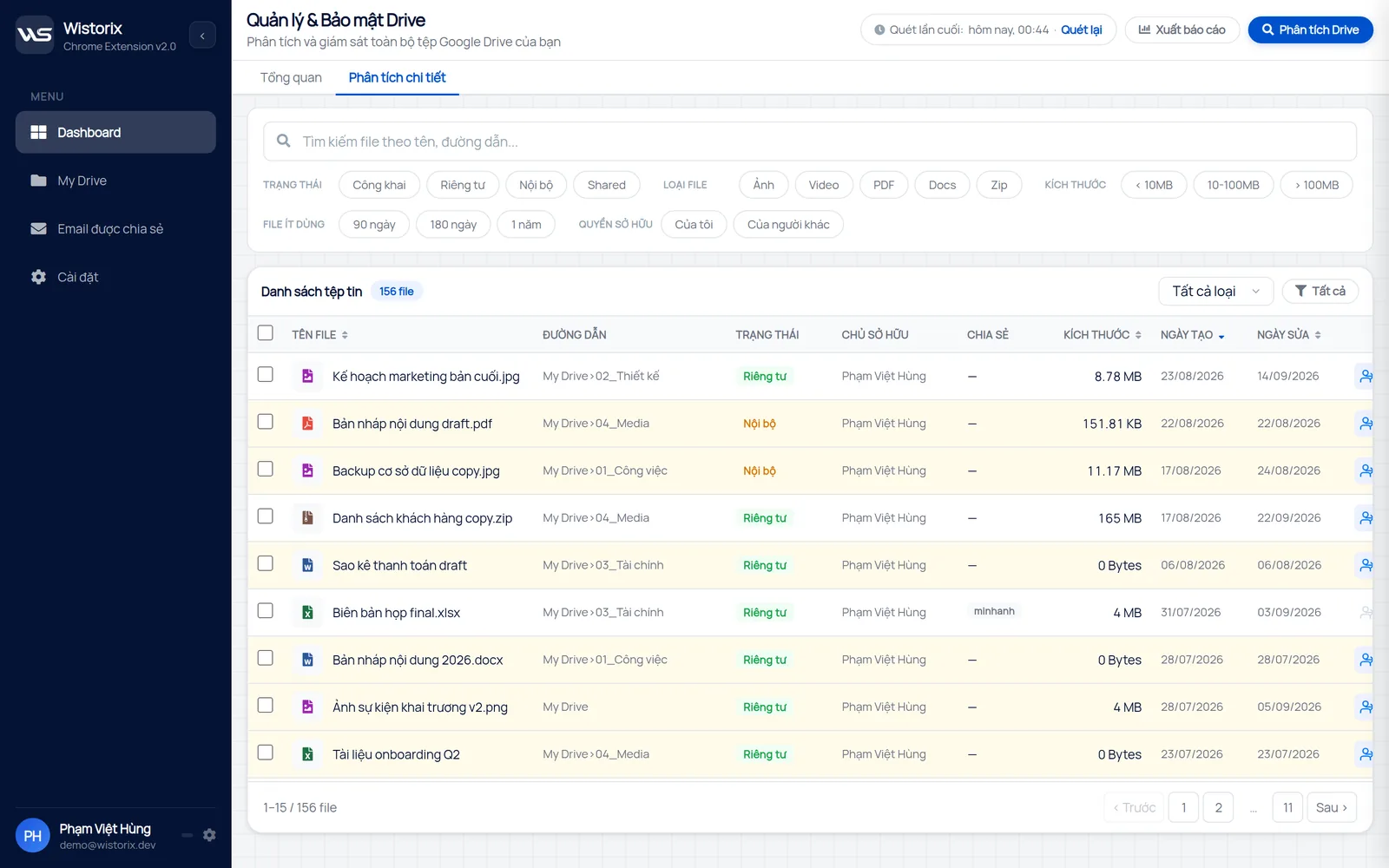
In Wistorix, the detailed analysis screen lets you filter by size, file type, sharing status and rarely used files at the same time. You can find big videos nobody has opened in a long time right away, then select many files and handle them in one action. Wistorix reads file metadata such as names, sizes and sharing settings, never file contents, and it only acts after you confirm.
You can also try the free storage analyzer to see how your space is spread before you decide what to clean.
After you find large files: keep, archive or delete
Finding the files is only half the job. For each one, answer four questions before you decide:
- Is the file shared with a client or colleague who still needs it?
- Is there another copy somewhere else, such as a final export or a copy on a hard drive?
- Is the project that holds the file still active or closed?
- When was the file last opened or edited?
Shared files in active projects: keep them as they are. Files from closed projects you might need again: download them to an external drive or move them to an archive folder, as described in the guide to finding old files in Google Drive. Drafts, test edits and duplicates: these can usually be deleted.
Deleted files go to the Trash and can be restored for 30 days, but they still count toward your storage until the Trash is emptied. Wait a few days to make sure nobody needs them, then empty the Trash so your storage actually goes down.
Find large files across a team
In a team that shares Drive, each person only sees files they own on the Storage page. So finding the heaviest files for a whole team has to be done person by person, or by an administrator who reviews storage reports in the Google Workspace admin console. The simplest approach is a shared cleanup session each quarter, where each person handles their own 20 biggest files in 30 minutes.
In shared drives, files belong to the organization rather than to a person. The manager of each shared drive should be the one to review its heaviest files and decide what to archive or delete, because they know which projects have closed. Avoid letting each member delete files in a shared drive without telling anyone, because others may still be using them.
One source of big files that is often missed is a folder synced from a computer. When you install Google Drive for desktop and choose to back up whole folders such as Documents or Pictures, every video and installer inside them is uploaded too. Review your sync settings so only the folders you really need are backed up.
Keep large files from filling Drive again
After cleaning, three habits keep big files from piling up again: upload only the final export instead of every draft, delete archives once the client has downloaded them, and check the Storage page once a month. If your Drive is full and you need a complete priority list, see the guide on what to clean first when Google Drive is full.
In short, to find large files in Google Drive, start with the Storage page, compare it with the Google One chart, and filter by file type when you need to search within one group. For a large Drive with years of data, a scanning tool shows each big file with its context so you can decide faster and with more confidence.
Frequently asked questions
Does Google Drive show the size of each folder?
No. Drive only shows the size of each file. To know which folder is the heaviest, you have to add up the sizes by hand or use a scanning tool.
Why is a big file I see in Drive missing from the Storage page?
Because someone else owns it. The Storage page only lists files you own, which are the files that count against your storage.
Can I find big files on my phone?
The Drive app lets you filter by file type and see the size of each file, but comparing and selecting many files is easier in a computer browser.
Does compressing videos save space?
Yes, if you replace the original with the compressed version. If you keep both, your total storage goes up instead.


sharing publicly?