

Wistorix and Google Drive for teams: keep department files tidy and in the right hands

Wistorix helps keep Google Drive for teams under control in three ways: you know who has access to your team's documents, you can move files when someone leaves, and you keep storage tidy without an IT person checking everything by hand. Wistorix is a Chrome extension, each member scans their own Drive for free, and it reads only file metadata. This guide walks through how an internal team adopts Wistorix, from the first week to a simple monthly habit.
In this guide
- Where a team's Drive gets messy
- Four jobs Wistorix takes off your hands
- When a team member leaves
- Roll it out to the whole team in the first week
- Who does what in the team
- Safety for internal documents
- Frequently asked questions
Where Google Drive for teams gets messy
An internal team here means one department inside a company: marketing, finance, HR or operations. Each person works in their own Drive and shares files with colleagues, with other departments and now and then with outside partners. Nobody makes a mess on purpose, but after a year a team's Drive usually has four problems. This is the typical pattern of Google Drive for teams that grew without a plan.
- Important files sit in individual My Drives instead of one shared place, so others do not know where they are
- Sharing with partners and former colleagues is never revoked, because nobody can see the full list
- When someone leaves, their files are at risk of being lost along with their deleted account
- Drafts, exports and duplicate files slowly fill up each person's Drive
Google Drive already has all the tools you need for a single file. What is missing is a way to look at each person's whole Drive by risk, so the team knows what to handle first. That is where Wistorix fits into Google Drive for teams.
None of this requires changing how the team works day to day. The aim is simply to make the existing Drive visible, so problems are found while they are still small.
Four jobs Wistorix takes off your hands in Google Drive for teams
The four jobs below are the ones internal teams most often do by hand in Drive, and also the ones that take the most time. With Wistorix, each job comes down to a few clicks on the dashboard.
1. See who has access to your team's documents
The shared emails screen groups every permission in Drive by email address and marks addresses outside your organization. A team lead can see at a glance which partners can still edit, and who has moved to another role but can still open old folders. For Google Drive for teams, this is usually the first screen worth opening.
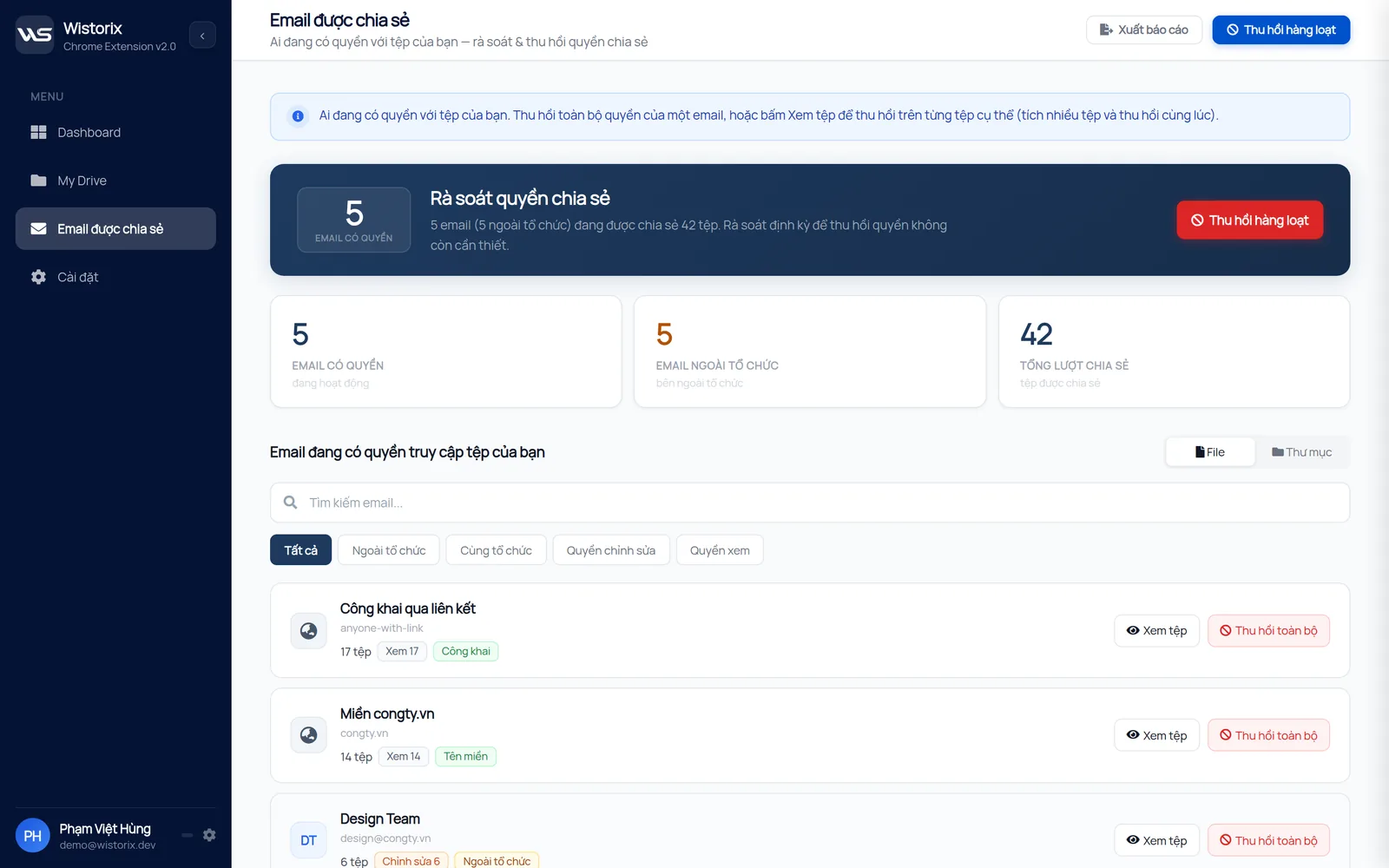
2. Close public links on internal documents
Payroll sheets, quarterly plans and customer lists are sometimes shared with anyone with the link, just to save time. Wistorix lists every public file and lets you stop sharing one file at a time or in bulk, with a confirmation box before anything runs. In Google Drive for teams, public links are often the quickest win, because closing them takes only seconds.
3. Transfer ownership in bulk when the person in charge changes
When a project gets a new owner, select the files in the project folder and transfer ownership to the new person in one go. Within the same Google Workspace organization, ownership moves right away and the recipient does not need to accept.
4. Keep each person's Drive tidy
Each member cleans up duplicate, empty and long-unused files in their own Drive. Deleted files go to the Google Drive Trash and can be restored for 30 days, so nobody loses a file because of a wrong click. Small, regular cleanups keep Google Drive for teams from filling up one person at a time.
Google Drive for teams when a member leaves
Someone leaving is the riskiest moment for an internal team's Drive. Their files can be lost when the account is deleted, while the access they gave to partners stays in place. With Wistorix, the process before their last working day has five steps.
- The person leaving signs in to Wistorix with their company account and runs a Drive analysis, which is always free
- Review the files that person owns and pick the ones the team needs to keep
- Transfer ownership in bulk to the person taking over
- Open the shared emails screen and revoke access for partners who are no longer involved
- Export a report to Google Sheets to use as the handover record
The order matters: transfer ownership first, revoke access second, delete the account last. The full process on the Google Workspace admin side is in the Google Drive offboarding guide. For the limits on ownership transfer, see Google's support page on how to transfer ownership of a file.
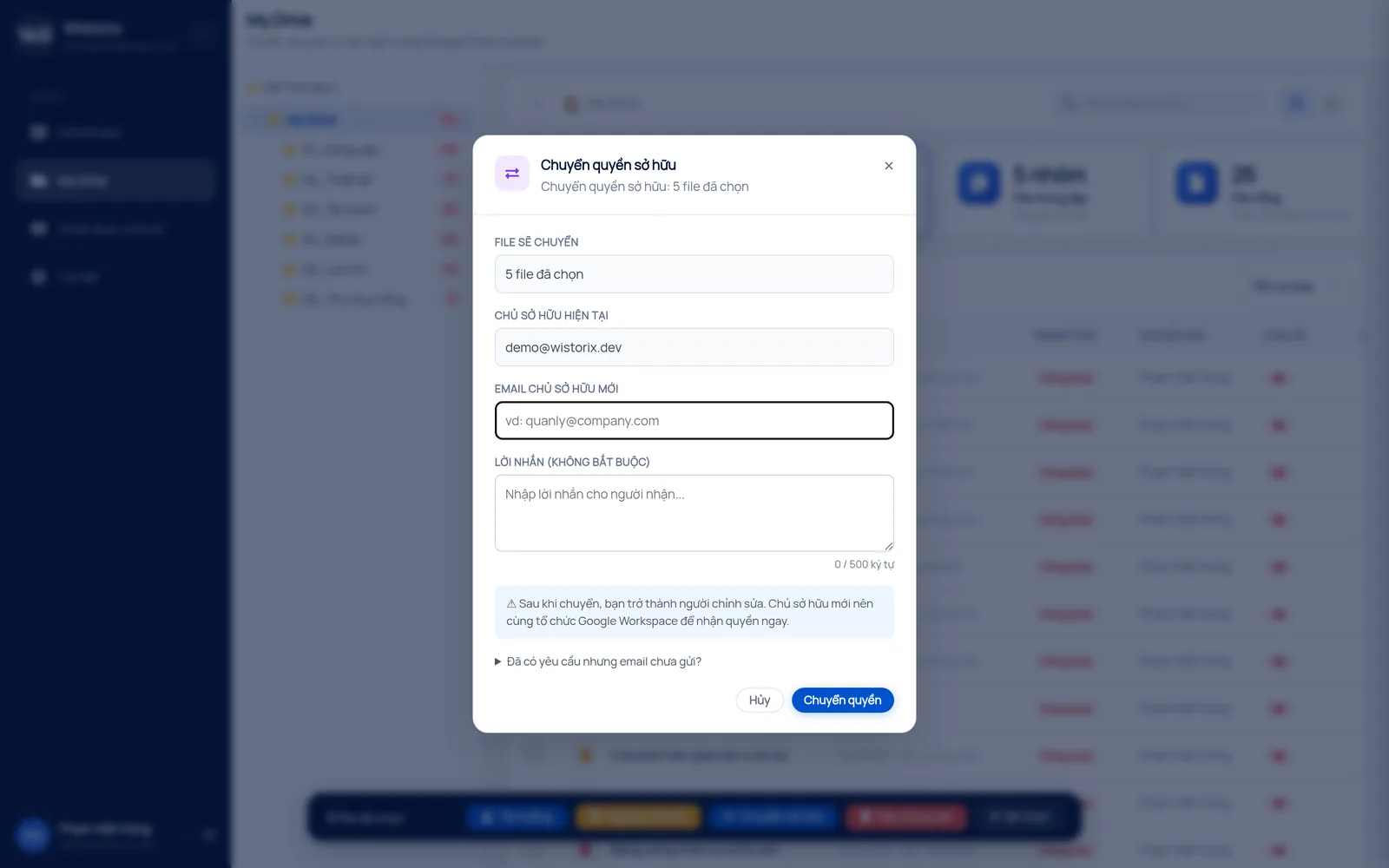
Running these steps a few days before the last working day, rather than on the day itself, leaves time to answer questions. The person leaving can explain which files matter while they are still around to ask. Offboarding is where Google Drive for teams most often goes wrong, so write these five steps into your offboarding checklist.
Roll out Google Drive for teams reviews in the first week
Rolling out Wistorix to a team needs no admin rights and no setup at the organization level. Each person installs the extension in their own Chrome and signs in with their company account. One week is enough for the whole team to have its first scan results.
- Day 1: the team lead installs first, scans their own Drive and shows how to handle public files once
- Days 2 and 3: each member installs, scans and shares their security score
- Day 4: the whole team handles public files and outside email addresses first
- Day 5: each person exports a report, and the team lead combines them in one shared spreadsheet
If your company blocks Chrome extensions or third-party apps from accessing Drive, ask your admin to allow it first. That is an organization setting, which Wistorix cannot and should not get around.
After that first week, reviewing Google Drive for teams becomes a short monthly routine rather than a project. Most months, each member only needs a few minutes to scan, check the new items and close anything that should not be open.
Who does what in Google Drive for teams
Wistorix runs on each person's own Drive, so clear roles stop the team from doing the same work twice or missing something. The simplest split for a department of five to fifteen people looks like this.
- Team lead: schedules the scan at the start of each month, reads the combined report and approves which outside addresses to revoke
- Members: scan their own Drive, close public links and clean up duplicates in the files they own
- Handover owner: usually the team lead or HR, who runs the five-step process above whenever someone leaves
Files the department uses long term are better kept in a Google Workspace shared drive than in one person's My Drive. How to organize folders for projects and departments is covered in the guide to Google Drive folder structure.
Safety for internal documents
An internal team has every right to be careful about installing an extension that reads the company Drive. A department Drive often holds payroll, plans and customer data, so the way a tool handles Google Drive for teams matters. Wistorix answers those concerns through the way it works.
- It reads only metadata: name, size, owner, sharing settings and modified date. File contents are never downloaded
- It never revokes, transfers or deletes anything on its own. Every action runs only after the user confirms
- You can remove Wistorix's access anytime from your Google Account, and your files in Drive are not affected
On cost, scanning your Drive, seeing your security score and exporting a report are free for every member of the team. That makes it easy to start with the most sensitive files first and see results before anything else changes.
In short, Wistorix does not replace your Google Workspace admin. It helps each member and the team lead see their own Drive by risk and fix what they find in a few clicks. Tie a scan to the start of each month and to the day someone leaves, and the team's Drive will not slide back into a mess.
Frequently asked questions
Do we need admin rights to use Wistorix as a team?
No. Each member installs the extension and signs in with their own account. You only need your admin's approval if the company blocks Chrome extensions or third-party apps.
Can the team lead see the whole team's Drive?
Each person scans their own Drive. To combine results, each member exports a report to Google Sheets and shares it with the team lead.
Does the recipient need to accept an ownership transfer inside the company?
No. Within the same Google Workspace organization, ownership moves right away. With personal Gmail accounts, the recipient has to accept the invitation.
What if someone deletes a team file by mistake?
Files deleted through Wistorix go to the Google Drive Trash. Open the Trash and restore the file within 30 days.



sharing publicly?