

Google Drive permission management: when is a spreadsheet no longer enough?
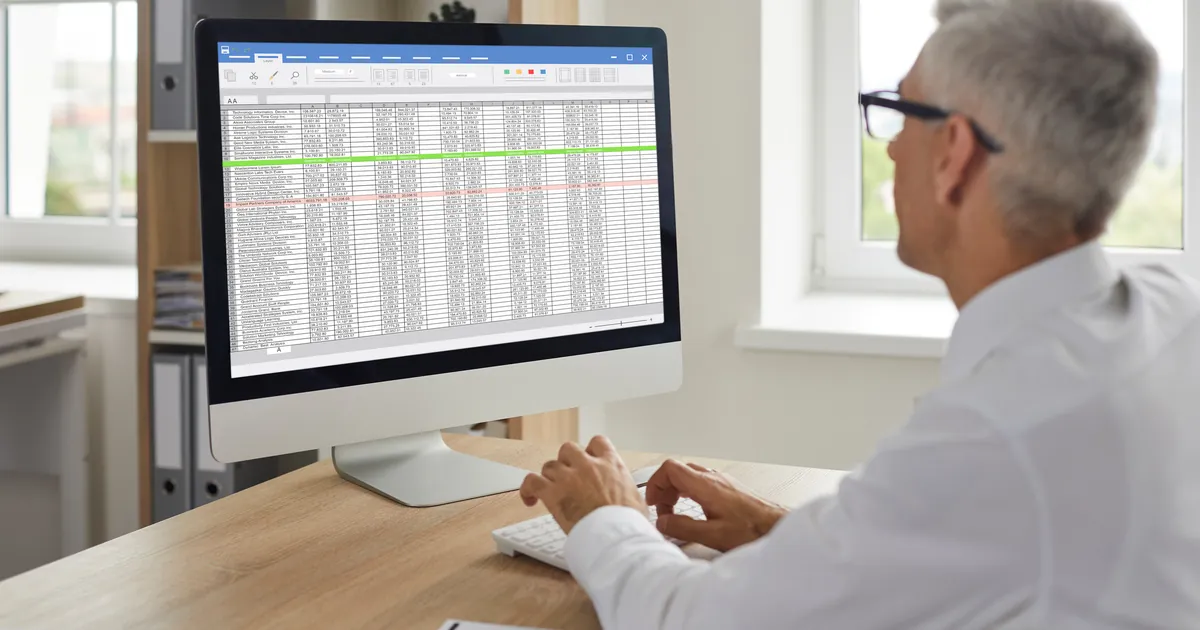
Many teams start tracking Drive sharing in a spreadsheet, then reach a point where they need real permission management for Google Drive. This guide explains why a spreadsheet slowly drifts out of date, five signs that it is time to switch, five things a permission tool has to do, and how to move from the sheet to a tool without missing anything.
In this guide
- How a sharing spreadsheet works
- Why the spreadsheet drifts out of date
- Five signs you need a permission management tool
- Five things a permission management tool must do
- Moving from the spreadsheet to a tool
- When a spreadsheet is still enough
- Frequently asked questions
How a sharing spreadsheet works
The usual setup is a Google Sheets file where each row is a file or folder, and the columns record who it is shared with, their role, the link setting and the date access was granted. Some teams fill it in by hand. Others use a script to export a list from Drive and paste it into the sheet.
This approach has clear advantages: it costs nothing, everyone knows how to use it, and it is easy to filter and send to a manager. For a project with a few dozen files and a handful of people, a spreadsheet is enough to answer the question of who has access to what.
It also forces a useful habit. Writing down who you shared with, and why, makes people think twice before adding one more address to a folder. That intention is worth keeping even after the sheet itself stops being the main record.
Why the spreadsheet drifts out of date
The problem is not the spreadsheet as a tool. It is the nature of permissions in Drive. Access changes constantly, through many people and many paths, while the sheet only reflects the moment you last updated it.
- Editors can share with other people without you knowing
- New files added to a folder inherit its access, and nobody writes them into the sheet
- A public link gets opened for one quick task and is never closed
- The sheet records access by file, but most questions are asked by person
The last point is the biggest limit. When a freelancer leaves, you need to know every file they can still open. A sheet organized by file forces you to filter column after column, and it still misses access inherited from folders. A permission management tool is built to answer that question by person from the start.
None of this means the person keeping the sheet did a poor job. Even a careful owner cannot see a share that a colleague made on Tuesday, or a file that landed in a shared folder on Wednesday. The gap between the sheet and reality grows a little every day, and nobody notices until a spot check or a departure reveals it.
Five signs you need a permission management tool
You do not need to switch just because your Drive has grown. Watch for the five signs below. If two or more apply, keeping the spreadsheet up to date already costs more time than a permission management tool would.
- Updating the sheet takes more than an hour a week, and you are still not sure it is complete
- Spot checks show that access in Drive no longer matches the sheet
- Every time someone leaves, you open file after file to remove their access
- You cannot say how many files are currently open to anyone with the link
- A client or auditor asks for a list of outside people with access, and the answer takes days
The third sign is usually the tipping point. Removing one person's access by hand across a few hundred files can take a whole afternoon, and it is easy to miss some along the way.
The fifth sign tends to arrive later, as your clients grow. Larger clients often ask suppliers to show how their documents are handled, and a list pulled together by hand from a stale sheet is hard to stand behind.
Five things a permission management tool must do
Not every tool labeled as permission management covers the full job. Use the five criteria below to judge a tool before you install it. Test each one on your own Drive instead of relying on the product page.
List access across the whole Drive, not file by file
A permission management tool has to scan every file, including files buried deep in subfolders and files that sit outside any folder. The results should reflect the current state, not a snapshot from last week.
Show access by person, not only by file
Pick one email address and see right away which files that person can open, and with which role. This is the view a spreadsheet struggles with most, and the one you need most when people join or leave. For the per-file and per-folder view, see the guide on who has access to my Google Drive.
Separate outside people and public links
These two groups deserve a look first. Good permission management groups addresses outside your company domain on their own, and lists every file set to anyone with the link.
Revoke in bulk from the same screen
If you find extra access but have to go back to Drive to remove it file by file, the tool has only done half the job. A bulk revoke by person, by folder or across the whole Drive is the feature that saves the most time.
Act only on your command, and be easy to disconnect
A permission tool should change access only after you confirm. It should read file metadata only, never file contents, and you should be able to remove its access from your Google Account anytime.
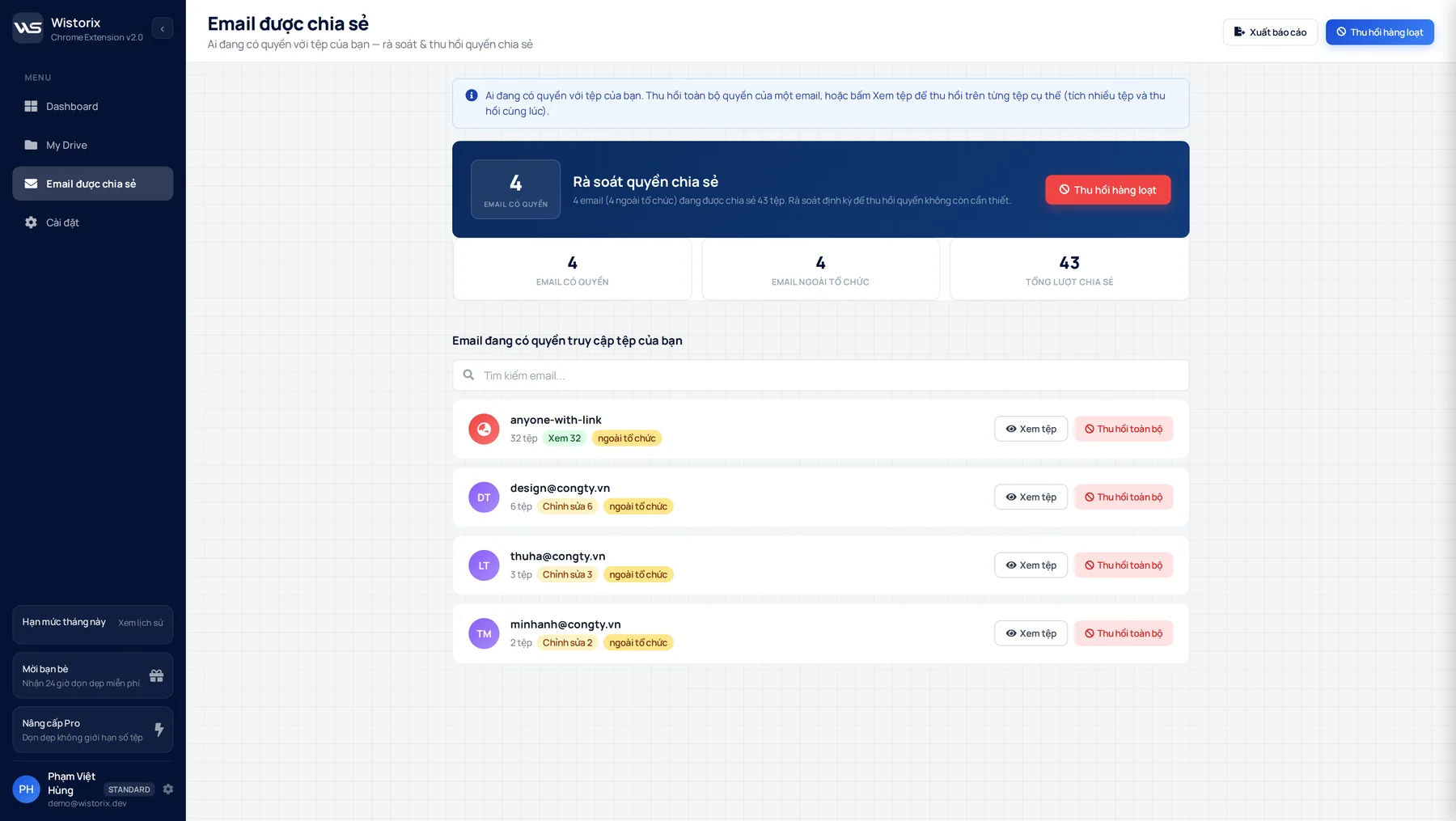
Wistorix covers these five points for each user's own Drive. The shared emails screen groups access by person, lists outside addresses separately, and lets you revoke all of one address's access in a single action or bulk revoke by folder. Access you remove can be granted again at any time by sharing the file again.
Moving from the spreadsheet to permission management
When you move to a dedicated tool, the old spreadsheet still has value. It records intent, meaning who was supposed to have access. Use it as a reference instead of throwing it away.
- Scan the whole Drive with the tool to get the real list of access
- Compare it with the sheet and flag people who have access in Drive but are missing from the sheet
- Handle public links and outside addresses first, then extra access inside the team
- Update the sheet one last time into a list of intended access, and use it as the baseline for future reviews
After the first pass, a regular review only has to compare what changed, which usually takes about fifteen minutes a month instead of an afternoon. The full routine for cleaning up access after a project ends is in the guide to revoking access in Google Drive. The principles of sharing by folder are covered in Google's help page on sharing folders in Google Drive.
Keep the first review small if your Drive is large. Start with one shared project folder, work through the list, and only then move on to the rest. A partial review that you finish is worth more than a full one that stalls halfway.
When a spreadsheet is still enough
Not everyone needs a permission management tool. A spreadsheet is still a reasonable choice in these cases.
- Your Drive has fewer than a few hundred files and few outside shares
- Access almost never changes, for example a fixed set of reference documents
- Someone is willing to update the sheet every week and spot check it against Drive
Even with a spreadsheet, keep three rules: share by folder instead of by file, keep links set to Restricted by default, and review access whenever a project closes. The full set of rules is in the guide to Google Drive access management.
As your Drive grows and the signs above start to show, proper permission management helps you keep those rules without spending extra hours every week. Scanning with Wistorix is free, so you can compare the result with your sheet before you decide.
Frequently asked questions
Can a script that exports permissions replace a tool?
A script solves the listing part, but it is still a snapshot in time and cannot revoke access from the same screen. It suits teams with someone who writes code and can maintain the script.
Can a permission tool see files other people shared with me?
It can see them, but you can only change access on files you own or where you are an editor allowed to share. A good tool keeps these two groups apart.
Does removing access notify the other person?
Google Drive does not send a notification when you remove someone's access. They only notice when they open the file again and see a request access screen.
Do I need admin rights to use a permission management tool?
Not for a tool that runs on each person's own Drive, such as Wistorix. Admin rights are only needed if you want to manage the whole organization's Drive from one place.



sharing publicly?