

Google Drive access management: who can view, edit and reshare your files?

Google Drive access management starts with a more specific question than "is Drive safe?": who can view, who can edit and who can reshare your documents. This guide breaks access down into three simple layers, points out the four most common risk groups and gives you a five-step routine to see and control every permission in your Drive.
In this guide
- The right question is not whether Drive is safe
- Three layers of access in Drive
- Four risk groups in Drive access management
- A five-step access management routine
- By hand or with a tool
- Sharing rules for the whole team
- Frequently asked questions
The right question is not whether Drive is safe
Google takes care of the infrastructure: servers, encryption and sign-in. What Google does not decide for you is who can open which file. Each time you click Share, you grant a permission, and that permission stays until you remove it yourself.
So the more useful question is: who are my documents open to? Once you can answer it with a concrete list, you have done the hardest part of access management in Google Drive. The good news is that every permission you have granted can be taken back, and taking it back does not delete any file.
Three layers of access in Google Drive
In Drive access management, every permission has three layers. Understanding them helps you read the Share dialog faster and know exactly what to change.
Layer 1: Who can get in
General access has three levels: Restricted, your organization (Workspace accounts only), and anyone with the link. On top of that is the list of people added by email. The anyone with the link level turns a Google Drive link into a key for whoever gets hold of it.
Layer 2: What they can do
There are three roles: Viewer, Commenter and Editor. By default, editors can also share the file with other people, unless the owner turns that option off. The roles are explained in detail on Google's page about how to share files from Google Drive.
Layer 3: For how long
Access in Drive does not expire on its own. Workspace accounts can set an expiration date of up to one year for people shared by email, but this does not apply to public links and is not available on personal accounts. For most existing permissions, the duration is unlimited.
Put the three layers together and you can describe any permission in one sentence, for example: anyone with the link, as editor, with no end date. Read that way, the risky permissions in your Drive become much easier to spot.
Four risk groups in Google Drive access management
Most problems in access management fall into the four groups below. Each group has its own way to detect it and its own fix.
- Forgotten public links: files set to anyone with the link years ago, which still open for whoever holds the link.
- People outside the organization: personal emails, clients and former partners who still have access to internal documents.
- Access for people who have left: former staff still shared through a personal email, or still the owner of important files.
- Uncontrolled resharing: editors who add other people to a file without the owner knowing.
These four groups do not mean your Drive has been exposed, only that some permissions are no longer needed. Each one can be removed in seconds once you find it, and you can share it again anytime if you removed too much.
Related guides for each group
Each risk group has its own detailed guide. For public links, read how to find publicly shared files in Google Drive. For people who have left, see how to remove employee access in Google Drive.
A five-step Google Drive access management routine
The routine below moves from the big picture to each risk group, then sets defaults so the next round takes less work. The first time may take an afternoon, and later rounds only take a few dozen minutes.
- Map your access: list every email and link with access to your Drive, along with the number of files for each.
- Close public links you no longer need: set general access back to Restricted, and keep links only for documents that truly need to be public.
- Review people outside the organization: separate addresses that do not belong to your company, and remove clients and partners whose work with you has ended.
- Remove old access: handle permissions for staff who have left and for projects that have closed.
- Set defaults: viewer access for new documents, and turn off resharing by editors on important files.
In access management, step 1 is the one people skip most often, and it is also the most important. Without a map of who has access, you can only fix what you happen to remember.
Revoke without interrupting work
Before you close a Google Drive link, check whether the file is still serving a purpose, such as a public form or a document linked from your website. If you revoke something by mistake, just open the Share dialog again and restore the access as it was. Google describes the steps on its page about how to stop, limit or change sharing.
By hand or with a tool
Google Drive shows you the access on each file, but it has no screen that lists every permission across your whole Drive by person. With a few dozen files, opening each Share dialog works. With thousands of files, doing access management by hand is close to impossible.
See access by person with Wistorix
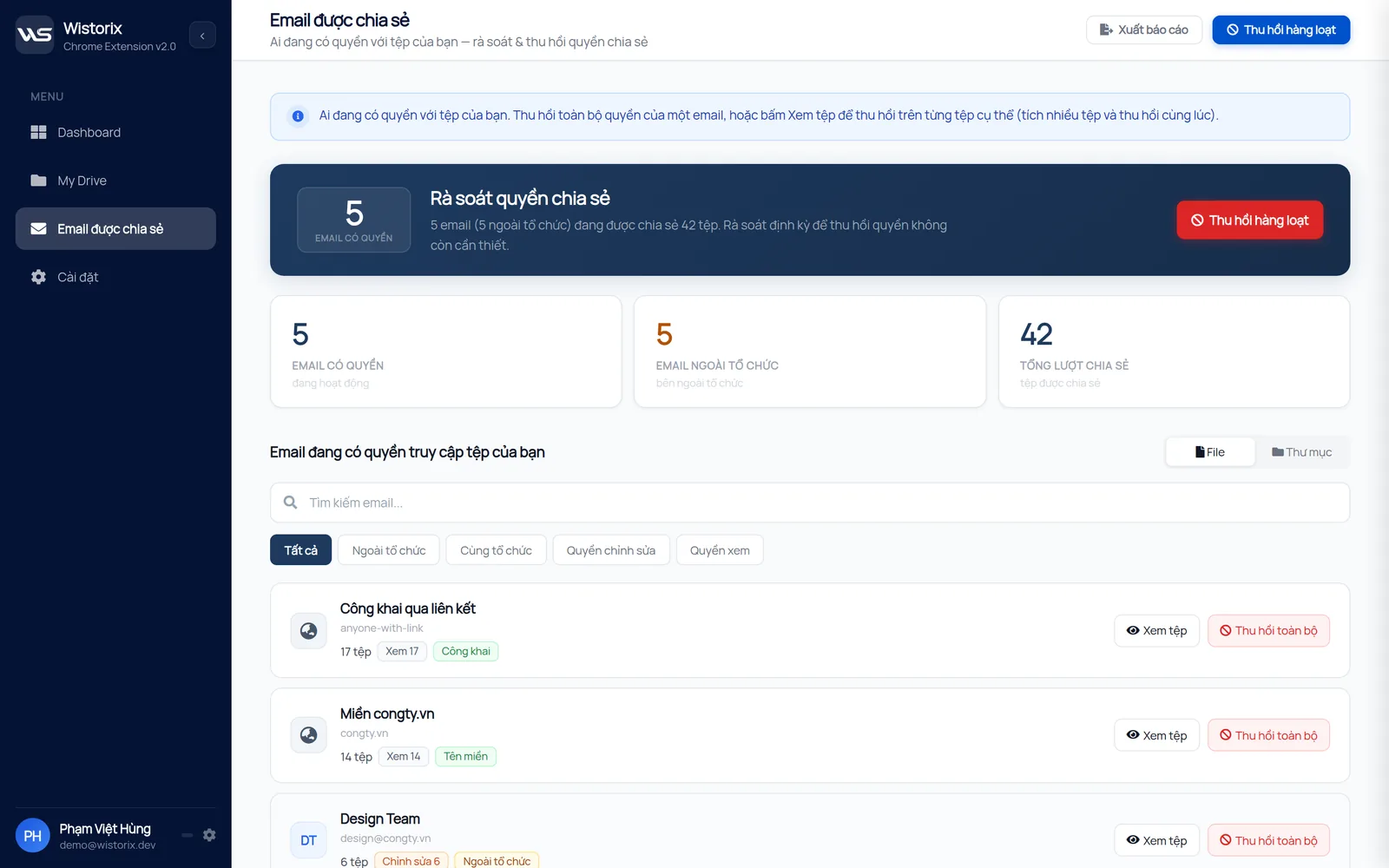
For Google Drive access management by person, the shared emails screen in Wistorix is the access map from step 1. It lists every email and link with access, the number of files and the role for each person, counts outside addresses separately and also shows public link access. Click Revoke all to remove every permission for one email, or View files to revoke selectively.
See access by file with the Public filter
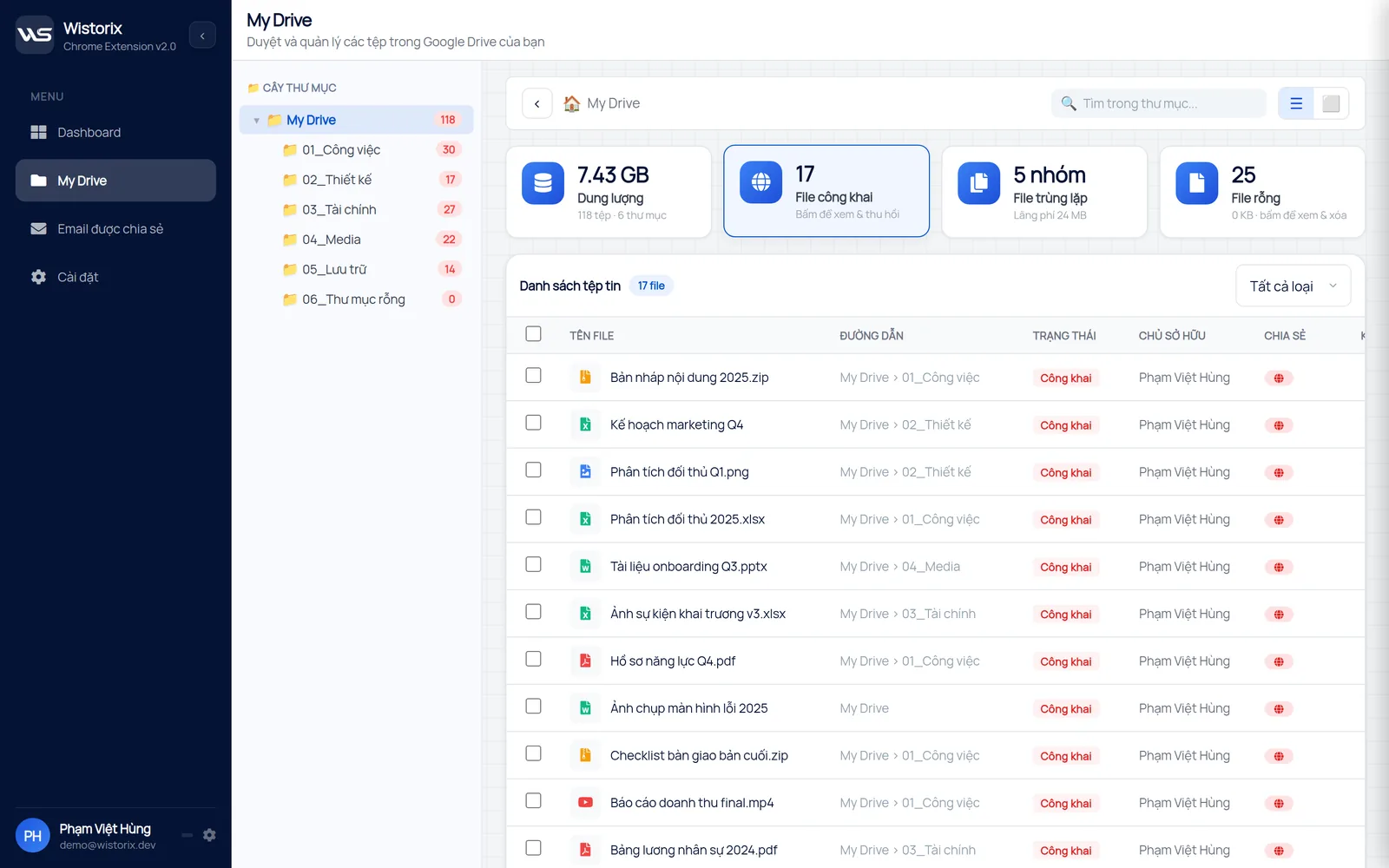
For step 2, the Public status filter on the My Drive screen gathers every file with an open link into one table, with its path and owner. Select several files and click Stop sharing once.
Wistorix reads only file metadata such as name, size and sharing settings, never file contents, and changes access only when you click. You can remove the access you gave Wistorix anytime in the Security section of your Google Account.
Sharing rules for the whole team
Lasting access management needs a few shared rules, not just one review. Write them on a short page and keep it in the team's shared folder.
- Share by email instead of public links for any document with customer information
- Default to viewer access, and raise it to editor only when needed
- Do not grant access to staff members' personal emails, use company addresses
- Remove access for people outside the organization as soon as a project ends
- Review your access map every quarter and whenever someone leaves
A regular review keeps the list of permissions from growing again, as explained in the guide to a Google Drive sharing audit. Wistorix is also developing time-limited sharing, with links that expire after 24 hours or 7 days (coming soon).
Google Drive access management with clients and partners
People outside the organization are the group most likely to keep access for a long time, because nobody inside the company is responsible for removing it when the work ends. Put the project end date in your calendar, and treat revoking access as one step of the sign-off. That small habit closes most of the gaps before they grow.
It also helps to agree on these rules with the client at the start. When everyone knows that access ends with the project, nobody is surprised when a folder stops opening, and anything they still need can be shared again in a minute.
Frequently asked questions
How do I know who has access to my Google Drive?
Google Drive shows access for each file in the Share dialog, but has no summary screen by person. To get a complete list, you need to open each file or use a scanning tool such as Wistorix.
Does revoking access notify the person?
Google Drive does not send a notification when you remove someone's access. They only find out when they open the file again and see a message that they do not have access.
Do I need admin rights for Google Drive access management?
No. Each person can manage access on the files they own. Workspace administrators have extra organization-level tools, but anyone can review their own Drive.
Can Google find my public links?
A link set to anyone with the link only opens for people who have the link. If the link was ever posted publicly somewhere, others can find it, so close the links you no longer need.



sharing publicly?