

How to recover deleted files in Google Drive, case by case

How you recover deleted files in Google Drive depends on where the file went: it may still be in the Trash, it may have lost its folder, its content may have been overwritten, or it may have been deleted permanently. Each case has its own way back and its own time limit. This guide helps you identify your case in a few minutes, then follow the matching steps.
In this guide
- Identify your case first
- Case 1: The file is still in the Trash
- Case 2: The file was not deleted but you cannot find it
- Case 3: You need an older version
- Case 4: The Trash has been emptied
- What not to do
- Prevent the need to recover files
- Frequently asked questions
Identify your case before you try to recover deleted files
Before you try anything, answer three questions. They take you straight to the right case instead of trying every method in turn.
- Did you or someone else delete the file, or did it simply stop showing up?
- Roughly how long ago was it deleted: less than or more than 30 days?
- Does the file belong to a personal account or to a work account managed by an organization?
If the file was deleted less than 30 days ago, you can almost certainly recover it with case 1. If the file was not deleted but you cannot find it, go to case 2. If the file still exists but its content was changed by mistake, go to case 3.
Write down your answers before you start. If you need help from a colleague or your admin later, these three facts are the first thing they will ask for, and having them ready saves time.
Case 1: Recover deleted files that are still in the Trash
Files you delete stay in the Trash for 30 days. This is the easiest case in which to recover deleted files, and it covers most accidental deletions.
- Open Google Drive and click Trash in the left-hand menu
- Switch to list view and sort by the date the files were trashed
- Right-click the file and choose Restore, or select several files and click the restore icon
The file returns to its original folder and keeps its sharing settings. If the original folder was deleted too, restore the folder first. Google lists every detail in its guide on how to recover a deleted file in Google Drive. On a phone, open the menu in the Drive app, choose Trash and do the same.
Restoring a folder also brings back the files that were inside it when it was deleted, so start with the highest folder you remember. If you deleted many files at once, sort by deletion date and select the whole batch. That is the quickest way to recover deleted files after a cleanup that went further than planned.
Case 2: The file was not deleted but you cannot find it
Many files that seem lost are still there, just not where you remember. Before you look for a way to recover deleted files, check these four possibilities:
- The file lost its parent folder: search for is:unorganized owner:me to find files you own that sit outside every folder
- The file was moved: open the Details panel of the old folder and check the Activity tab to see who moved it and where
- You lost access: the owner removed your access or deleted their file, so you need to contact the owner
- You are in the wrong account: many people switch between a personal account and a work account
The first possibility is very common when you create a file in someone else's folder and that folder is then deleted. Your file is not lost, it just sits outside the folder tree. The guide to Google Drive orphaned files shows how to find and organize this group of files.
Case 3: Restore an older version of a file
If the file still exists but someone edited it by mistake or overwrote its content, you do not need to look in the Trash. Go back to an older version instead.
- For Google Docs, Sheets and Slides: open the file, choose File, then Version history, then See version history, pick the moment you need and click Restore this version
- For uploaded files such as PDF, Word or images: right-click the file, choose File information, then Manage versions to download or restore an earlier version
Older versions of uploaded files are kept only for a limited time, unless you mark that version to be kept forever. For important files such as contracts or approved designs, mark the final version to be kept forever as soon as you upload it. The version history of Google Docs, Sheets and Slides works differently and keeps changes as you go.
If several people edit the same document, version history also shows who made each change. That helps you pick the right moment to go back to without losing good edits made afterward.
Case 4: Recover deleted files after the Trash is emptied
Once a file has been deleted permanently, there is no Restore button in Drive anymore. Whether you can get it back depends on the type of account.
On a Google Workspace account, your Workspace admin can restore permanently deleted files and folders from the Admin console, for a limited time after they were removed from the Trash. Contact your admin as soon as possible, with the file name, folder and time of deletion.
On a personal account, you can try contacting Google Drive support from the help pages. There is no guarantee you can recover deleted files in this case, which is why it pays to check carefully before emptying the Trash. If the file was ever sent by email or saved on a computer, look for a copy there first.
What not to do when you need to recover deleted files
When you notice a file is missing, the natural reflex is to try many things at once. Some of those actions make recovery harder. Avoid these four until you have found the file:
- Emptying the Trash to make searching easier: this is the one action that removes the Restore button
- Uploading a new copy with the same name in the old location: it is easy to confuse the new copy with the one you are looking for
- Cleaning up related folders: you might delete the parent folder you need to restore first
- Waiting a few weeks before acting: the 30-day Trash period keeps running
If the file belongs to a shared team folder, tell the whole team as soon as you notice. The person who deleted it usually remembers what they did and can restore it from their own Trash in a minute. On a work account, telling people early also gives your admin enough time to act if the file was deleted permanently.
Prevent the need to recover deleted files
The best way to avoid recovering files is to delete the wrong file less often. Four simple habits help:
- Check the owner, path and sharing status before deleting
- Wait a few days before emptying the Trash, instead of doing it right after deleting
- Transfer ownership of important files before an employee leaves, as explained in the guide on how to transfer ownership in Google Drive
- Download a regular copy of important folders to a hard drive or use Google Takeout
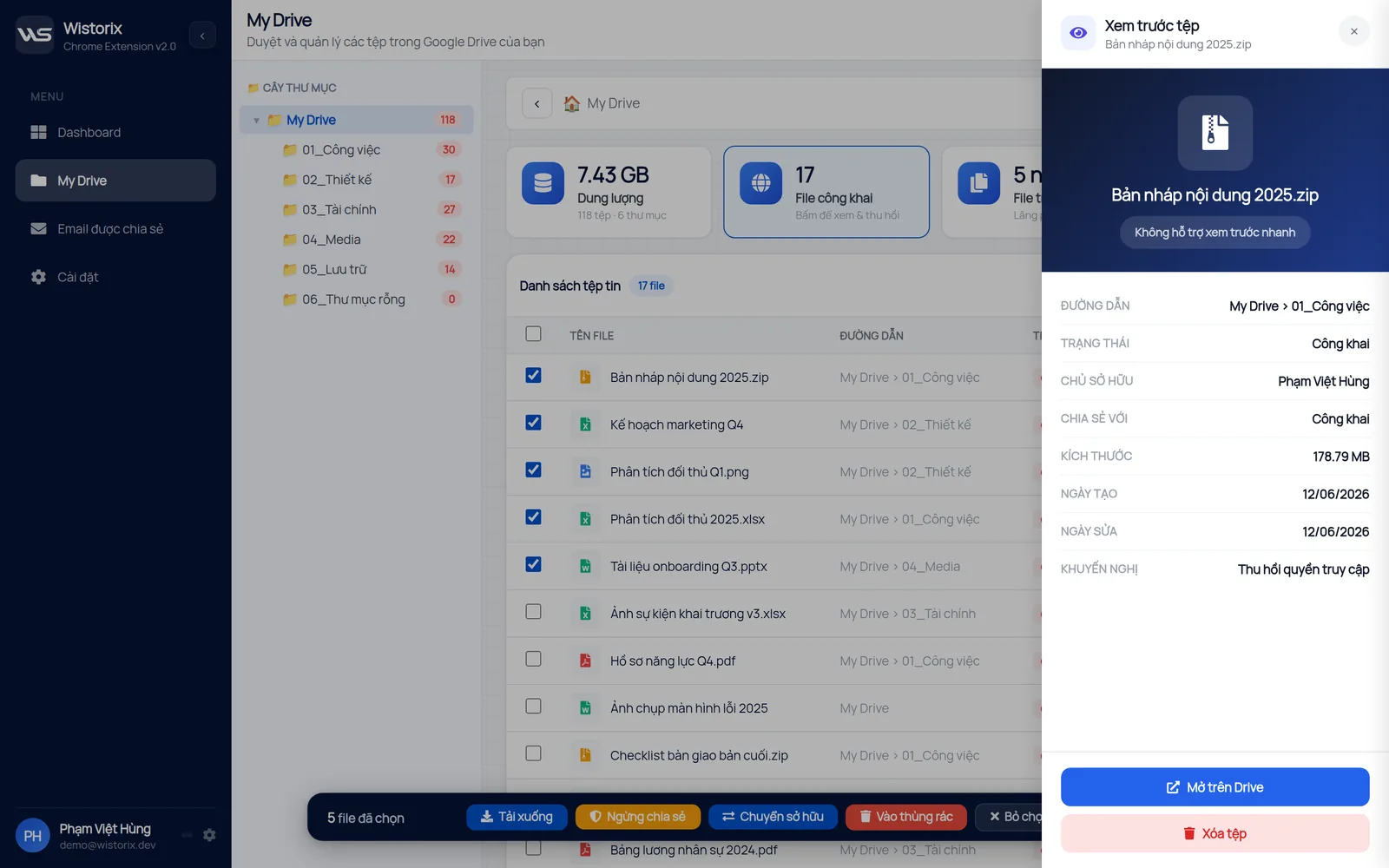
When you clean up your Drive with Wistorix, you can see the path, owner, sharing status and size of each file right in the list before you select it. Files you choose to delete go to the Google Drive Trash and are never permanently deleted by Wistorix, so you can still restore them for 30 days, exactly as in case 1. Wistorix never reads file contents and never empties your Trash.
In short, to recover deleted files in Google Drive, first work out where the file is: in the Trash, outside a folder, overwritten or permanently deleted. The first three cases can almost always be fixed, while the last one needs quick action and depends on your type of account.
Frequently asked questions
Can I recover files deleted more than 30 days ago?
After 30 days, files in the Trash are deleted permanently. On a Workspace account you can ask your admin for help, while on a personal account you can only try contacting Google support.
Does restoring a file bring back its old sharing settings?
Yes. A file restored from the Trash keeps the same list of people with access and the same link settings it had before it was deleted.
What if someone else deleted a file in my shared folder?
A file belongs to the person who created it. If they deleted it, the file is in their Trash, so you need to ask them to restore it.
Can I restore files on my phone?
Yes. Open the menu in the Drive app, choose Trash, tap the three dots next to the file and choose Restore.



sharing publicly?