

How to bulk transfer ownership of Google Drive files on a personal Gmail account

If you work from a personal Gmail account and need to hand a large set of files to someone else, you will want to bulk transfer ownership instead of opening every file one at a time. Google does allow it, but personal accounts follow different rules from Google Workspace: the other person has to accept, and a folder does not carry its files with it. This guide explains what Google allows, the manual way in Drive, its limits and a faster way to handle hundreds of files.
In this guide
- Personal accounts and Workspace are not the same
- What Google allows on a personal account
- Step 1: Share the files with the new owner
- Step 2: Select the files and send the transfer
- Step 3: Wait for the new owner to accept
- Step 4: Check the files inside each folder
- Limits of the manual way
- A faster way with Wistorix
- What changes after the transfer
- Frequently asked questions
Bulk transfer ownership: personal accounts versus Workspace
Every file in Google Drive has one owner. The owner decides who can see and edit the file, and the file counts toward the owner's storage. Moving that role to someone else is called an ownership transfer, and Google handles it differently depending on the type of account that owns the file.
Most guides on this topic are written for companies on Google Workspace, where admins can transfer Drive files in bulk for their users. A freelancer, a small team or a family sharing files from a personal Gmail account has no admin and no console. To bulk transfer ownership, each person has to start from their own Drive, and the receiving person has to take part.
| Question | Personal Gmail account | Work or school account |
|---|---|---|
| Who can receive the file | Someone you already shared it with | Someone in your organization |
| Does the recipient have to accept | Yes, until then you stay the owner | No, the change applies directly |
| Can an admin do it in bulk | No admin | Yes, admins can transfer Drive files in bulk |
| Can it go to the other account type | No, a personal file cannot go to a work or school account | Only inside the organization |
The table explains why a bulk transfer ownership job on a personal account takes more planning. You cannot simply push files away. You send an offer, and the other person decides when the change happens.
What Google allows when you bulk transfer ownership on a personal account
Google lists the rules in its help page on making someone else the owner of a file. For a personal account, these are the points that shape the whole process:
- You can only transfer ownership to someone you already shared the file or folder with.
- A file from a personal account cannot be transferred to a work or school account.
- The recipient becomes a pending owner and is upgraded to Editor until they respond.
- Until the pending owner accepts, you remain the owner. If they decline, you stay the owner.
- After they accept, you become an Editor, and the new owner can remove you.
- You can cancel a pending transfer, but you cannot cancel it after it has been accepted.
- You can transfer several items at once. With many items, it may take some time before you see the changes.
Two more rules matter a lot when the job is large. Transferring a folder does not transfer the files inside it, so you still own them. And files you transfer leave your My Drive and count toward the new owner's storage instead of yours.
Step 1: Share the files with the new owner
Before you bulk transfer ownership, share the files: a personal account can only hand a file to someone who already has it. The simplest way is to share the parent folder with the future owner as an editor, so every file inside is already shared with them. If the files are spread across many folders, share each of those folders, or select the loose files and share them together.
Check the exact email address before you share. The recipient must also be on a personal Google account, since a personal file cannot go to a work or school address. If the person only has a company email, ask them for a personal Gmail address instead.
Step 2: Select the files and send the transfer
In Google Drive, select the files you want to hand over. You can select several items at once in the same view. Click Share, find the person in the list of people with access, open the role menu next to their name and choose Transfer ownership. Confirm, and Google sends them an invitation.
Repeat this for each folder that holds files you want to move. On a personal account, this is the closest thing to a bulk transfer ownership action that Drive offers on its own: several files per batch, one batch per selection.
Step 3: Wait for the pending owner to accept
After you send the request, the recipient is a pending owner. Nothing changes for the files yet: you are still the owner, and they can already edit. The transfer only completes when they accept the invitation.
When you bulk transfer ownership, tell the person in advance that many invitations are on the way. If they decline, you simply stay the owner. If you made a mistake, you can cancel a pending transfer from the Share dialog. In Google Docs, Sheets or Slides, click Share, click the arrow next to the person's name and choose Cancel ownership transfer.
Step 4: Check the files inside each folder
This is the step most people skip. When you transfer a folder, only the folder changes hands. The documents, images and spreadsheets inside it still belong to you, so the new owner holds an empty shell in terms of ownership.
To bulk transfer ownership of a whole project, open each folder, select the files inside and transfer them too. Then search Drive for owner:me to see what you still own. Anything that should have moved and still appears in that list needs another round.
Limits when you bulk transfer ownership by hand
The manual method is correct and fine for a few dozen files. It gets slow and hard to track once the number reaches the hundreds. These are the limits you will notice on a personal account:
- You work folder by folder, because a selection only covers what is visible in one view.
- There is no single list of every file you own grouped by where it lives.
- Each transfer waits for the recipient, so a large job stays half done until they accept.
- Folders do not carry their files, so nested folders multiply the work.
- With many items, changes can take time to show, which makes it harder to confirm what has moved.
None of these limits come from a bug. They come from the way Google protects personal accounts: nobody can receive a file they did not agree to take. A tool cannot change that rule, but it can save the time spent finding, selecting and following up on files.
A faster way to bulk transfer ownership with Wistorix
Wistorix is a Chrome extension for Google Drive. It works with personal Gmail accounts and Google Workspace accounts, with no admin rights needed, and scanning is free. It reads file metadata only, such as names, sizes, owners and sharing settings, never file contents.
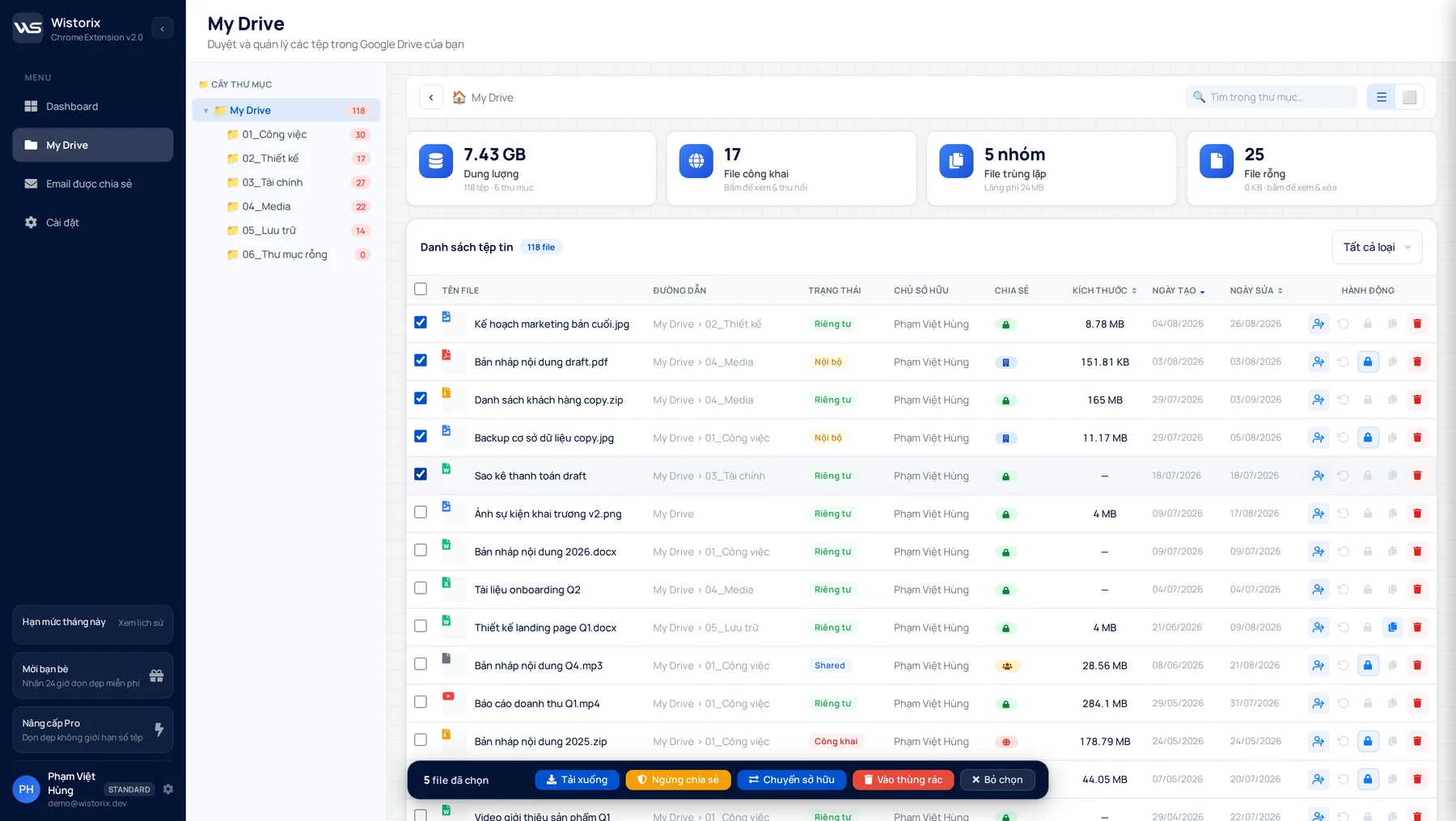
After a scan, you can bulk transfer ownership from the Dashboard instead of opening Drive folder by folder:
- Open My Drive or the Detailed analysis tab and check the files to transfer.
- Click Transfer ownership on the bulk action bar, or the transfer icon at the end of a row.
- The Transfer ownership dialog shows how many files will move and the current owner. Enter the new owner email.
- Add a message if you like, up to 500 characters, for example the reason for the handover.
- Click Transfer, then confirm.
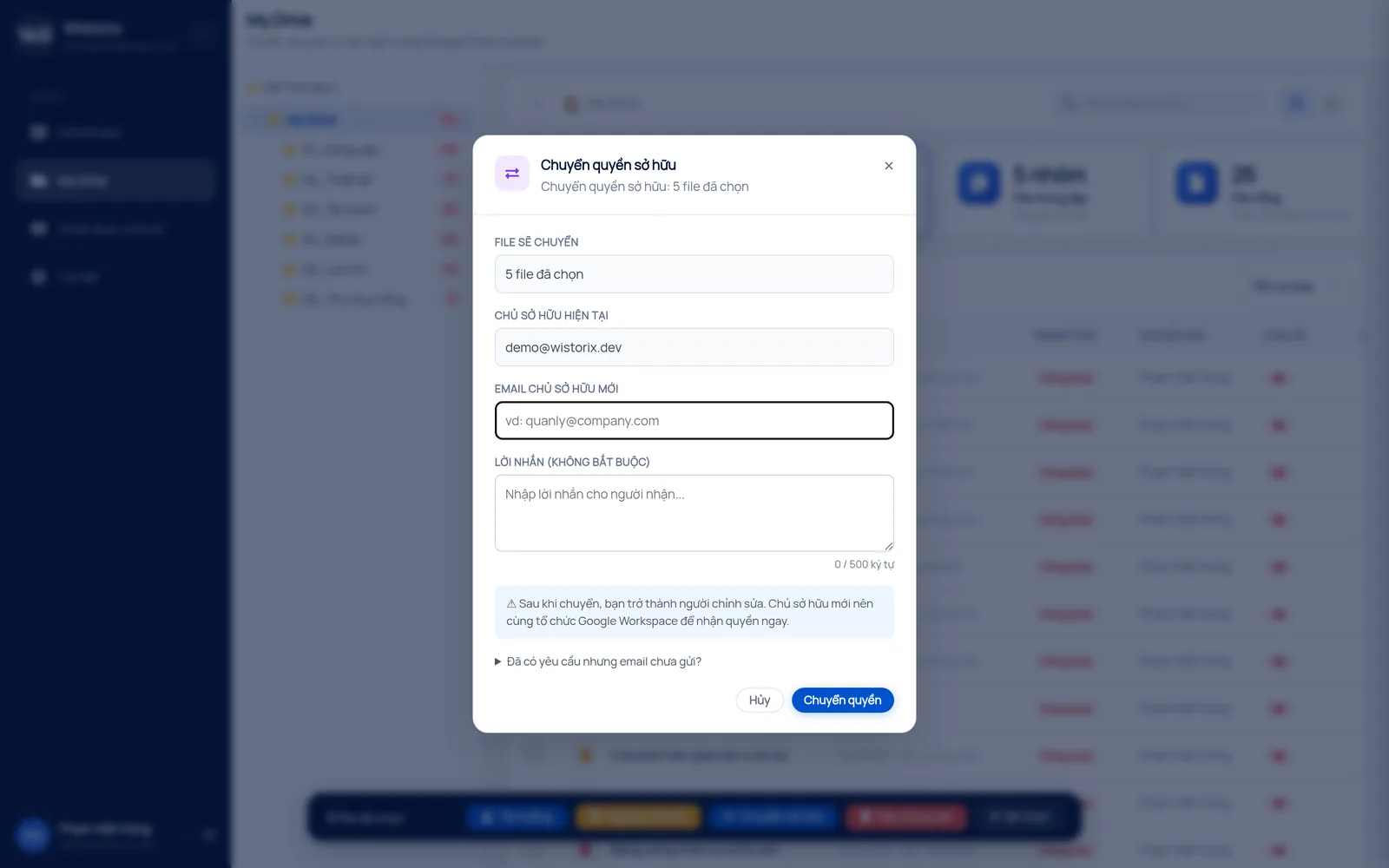
The Google rules still apply. A recipient on personal Gmail has to accept the invitation before the transfer is complete, and you become an editor of the file once it is done. If the recipient says they never saw the invitation, the dialog has a line that lets you resend it. Nothing runs until you click to confirm.
The same tool works in the other direction. If someone else owns files you are responsible for, you can filter them by owner, select them and send a request for ownership in one action. Ownership moves only when the current owner agrees, and then you accept the invitation. Details are on the request ownership page.
Accept many files on the receiving side
Acceptance is often the slowest part of a personal account handover. With Drive Widget 2.1, when the recipient views a folder in Drive, the Wistorix panel shows a line with the number of items owned by others and a button to accept, in bulk, the items waiting for them. On a single open Google Docs, Sheets or Slides file, the panel has an Accept ownership button.
For a full overview of the feature, see the bulk transfer ownership tool page or the guide to the Google Drive ownership transfer tool. You can remove Wistorix's own access anytime from the Security section of your Google Account.
What changes after the transfer
Once the new owner accepts, a few things change at the same time. Knowing them in advance avoids surprises for both sides.
- You become an Editor of each file, so you can keep working on it.
- The new owner can remove your access whenever they choose.
- The files leave your My Drive and count toward the new owner's storage.
- You can no longer cancel the transfer. To get a file back, the new owner has to transfer it to you again.
Storage is the point people forget. If you bulk transfer ownership of large videos or design files from a personal account, the space they use moves to the recipient. Ask them to check that their account has enough free storage before you send a large batch.
It also helps to keep a simple record: which files moved, to whom and when. Wistorix can export a report of the file list, which makes a good starting point for that record before you send the transfer.
A short checklist before you bulk transfer ownership
- Confirm the recipient's personal Gmail address.
- Share the folders with them as an editor.
- Decide which files belong to them and which stay with you.
- Send the transfer for the files, not only the folders.
- Follow up until every pending invitation has been accepted.
Frequently asked questions
Can I bulk transfer ownership from a personal Gmail account to a work account?
No. Google does not allow a file from a personal account to be transferred to a work or school account. The recipient needs a personal Google account.
Do I lose access to the files after the transfer?
Not right away. After the new owner accepts, you become an Editor. The new owner can remove you later if they want to.
What happens if the recipient never accepts?
You stay the owner, and nothing changes for the files. You can cancel the pending transfer, or send the invitation again if they missed it.
Does transferring a folder move the files inside it?
No. Transferring a folder does not transfer the files inside, so you still own them. Select and transfer the files as well.



sharing publicly?