

Bulk ownership transfer in Google Drive for a clean handover

An ownership transfer tool for Google Drive solves one job that Drive does very slowly: moving hundreds of files from one person to another. In Drive, you open the Share dialog of each file. With Wistorix, you select many files across many folders, enter the new owner's email and transfer them in one go, with a log to check against later. This guide covers when you need to transfer ownership, how to do it with Wistorix in four steps, and the Google rules that every tool has to follow.
In this guide
- When you need to transfer ownership
- The limits of doing it in Drive
- Step 1: Scan Drive and filter by owner
- Step 2: Select the files to transfer
- Step 3: Send the transfer request
- Step 4: Check the transfer log
- Google rules to know
- Getting back files someone else owns
- Prepare before you transfer
- How safe is it
- Frequently asked questions
When you need an ownership transfer tool
In Google Drive, the person who creates a file is its owner. The owner decides who can view it, who can edit it, and whose storage it counts against. When the owner's account is deleted, their files can be deleted with it, so a transfer is a required step in many situations:
- A leaving employee whose work account is about to be deleted
- A freelancer handing all project files to the client at the end of a contract
- Someone moving to another department, with old projects going to a successor
- Gathering scattered personal files into one main account
In all four cases, the number of files is often in the hundreds. That is when a dedicated ownership transfer tool saves hours of work. The full handover process is covered in the guide to Google Drive handover.
Timing matters as much as the tool. The best moment to plan an ownership transfer is while the current owner is still around to answer questions, not after their account has already been suspended. A few days of overlap lets both people check that the right files went to the right place.
The limits of ownership transfer inside Drive
Google Drive lets you transfer ownership through the Share dialog: add the new owner as an editor, click the arrow next to their name and choose Transfer ownership. This method is correct and safe, but it has three limits when there are many files.
- You work file by file, or select several files only within the same folder
- There is no summary of which files belong to whom, so you search for them yourself
- There is no separate log showing which file went to whom, and when
A transfer tool does not change how Google handles the ownership transfer itself. It groups files by owner, lets you select in bulk across many folders and records every transfer.
For a handful of files, the Share dialog is still the quickest route. The difference shows up at scale, when a single person owns files spread across years of projects and nobody remembers where all of them live.
Step 1: Scan Drive and filter by owner
Add Wistorix to Chrome as an extension, sign in with the account that holds the files to hand over, and click Scan. Scanning is always free. After the scan, filter the list by owner to see every file that person owns, including files buried several folders deep or sitting outside any folder.
Files outside any folder are easy to forget in a manual handover, because they do not appear when you browse the folder tree. The owner filter lists them alongside everything else, so nothing depends on someone remembering where they saved a file two years ago.
Step 2: Select files for the ownership transfer
Tick files from as many folders as you need. Each file shows its path, size and sharing status, so you can leave out personal files that have nothing to do with work. Wistorix keeps the folder layout during the transfer, so the new owner finds each file where it was before.
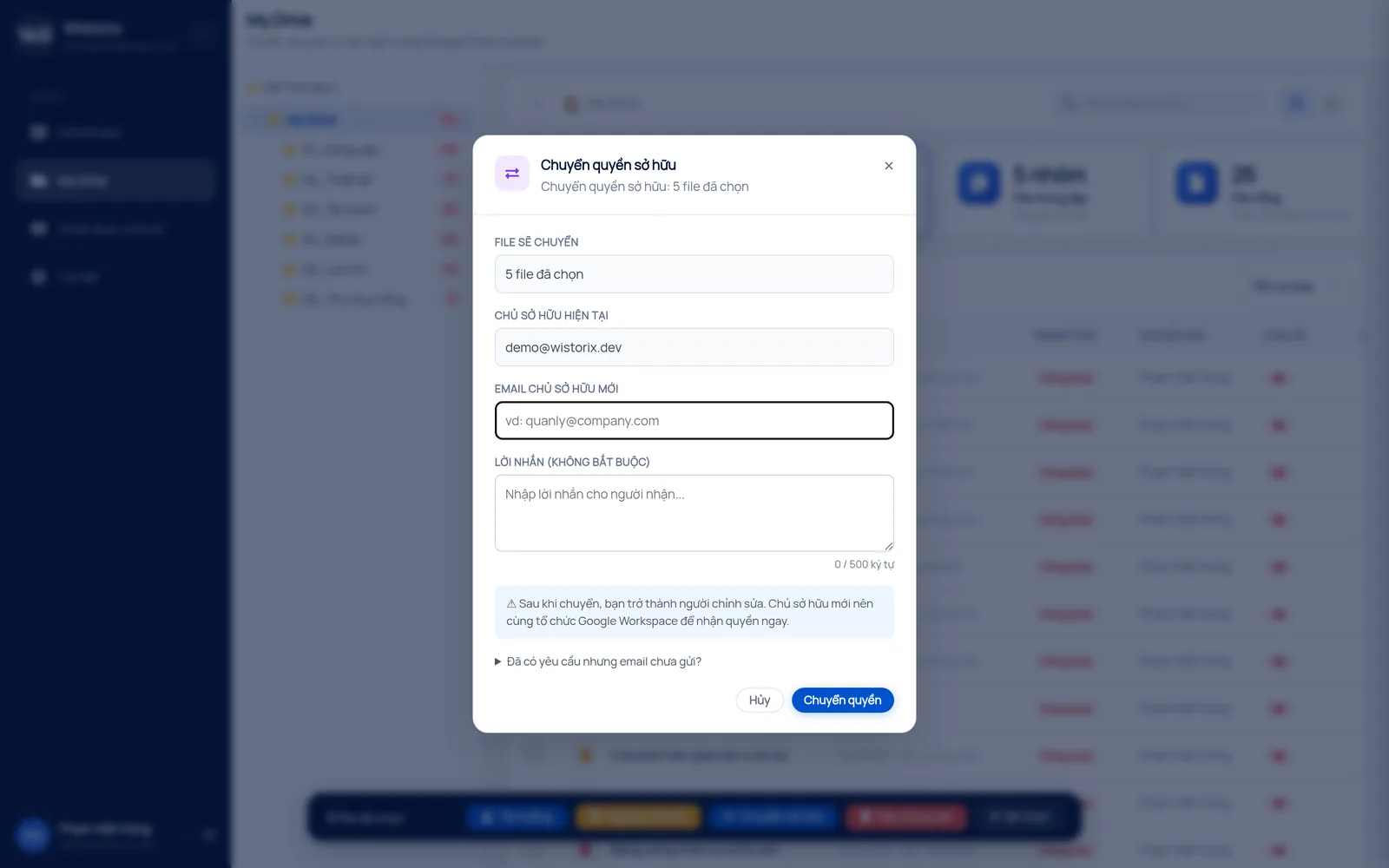
Step 3: Send the ownership transfer request
Click Transfer ownership, enter the new owner's email and confirm. The recipient gets a notification and accepts to become the new owner. While you wait, you are still the owner. Once they accept, you become an editor, so nobody's work is interrupted.
You can cancel the request before the recipient accepts. After the transfer is done, getting a file back means the new owner has to transfer it back to you, because this is a Google action with no separate undo button. Check the recipient's email carefully before you confirm.
It also helps to tell the recipient in advance that a batch of requests is coming. People are used to ignoring unexpected notifications, and a short message saying which project the files belong to gets them accepted much faster.
Step 4: Check the transfer log
Every transfer made through Wistorix is recorded: which file, from whom, to whom and when. When you need to confirm that a handover is complete, compare the log with your original file list. A log makes the handover sign-off clearer, especially if questions come up later.
If a file is missing from the log, you know exactly what to look at: either it was left out of the selection, or the recipient has not accepted it yet. Both are quick to fix while the handover is still fresh.
Google rules every ownership transfer tool follows
Google processes the transfer, so every tool has the same limits. According to Google's guide on how to transfer ownership of a file in Google Drive:
- Personal accounts can transfer to other personal accounts, and the recipient has to accept
- Work or school accounts can only transfer to people in the same organization
- The recipient needs access to the file before it can be transferred to them
If you need to move data between two different organizations, an ownership transfer cannot do it. In that case, look at other options such as making copies or using Google Takeout, covered in the guide to transferring Google Drive to another account.
Getting back files someone else owns
The reverse situation is common too: a file you need is owned by a collaborator or a former employee. For files other people have shared with you, Wistorix can send a request to transfer ownership to your account, by email or by an in-app notification. The current owner only has to accept. Until they do, nothing changes, and the file stays where it is with its current sharing.
This is a gentle way to bring files back to the right person without asking each owner to open each file. For teams, gather files into the project lead's account before anyone leaves, using the checklist in the guide on how to transfer ownership in Google Drive when someone leaves.
Prepare before the ownership transfer
Transfers go much faster when you prepare three things first. Each takes a few minutes and saves you from moving files back and forth.
- Agree on a successor for each project instead of sending everything to one person
- Share each project's top folder with the successor first, so they already have access
- Set aside the leaving person's personal files, such as photos or private documents, so they can download them
With a list of successors ready, you can transfer by group: project A to person A, project B to person B. Each successor receives exactly what they need, and the log is easier to check afterwards.
If your company uses Google Workspace, admins also have a tool in the Admin console that moves all of one person's data to another person. That tool fits when everything goes to one place. When you need to send different parts to different people, selecting by folder in Wistorix is more flexible.
How safe is a Drive ownership transfer tool?
Wistorix reads file metadata only, such as file names, owners and sharing settings, never file contents. Every transfer runs only after you confirm, and ownership changes only when the recipient accepts. You can remove Wistorix's access anytime from the Security section of your Google Account.
In short, a tool for ownership transfer is worth using when the number of files to hand over goes beyond a few dozen. Wistorix groups files by owner, transfers them in bulk and keeps a log, while the transfer rules remain Google's.
Frequently asked questions
Does transferring ownership remove existing sharing?
No. The list of people the file is shared with and its comments stay the same. Only the owner's name changes.
What access does the previous owner keep?
The previous owner becomes an editor. If you do not want them to keep access, remove it after the transfer is complete.
Can I transfer from a company account to a personal Gmail account?
No. Google only lets work accounts transfer ownership to people in the same organization.
Whose storage do transferred files count against?
They count against the new owner's storage, once the recipient has accepted the transfer.



sharing publicly?