

Should you clean Google Drive manually or use a tool? Where they differ

To clean Google Drive manually means you find, select and delete files yourself using the features built into Google Drive. It costs nothing and you control every step, but it takes a lot of time once your Drive gets large. This guide compares cleaning by hand with using a tool on five specific points, shows when the manual route is still the better choice, and suggests a way to combine both so the work is fast and safe.
In this guide
- What it takes to clean Google Drive manually
- A sample 90-minute session
- What changes when you use a tool
- 5 differences between the two approaches
- When cleaning by hand is still a good choice
- When a tool is the better choice
- Combine both approaches
- Frequently asked questions
What it takes to clean Google Drive manually
A full manual cleanup usually goes through five steps. Each step relies on a different Drive feature.
- Open the Storage page and sort by size to find your largest files
- Use advanced search to filter by file type and last modified date to find old files
- Search by name to spot copies, such as files starting with "Copy of" or names ending in a number
- Open each folder to find empty folders and files that ended up in the wrong place
- Select the files to delete, move them to the Trash, then empty the Trash once you are sure
Every step works with the Drive you already have, as described in Google's guide on how to search for files in Google Drive. Detailed instructions for each type of file are in the guide on how to clean up Google Drive.
A sample 90-minute session to clean Google Drive manually
If you choose to clean Google Drive manually, split the session into time blocks so you do not get stuck in one folder for too long. The plan below suits a Drive with a few hundred to about a thousand files.
- First 15 minutes: open the Storage page and handle the 20 largest files you are sure you no longer need
- Next 20 minutes: filter files last modified before last year, then move them to an Archive folder or delete them
- Next 20 minutes: search for copies by name and keep only the newest version
- Next 20 minutes: walk through the folder tree, merge folders with the same purpose and remove empty ones
- Last 15 minutes: check the Trash and note what is left for next time
Set a timer for each block. When time runs out before you finish, write it down and move on to the next block. This way a manual session always makes progress on every group of files, instead of cleaning one folder perfectly and leaving the rest untouched.
Before you clean Google Drive manually on a work account, give your team a quick heads-up. Nobody is then surprised when an old file moves to the Archive folder, and anyone who still needs a file can say so before it reaches the Trash.
What changes when you use a tool
A tool does not decide what to delete for you. It takes over the searching and grouping: it scans your whole Drive at once, then sorts files into groups such as duplicates, old files, empty files, files outside any folder and public files. You review each group and choose what to do.
In other words, the difference between cleaning by hand and using a tool lies in the finding, not the deleting. With both approaches you are the one who clicks the final button, and deleted files still go to the Google Drive Trash, where you can restore them for 30 days.
That is also why the choice is not either-or. You can let a tool do the searching and still clean Google Drive manually for the parts that need your judgment.
5 differences when you clean Google Drive manually vs with a tool
These five points are enough to judge which approach fits your Drive.
1. Time
When you clean Google Drive manually, the time it takes grows with the number of files and folders. A few hundred files can be done in one session. A few thousand files spread over many years usually take several sessions, because you have to open folder after folder.
A scan with a tool takes a few minutes, and the rest of your time goes to reviewing and deciding. That shift matters most on large accounts, where finding files is the slow part.
2. Coverage
By hand, you only see what you open. Files outside any folder, files buried five levels deep, or files other people created in your folders are easy to miss. A tool scans every file you have access to, so it does not depend on which folders you remember to open. For files outside any folder, the guide to Google Drive orphaned files explains why they are so hard to spot when you browse.
3. Spotting duplicates
Drive has no built-in duplicate finder. When you clean Google Drive manually, you rely on file names, so you miss duplicates that were renamed. A tool compares several properties, such as name, size and modified date, and places matching copies side by side so you keep exactly one.
4. Risk of deleting the wrong file
The biggest risk when cleaning by hand is deleting a file someone else is using, because the Drive file list does not show sharing status. A good tool shows the owner and sharing status right next to each file. Whichever approach you use, deleted files stay in the Trash and you can restore them for 30 days.
5. Repeatability
The second manual cleanup takes almost as long as the first, because you have to search from scratch again. With a tool you scan again and review only what has built up since, so regular reviews become much lighter.
When to clean Google Drive manually
Cleaning by hand still makes sense, and is sometimes the better choice, in these cases.
- Your Drive has fewer than a few hundred files and you remember most of them
- You only need to free up a little space, and deleting a few large videos is enough
- You want to look at each file to rebuild your folder structure, not just to delete
- Your documents are highly sensitive and your company does not yet allow third-party apps
The third case deserves attention. If your goal is to understand your Drive again and rebuild the folder tree, walking through each folder yourself has a value a tool cannot replace. Many people find that this is also when they decide on a folder structure they will keep for years.
When a tool beats cleaning by hand
On the other hand, a tool is worth using when your Drive has one of the traits below.
- Thousands of files built up over many years and many projects
- Many duplicates from re-uploads, copies or syncing from a computer
- Years of sharing with clients and contractors, so you need to see access while you clean
- You want to review every month or every quarter, not just once
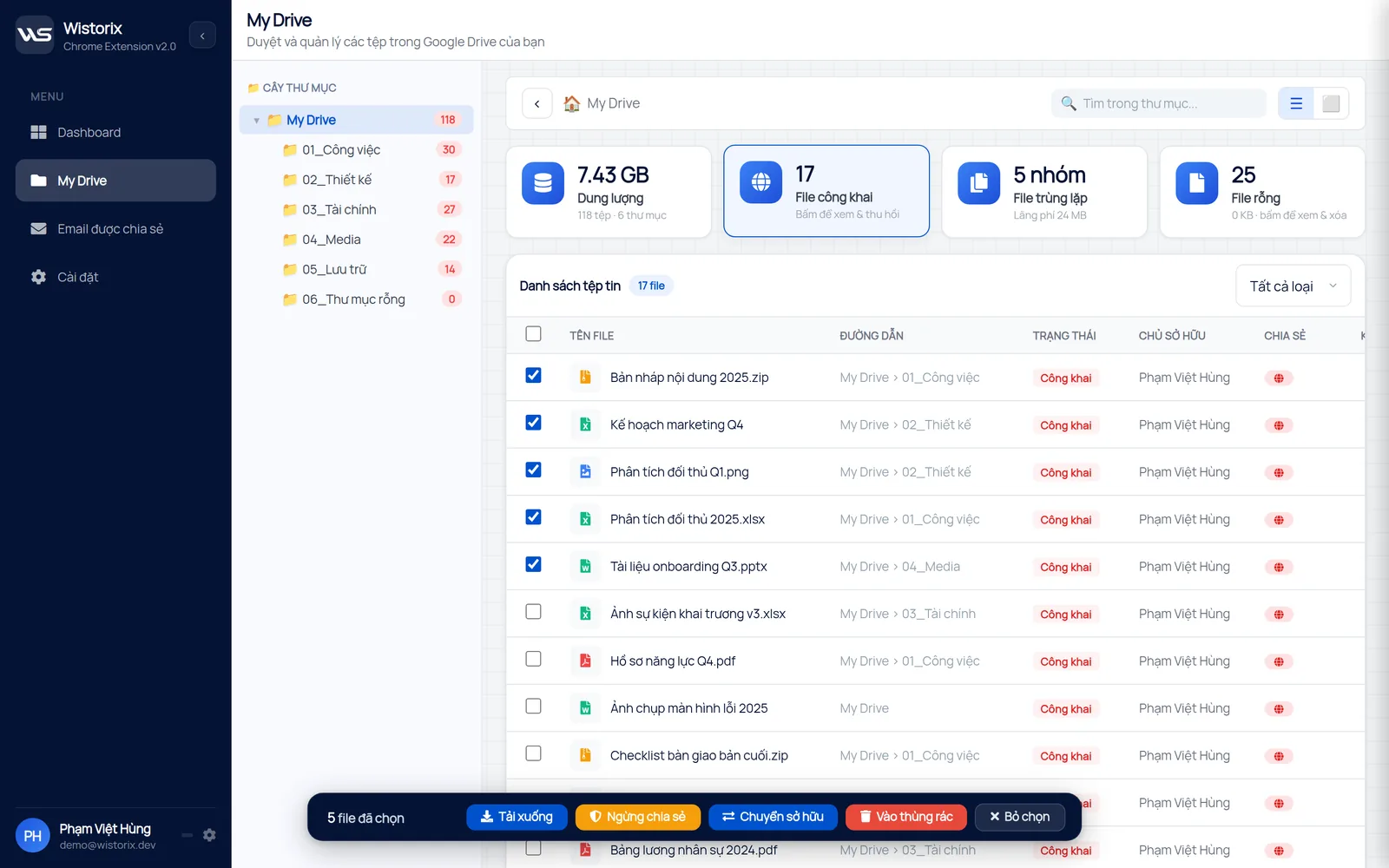
With Wistorix, you scan your Drive for free, see the groups of duplicate, old, empty and orphaned files on one Dashboard, then use bulk selection to handle them. Wistorix reads only file metadata such as name, size and sharing settings, never file contents, and every action runs only after you confirm.
Combine both approaches
For most people, the best approach is a mix. Use a tool for the repetitive, time-consuming work and keep the manual part for decisions that need context.
- Scan with a tool to get the full picture and a list of files by group
- Handle the low-risk groups, such as duplicates and empty files, quickly with the tool
- Review old files in important project folders yourself before you archive or delete them
- Rebuild the folder tree by hand around the structure you want to keep for the long term
If you are choosing a tool, the guide to picking a Google Drive cleaner lists what to check beyond the storage numbers. Whichever route you take, whether you clean Google Drive manually or with a tool, make it a regular habit instead of something you only do when Drive says it is full.
Frequently asked questions
How long does it take to clean Drive by hand?
It depends on the number of files and how many years they have piled up. A Drive with a few hundred files usually takes one session, while a Drive with a few thousand files can take several sessions if you open each folder.
Will a tool delete my files automatically?
A trustworthy tool does not delete on its own. It only groups files and makes suggestions, and you select and confirm. Check this before you install any tool.
Should I empty the Trash right after deleting?
No. Wait a few days to be sure nobody needs those files. Storage only goes down when the Trash is emptied, but there is no need to rush.
Is there a way to clean Drive fully automatically?
Finding and grouping files can be automatic, but the decision to delete should stay with a person. Wistorix is building scheduled scans with alerts (coming soon), but deleting will always wait for your click.


sharing publicly?