

What should a Google Drive cleaner check besides storage?

A good Google Drive cleaner does more than tell you what percentage of your Drive is full. It also shows which files to deal with first and which files you should not touch at all. This guide lists six things a cleanup tool should check beyond the storage number, how it should behave when you delete, and a short list of questions to help you judge a tool before you install it.
In this guide
- Why storage alone is not enough
- Six things a cleaner should check
- How a cleaner should handle deleting
- Compared with Drive's built-in features
- Eight questions before you install
- One big cleanup or a regular routine
- Frequently asked questions
Why looking at storage alone is not enough
When Drive warns that it is almost full, the natural reflex is to find the biggest files and delete them. That frees up space quickly, but it makes it easy to delete a file someone still uses. It also skips things that are not heavy but still need attention, such as a public link nobody remembered to close or hundreds of small copies.
Storage is the symptom, not the cause. A full Drive usually comes from the same few sources: duplicate files, old drafts, videos from finished projects and downloads you forgot about. A useful Google Drive cleaner is one that names each of those groups, instead of handing you a single list of files sorted by size.
Knowing the group also tells you how careful to be. A second copy of a file is safe to remove once you keep one version, while an old contract may be the only copy you have. A list sorted by size cannot tell those two apart.
Six things a Google Drive cleaner should check
The six checks below run from the least risky to the ones that need the most care, and together they are a yardstick for comparing any Google Drive cleaner. The more of them a tool covers, the less you have to search for by hand.
1. Large files and the file types that take up space
Every Google Drive cleaner still starts with storage, but it should break it down by file type: videos, original photos, archives and backups. Knowing which type takes the most space helps you decide which folders to clean first, without opening files one by one.
2. Duplicate files
For a Google Drive cleaner, duplicate files are the most common source of wasted space and also the safest to handle, as long as you keep exactly one copy. The tool should group duplicates and place them side by side, so you can see how many copies a file has before you choose. How to spot them by hand is covered in the guide to finding duplicate files in Google Drive.
3. Old and rarely used files
Files nobody has opened in 180 days or a year are candidates to archive or delete. A Google Drive cleaner should let you filter by last opened or last modified date, because those two dates answer different questions. The guide to finding old files in Google Drive explains when to archive instead of deleting.
4. Empty files, empty folders and files outside any folder
This group does not take much space, but it makes Drive harder to use. Empty files, folders with nothing inside and files outside any folder all slow down searching. A good Google Drive cleaner counts these groups for you so you can handle each one in a single pass.
5. Sharing settings on files you are about to delete
Before you delete a file, you need to know whether someone else is using it. If a file shared with a client or a colleague is deleted, they lose access without warning. A careful Google Drive cleaner shows the sharing status right next to each file in the list.
6. Ownership
You can only delete files you own. Files that other people share with you do not count against your storage, so deleting them frees up nothing. A cleaner should separate your files from other people's files, so you can focus on the part that actually counts toward your storage.
How a Google Drive cleaner should handle deleting
How a Google Drive cleaner deletes files matters as much as how it finds them. There are three principles worth asking of any tool.
- No automatic deleting: the tool only suggests, and every deletion is something you choose and confirm
- Delete to the Trash: files go to the Google Drive Trash, where you can restore them for 30 days, so nothing is deleted permanently
- Preview before deleting: see file details such as the path, owner and sharing status without leaving the tool
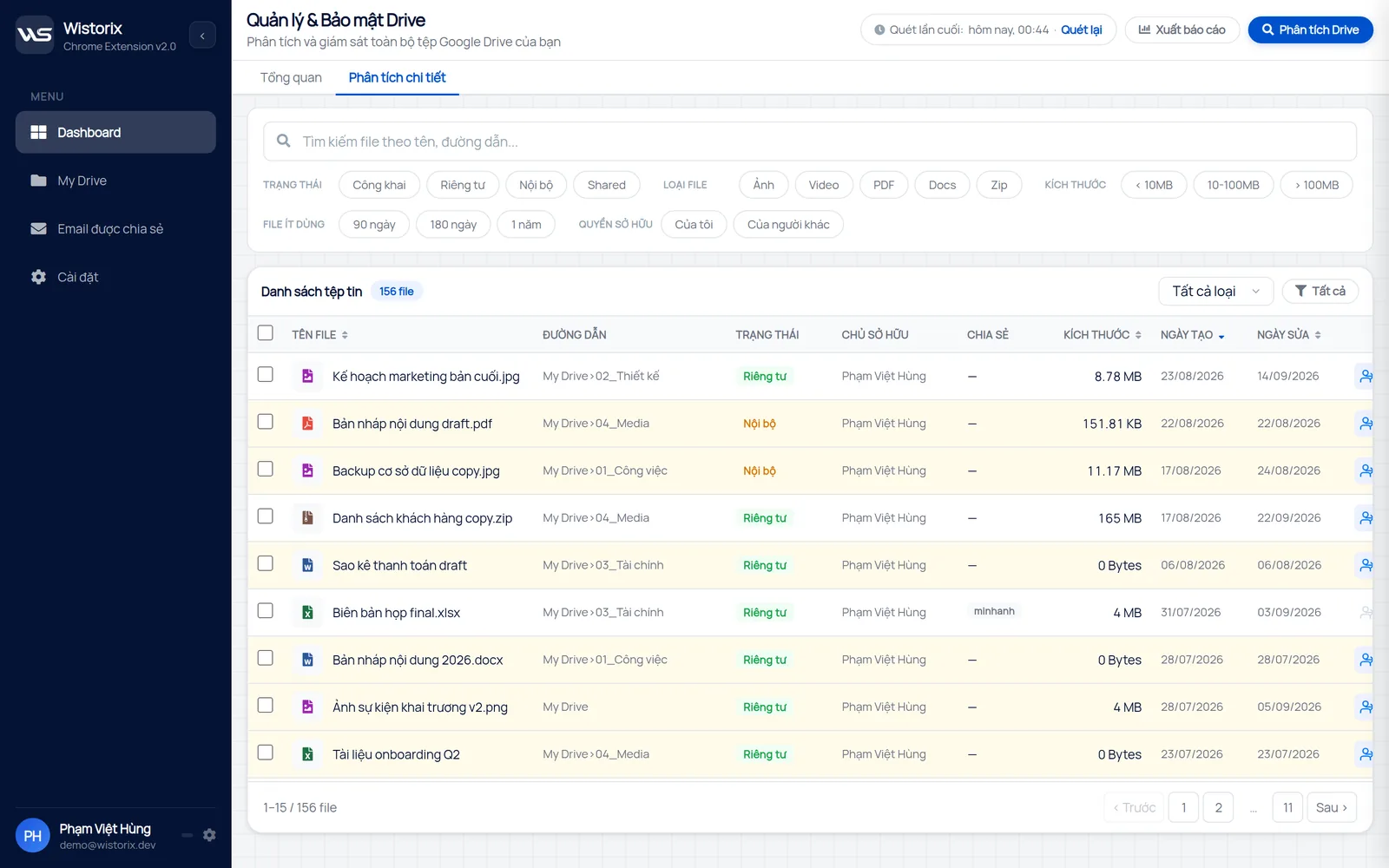
Wistorix is built on these three principles. Its detailed analysis screen filters files by size, by files not used for 90 days, 180 days or a year, by ownership and by file type. Wistorix reads file metadata such as names, sizes and sharing settings through the Google Drive API, never the contents of your files.
Compared with cleaning up using Drive's built-in features
Drive has a Storage page that sorts files by size, and a search box that filters by file type and modified date. According to Google's guide on how to search for files in Google Drive, you can combine several filters to narrow the results.
- What it does well: finding the largest files and filtering by type and date
- What it cannot do: group duplicate files, count files outside any folder or show sharing settings in the same list
- What takes time: selecting and handling many files spread across many folders
For a Drive with fewer than a few hundred files, the built-in features are usually enough. Once a Drive holds thousands of files and several years of data, a dedicated cleanup tool saves most of the time spent finding and selecting files.
Eight questions before you install a Google Drive cleaner
Use the eight questions below for a quick evaluation. A tool that answers yes to at least six of them is usually worth trying.
- Does it group duplicate files together?
- Does it filter files by last opened or last modified date?
- Does it count empty files, empty folders and files outside any folder?
- Does it show the sharing status and owner of each file?
- Can you select and handle many files at once?
- Does it delete to the Trash instead of deleting permanently?
- Does it read only file metadata and never file contents?
- Can you scan for free to see the results before you decide?
The last question lets you try a Google Drive cleaner without committing to anything. Many tools look alike on their websites but behave very differently on your real Drive, with thousands of files and years of sharing. Scan once, see which groups the tool finds and only then decide whether to keep using it.
Scanning with Wistorix is free, and it works with personal Gmail accounts and Google Workspace accounts without admin rights. For a wider view of the different kinds of tools, read the guide to choosing a Google Drive management tool.
One big cleanup or a regular routine
The first cleanup always takes the longest, because you are dealing with years of built-up data. Later rounds are much faster if you keep a steady rhythm, once a month or once a quarter. A Google Drive cleaner is most valuable in these regular rounds, when you only need to look at what changed since last time.
A simple schedule: every month, handle duplicate files and downloads. Every quarter, review files not used for 180 days. Every year, archive the folders of projects that have closed.
Between rounds, a few habits keep the next cleanup short. Name files consistently, save downloads into one folder that you empty regularly and archive a project folder as soon as the project closes. These habits do not replace a scan, but they mean each scan finds less to handle.
Wistorix is building scheduled automatic scans with alerts (coming soon), so you will not have to remember the review dates yourself. Until then, a recurring calendar reminder does the job.
Frequently asked questions
Can I restore files deleted with a third-party tool?
Yes, if the tool deletes to the Google Drive Trash. Files stay in the Trash for 30 days before they are removed for good, and you restore them like any other deleted file.
Why did my storage not go down after deleting many files?
There are two common reasons: the files are still in the Trash, or the files you deleted were owned by someone else, so they never counted toward your storage in the first place.
Can a cleanup tool delete a file I still use by mistake?
A good tool never deletes on its own. It groups files and makes suggestions, and you are the one who chooses. Check the sharing status and the last opened date before deleting.
Does cleaning up Drive affect Gmail and Google Photos?
Yes, because the three services share the same account storage. Freeing up space in Drive also helps Gmail receive email normally again if the account had run out of space.



sharing publicly?