

How to delete multiple files in Google Drive at once without removing the wrong ones

To delete multiple files in Google Drive at once, you do not need to select each file by hand. Drive lets you select a range of files with the Shift key, select everything in a folder or in search results, and do much the same on your phone. This guide covers four fast ways to select, what to check before deleting so you do not remove files still in use, and how to restore files if you make a mistake.
In this guide
- Before you delete many files
- Way 1: Select with Shift and Ctrl
- Way 2: Search, then select all
- Way 3: On your phone
- Way 4: Bulk selection across folders
- Delete by group of files
- Folders and files owned by others
- Restore files deleted by mistake
- Frequently asked questions
What to check before you delete multiple files
When you delete one file at a time, you see each file. When you delete multiple files in one go, it is easy for a few files you still need to slip into the selection. Spend two minutes checking these three things before you click.
- Owner: files owned by someone else are only removed from your Drive and do not give you more storage
- Sharing status: files shared with clients or colleagues go to the Trash too, and those people cannot open them once they are permanently deleted
- Location: files in folders of active projects should be left to the person in charge of that project
Switch to list view before you select anything. This view shows the owner, the last modified date and the file size next to each file, so you can see right away which files should not be in your selection.
A short check now saves time later. If you delete multiple files and then find one you needed, you can restore it from the Trash, but it is easier to leave it out of the selection in the first place.
Way 1: Delete multiple files with the Shift and Ctrl keys
This is the most basic method in a computer browser. Click the first file, hold the Shift key and click the last file, and Drive selects every file in between. To add or remove a single file, hold Ctrl on Windows or Command on Mac and click that file.
- Open the folder and switch to list view
- Sort by name or by last modified so the files you want to delete sit next to each other
- Select a range with Shift, then remove the files you want to keep with Ctrl or Command
- Click the trash icon in the toolbar
To select every file in the open folder, press Ctrl and A, or Command and A on a Mac. Check the number of selected files shown in the toolbar before deleting, so you know you have not selected too many.
Way 2: Search, then select all results
When the files to delete are spread across many folders but have something in common, search is the fastest way to delete multiple files in Drive. Type your conditions into the search box, then select all the results.
- Find copies by name: search for Copy of to see files Drive named automatically when they were copied
- Find old videos: combine type:video with before:2023-01-01
- Find only your own files: add owner:me to leave out files owned by others
The search operators are listed in Google's guide to finding files in Google Drive. Always add owner:me when you delete files from search results, because the default results include files other people shared with you.
Run the same search again after deleting. If the results are empty, or only show files you chose to keep, you know the cleanup worked as planned.
Way 3: Delete multiple files on your phone
In the Drive app on Android or iPhone, touch and hold a file to enter selection mode, then tap the other files. When you are done, open the more menu and choose to move the files to the Trash. Some versions of the app show a select all option at the top while you are in selection mode.
A phone works well when you need to delete multiple files in a small folder. For a few hundred files, or when you need to check owners and dates carefully, a computer browser is still safer and faster.
Before you delete multiple files on a phone, scroll through the selection once to confirm nothing unexpected is included. The small screen shows less detail, so this quick look matters more than on a computer.
Way 4: Bulk selection across many folders
The three methods above are limited to one folder or one search at a time. When you need to clear duplicates, empty files or old files spread across your whole Drive, you have to repeat the process many times. A Drive scanning tool groups these files so you can make one bulk selection instead.
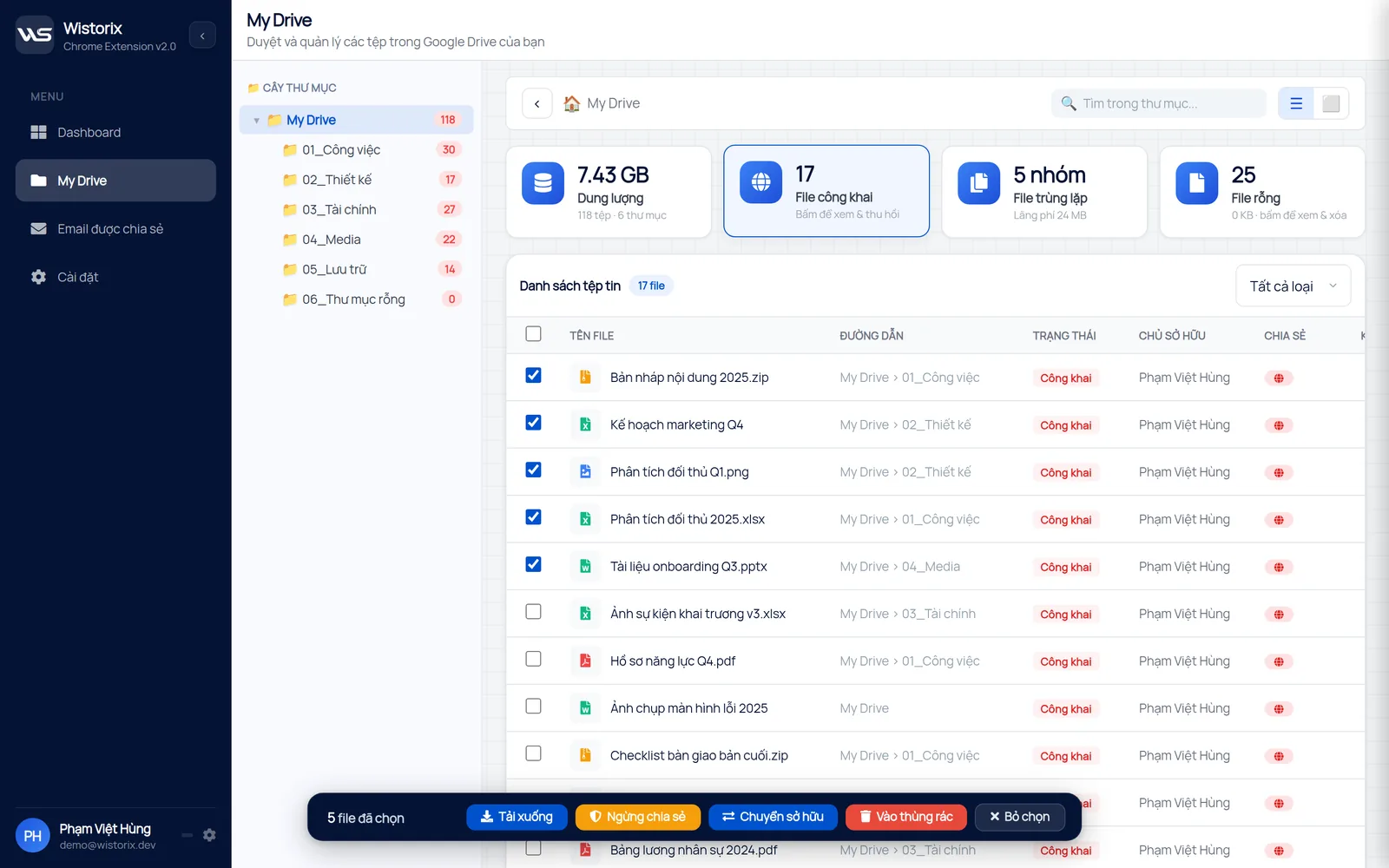
In Wistorix, you tick files from many different folders, see the owner, sharing status and size right away, then choose Move to Trash. Files go to the Google Drive Trash and are never permanently deleted by Wistorix, so you can restore them for 30 days. Wistorix reads file metadata such as names, sizes and sharing settings, never file contents, and it only acts after you confirm.
The free bulk delete tool page shows how this works step by step before you install anything.
Delete multiple files by group
Instead of deleting folder by folder, delete files in groups that share the same trait. Each group needs one search, one check and one deletion. The five groups below usually take a lot of space while having the least value.
- Copies Drive named automatically, starting with Copy of
- Test edits and old exports of videos, with v1, v2 or draft in the name
- Compressed archives already sent to clients, while the original folder is still in Drive
- Screenshots and temporary downloads in folders synced from a computer
- Empty files or blank documents created while testing
Working through one group at a time lets you check more carefully. When every file in the selection is the same kind, an odd file that slipped in is easy to spot. This is also the safest way to clean up a work Drive, where one folder often holds files from many people.
Write down which groups you cleaned and when. Next time, you only need to look for what is new in each group, so a regular cleanup takes only a few minutes each month.
Folders and files owned by others
Deleting a folder you own moves the folder and the files you own inside it to the Trash. Files owned by other people in that folder are not deleted from their Drive, but they will no longer sit in your folder. If you share the folder with colleagues, tell them before you delete it.
For files owned by other people, you can only remove them from your own Drive. So if your goal is to free up storage, filter with owner:me before you delete multiple files. Empty folders left behind after cleanup can be handled with the guide to empty folders in Google Drive.
Restore files deleted by mistake
Deleted files go to the Trash and stay there for 30 days. To restore many files at once, open the Trash, select the files with Shift or Ctrl as in way 1, then click Restore. Files return to their original folder if that folder still exists.
Empty the Trash only after a few days, when you are sure nobody needs the files you deleted. Your storage only goes down once the Trash is emptied, but there is no reason to rush. If you are clearing duplicates, the guide to finding duplicate files in Google Drive shows how to choose the right copy to keep.
In short, to delete multiple files in Google Drive quickly and safely: switch to list view, filter with owner:me, select with Shift or select all search results, check the sharing status, and only then delete. The Trash always gives you 30 days to change your mind.
Frequently asked questions
Is there a limit to how many files I can select at once?
Drive does not publish a specific limit, but your browser may slow down when you select thousands of files. Splitting the work into batches of a few hundred files is more stable.
Does deleting many files affect the people they are shared with?
Yes. Once a file is permanently deleted, the people it was shared with can no longer open it. While the file is still in the Trash, you can restore it so they can keep using it.
How do I delete every file in a folder but keep the folder?
Open the folder, press Ctrl and A or Command and A to select every file inside, then click the trash icon. The folder stays, and only the files inside move to the Trash.
Do files deleted on my phone go to the Trash too?
Yes. Whether you delete on a phone or a computer, files go to the same Drive Trash and can be restored the same way.


sharing publicly?