

Do shared files count against your Google Drive storage?

Your Shared with me view in Google Drive can hold hundreds of items, from client documents to a coworker's video folder. A common question is whether shared files count against your own storage. The short answer is no, as long as someone else still owns them. This guide explains Google's rule, the four cases where a file does use your space, and how to check each file.
In this guide
- The short answer
- The rule: the owner pays for storage
- Four cases that use your storage
- Shared drives and work accounts
- Step 1: Check who owns the file
- Step 2: Compare with the Storage page
- Step 3: Scan your Drive with Wistorix
- Reclaim space from copies and transferred files
- Frequently asked questions
Do shared files count against your storage?
No, not if you only have viewer, commenter or editor access. According to Google's page on how storage works, files in shared folders only use the storage of the original file owner, never the recipient. It does not matter how large the file is.
So the real question is who owns each file. A 50 GB folder someone shares with you takes none of your space. A 2 GB copy you make yourself takes the full 2 GB.
Your storage limit is shared across Google Drive, Gmail and Google Photos. When Drive warns you that you are running low, look at the files you own first. The items under Shared with me are rarely the cause.
The rule: whoever owns the file pays for the storage
Every file in My Drive has exactly one owner. Usually that is the person who created or uploaded it. Google's guide to managing storage puts it plainly: only the files you own count toward your Google storage.
Sharing a file does not change its owner. You can be an editor and work on a document every day, and it still counts against the owner's storage. That is why shared files almost never use space for the people they are shared with.
| What you do with the file | Whose storage it uses |
|---|---|
| Open, view or download a file someone shared with you | The owner's |
| Comment on or edit a file someone else owns | The owner's |
| Make a copy of a shared file | Yours, because the copy belongs to you |
| Upload your file to a folder someone shared with you | Yours, because the file is still yours |
| Accept ownership of a file | Yours, from the moment you accept |
Four cases where shared files use your storage
The ownership rule has four side effects that people often miss. In each case below, the answer flips to yes:
- You make a copy. Google states that if you make a copy of a shared file, the new file uses your storage. The original still counts for its owner, and the copy counts for you.
- You upload to someone else's folder. Files you add to a folder someone shares with you still belong to you, so they use your storage even though they sit in that person's Drive.
- You accept ownership. When the owner transfers a file and you accept, it counts toward your storage and leaves theirs.
- Your own files sit in the trash. Files you own keep counting while they are in the Drive trash, until they are permanently deleted.
The second case causes the most confusion. Picture a team that works out of the project lead's folder, with everyone uploading photos and videos to it. The folder lives in the lead's Drive, but each file counts against the person who uploaded it.
Shared drives and Google Workspace accounts
Many teams on Google Workspace keep files in shared drives instead of My Drive. Files in a shared drive belong to the organization, not to one person. Google's storage FAQ for Workspace admins lists shared drive content as part of the organization's storage, not any single member's limit.
Personal Gmail accounts do not have shared drives. Every file lives in someone's My Drive, so the question about shared files always comes back to one thing: who owns them. Admins can also set their own limits, so if you use a work account, ask your IT team about internal policies.
Step 1: Check who owns each of your shared files
Open drive.google.com and switch to list view. The Owner column tells you who each file belongs to. If it says "me", the file counts against your storage. If it shows another name, it counts against theirs.
The Shared with me view in the left menu collects files other people share with you directly. It is the fastest place to confirm that most shared files are owned by someone else. You can also type owner: followed by an email address into the search box to filter files owned by a specific person.
Step 2: Compare with the Storage page
Click Storage in Drive's left menu. This page lists the files you own, from largest to smallest. Files owned by other people do not show up here, because they do not use your space.
If you spot a large file you remember as shared, it is now yours. Most likely you made a copy, uploaded it to a shared folder or accepted ownership at some point. Our guide on how to check Google Drive storage explains every number on that page.
After you delete many files at once, Google says storage can take up to 48 to 72 hours to update. Do not delete more just because the number has not dropped yet.
Step 3: Scan your Drive with Wistorix to separate your files
Wistorix is a Chrome extension for Google Drive. It works with personal Gmail and Google Workspace accounts, with no admin rights needed, and scanning is always free. Wistorix reads only file metadata such as name, size, owner and sharing settings, never file contents.
After a scan, Wistorix separates the files you own from shared files that belong to other people. You see your personal storage at a glance and avoid trying to delete files that are not yours. It answers the storage question for your whole Drive instead of one file at a time.
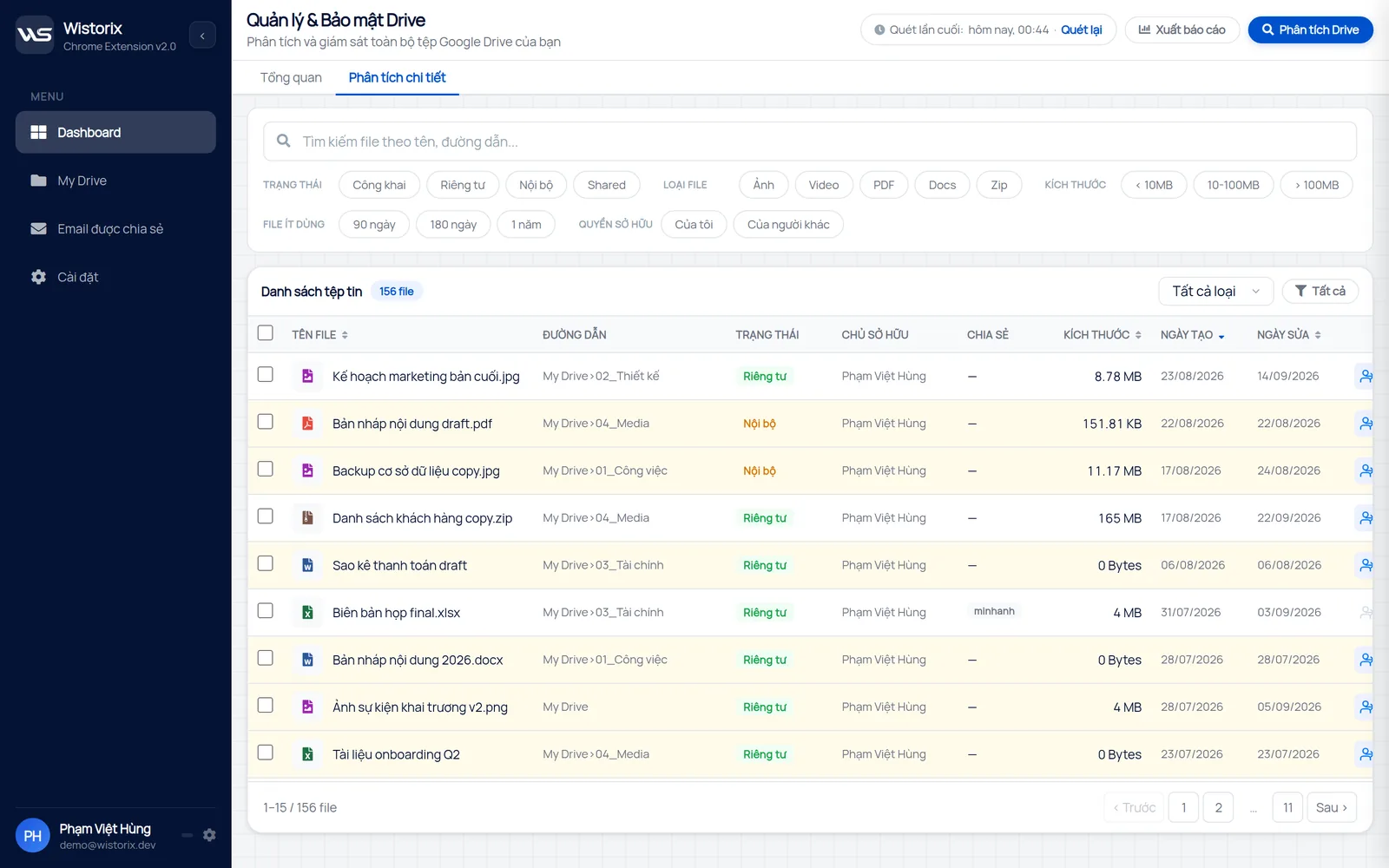
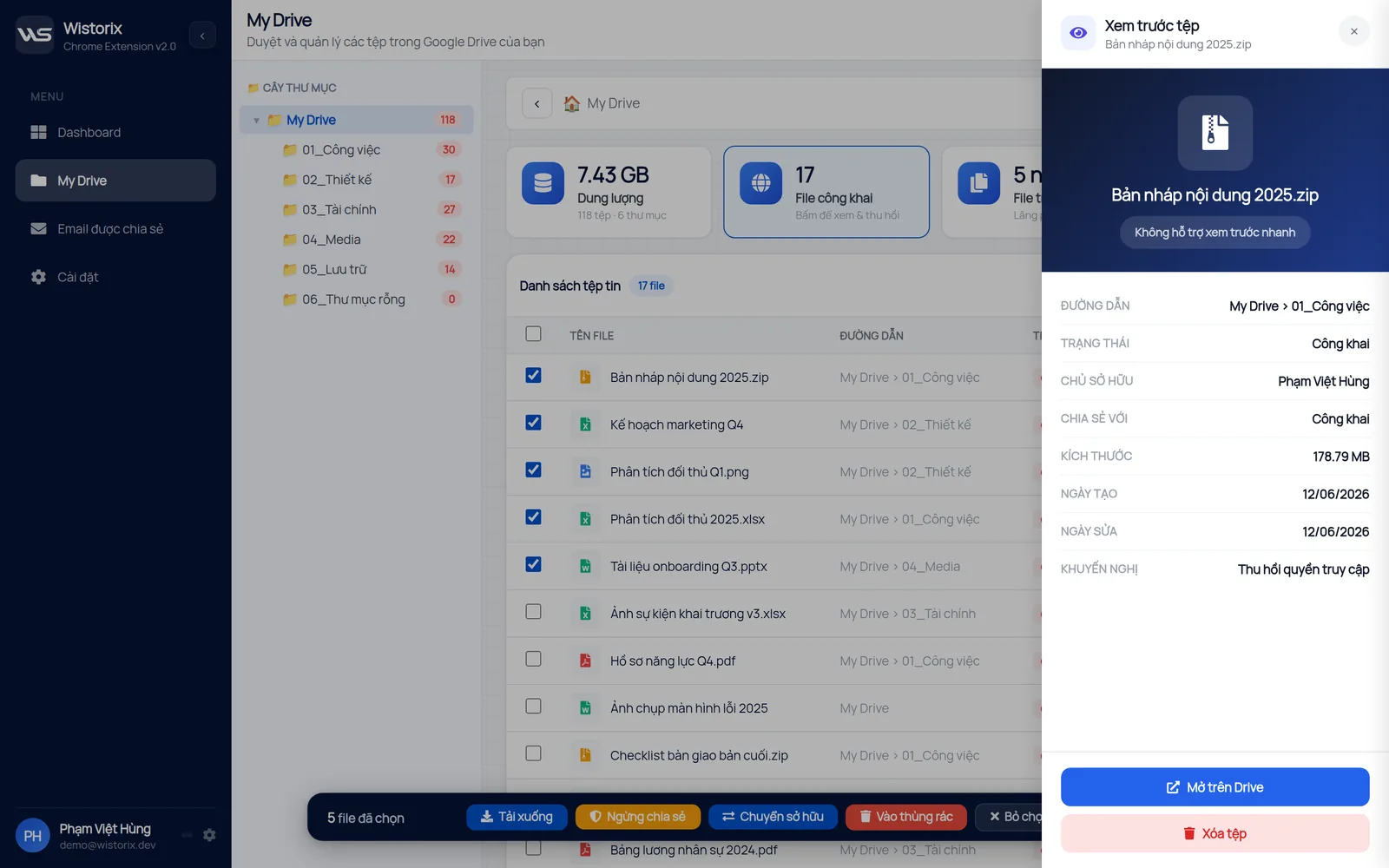
In the detailed analysis tab (Phân tích chi tiết), click the Size column (Kích thước) to put the largest files first, then read the Owner column (Chủ sở hữu). Files with your name on them are the ones using your space. Click a file name to open the file preview panel (Xem trước tệp) with its path, owner, people with access and size.
Reclaim space from copies and files you own
Once you know which files count against you, work through them in this order so nothing important gets removed by mistake:
- Find copies you made of shared files. If the original still exists and you still have access, you usually do not need the copy.
- For files you uploaded to a finished project's shared folder, consider transferring ownership to the person who runs that folder.
- For files you accepted ownership of but no longer manage, transfer them back to whoever uses them.
- Download files you want to keep but rarely open to an external drive, then move them to the trash.
- Empty the trash once you are sure no one needs them, since files there still use storage.
Transferring ownership frees space without deleting anything. Google's guide to making someone else the owner says that after a transfer, the file no longer counts toward your storage and counts toward the new owner's instead. You become an editor. To do this for many files at once, see our guide to transfer ownership in Google Drive.
If you do delete something, it stays in the Google Drive trash for 30 days, so you can restore it if you change your mind. In Wistorix, nothing runs until you confirm. If you remove someone's access by mistake, you can share it again any time.
In short, whether shared files use your storage depends on the owner. Files someone else owns do not count for you. Copies you make, files you upload to other people's folders and files you accept ownership of do. Check the Owner column before you delete anything.
Try it: Google Drive storage analyzer, free scan.
Frequently asked questions
Do files in Shared with me count against my storage?
No. Those shared files count against the owner's storage, not yours. They only start using your space if you make a copy or accept ownership.
Does editing a shared file increase my storage use?
No. Editing does not change the owner, so anything you add still counts against the person who owns the file.
If I upload a file to a coworker's folder, whose storage does it use?
Yours. Files you add to a folder someone shared with you still belong to you. If you want your coworker to carry the storage, transfer ownership to them.
Does a copy of a shared file use my storage?
Yes. When you make a copy, the copy belongs to you and uses your storage, even though the original is owned by someone else.
If the owner deletes shared files, do I get space back?
No, because those files never counted against your storage. Only the owner's storage changes.



sharing publicly?