

Choosing a Chrome extension for Google Drive: free picks worth installing

A Chrome extension for Google Drive adds things Drive does not do on its own in the browser: opening and editing documents without a connection, saving web content to Drive quickly, or reviewing sharing and storage across your whole Drive. This guide covers the free extensions worth installing, what job each one does, and how to check permissions before you let any extension connect to your Drive.
In this guide
- Extensions versus add-ons
- Working offline
- Saving web content to Drive
- Reviewing sharing and storage
- Quick comparison table
- Choose by the work you do
- Check permissions before you install
- Remove an extension and revoke its access
- Frequently asked questions
How a Chrome extension differs from a Google Workspace add-on
These two are often confused. A Chrome extension is installed in the browser, shows an icon in the toolbar and runs on the pages you open. A Google Workspace add-on is installed inside Docs, Sheets or Gmail and only appears in that app.
When you need to work with your whole Drive, such as seeing every shared file or grouping duplicates across all folders, an extension is usually more convenient. When you only need to add a feature to one spreadsheet, an add-on is enough.
Keep this difference in mind as you read the rest of this guide. Everything below is about extensions, which you manage from Chrome itself, not from inside a single Google app.
A Chrome extension for working offline
Google Docs Offline is an extension made by Google itself. Once it is on, you can open and edit Google Docs, Sheets and Slides even when you lose your connection. Your changes sync to Drive automatically when you are back online.
- Good for: people who often work on trains, in cafes or anywhere with a patchy connection
- Note: turn it on only on your own computer, because offline documents are stored on that device
- Cost: free
This is the first Chrome extension to install if you write documents every day. Turn it on in Drive's settings on your computer, in the Offline section.
Offline access is set per device and per account. If you share a computer with other people, leave it off there, because anyone using that computer could open the stored documents.
A Chrome extension for saving web content to Drive
Save to Google Drive is also an extension from Google. You can save images, links or screenshots of web pages to Drive with a right-click, instead of downloading them to your computer and uploading them again.
- Good for: people who collect reference material, mood boards or quotes from many sites
- Note: set a destination folder in advance so files do not end up scattered outside your folders
- Cost: free
A simple habit keeps this under control. Once a week, open the destination folder and move each saved item into the project it belongs to, or remove what you no longer need.
An extension like this gets files into Drive faster, which also means Drive fills up faster. That is why it works best alongside a regular review tool like the one in the next section.
A Chrome extension for reviewing sharing and storage
The two extensions above help you work with individual files. What is still missing is a view of the whole Drive: which files are duplicates, which are public and which outside people can still edit. Wistorix is a Chrome extension for Google Drive that does exactly this, and scanning is free.
- Storage: groups duplicate files by checksum, plus empty, old and orphaned files
- Security: lists public files and outside email addresses, and gives a security score from 0 to 100
- Handover: transfers file ownership in bulk while keeping the folder structure
- Cost: scanning is free
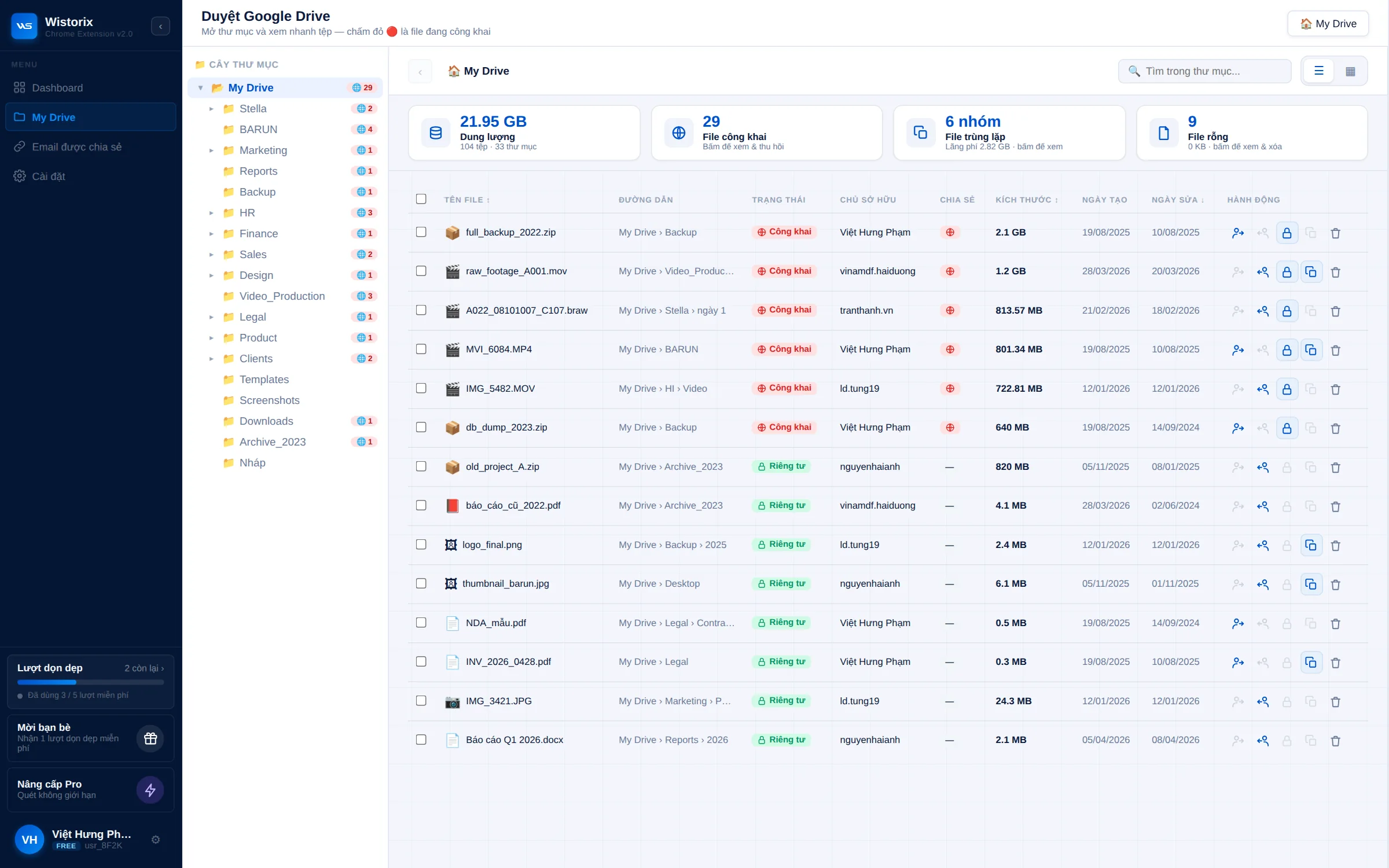
Wistorix reads only file metadata, never downloads file contents and acts only after you confirm. Learn more in what is Wistorix, or try the individual utilities in the free Google Drive tools collection.
Because a scan looks at your whole Drive at once, it often surfaces things you would never find file by file. Typical examples are an old public link on a document you forgot about, or a former partner who can still edit a folder.
Quick comparison of each Chrome extension
| Extension | What it does | Made by | Cost |
|---|---|---|---|
| Google Docs Offline | Edit documents without a connection | Free | |
| Save to Google Drive | Save web content to Drive | Free | |
| Wistorix | Review sharing, optimize storage, hand over files | Wistorix | Free scan |
The three extensions do not overlap, so you can install all of them at once without conflicts in the same browser. If you only pick one, choose based on the task that takes up most of your time each week.
Each one also works independently of the others. Installing or removing one has no effect on the rest, so you can start with a single extension and add more later as your needs change.
Choose a Chrome extension by the work you do
Not everyone needs all three. The quickest way to choose is to look at which Drive task takes up most of your time each week.
Freelancers
You send files to many clients and often forget to close access when a project ends. A sharing review extension helps most: after each project, filter by the email of the client you just finished with and remove edit access in one go. Add Save to Google Drive if you often collect reference material for clients.
Agencies
Agencies work with many clients, many freelancers and many shared folders. A Chrome extension that lists email addresses outside your organization and transfers ownership in bulk saves hours every time you close a project or change who is in charge of it. It also makes it easier to answer a client who asks who else can see their files.
In-house teams and small businesses
The most time-consuming tasks are usually handover when someone leaves and Workspace storage that grows quickly. Choose an extension that handles storage and file handover. If your staff travel often, also turn on Google Docs Offline on their own computers.
Whichever Chrome extension you choose, start with what is free and try it on your real Drive before you commit to anything more.
Check permissions before you install a Chrome extension
Every extension that connects to Drive touches important data. Before you click install, check these five things.
- What it reads: only file metadata, or file contents as well
- Whether it acts on its own, or waits for you to confirm
- Where deleted files go: to the Trash, where you can restore them, or deleted permanently
- Who is behind it: an about page, a privacy policy and contact details
- How to remove it: whether you can revoke its access from your Google Account
None of these questions is technical. If an extension's website does not answer them clearly, treat that as a reason to wait rather than a detail to skip.
Read Google's consent screen carefully when you sign in for the first time. That screen lists exactly what the extension is allowed to do with your Drive. How to install and manage extensions is covered in Google's guide to Chrome extensions.
Remove an extension and revoke its access when you stop using it
Removing an extension and revoking its access are two separate actions, so do both when you stop using a Chrome extension for Google Drive.
- Remove the extension: right-click its icon in the toolbar and choose Remove from Chrome
- Revoke access: open your Google Account, go to third-party apps with account access and remove the app
Removing the extension alone takes it out of your browser, but the access granted to your Google Account can remain until you revoke it. That is why the second step matters just as much as the first.
The details are on Google's page about managing connections between your Google Account and third-party apps. Neither action affects your files in Drive, and you can remove an app's access anytime.
Review your list of extensions every few months. An extension you tried once and forgot still keeps its access to Drive until you remove it. A dedicated guide for review extensions is in the article on the Google Drive cleanup extension.
In short, a lean but complete set is one Chrome extension for offline work, one for quick saves and one to review your whole Drive. All three are free to start with.
Frequently asked questions
Do Chrome extensions work in other browsers?
Browsers based on Chromium can usually install Chrome extensions, but Chrome is the main supported environment.
Will installing many extensions slow down my browser?
It can, if an extension runs constantly in the background. Wistorix only runs when you open it and start a scan.
Can I use extensions on my phone?
No. Chrome on phones does not support extensions, so you need a computer. The results still show up in Drive on every device.
What if my company account cannot install extensions?
Google Workspace admins can block extensions or third-party apps. Ask your admin before trying anything else.



sharing publicly?