

A Google Drive cleanup extension for Chrome: install, use and remove it safely

A Google Drive cleanup extension is the lightest way to scan and clean up Drive: nothing to install on your computer, no admin rights, just the Chrome browser. Wistorix is one such extension. It scans your Drive for free and groups duplicate, empty, old and public files so you can handle them one group at a time. This guide shows how to install it in 3 steps, explains what access it asks for and how to remove it, and lists what to check before you install any extension that connects to Drive.
In this guide
- Why an extension instead of desktop software
- Step 1: Add the extension to Chrome
- Step 2: Sign in and read the consent screen
- Step 3: Scan and clean up Drive
- 5 checks before you install
- How to remove the extension and revoke access
- Use it on a regular schedule
- Is it right for you?
- Frequently asked questions
Why choose a cleanup extension instead of desktop software
Google Drive is a web service, so a tool to clean it up does not need to run on your computer either. A Chrome extension works with Drive directly through your Google account and has three advantages over desktop software.
- Light: it takes no disk space and needs no manual updates, because Chrome updates extensions for you
- Works on any computer with Chrome: Windows, Mac or Chromebook all behave the same
- No need to sync Drive to your computer: the extension reads file information in Drive and never downloads your files
On top of that, a cleanup extension can be removed in seconds, and you can revoke its access to Drive anytime from your Google Account. That is a level of control desktop software rarely gives you.
Step 1: Add the cleanup extension to Chrome
Open the Wistorix home page in Chrome on your computer, click to install it for free and confirm. Chrome shows a dialog listing what the extension is allowed to do in the browser. Read it, then click Add extension.
After installing, click the puzzle piece icon in the toolbar and pin Wistorix so its icon always sits next to the address bar. Google explains how to manage installed extensions in its guide to install and manage extensions in Chrome.
If you use several Chrome profiles, install the extension in the profile you use for work with Drive. That way its icon is there when you need it, and it stays out of profiles where you never open Drive.
Step 2: Sign in and read the consent screen
Click the Wistorix icon and choose the Google account that holds the Drive you want to clean up. Google then shows a consent screen listing the access the extension is requesting for your Drive. This is the most important moment when you install any Google Drive cleanup extension, because it decides what the extension can do with your data.
Wistorix asks for Drive access so it can read your file list and carry out the actions you choose, such as moving files to the Trash, stopping sharing or transferring ownership. It reads only file metadata: name, size, owner, sharing settings and dates. It never reads or downloads file contents.
Take a moment to compare the consent screen with what the extension says it does. If the access requested goes far beyond the job, such as reading your email for a Drive tool, stop and look for more information before you continue.
Step 3: Scan and clean up Drive
In the extension, click Scan. The first scan takes a few minutes on a typical personal account, and scanning is always free. After the scan, the Dashboard shows a security score from 0 to 100, storage by group and the groups to review: duplicate, empty, old, orphaned and public files.
Choose a group, tick the files you want to handle and click the matching action. Files you delete through the extension go to the Google Drive Trash and are never permanently deleted, so you can restore them for 30 days. A full walkthrough of every screen is in the guide to the Google Drive cleanup tool.
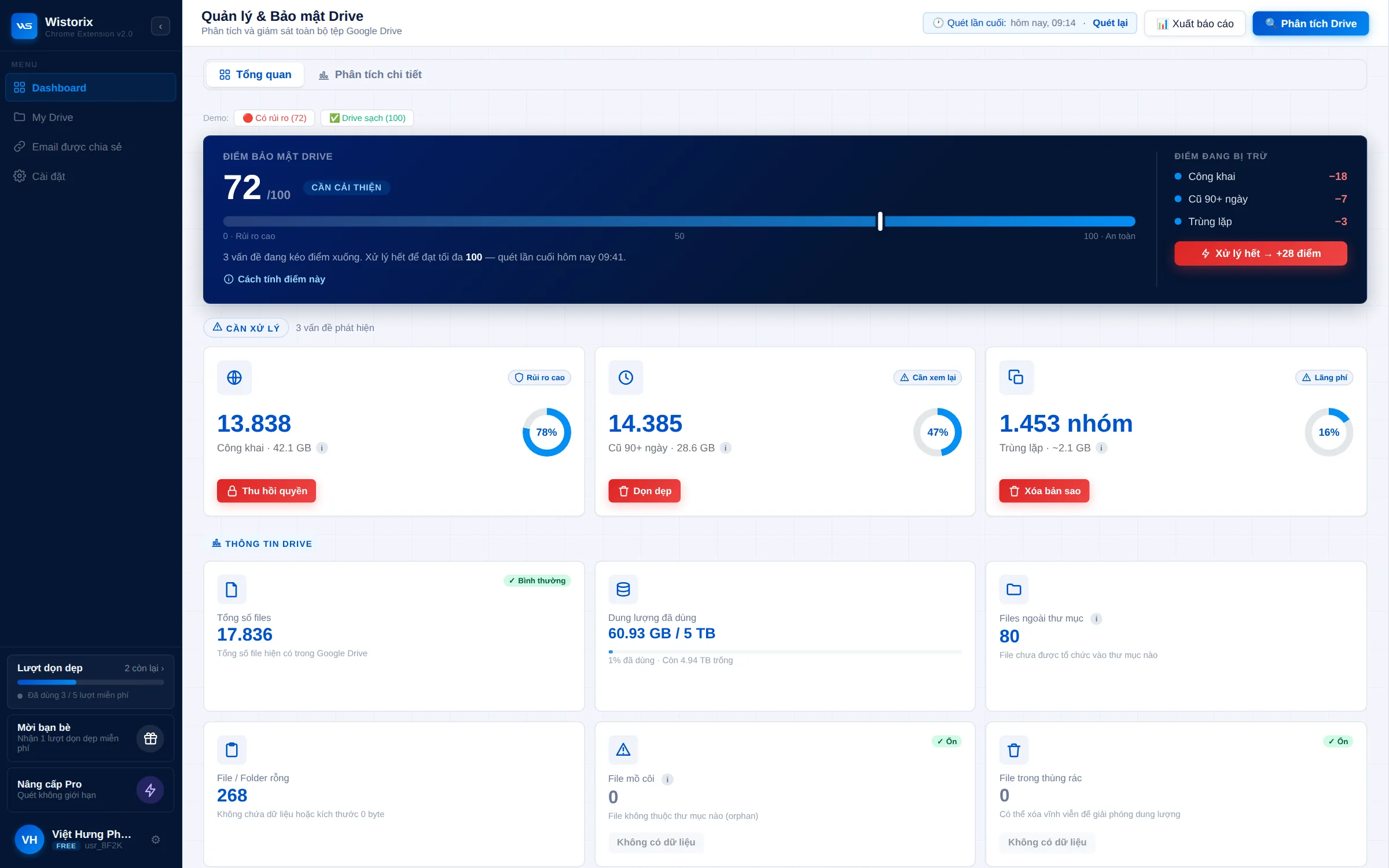
A good first session starts with public links on sensitive files, then moves on to duplicates and empty files. That order closes the most important gaps first and frees up space without much effort.
5 checks before you install a cleanup extension
Every Google Drive cleanup extension gets access to important data. Whichever tool you pick, check these five things before you click install.
- What it reads: only file metadata, or file contents too. A cleanup tool only needs metadata.
- Whether it acts on its own: a trustworthy tool only suggests, and waits for you to confirm before it does anything.
- Where deleted files go: to the Drive Trash so you can restore them, or deleted permanently.
- Who is behind it: a clear about page, a privacy policy and contact details.
- How to remove it: you should be able to revoke its access in your Google Account anytime.
Google has its own rules for how third-party apps may use user data, set out in the Google API Services User Data Policy. A serious cleanup extension explains clearly how it follows this policy.
If you are comparing different kinds of tools, such as Google Apps Script, web apps or extensions, the guide to choosing a Google Drive management tool covers the pros and cons of each.
How to remove the extension and revoke access
Removing the extension and revoking its access are two separate actions, so do both when you no longer use it.
- Remove the extension: right-click its icon in the toolbar and choose Remove from Chrome
- Revoke access: open your Google Account, go to Security, find the section for third-party apps with account access and remove Wistorix
Removing the extension takes its icon out of Chrome. Revoking access means it can no longer reach your Drive, even if you reinstall it later without granting access again. Neither action affects your files in Drive.
If you plan to come back to the extension later, you can leave it installed and revoke its access in the meantime. Your next scan will then ask you to grant access again on the consent screen, so nothing runs without your approval.
Use your cleanup extension on a regular schedule
The first scan always has the most work: duplicates built up over years, half-finished folders and sharing links from projects you have forgotten. After that, only a small amount of new clutter builds up each month, so later scans take much less of your time.
A simple schedule works for most people. At the start of each month, open the extension, scan again, handle any new duplicates and empty files, then check the list of public files. The whole routine usually takes under 15 minutes, and a Drive shared with many clients deserves one extra scan whenever a project ends.
Wistorix is building scheduled scans with alerts (coming soon). Once available, the extension will let you know when many new duplicates or public files appear in your Drive, instead of waiting for you to remember to scan.
Is a Google Drive cleanup extension right for you?
An extension suits people who use Drive on a computer every day: freelancers, agencies, in-house teams and small businesses. It works with personal Gmail accounts and Google Workspace accounts. If you mostly use Drive on your phone, you still need a computer with Chrome to run the scan and take action, and the results then show up in Drive on every device.
On Google Workspace, some organizations block extensions or block third-party apps from accessing Drive. If you cannot install it, ask your company's admin before trying another route.
If you look after Drive for a small team, each person installs the cleanup extension in their own Chrome and scans their own Drive. The extension works with the account that signs in, so every teammate sees and decides on their own files.
In short, a cleanup extension is the lightest and easiest option to control when you need to clean up a large Drive. Wistorix reads only file metadata, acts only when you click and can be removed anytime.
Frequently asked questions
Does the extension work in other browsers?
Wistorix is built for Chrome. Other Chromium-based browsers may be able to install Chrome extensions, but Chrome is the main supported browser.
Will the extension slow down my browser?
Wistorix only runs when you open it and click Scan. When you are not using it, it does not scan in the background or use noticeable resources.
Do I need to keep Chrome open during a scan?
Yes. Keep the Wistorix window open until the scan finishes, which usually takes only a few minutes on a personal account.
Will removing the extension undo the files I already handled?
No. Files you moved to the Trash stay in the Google Drive Trash, and you can still restore them there for 30 days.



sharing publicly?