

Wistorix, the Google Drive cleanup tool that starts with a free scan

If you are looking for a Google Drive cleanup tool you can start using right away, Wistorix is a Chrome extension built for exactly that job. It scans your whole Drive, sorts duplicate, empty, old and publicly shared files into groups, and lets you handle them in bulk. This guide explains what Wistorix does, how to use it in five steps and what to know before you install it.
In this guide
- Why use a tool instead of cleaning by hand
- What Wistorix finds
- Step 1: Install the Chrome extension
- Step 2: Sign in and grant access
- Step 3: Scan the whole Drive
- Step 4: Review each group of files
- Step 5: Handle files in bulk
- Data safety
- How it differs from Google One
- Who should use it
- Frequently asked questions
Why use a Google Drive cleanup tool instead of cleaning by hand
Google Drive has a built-in Storage page to see large files and a search box to filter by file type. For a Drive with a few hundred files, that is enough. Once a Drive has been in use for several years, with thousands of files from many projects and many rounds of sharing, cleaning by hand runs into three clear limits.
- Drive has no feature to find duplicate files, so you have to compare names yourself
- Drive does not collect empty files, empty folders or files outside any folder into a list
- The file list does not show sharing status, so it is easy to delete a file a client still uses
A cleanup tool takes over the searching and sorting. You still decide what to keep and what to remove, but instead of opening folder after folder, you look at one table already split into groups. The guide on cleaning Google Drive manually compares the two approaches in detail.
What the Wistorix cleanup tool finds
After one scan, the Wistorix cleanup tool splits your Drive into groups to review. Every file comes with the reason it was suggested, so you understand why it is on the list before you decide.
- Duplicate files: matched by checksum and size, so it also catches copies that were renamed
- Empty files and empty folders: created by mistake and abandoned, cluttering the folder tree
- Old files nobody uses: not opened for a long time, candidates for archiving or deletion
- Files outside any folder: your files left floating after their parent folder was deleted
- Files that are public or shared outside your organization, with a risk level
Beyond cleanup, Wistorix also gives your Drive a security score from 0 to 100 and groups sharing permissions by email address. In other words, one scan shows you both where storage is going and which files are still open to people who no longer need them.
Step 1: Install the Wistorix Chrome extension
This cleanup tool runs as a Chrome extension, so you do not need to install heavy software on your computer. Open the Wistorix homepage in Chrome on a desktop computer, click the free install button and add the extension to Chrome. The Wistorix icon appears in the toolbar, next to the address bar.
If you have never installed an extension before, Google's guide to Chrome extensions shows how to add and manage them. You can remove the extension anytime from the extensions page.
Step 2: Sign in with Google and grant access
Click the Wistorix icon and choose the Google account whose Drive you want to clean up. Google's consent screen then shows the access Wistorix asks for, so it can read your file list and carry out actions when you click. Reading this screen carefully is a good habit with any cleanup tool you install.
You can remove Wistorix's access anytime from the Security section of your Google Account, under third-party apps with access to your account. Your files in Drive are not affected when you do.
If the account belongs to your company, check first that your Google Workspace admin allows extensions and third-party apps. That is an organization setting, and it is best handled by the admin before you start.
Step 3: Scan the whole Drive
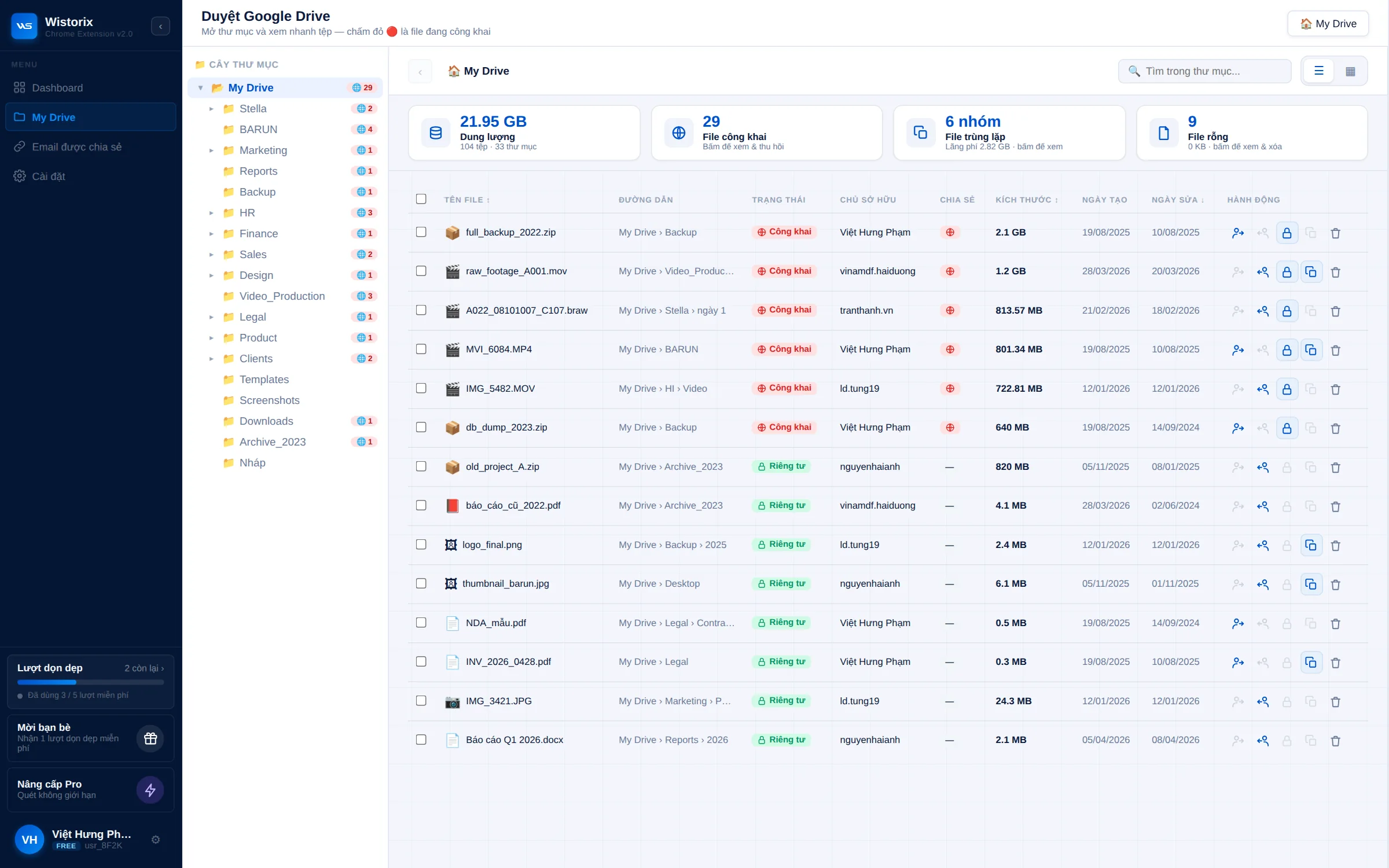
Click Scan and the cleanup tool reads the metadata of your whole Drive: names, sizes, owners, sharing settings and modified dates. For a typical personal account, the first scan takes a few minutes.
With Wistorix, scanning is always free. You can scan, look at the results and decide whether to act on them without paying anything. That makes the scan a low-effort way to see how much clutter your Drive really holds before you commit any time to cleaning it.
Step 4: Review each group of files
The dashboard shows the security score, storage by group and the groups currently lowering the score. Click a group to see its list of files, with path, owner, size and sharing status. The detailed analysis screen lets you filter further by file type, size and how long a file has gone unopened.
For duplicates, Wistorix places the copies side by side so you can choose which one to keep, usually the one that is shared or the one in the right project folder. How to choose the copy to keep is explained in the guide to finding duplicate files in Google Drive.
Take your time with this step. Reviewing a group before you act is what keeps a cleanup safe, especially for old files that may still matter, such as contracts or invoices.
Step 5: Handle files in bulk
Select many files from many folders, and the action bar shows Move to trash, Stop sharing, Transfer ownership and Download. Click confirm and you are done. This cleanup tool never deletes anything until you click.
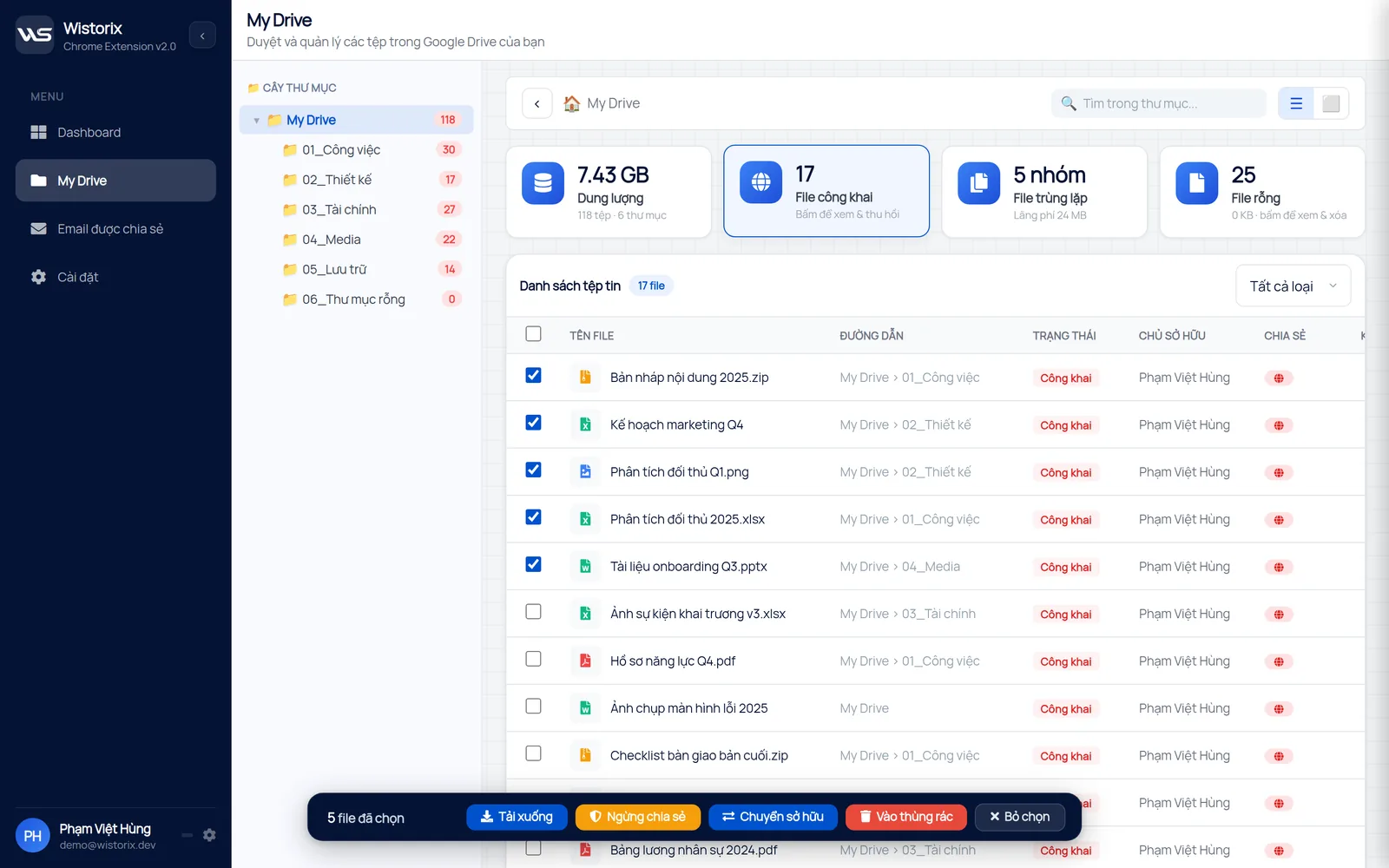
Files deleted through Wistorix go to the Google Drive Trash and are never permanently deleted by Wistorix, so you can restore them for 30 days. Your storage only goes down once the Trash is emptied, which you do yourself when you are sure.
Stop sharing works in a similar spirit. It changes who can open a file but leaves the file itself where it is, and you can share it again anytime if someone still needs it.
Data safety when you use a cleanup tool
The first question to ask about any Google Drive cleanup tool is whether it reads your documents. Wistorix reads only file metadata through the Google Drive API. The contents of your files are never downloaded and never stored on Wistorix's servers.
- Actions run only after you confirm, with no automatic deletion
- Deleting moves files to the Google Drive Trash, where you can restore them for 30 days
- You can remove Wistorix's access anytime from your Google Account
Before you install any extension that connects to Drive, check the same three points: what it reads, whether it waits for you to confirm and where deleted files go. The rules Google sets for how third-party apps may use user data are in the Google API Services user data policy.
How Wistorix differs from cleaning up with Google One
The Google One storage page has a section for freeing up space that collects large files, deleted emails and spam. It is a good starting point, but it only looks at storage size. A cleanup tool like Wistorix adds two views that Google One does not offer yet.
- Duplicates and clutter: duplicate files, empty files, empty folders and files outside any folder
- Sharing: which files are public, and which email addresses outside your organization have access
That is why it makes sense to use both. Google One tells you which service takes up space, while Wistorix tells you what in your Drive is surplus and what is open to the outside.
Who should use the Wistorix cleanup tool
Wistorix suits anyone who has used Google Drive for years and shares files often. Four groups benefit most: freelancers, agencies, internal teams in a company and small businesses. They have the same pattern in common: Drive fills up with duplicates and drafts, and the list of outside people with access is much longer than the number of active projects.
If you are comparing several tools, the guide to choosing a Google Drive cleaner lists six things to check in any of them. If you would rather try it now, install Wistorix and run a free scan to see how many duplicate, empty and public files your Drive holds before you decide.
In short, a cleanup tool is worth using once your Drive is too big to clean by hand. Wistorix does the searching and sorting, while the final decision always stays with you.
Frequently asked questions
Is Wistorix free?
Scanning your Drive is free. You can scan, review every group of files and see your security score before you decide whether to act on anything.
Does Wistorix work with a personal Gmail account?
Yes. Wistorix works with personal Gmail accounts and Google Workspace accounts, with no admin rights needed.
Will the tool delete my files automatically?
No. Wistorix only groups files and makes suggestions. Files are handled only when you select them and click confirm, and deleted files go to the Google Drive Trash.
Can I use it on my phone?
Wistorix is a Chrome extension, so it runs in Chrome on a desktop computer. On your phone, you still see the results in Google Drive after you have handled the files.



sharing publicly?