

Google Drive for business: when a manual folder structure is no longer enough

Using Google Drive for business is easy to start, but hard to keep tidy as the company grows. This guide points out five signs that manual file habits are no longer enough, then gives you five steps to reorganize Drive by department and by project. It ends with a regular review so the structure does not slowly drift back into a mess.
In this guide
- Why a company Drive gets messy faster than a personal one
- Five signs manual structure is no longer enough
- Step 1: Move shared documents into shared drives
- Step 2: Build the folder structure around departments and projects
- Step 3: Grant access by group instead of by person
- Step 4: Agree on file names and where files live
- Step 5: Review regularly with real numbers
- Four mistakes when reorganizing a company Drive
- Frequently asked questions
Why Google Drive for business gets messy faster than a personal Drive
On a personal Drive, one person decides where every file goes. On a company Drive, dozens of people make that decision, each with their own habits. One person saves by date, another by client, and a third keeps everything in My Drive and shares files one by one with colleagues.
The second difference is ownership. On a personal account, your files belong to you. With Google Drive for business, a file created in an employee's My Drive belongs to that employee, even though the content is a company asset. When that person leaves, the handover turns into a small project instead of a single action.
The third difference is the number of people outside the company. Clients, partners, freelancers and auditors each get access in a different way. After a few years, nobody has the full list of outsiders who can still open internal documents.
Five signs Google Drive for business has outgrown manual habits
There is no fixed headcount that tells you it is time to reorganize. Instead, watch for the signs below. If you see two or more of them, it is time to spend some effort on structure.
- New hires have to ask someone else to find basic documents such as processes or contract templates
- The same document exists in several places, with names like final, final really, edit 2
- Every time someone leaves, the company has to work out which files they own
- Nobody can say how many files are currently shared through a public link
- Storage grows steadily every month, but nobody knows what is driving it
These signs are not one person's fault. They are the natural result of using Google Drive for business as if it were a personal Drive multiplied many times over. The fix is a shared framework, not asking each person to be more careful.
Step 1: Move shared documents into shared drives
On Google Workspace accounts, shared drives are the foundation of a tidy Google Drive for business. Files in a shared drive belong to the organization rather than to an individual, so they are not affected when a member leaves. You can read more in Google's introduction to shared drives.
You do not need to move everything at once. Start with the documents that many people use and that need to exist for a long time: processes, forms, contracts and documents for active projects. Personal drafts and temporary files can stay in each person's My Drive.
Moving in stages also gives people time to learn where things now live. When the first department sees that its documents are easier to find, the next one is usually happy to follow.
Step 2: Build the folder structure around departments and projects
A folder structure that works for Google Drive for business usually has two axes. The department axis holds long-running operational documents, while the project or client axis holds documents with a start date and an end date.
- One shared drive per department: HR, Finance, Sales, Marketing
- One folder per major project or client, all using the same template
- An Archive area for closed projects, where only the management team can edit
Every project should use the same template so people moving between projects do not have to relearn the layout. The guide to Google Drive folder structure has a three-level template that works for most companies.
Step 3: Grant access to Google Drive for business by group
When the company is small, sharing Google Drive for business file by file with individual emails is fine. Once you have a few dozen people, that approach creates thousands of permission lines nobody can track. Create Google Groups by department or role, then grant access to the group.
The biggest benefit of group access appears when people join or leave. A new hire is added to the group and gets all the access they need, and a person who leaves is removed from the group and loses access everywhere. For people outside the company, keep the rule of sharing a separate folder made for them, never the internal folders.
Step 4: Agree on file names and where files live
Even a good structure becomes messy if everyone names files differently. A short convention that fits on one printed page is enough to keep Google Drive for business easy to search for years.
- File names start with the date in year, month, day order, for example 2026-09-29
- Next comes the project code or client name, then the content
- Keep only one main copy, and use version history for older versions instead of new files
- Never save files at the root of a shared drive, every file must live inside a folder
The convention works best when someone checks it in the first few weeks. A quick look at new files once a week is usually enough to catch old habits before they spread.
Step 5: Review Google Drive for business regularly with real numbers
Every structure drifts over time. What matters is spotting the drift early, while the fix is still small. Every month or every quarter, look at five numbers: public files, files shared outside the organization, old files nobody opens, files outside any folder and the storage used by duplicates.
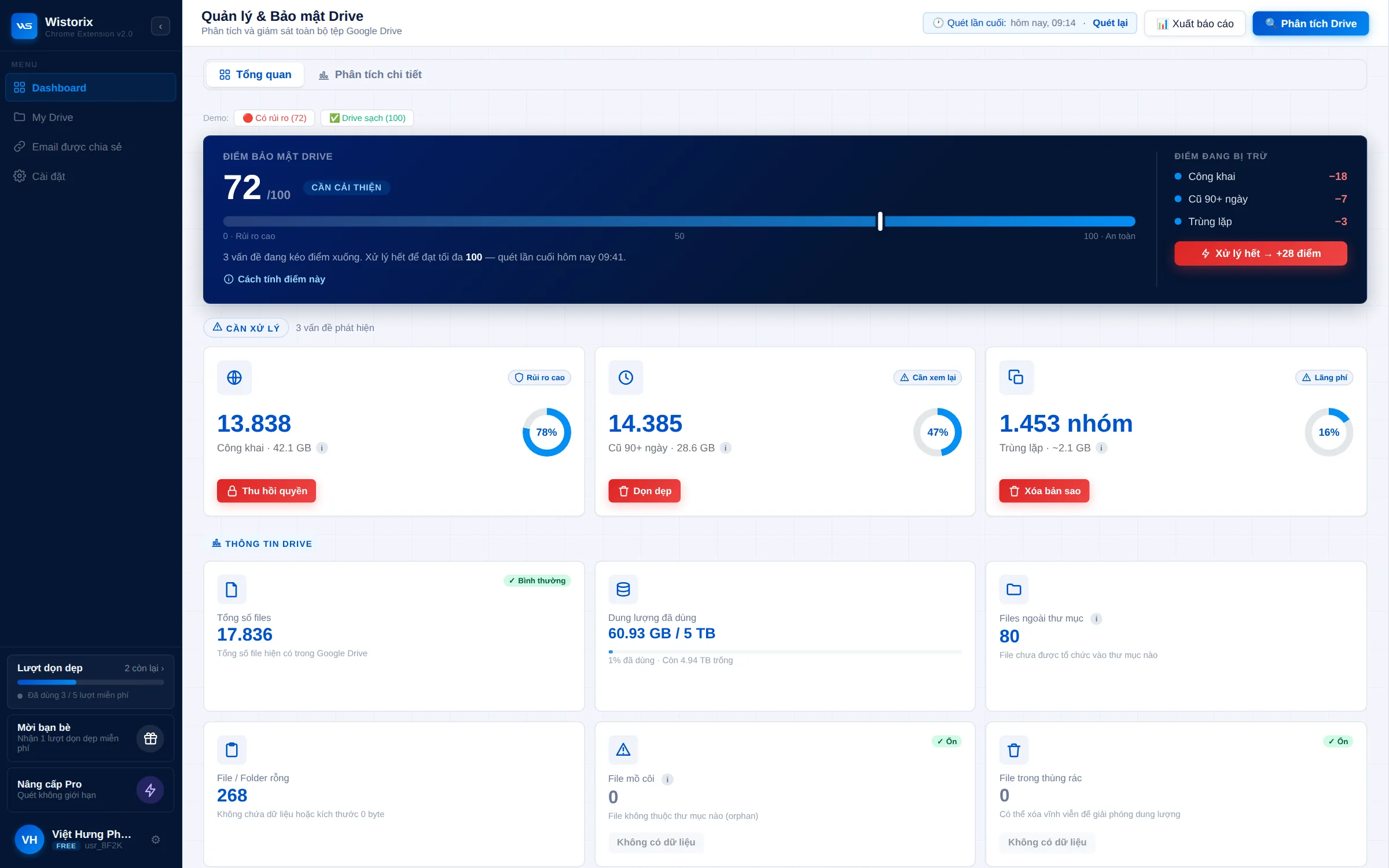
Wistorix scans Drive and returns these numbers along with a security score from 0 to 100, so the person in charge sees which group to handle first. Each person uses Wistorix on their own Drive, with no admin rights needed. Files deleted through Wistorix only go to the Google Drive Trash, where they can be restored for 30 days. The detailed list of what to check is in the guide to a Google Drive security audit.
Alongside regular reviews, tie access checks to your offboarding process. Each time someone leaves the company, transfer ownership of their files and remove their access before their last working day. The Google Drive handover guide covers this process for both departing employees and finished projects.
Four mistakes when reorganizing Google Drive for business
Reorganizing tends to fail not because of missing tools, but because of how it is rolled out. These four mistakes are the ones that most often stop a project to reorganize Google Drive for business halfway through.
- Doing everything at once: moving a thousand folders over one weekend, and the whole company is lost on Monday morning
- Designing too deep: a folder tree seven or eight levels deep makes people give up and go back to saving in My Drive
- No owner: the structure looks good, but nobody is responsible for keeping it, and three months later it is back to the old state
- Ignoring old permissions: moving files to the new place while keeping sharing lists from years ago
The safe approach is to pilot with one department for two weeks, adjust the framework based on feedback and then expand. Each department names one person to keep the structure in shape and answer questions about where files belong.
That person does not need to be technical. What matters is that colleagues know who to ask, and that someone notices when a new folder appears in the wrong place.
Frequently asked questions
Can a personal Gmail account work as a company Drive?
It works for very small teams, but it lacks shared drives, Google Groups and admin controls. Files also belong to individuals, which makes handover hard when someone leaves.
Should we use one shared drive for the whole company or several?
Several are usually easier to manage, one per department or per project team. Access is set at the shared drive level, so separating them helps limit who sees what.
Do old links break when I move files from My Drive to a shared drive?
File links stay the same, but access may change to match the permissions of the shared drive. Move a small folder first and check the result before moving large batches.
How often should we review Google Drive for business?
Do a quick monthly check of public files and files shared outside the company, and a deeper quarterly review of folder structure, old files and storage.


sharing publicly?