

Google Drive handover when people, vendors or projects change

A Google Drive handover means moving three things from the person who is leaving to the people who stay: the files, the ownership of those files and the access around them. This guide covers the four handover situations teams run into most often, one shared checklist split into before, during and after the handover day, and the mistakes that leave company documents stuck in the account of someone who has already gone.
In this guide
- The three layers of a handover
- Four situations that need a handover
- Who is responsible for each part
- Checklist before the handover day
- Checklist on the handover day
- Checklist after the handover
- Personal accounts and Google Workspace
- Five common handover mistakes
- Frequently asked questions
The three layers of a Google Drive handover
Many teams treat a handover as sending a folder link to the person taking over. That only solves the first layer. A complete Google Drive handover deals with all three layers below, in this order.
- Files: the person taking over knows where the files are, which one is the main version and which ones are outdated
- Ownership: files created by the person leaving are transferred to someone who stays
- Access: the person leaving, along with their clients and freelancers, no longer has access they do not need
Ownership is the layer people skip most often. In Drive, every file has exactly one owner. If the owner's account is deleted, the file can be deleted along with it, even when many other people open it every day.
That is why the order matters. Sorting files first tells you what needs to move, moving ownership second protects those files, and cleaning up access last closes the doors once everything is safe. Doing the steps in a different order usually means repeating one of them.
Four situations that need a Google Drive handover
Each type of Google Drive handover has a different focus. Naming the situation correctly tells you which layer needs the most care.
An employee leaves the company
This is the situation that needs all three layers. The priority is to transfer ownership before the account is suspended, then remove access right after the last working day. The step-by-step process is in the guide on how to transfer ownership in Google Drive when someone leaves.
An employee moves to another team
The person is still with the company, so the account will not be deleted. The focus is the access layer: remove them from the old team's folders and move the shared files they still own to the new person in charge.
A vendor or freelancer contract ends
When the handover involves outside people, keep in mind that they often create files in their own personal Drive and then share them with you. The focus is getting back ownership, or at least a copy, of the deliverables, and then removing their access from your internal folders.
A project ends
The focus is the file layer and the access layer: collect the final versions, archive the project folder and close the links you sent to the client. The detailed list is in the project handover checklist.
Who is responsible for each part of the handover
Handovers fall through the cracks because each side assumes the other side has done it. HR thinks the manager took care of the files, and the manager thinks IT handled the account. Assigning roles at the start gives each layer of the Google Drive handover one clear owner.
- The person leaving: lists the files they own, marks the main versions and starts the ownership transfer
- The direct manager: names the people taking over and confirms they received every file they need
- HR: puts the handover date into the offboarding process and reminds everyone involved
- The Google Workspace admin: checks ownership again, and only then suspends or deletes the account
In a small company without an IT team, the direct manager usually takes on the admin role as well. In that case the checklist below matters even more, because it replaces the experience of someone who does this full time.
Checklist before the Google Drive handover day
Most of the work should happen one to two weeks before the handover day, while the person leaving still has time to answer questions. Starting early also gives you room to deal with surprises, such as a folder nobody knew about or a client who still edits a shared file every week.
- Name a person to take over each group of documents, instead of giving everything to one person
- List every file and folder the person leaving owns, including files that sit outside any folder
- Mark files shared with people outside the company and links that are open to anyone
- Ask the person leaving to note which files are the main versions and which can be archived or deleted
Files outside any folder are the easiest to miss, because they never show up when you browse the project tree. The guide to orphaned files in Google Drive shows how to find them before the account is closed.
Checklist on the handover day
The day of the Google Drive handover focuses on the ownership layer. Do this while the account of the person leaving is still active, so they can confirm anything that is unclear.
- Transfer ownership of the files to the people taking over, group by group as planned
- Check that each person taking over can see the files in their own Drive and open them
- With personal accounts, wait for the recipient to accept the ownership transfer request
- Switch public links that are no longer needed back to Restricted
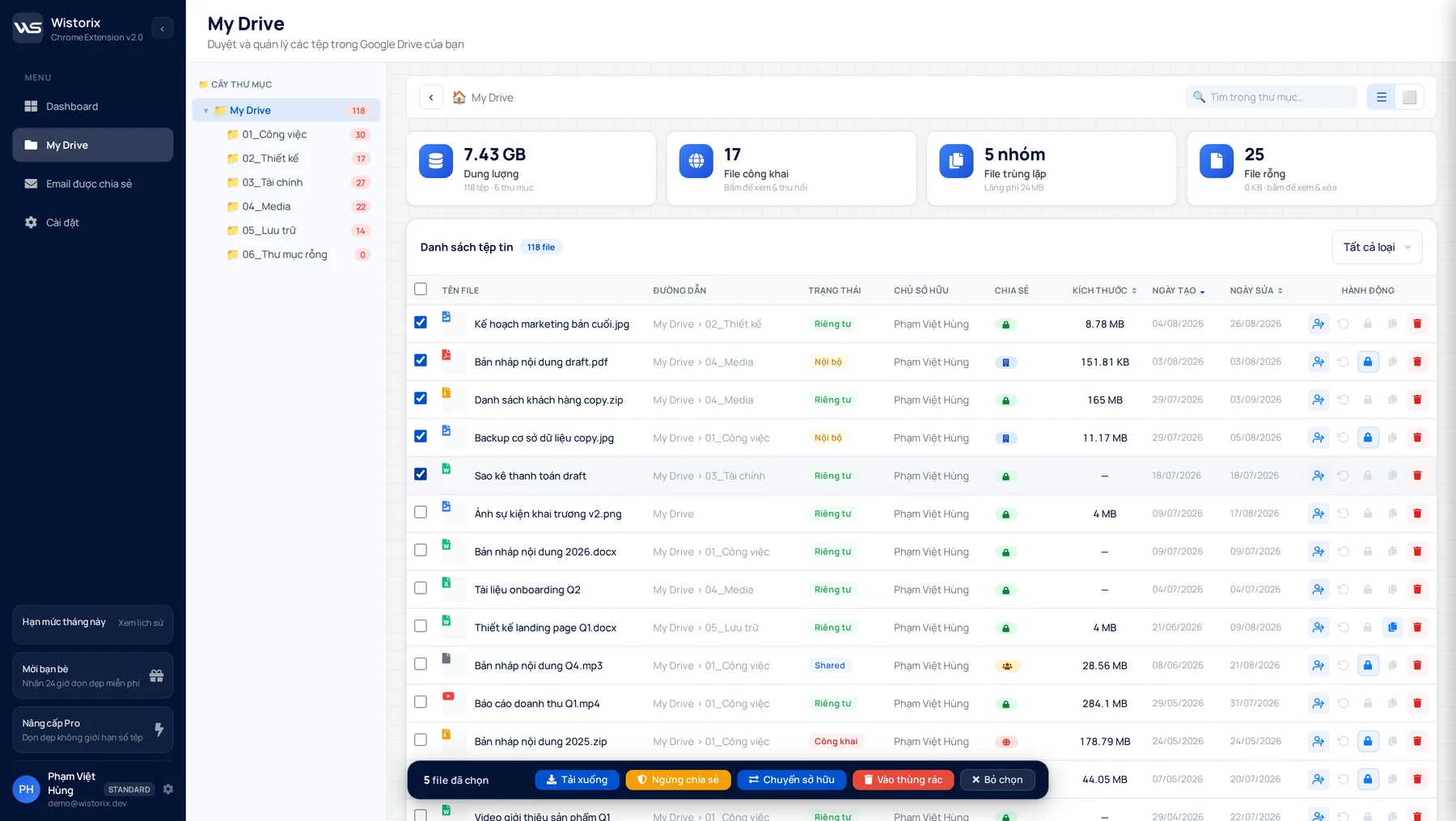
Doing this by hand works for a few dozen files. For a few hundred files, Wistorix lets you select many files or a whole folder and transfer ownership in one go, keeping the folder structure intact, and you can export a report to check against later. Every action runs only after you confirm it.
Checklist after the Google Drive handover
After the handover day, what remains is closing the access layer. This step tends to get postponed because it no longer feels urgent, yet it is the step that keeps company data from leaving with the person who left.
- Remove the access of the person who left, including any personal email they used for work
- Review the clients, vendors and freelancers that person shared files with
- With Google Workspace, wait at least a week after the transfer is done before deleting the account
- Write down who received what, so nobody has to ask again later
How to check access email by email and remove it in bulk is covered in the guide to removing employee access in Google Drive. Removing access does not delete any file, and you can share it again or remove access again any time.
How personal accounts and Google Workspace differ in a handover
The way you run a Google Drive handover depends a lot on the account type. The two differences below decide what you can do.
- Personal accounts: the file owner sends an ownership transfer request, and the transfer is complete only after the recipient accepts it
- Google Workspace accounts: ownership moves directly within the same organization, and the admin has a tool to transfer all of one person's files at once
With Google Workspace, admins should read Google's guide on how to transfer Drive files to a new owner before deleting an employee's account. One rule applies to both account types: transferring ownership of a folder does not transfer the files inside it, so select the files as well.
Wistorix works with both personal Gmail accounts and Google Workspace accounts, and it does not need admin rights. It reads file metadata such as names, owners and sharing settings, never the contents of your files.
Five common Google Drive handover mistakes
- Deleting the account before transferring ownership, so that person's files are deleted with it
- Transferring the folder but forgetting the files inside
- Missing files that sit outside any folder, because they do not appear in the project folder tree
- Leaving public links that the person who left once sent to clients
- Not removing the personal email address an employee used alongside the company address
All five mistakes have the same root cause: running the handover from memory instead of from a list. When a complete list exists before the handover day, each mistake becomes just one line to tick off. To make every Google Drive handover complete, save this checklist as a template and reuse it for every offboarding.
It also helps to keep the finished checklist next to the handover notes for that person. Months later, when someone asks where a contract went or why a client lost access, the answer is already written down.
Frequently asked questions
How long before the last day should a Google Drive handover start?
One to two weeks is best. That is enough time to list the files, ask the person leaving which versions are the main ones and wait for recipients to accept the ownership transfer.
What if the person already left without transferring ownership?
With Google Workspace, an admin can still transfer the files as long as the account has not been deleted. With a personal account, you need to contact the person so they can send a transfer request or make a copy for you.
Do files the person only had shared with them need a handover?
There is no ownership to transfer, because those files belong to someone else. Just remove the access of the person who left and let the file owner know.
How is a handover with a vendor different from one with an employee?
Vendors usually do not use a company email address, so ownership cannot be transferred directly when they belong to another organization. The safe approach is to ask vendors to work inside your folders from the very start.



sharing publicly?