

How the Google Drive Trash works, and when to empty it

The Google Drive Trash is where every file you delete is kept for 30 days before it is permanently deleted. It lets you restore files you deleted by mistake, but it is also a common reason why your storage does not go down after a cleanup. This guide explains five things to know about the Trash, how to restore or delete files forever one by one, and when it makes sense to empty it.
In this guide
- Five things to know about the Trash
- Open and sort the Trash
- Restore files from the Trash
- Delete forever and empty the Trash
- When to empty the Trash
- The Gmail and Photos trash
- Frequently asked questions
Five things to know about the Google Drive Trash
The five points below answer most questions about the Google Drive Trash, from storage to whether people you shared with can still open a file.
1. Files stay for 30 days, then are deleted automatically
When you delete a file, Drive moves it to the Trash instead of deleting it right away. After 30 days in the Trash, the file is permanently deleted automatically. During those 30 days, you can restore it to its original location with a single click.
2. Files in the Trash still count against your storage
This surprises most people. According to Google's guide on how to delete and restore files in Google Drive, files in the Trash still use your storage until they are permanently deleted. If you want your storage to drop right away, you need to empty the Drive Trash or delete specific files forever.
3. People you shared with can still open the file meanwhile
A file in the Trash is not fully deleted yet, so people you shared it with may still be able to open it until it is permanently deleted. If you are deleting a file to cut off access, remove sharing first, then delete it.
This matters most for documents shared through a public link. Switching the link back to Restricted takes a few seconds and closes access immediately, while the Trash keeps the file available to restore if you change your mind.
4. Only files you own go to your Trash
When you delete a file someone else owns, it only disappears from your Drive and does not land in your Google Drive Trash. Files in an organization's shared drive have their own trash, which the managers of that shared drive handle.
5. After emptying, you cannot restore files yourself
Once the Trash has been emptied, there is no restore button for those files. For work accounts, an admin may be able to recover them within a limited time window. For personal accounts, the only option is to contact Google support, with no guarantee. That is why emptying the Trash should be the last step, after you have checked.
Open and sort the Google Drive Trash
In a desktop browser, click Trash in the left column of Drive. On a phone, open the menu in the Drive app and choose Trash. The list shows every file and folder you deleted in the last 30 days.
Switch to list view to see the column for the date each item was trashed. Sorting by this column helps you quickly find what you deleted today or last week. You can also use the Type filter to show only videos, PDFs or folders in the Drive Trash.
Sorting by size is worth a look too when you are short on space. The largest items at the top of the list are usually the ones that decide whether emptying the Trash will make a real difference to your storage bar.
Restore files from the Google Drive Trash
Right-click a file and choose Restore. To restore several files, select them with Shift or Ctrl, then click the restore icon in the toolbar. Files go back to their original folder with their previous sharing settings.
If the folder that held the file was also deleted, restore the folder first. Otherwise, the restored file may end up outside any folder. If you cannot find a file you just restored, type is:unorganized owner:me in the search box to list files that sit outside any folder.
Restoring a whole folder brings back the files you own inside it at the same time, so you do not need to pick them one by one. This is the quickest fix when an entire project folder was deleted by accident.
Delete forever and empty the Google Drive Trash
There are two ways to free up storage from the Trash:
- Delete specific files forever: select the files, click the delete forever icon and confirm. Best when you want to keep the rest of the Trash as it is
- Empty the Trash: click the empty button at the top of the Trash page to permanently delete everything inside at once
The first way is safer when the Trash holds files you are not sure about. For example, you can delete forever the large videos you already have on an external drive, and let the Trash clear your project documents on its own after 30 days.
After you empty a Drive Trash that held many large files, your storage figure can take 48 to 72 hours to update accurately. If it still has not changed after that, read why your Google Drive storage is not updating to find the cause.
When to empty the Google Drive Trash
No fixed schedule fits every Drive, but a few rules help you choose the right moment:
- Your Drive is full and you need space now: delete forever the large files you are sure about, without emptying the whole Trash
- You just deleted shared project files: wait at least a few days so colleagues can speak up if they still need something
- Your Drive still has plenty of space: do nothing and let the Trash clear itself after 30 days
- You just finished a big cleanup and checked it carefully: empty the Trash to see the result on your storage bar
Teams that share folders should agree on a small rule for the Trash. For example, nobody empties the Trash in the first week after a project folder cleanup, and every large deletion is announced in the team chat. This gives colleagues time to speak up if they still need a file.
The same rule protects you from your own mistakes. A file that looked useless on Monday sometimes turns out to be the only copy of an attachment a client asks for on Friday.
With work accounts, files deleted from a shared drive go to that shared drive's own trash. Shared drive managers should review this trash after each cleanup, because members rarely notice it. It works just like your personal Drive Trash: restore what you need, delete forever when you are sure.
Another useful habit is to keep a clearly named Archive folder and move files there instead of deleting them when you are unsure. The Trash only keeps files for 30 days, while an Archive folder keeps them until you decide.
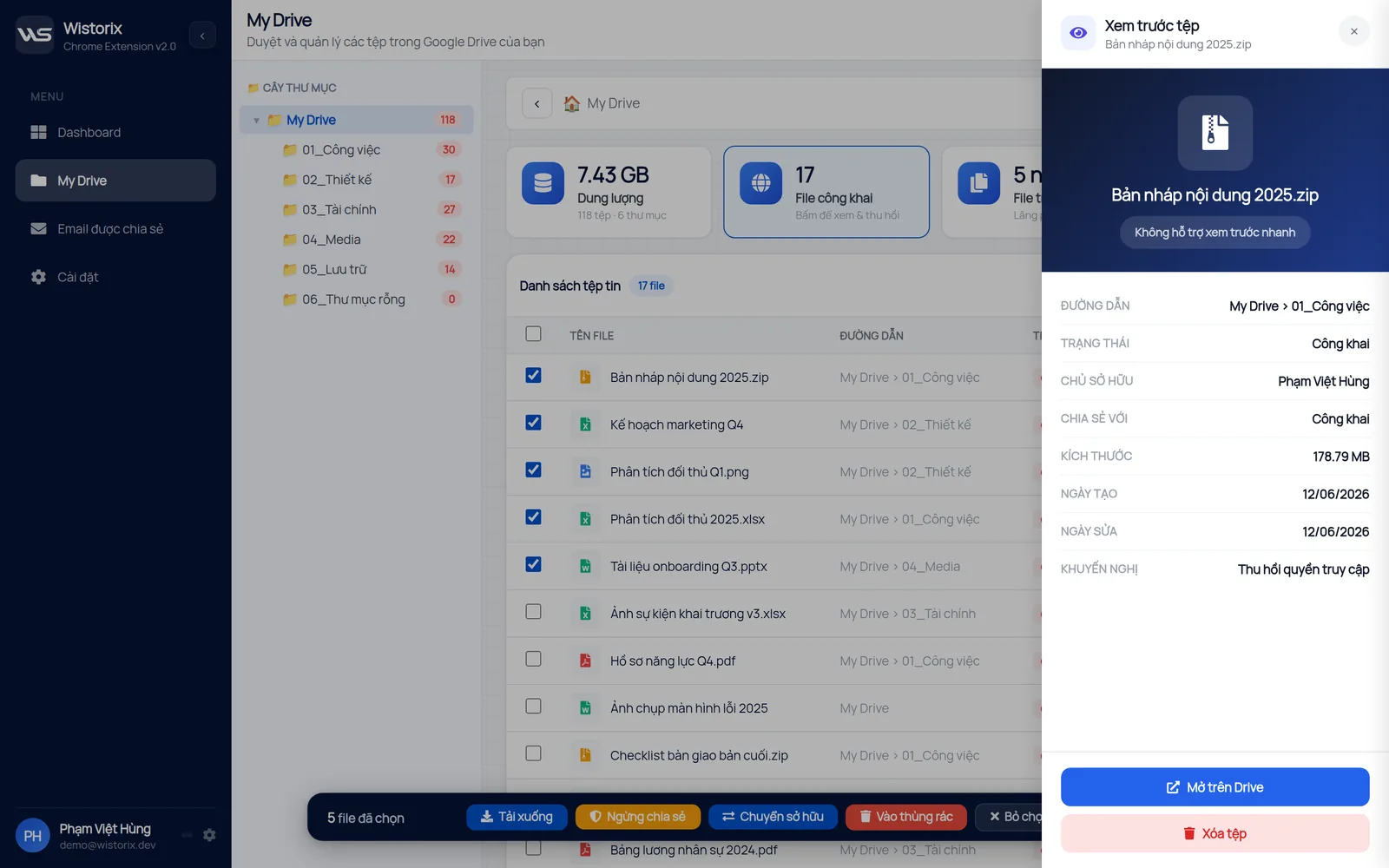
The best way to keep mistakes out of the Trash is to check before you delete. In Wistorix, you see each file's path, owner, sharing status and size right in the list, then choose Move to Trash. The file still goes to the Google Drive Trash and can be restored for 30 days like any other file. Wistorix does not read file contents and never empties the Trash on its own.
The Gmail and Google Photos trash
Gmail and Google Photos have their own trash, separate from the Google Drive Trash. Emails in Gmail's Trash and Spam folders, and photos in the Photos trash, all count against the same 15 GB of free storage. If you have emptied Drive and are still short on space, open the trash in those two services as well.
For the full routine to win back storage in order of priority, read what to clean first when your Google Drive 15 GB is full. To see which files take the most space before you delete anything, start with the steps to free up storage in Wistorix.
In short, the Google Drive Trash is a 30-day buffer between deleting a file and losing it for good. Use it as a safety layer: delete freely, check again after a few days, and only delete forever what you are sure you no longer need.
Frequently asked questions
Can I turn off automatic deletion after 30 days?
No. Every file in the Trash is permanently deleted after 30 days. If you want to keep a file, restore it before then.
If I delete a folder, do the files inside go to the Trash?
Yes, for the files you own. Restoring the folder brings those files back at the same time.
Can other people see my Trash?
No. Each account has its own Trash. People you shared a file with may only still open it until it is permanently deleted.
Is the Trash on my phone different from the one on my computer?
No. It is the same Trash for your account, so restoring or deleting a file in one place has the same result everywhere.



sharing publicly?