

How to remove third party access to your Google Drive

At some point you clicked "Sign in with Google" or "Allow" for a PDF signing app, a scheduling tool or a backup service. Each time, that app may have received access to your Google Account and your Drive, and it keeps that access until you take it away. This guide shows you how to remove third party access: find which apps can reach your Drive, read what they ask for on the consent screen, and remove access in the places Google provides.
In this guide
- Why remove access you no longer use
- Three kinds of connections
- Step 1: Open your linked apps page
- Step 2: Review each app's details
- Step 3: Remove access for apps you no longer use
- Step 4: Disconnect apps in Drive's Manage apps
- Read the consent screen before you click Allow
- What Wistorix asks for and how to remove it
- What to check after you remove access
- Frequently asked questions
Why you should remove third party access you no longer use
A third-party app is an app built by a developer other than Google that you allow to use some of your Google Account data. A photo editor might ask for access to Google Photos. A document signing app might ask for access to Drive so it can open and save files.
That access does not expire when you stop using the app. If you tried an app once and forgot about it, its access is still on your account. A habit of checking every few months, and taking a minute to remove third party access you no longer need, keeps the list down to the apps you actually use.
None of this breaks anything in Drive. You can remove access anytime, and if you need the app again, you sign in and grant access once more. Your files stay where they are.
Three kinds of connections to your Google Account
According to Google's guide to managing links with apps from other developers, connections are grouped by type. Each type has its own remove button and its own result:
| Connection type | What it means | When you remove it |
|---|---|---|
| Sign in with Google | You use your Google Account to sign in to the app | Google stops signing you in automatically, and your data on the app stays |
| Linked account | Google can reach your account on another app | Google loses access to that account, and features that rely on the link stop |
| Access to your Google Account | The app can view or manage some of your Google data, such as Drive | The app can no longer reach your Google Account, and some features may stop working |
For Drive, the type that matters most is Access to your Google Account. This is where an app may be able to view, copy or manage your files. When you remove third party access for Drive, most of your work happens here.
Step 1: Open your linked apps page
Open your browser and sign in to the Google Account that holds the Drive you want to review. Go to myaccount.google.com/linkedapps. This page lists the third-party apps and services linked to your account.
If you use several accounts, check the email in the top right corner before you start. Each account has its own list, so to remove third party access on both a personal Gmail account and a work account, you have to go through both.
- Personal Gmail account: you manage the whole list yourself.
- Google Workspace account: your admin may block or limit third-party apps, so some apps may not appear or may not be allowed.
Step 2: Review each app's details
On the linked apps page, choose Access to your Google Account, then select an app. Click See details to see which Google services it can reach, such as Drive, Gmail or Calendar.
Ask three questions about each app before you decide:
- Do I still use this app, or did I use it once?
- Does it need access to Drive for the work I do with it?
- Can it only view files, or can it also create, edit and delete them?
Apps you do not recognize, or apps you used for a project that is over, are the first ones to remove third party access for. Apps that can manage Drive but that you rarely open come next.
Step 3: Remove third party access for apps you no longer use
On the app's detail page, click Remove access, then Confirm. From that moment, the app can no longer reach your Google Account or your Drive. Repeat this for every app on your list.
For an app that only uses Sign in with Google, the button reads Stop using Sign in with Google. For a linked account, it reads Delete link. Labels may vary slightly between versions of the page, but every option to remove third party access sits under See details.
Google makes one point clear on its page about sharing access with third-party apps. Once you remove access, the app cannot get any more of your data, but the developer may still hold data it already copied. To have that deleted, you may need to contact the developer.
Step 4: Disconnect apps in Drive's Manage apps
Besides your Google Account, Drive keeps its own list of apps. These are the apps you connected to open or create files inside Drive. Some of them may ask to view some or all of your Drive files, so to remove third party access completely, check this list too.
On your computer, open drive.google.com, click the gear icon, select Settings, then Manage apps. Next to the app, click Options, then Disconnect from Drive. As Google's guide to using Google Drive apps puts it, you can revoke permission at any time.
On the same Manage apps page, the Use by default checkbox shows which app is set as the default for opening a file type. Before you disconnect an app, check whether it is the default for a file type you open often.
Read the consent screen before you click Allow
The easiest way to avoid having to remove third party access later is to read carefully when you grant it. When an app asks for access, Google shows a consent screen with a list of the data and services the app wants to reach. Read each line before you click Allow.
Google groups access into three levels. The higher the level, the sooner you should remove third party access once you stop using the app:
| Access level | What the app can do | What to consider |
|---|---|---|
| Basic profile | See your name, email address and profile picture | Common for Sign in with Google |
| View and copy | Read and copy data, such as contacts or photos | Ask whether the app needs to read that data |
| Manage | Edit, upload, create or delete data in your account | Grant it only to apps you trust and need |
Google advises you to give access only to apps you trust and never to type your Google Account password into a third-party app. Granting access through the consent screen is safer, because the app gets only what is listed, and you can remove third party access at any time.
What Wistorix asks for and how to remove third party access for it
Wistorix is a third-party app too, so it goes through the same process. It is a Chrome extension for Google Drive that works with personal Gmail and Google Workspace accounts, no admin rights needed. When you sign in, you click Continue with Google (Tiếp tục với Google), Google shows a consent screen listing what Wistorix asks for in Drive, and you read it before you click Allow.
Wistorix needs Drive access to read your file list and to carry out the actions you choose, such as stopping a share or revoking an email's access. It reads file metadata only: name, type, size, owner, sharing settings, created date and modified date. Wistorix does not read file contents and does not download them to a server.
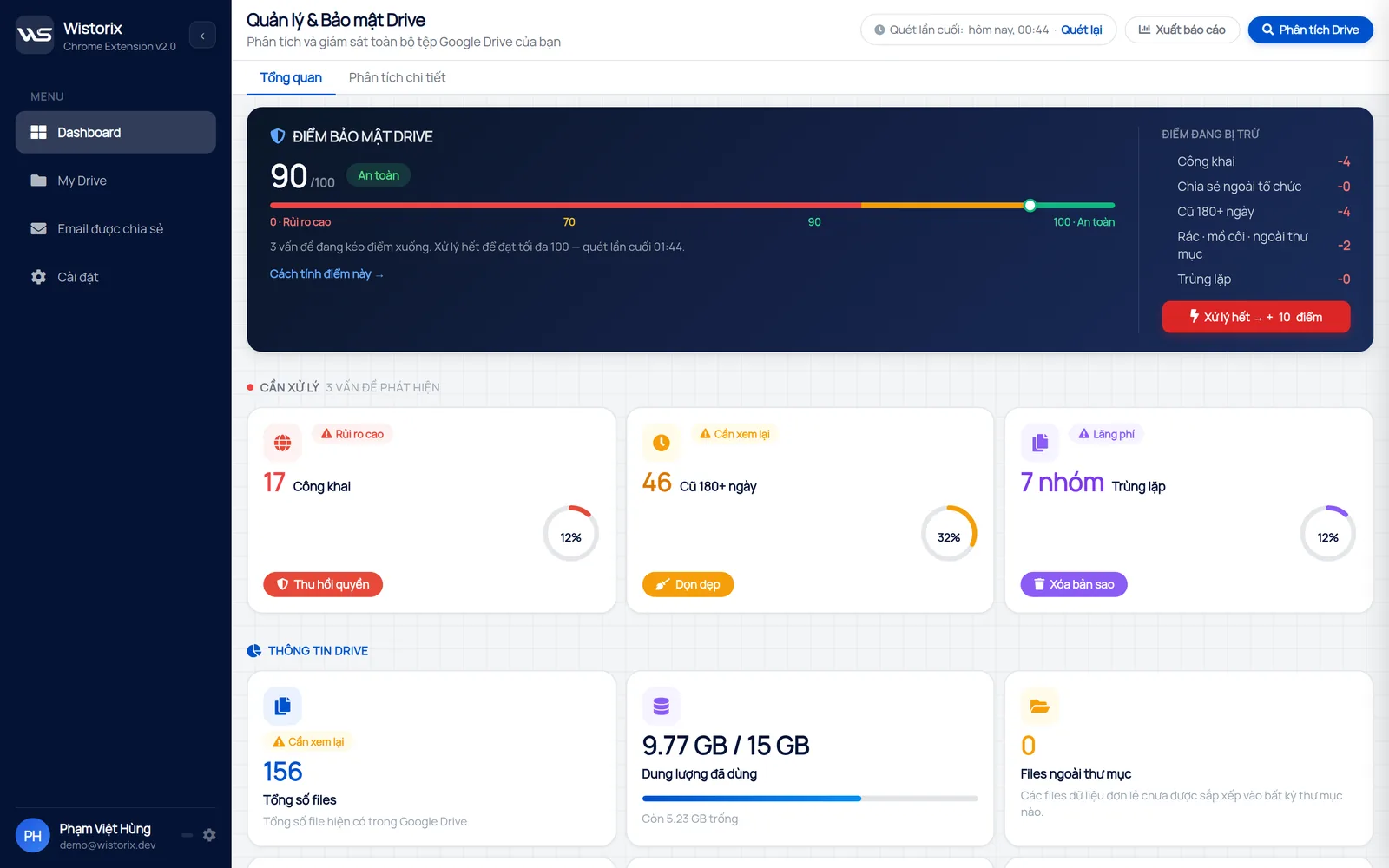
Nothing changes until you confirm. Scanning is free. If you want to stop using it, you remove third party access for Wistorix on the linked apps page exactly as in Step 3, then remove the extension from Chrome. Your Drive files are not affected, and changes you made earlier stay as they are.
What to check after you remove access
Removing app access closes one door: what apps can do. The other door is sharing on individual files. A file shared through a public link, or with an email outside your organization, stays open even after you remove every app.
- See who can open your files with the guide to who has access to my Google Drive.
- Close public links you no longer need, and lower extra edit access to view only.
- Review your app list every quarter, alongside a Google Drive security audit.
If you revoke a teammate's access by mistake, open the file, click Share and share it again with the same role. If you delete a file by accident, the Google Drive trash keeps it for 30 days so you can restore it.
In short, to remove third party access to Google Drive, open your linked apps page, review each app, click Remove access for apps you no longer use, then disconnect apps in Drive's Manage apps. Read the consent screen each time you grant new access, and your list stays short.
Try it: Google Drive security score, free scan.
Frequently asked questions
Does removing an app's access delete my Drive files?
No. Removing access only stops the app from reaching your account again. Your Drive files stay where they are, including files the app created.
Does the app keep my data after I remove access?
It might. Google notes that data an app already copied may remain with the developer, and you may need to contact them to ask for deletion.
Can I give an app access again after I remove it?
Yes. The next time you open the app, sign in with Google and click Allow on the consent screen, just like the first time.
Why won't my work account let me grant access to an app?
Your Google Workspace admin may block or limit third-party apps from reaching Drive. Ask your admin before you try anything else.



sharing publicly?