

How to see who edited, opened or deleted a file in Google Drive
A number in a spreadsheet changes overnight, a clause disappears from a contract, or a folder is no longer where you left it. The first question is always who did it. To see who edited a file in Google Drive, you have four places to check, and each one answers a different question with its own account requirements. This guide walks through all four and makes clear which ones work with a personal Gmail account and which ones need Google Workspace.
In this guide
- What Google Drive records
- Step 1: The Activity panel in Drive
- Step 2: Version history in Docs, Sheets and Slides
- Step 3: The Activity dashboard
- Step 4: The Drive log for admins
- Limits to know
- Prevent it: know who can edit right now
- When a file is changed or deleted by mistake
- Frequently asked questions
What Google Drive records when you need to see who edited a file
Google Drive has no single page that logs every action on a file. The information is spread across four places. One shows who changed the content, one shows who renamed or moved a file, and one shows who opened it. Picking the right place lets you see who edited a file faster, without searching somewhere that has no data.
| Where to look | Answers | Account type |
|---|---|---|
| Activity panel in Drive | Who edited, commented, renamed, moved, removed or shared | Personal Gmail and Google Workspace |
| Version history | Who changed which content, and when | Anyone with edit access to the file |
| Activity dashboard | Who opened and viewed the file | Files owned by a work or school account |
| Drive log events in the Admin console | Who viewed, edited, downloaded, deleted or shared in the organization | Google Workspace admins |
The first three let regular users see who edited a file. The fourth is for Workspace admins only. If you use a personal Gmail account, the first two methods cover most questions about who changed what.
Step 1: See who edited a file in the Drive Activity panel
The Activity panel is the quickest way to see who edited a file or folder. According to Google's guide to checking activity and file versions, you go to drive.google.com, click My Drive, then click the Info icon in the upper right. Click Activity and scroll down to see recent changes.
To see who edited one specific file or folder, click it before you open the panel. Google lists the types of changes the Activity panel tracks, along with who made them:
- Edits or comments in a file.
- Renaming a file or folder.
- Moving or removing a file or folder.
- Uploading a new file to a folder.
- Sharing or unsharing an item.
The Activity panel tells you who acted and when, but not which part of the content changed. It also does not show who only opened a file to read it. For those two questions, you need steps 2 and 3. To find when a file was added to Drive, click the file, open Details and look for the Created date.
Step 2: Open version history to see who edited what
For Google Docs, Sheets and Slides, version history is the most detailed way to see who edited a file. It shows who updated each version and what they changed. According to Google's page on earlier versions of a file, you open the file on your computer and click Last edit at the top right. Hover over it to see the last person who updated the file and when.
One requirement matters here: you need edit access. If you can only view or comment on a file, you will not see its version history. So if a client shared a file with you as view only, you need to ask the owner for edit access or ask them to check for you.
Google offers two more ways to see who edited specific parts of a file:
- In Docs: select some text, right-click and choose Show editors. This feature is only available on certain Google Workspace plans.
- In Sheets: right-click a cell and choose Show edit history to see the changes made to that cell.
You can name an important version with Name this version, then turn on the option to show only named versions so you can find it again quickly. Google allows 40 named versions per document and 15 per spreadsheet.
Files that are not in a Google format, such as PDFs, images or Word files, keep a different kind of history. Click the file, choose More, then Manage versions to see the versions that were uploaded. Google may permanently delete older versions of these files over time, so choose Keep forever for any version you need to hold on to.
Step 3: See who opened a file in the Activity dashboard
"Who viewed this file" is a different question from "who edited this file". The Activity panel and version history do not answer it. The place that does is the Activity dashboard in Google Docs, Sheets and Slides.
This feature has clear requirements. According to Google's guide to viewing activity on your files, if a file is not owned by a Google Account through work or school, no one can see its view history. In other words, a personal Gmail account cannot tell you who opened your file.
For Google Workspace accounts, Google's admin documentation adds three conditions:
- To see the dashboard, a user needs edit access and must be in the same domain as the file owner.
- Admins can turn off view history for the whole organization, or limit it to their own domain.
- Each person can hide their own view history under Tools, in the Activity dashboard privacy setting.
Because viewers can hide themselves, the list on the dashboard can be incomplete. Google also states that the dashboard is not meant for auditing or legal purposes. When an organization needs a full record, it uses the Drive log in step 4.
Step 4: Check the Drive log if you are a Workspace admin
Google Workspace admins have the most complete way to see who edited files across the organization. In the Admin console, open Reporting, choose Audit and investigation, then Drive log events. The account needs the Audit and Investigation privilege to open it.
The Drive log records events such as view, create, edit, rename, upload, download, print and delete. It also records when a file owned by someone in the organization is shared with an external user. When admins need to see who edited a file during an incident, they filter by user, by file or by event type to rebuild the sequence of actions.
There are some limits. Google says most Drive audit events are logged only for files owned by users with supported editions, and not every Drive activity is logged. Users outside the domain show up as anonymous unless the file was shared with them directly.
Limits when you try to see who edited a Google Drive file
Every method has blind spots. Knowing them up front keeps you from drawing the wrong conclusion:
- Version history requires edit access. People with view access cannot check it.
- Some changes do not appear in edit history, such as added or deleted rows and columns, format changes, and values produced by formulas.
- In Sheets, restoring a version clears the cell edit history for changes made before the restore. Make a copy first if you want to keep it.
- The Activity dashboard is not available for files owned by personal Gmail accounts, and viewers can hide themselves.
- The Drive log is for admins only and depends on your Workspace edition.
All of these tools look backward. You only find out who edited a file after it happened. A stronger approach is to control who can edit in the first place.
Prevent it: know who can edit your files right now
Someone can only edit a file if they have edit access. So instead of only checking who edited a file after a problem, review who holds edit access across your Drive on a regular basis. In Google Drive, you have to do this one file at a time in the Share dialog. The steps for a single file are in who has access to my Google Drive.
Wistorix is a Chrome extension that does this for your whole Drive in one scan, and scanning is free. It reads file metadata only, such as name, size, owner, sharing settings and the date last modified, never file contents. Wistorix does not keep a log of who edited what, so use the steps above for that question.
After a scan, the Shared emails page (Email được chia sẻ) lists every email address that has access to your files. Each row shows how many files that person can view and how many they can edit, with an external tag (ngoài tổ chức) when the email is outside your domain. You see right away how many files a former client can still edit.
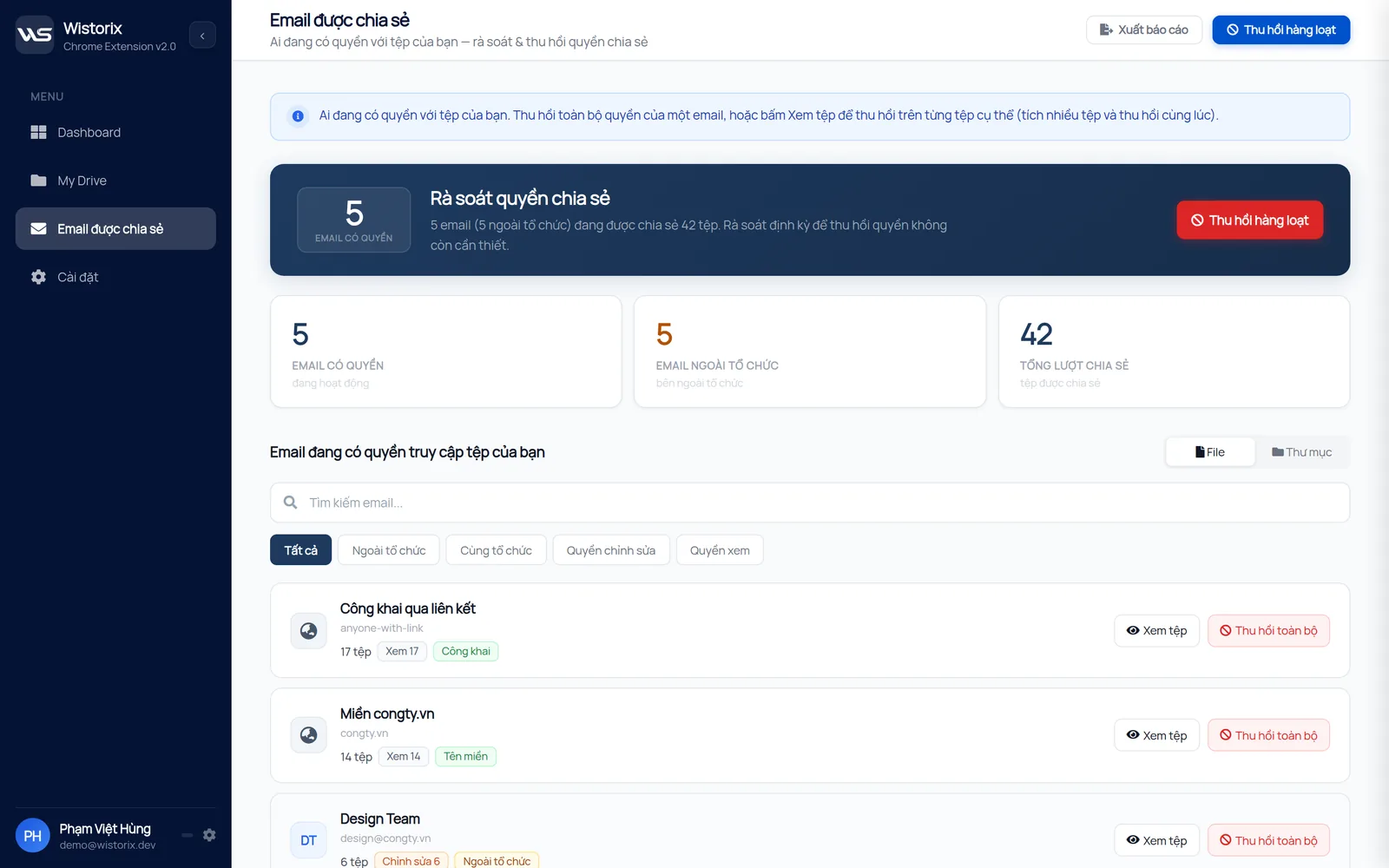
When access is no longer needed, click Revoke all (Thu hồi toàn bộ) to remove that email from every file you own. To remove it from only a few files, click View files (Xem tệp) and revoke row by row. Google Drive does not notify people when you remove their access, and you can share the file again any time you need to.
When a file is changed or deleted by mistake
Once you see who edited a file and spot a wrong change, you have two ways to fix it. In Docs, Sheets and Slides, open version history, pick an earlier version and click Restore this version. If you only need part of it back, use Make a copy on the earlier version and copy over what you need.
If a file was deleted, the Activity panel shows who removed it. Deleted files stay in the Google Drive trash for 30 days, so you can restore them in that window. The full steps for each case are in how to recover deleted files in Google Drive.
In short, to see who edited a Google Drive file, open the Activity panel for who did what, version history for which content changed, the Activity dashboard for who opened it, and the Drive log if you are an admin. Alongside that, review who has edit access every month so you need to look back less often.
Try it: Google Drive shared files checker, free scan.
Frequently asked questions
Can I see who edited a file with a personal Gmail account?
Yes. The Activity panel and version history work with personal Gmail accounts, as long as you have edit access to the file. Only the history of who viewed a file is unavailable for files owned by personal accounts.
Can someone with view access see version history?
No. Google requires edit access to browse earlier versions of a file. People who can only view or comment cannot open version history.
Can I find out who downloaded a file?
Regular users cannot. Google Workspace admins can look up download events in the Drive log in the Admin console, if their Workspace edition supports it.
Does Wistorix show who edited a file?
No. Wistorix shows who can currently view or edit your files and the date each file was last modified. To see who edited the content, use the Activity panel or version history in Google.


sharing publicly?