

A Google Drive duplicate finder that also catches renamed copies
Google Drive has no built-in way to find duplicate files, so a Google Drive duplicate finder is the fastest way to learn how many extra copies your Drive is holding. Wistorix compares the content fingerprint and size of each file and groups identical files together, even when they have different names and sit in different folders. This guide explains why searching by name is not enough, how Wistorix compares files and how to remove the extras without losing the copy people are using.
In this guide
- Why searching by name is not enough
- How a duplicate finder spots duplicates
- Step 1: Scan your Drive
- Step 2: Choose the copy to keep
- Step 3: Remove the extras in bulk
- How much space duplicates take up
- When to keep both copies
- Stop duplicates from coming back
- Frequently asked questions
Why you need a duplicate finder for Google Drive
The common manual method is to type "Copy of" into the Drive search box. This catches the copies Drive creates when you choose Make a copy. But most duplicates in real life do not have those words in their name.
- Files uploaded twice, with the second upload renamed to make it easier to recognize
- Files synced from a computer, then uploaded again by hand into another folder
- Email attachments saved to Drive by several people on the same team
- Videos exported several times with a version number in the name but identical content
These copies only show up when you compare content, not names. That is the job a duplicate finder does far better than the human eye, especially when your Drive holds thousands of files collected over many years.
Name search also misses duplicates spread across shared folders. When a colleague saves the same attachment into a team folder, it appears under their name rather than yours, and a search for "Copy of" will never surface it.
How a duplicate finder spots duplicate files
For every uploaded file, Google Drive stores a checksum, which you can think of as a fingerprint of the file's content. Two files with the same checksum and the same size are almost certainly identical copies, whatever their names or locations. Wistorix reads this value through the Google Drive API, along with the name, size and modified date, then groups matching files together.
The important point is that this duplicate finder never needs to open or download your files to compare them. The checksum is metadata that Drive already keeps. You can see how Drive describes file properties in the Google Drive API reference.
Google Docs, Sheets and Slides have no checksum in Drive, because they are not uploaded files. These are compared by name and modified date instead, so review them more carefully before you delete anything.
Step 1: Scan your Drive with Wistorix
Add the Wistorix duplicate finder to Chrome as an extension, sign in with the Google account that holds the Drive you want to check, then click Scan. The first scan takes a few minutes on a typical personal account. Scanning is always free, so you can see how many duplicates you have before deciding what to do.
If you use more than one Google account, run a scan on each account separately. Each account has its own Drive and its own storage quota, so duplicates are counted per account.
After the scan, the Duplicates card on the Dashboard shows how many duplicate groups you have and the total space they waste. That number tells you roughly how much space you can get back.
Step 2: Choose the copy to keep in each group
When you open a duplicate group, the copies are shown side by side with their path, owner, modified date and sharing status. Three rules help you choose the copy to keep quickly:
- Keep the copy shared with clients or colleagues, because their links point to that copy
- Keep the copy in the right project folder, and remove copies in temporary folders or outside any folder
- Keep the copy you own, because copies owned by others do not count toward your storage
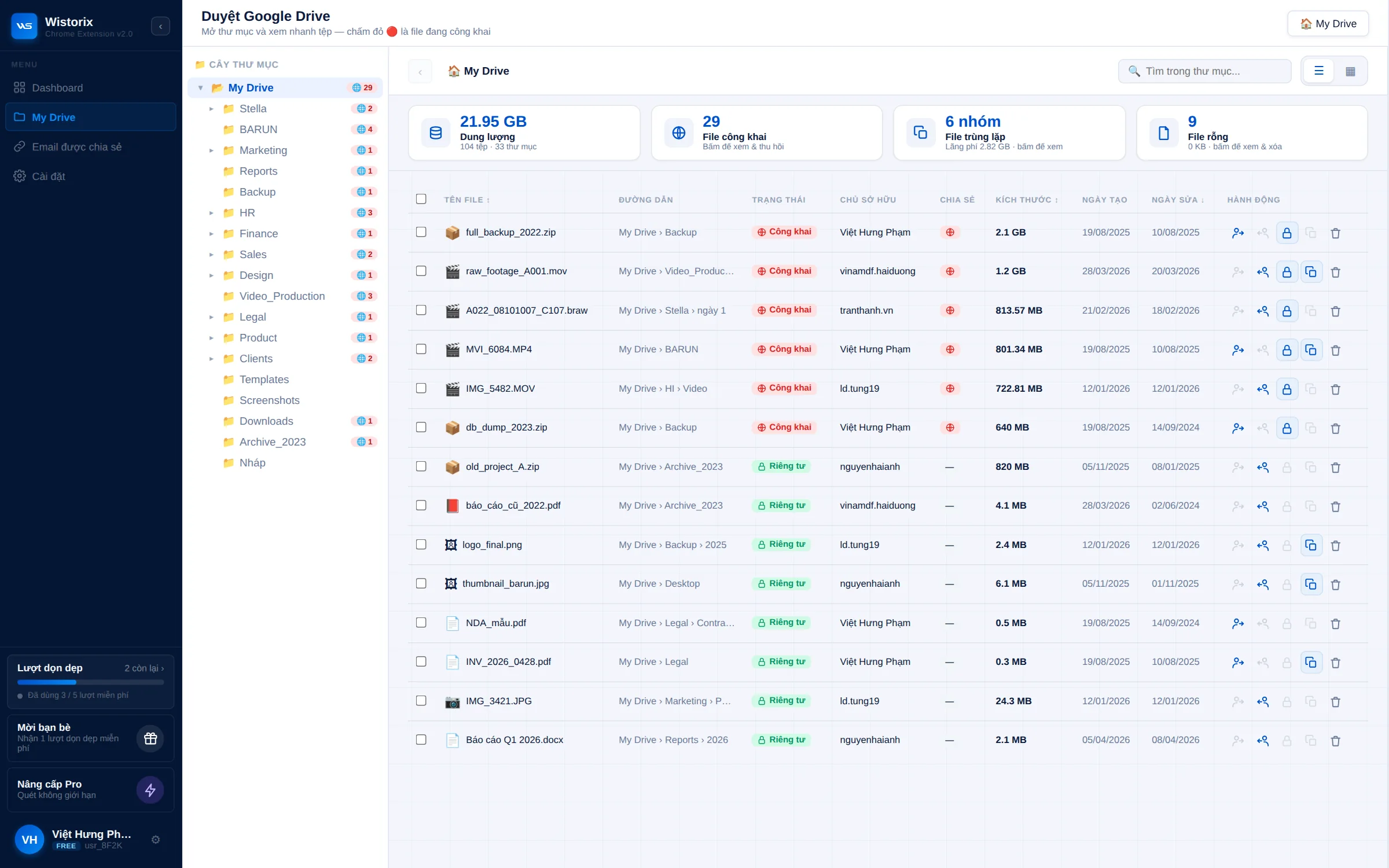
When two copies look equally valid, keep the one with the most recent modified date and the clearest name. If you are unsure, leave that group for now and come back after you have checked with the people involved.
Step 3: Remove the extras in bulk
Tick the extra copies across several groups at once, then click Move to Trash. Files go to the Google Drive Trash and are never permanently deleted, so you can restore them for 30 days if you picked the wrong one. The duplicate finder only acts when you click to confirm and never deletes anything on its own.
Storage only goes down once the Trash is emptied. Wait a few days to be sure nobody needs the copies you removed, then empty it. If you need to delete more files outside Wistorix, the guide on how to delete multiple files in Google Drive shows how to select them quickly in Drive.
Start with the largest groups. One duplicated video can outweigh hundreds of duplicated documents, so sorting by wasted space gives you the biggest result for the least effort.
How much space do duplicate files take up?
There is no single number for every Drive, because the amount of duplication depends on how you work. A Drive made mostly of text documents usually has few duplicates, and each one is tiny. A Drive belonging to a video editor, designer or photographer is different: one source video uploaded twice can already take several gigabytes.
So before you decide whether a cleanup is needed, let a duplicate finder measure it for you. The wasted space shown on the Dashboard tells you how worthwhile cleaning duplicates is compared with other groups such as old or large files.
- Less than a few hundred megabytes wasted: handle it when convenient and focus on other groups first
- Several gigabytes wasted: clean up now, since this is usually the fastest way to get space back
- A lot of waste inside a synced folder: check the sync settings on your computer
On a team, each person should run the duplicate finder on their own Drive. Storage is counted against the file owner, so only the owner gets space back by deleting their duplicate copies.
When to keep both copies
Not every copy that gets grouped is clutter. In a few cases, keeping two copies is deliberate:
- An archived copy of a signed contract, kept on purpose in a separate read-only folder
- A copy sent to a client in a shared folder, with the original in an internal folder
- A template copied into each project folder so each team can edit its own version
If you keep two copies on purpose, rename them so their roles are clear, for example by adding Archive or Client to the name. The next time the duplicate finder groups them, you will know at a glance that the pair is intentional.
In the second case, a shortcut is a cleaner option than a copy. A shortcut points to one original file, takes no extra space and always shows the latest version. More detail for each situation is in the guide on how to find duplicate files in Google Drive.
Use a duplicate finder to stop duplicates from coming back
After one cleanup, duplicates come back if habits stay the same. These four habits prevent most new ones:
- Use shortcuts instead of copies when a file needs to appear in several folders
- Share a link instead of sending an attachment that the recipient will upload again
- Choose your sync folders carefully in Google Drive for desktop to avoid syncing the same files twice
- Scan again with the duplicate finder once a month
Regular scans are much quicker than the first one, because the backlog of renamed copies and old uploads is already gone. Wistorix is building scheduled scans with alerts (coming soon). You can also try the free duplicate file finder tool page to see how the check works.
In short, a duplicate finder is worth using once your Drive is too large to compare names by eye. Wistorix compares checksum and size, reads only file metadata, never file contents, and leaves the decision about which copy to keep to you.
Frequently asked questions
Does Wistorix find duplicates with different names?
Yes. Wistorix compares the content fingerprint and size, so two identical files land in the same group even when their names differ.
Does it find duplicate photos in Google Photos?
No. Wistorix works with Google Drive. Photos in Google Photos are managed separately in the Photos app.
Will deleting a duplicate break a link I sent to a client?
Yes, if you delete the exact copy the client is using. Keep the shared copy: Wistorix shows the sharing status next to each copy so you can choose correctly.
Does finding duplicates cost anything?
No. Scanning your Drive and viewing duplicate groups is always free.



sharing publicly?