

Wistorix for agencies: keep Drive under control when clients, staff and freelancers all work in it

Wistorix for agencies answers a question every agency would rather not ask: how many people outside the company can open client documents right now. With many projects running in parallel, staff changing and freelancers coming and going, an agency's Drive changes every day. Wistorix scans each Drive, groups access by person, gives a security score and lets you act in bulk when a project closes or someone leaves. This guide covers the four groups of people to keep under control, a routine that follows the project lifecycle and how to roll it out to the whole team.
In this guide
- Why an agency's Drive is hard to control
- Four groups of people to review
- A routine that follows the project lifecycle
- Clearing heavy files from creative teams
- Rolling it out to the whole team
- Keeping client documents safe
- Frequently asked questions
Why Google Drive for agencies is hard to control
A small or mid-sized agency can run ten to twenty projects at the same time. Each project has its own folder, shared with the client, the client's reviewers, the freelance video editor and the printer. When a project closes, the team moves straight on to new work, and all that access stays behind.
On top of that, people rotate. An account manager leaves files behind in their own account, and a designer who has left is still listed on a former client's folder. Nobody widened access on purpose, but added together, the list of people with access is much longer than the list of people actually working. Wistorix for agencies is designed to show that list in a single scan, instead of opening folders one by one.
The cost of not looking is rarely visible day to day. It shows up when a former client mentions they can still open last year's campaign folder, or when a new hire cannot find the final version because it sits in the Drive of someone who left. A regular review turns those surprises into a short, predictable task.
Four groups Wistorix for agencies helps you review
When agencies run a scan, access in Drive usually comes from four groups of people. Each group needs a different response when a project or a contract ends.
1. Clients and client-side reviewers
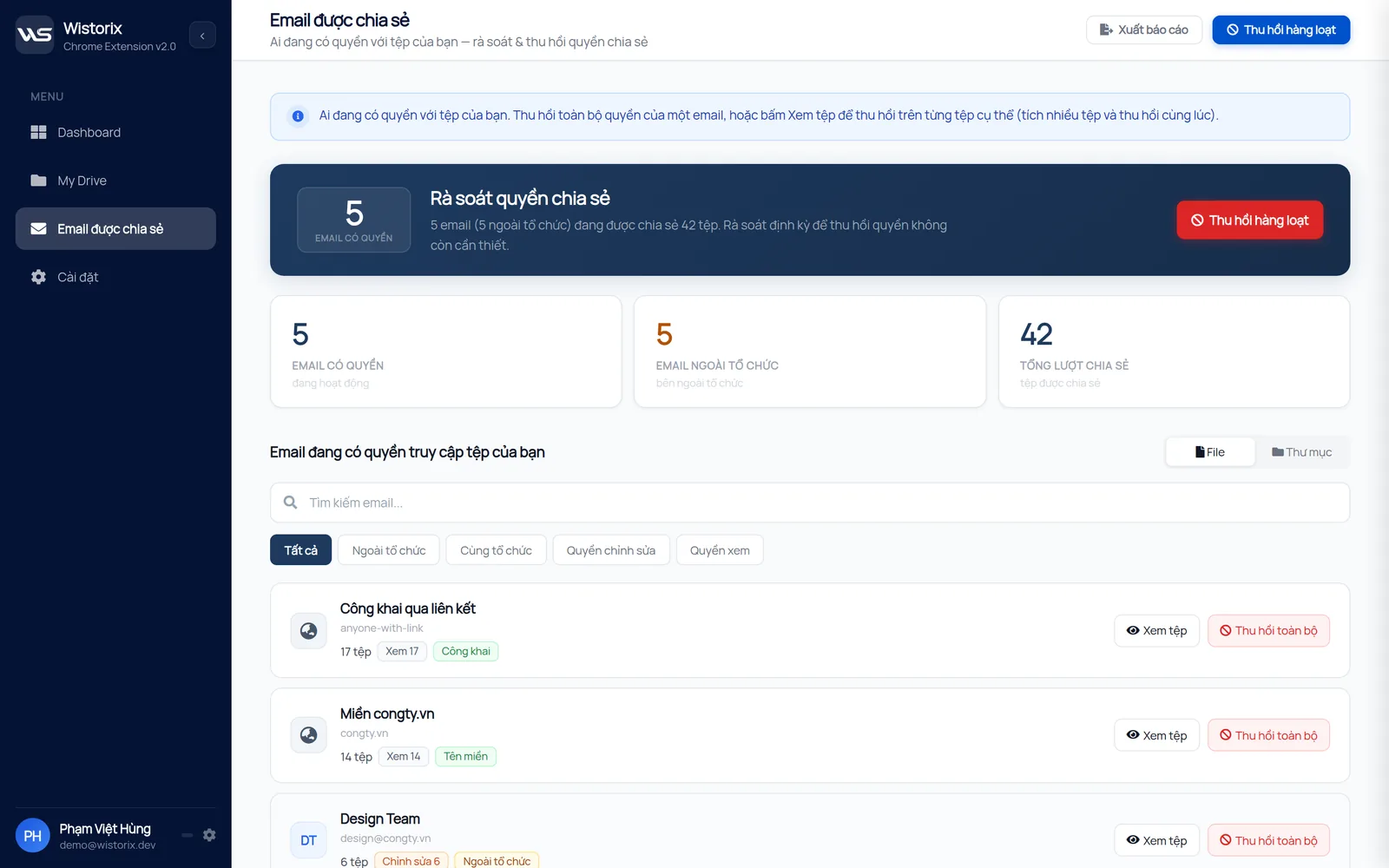
Clients need access while a project is running, but rarely after handover. The shared emails screen shows how many files each client address can open, so you can revoke access when the contract closes.
2. Freelancers and outside vendors
Video editors, translators and printers are often added to the top folder to save time, so they end up with access to more projects than they need. Wistorix lists addresses outside your organization separately, so you can review this group first.
3. Former staff
Files owned by people who have left need to be transferred to the person taking over before the account is deleted. Wistorix filters by owner and transfers ownership in bulk, and you can export a report to attach to the signed handover record.
4. Public links
A link set to anyone with the link is the fastest way to send a file to a client, and also the easiest way for unreleased material to leak. Wistorix lists every public file so you can switch it back to Restricted, and you can share it again any time a client needs it.
A Wistorix routine for agencies that follows the project lifecycle
The most effective way for agencies to use Wistorix is to tie the Drive review to three milestones every agency already has: opening a project, changing people and closing a project.
- Opening a project: create folders from a standard template and share only the subfolders each person needs
- Changing people midway: scan, filter by the email of the person leaving the project, transfer ownership of their files and then revoke their access
- Closing a project: revoke access for the client and freelancers, switch public links back to Restricted, and clear drafts and duplicate files
- End of each quarter: scan the whole Drive and compare the security score with the previous quarter
A standard project folder template is in the guide to a Google Drive folder structure. For agencies on Google Workspace, how to organize a shared drive per client is covered in Google Drive for business.
For agencies with multi-round approval processes, add one small step when a project closes: export the file and access list before revoking, and keep it with the sign-off record. If the client later asks who had access to which document, the team already has the answer instead of starting from scratch.
How Wistorix for agencies clears heavy files from creative teams
Wistorix is also useful for agencies on the storage side. Agencies that produce video, photography and design have much heavier Drives than a typical office. Raw footage, draft edits, exports for each platform and design files with many versions are mostly needed only for the few weeks a project is running.
- Duplicate files: Wistorix compares file fingerprints from Drive metadata, so it spots footage uploaded twice even after it was renamed
- Large, rarely used files: filter by size and time since last opened to find old edits
- Empty files and empty folders: clear them after each project to keep the folder tree tidy
Files deleted through Wistorix go to the Google Drive Trash and are not permanently deleted, so the team can restore them within 30 days if a client asks for an old edit again. Move raw footage from closed projects to archive storage before deleting it from Drive.
Clearing storage this way also makes access reviews easier. Fewer leftover drafts and copies mean fewer files to check when a project closes, and a tidy folder tree makes it obvious which version the client actually approved.
Rolling out Wistorix for agencies across the whole team
When rolling out Wistorix for agencies, remember that storage and access in Drive are tied to whoever owns each file. That is why each team member should scan their own Drive, with one person in charge of the overall review. For larger teams, Wistorix offers centralized management of multiple Drives, with a dashboard where the person in charge can monitor them in one place.
For agencies that use Google Workspace shared drives, files belong to the organization instead of individuals. The manager of each shared drive should be the one who reviews member and outside access for that drive. Workspace admins also have Drive audit logs in the Admin console, described in Google's documentation on Drive log events. The logs tell you what happened, while a Wistorix scan tells you where things stand now.
Start simple: pick a project that just closed, have the account manager scan their own Drive and run step 3 of the routine above. After one round, the whole team will see that it takes only a few minutes per project.
Scanning is free, and Wistorix works with personal Gmail accounts and Google Workspace accounts without admin rights. That makes it easy to try on one person's Drive before asking the rest of the team to join.
Keeping client documents safe
Before installing any tool, keep in mind that agencies hold unreleased material and data from many clients, so a tool connected to Drive has to be transparent about how it uses data.
- Reads file metadata only: name, size, owner, sharing settings and dates
- Never reads or downloads the contents of your files
- Never revokes or deletes anything on its own, and every action runs only after you confirm
- Each team member can remove Wistorix's access any time from their Google Account
When a large client asks how the agency handles their data, a scan report from before and after closing the project is concrete evidence. It shows who had access removed and which files went back to the right owner.
The same report helps internally. New account managers can see which clients still have open access, and leadership gets a simple view of how the security score changes from one quarter to the next.
In short, Wistorix for agencies helps you see and close the access that the project lifecycle leaves behind. If your team works with many outside freelancers, share the guide on Google Drive for freelancers with them so they can follow the same routine.
Frequently asked questions
Can an agency that uses personal Gmail accounts use Wistorix?
Yes. Wistorix runs on each person's Drive and works with both personal Gmail accounts and Google Workspace accounts.
Can one person scan the whole team's Drive?
Each person scans their own Drive. For multiple Drives, centralized management lets the person in charge monitor the connected Drives in one place.
Will revoking client access disrupt a project that is still running?
Only if you remove access from a folder the client is still using. Filter by closed projects before revoking, and share again if needed.
Can Wistorix replace a Google Workspace admin?
No. Wistorix adds a review of each person's Drive, while organization-wide sharing policies are still set by the admin.


sharing publicly?