

How to transfer Google Drive files to another account and keep everything in order

There are three main ways to transfer Google Drive files to another account: transfer ownership file by file, share the files and let the new account make copies, or download everything with Google Takeout and upload it again. Each method keeps different things, such as sharing settings, comments and folder structure. This guide compares the three, helps you pick one for your situation and lists what to do before you start.
In this guide
- Prepare before you move anything
- Method 1: Transfer ownership
- Method 2: Share, then make copies
- Method 3: Use Google Takeout
- Compare the three methods
- Check everything after the move
- From a work account to a personal account
- Frequently asked questions
Prepare before you transfer Google Drive data
The less you move, the faster the move and the fewer the mistakes. Spending one session on preparation makes it much easier to transfer Google Drive data than moving everything exactly as it is today.
- Clean up first: delete duplicates, old drafts and junk files so you do not carry them into the new account
- Check the storage of the receiving account: a free Google account has 15 GB shared by Drive, Gmail and Google Photos
- List the files you currently share with clients or colleagues, because some methods do not keep sharing settings
- Tell the people who work with you on important files before anything changes
The cleanup step matters most. Drives used for many years often hold a large share of duplicates and old files that no longer have any value. The guide to cleaning up Google Drive shows how to handle each group of files.
Anything you delete during this step goes to the Google Drive Trash, where it stays for 30 days before Google removes it. If you realize you deleted something you still need, you can restore it from the Trash during that time.
Method 1: Transfer Google Drive files by transferring ownership
This method keeps the most. The file stays the same file, with its comments, version history and list of people it is shared with. Only the owner changes.
- Share the file or folder with the new account as an Editor
- Open the Share dialog, click the role next to the new account and choose Transfer ownership
- The new account receives an email invitation and accepts ownership
According to Google's help page on transferring ownership, a personal account can transfer files to another personal account, while a work or school account can only transfer files to someone in the same organization. When you transfer ownership of a folder, select the files inside as well so they move with it.
Use this method to transfer Google Drive files between two personal accounts, or to hand over files between two employees at the same company. The guide to transferring ownership in Google Drive has a detailed process for when an employee leaves.
Ownership transfer also moves the storage cost. Files count against the storage of their owner, so once the new account accepts, those files count toward its quota and stop counting toward the old one. Plan for this if the receiving account is close to full.
Method 2: Share, then make copies
When ownership transfer is not possible, for example between two different organizations, the new account can make copies of files shared with it. Each copy fully belongs to the new account.
- Share the folder with the new account with Viewer access or higher
- From the new account, open the folder, select the files and choose Make a copy
- Move the copies into the new folder structure
The drawback is that copies do not carry comments, version history or the list of people the original was shared with. Drive also has no command to copy a whole folder, so you have to recreate folders and copy files in batches. This way to transfer Google Drive files works best for a moderate number of files.
Copies also get a new link. Anyone who bookmarked the original file will still open the original, not your copy, so plan to send new links to the people who need them.
Method 3: Transfer Google Drive data with Google Takeout
Google Takeout lets you download your entire Drive as compressed archives, which you then upload to the new account. According to Google's page on how to download your Google data, downloading does not delete anything from the old account, and the archive is split into several parts if your Drive is large.
Takeout converts Google Docs, Sheets and Slides into formats such as Word, Excel and PowerPoint. When you upload them to the new account, you can open them again in Google Docs. However, sharing settings, comments and version history are not kept.
This method suits a large amount of data, or the case where you also want a complete backup on your computer. To transfer Google Drive data this way, make sure the computer you download to has enough free disk space for the archives and for the unzipped files.
Compare three ways to transfer Google Drive data
| Criteria | Transfer ownership | Make copies | Google Takeout |
|---|---|---|---|
| Keeps sharing settings | Yes | No | No |
| Keeps comments and versions | Yes | No | No |
| Works between two organizations | No | Yes | Yes |
| Suits a large Drive | Medium | No | Yes |
In many cases it makes sense to combine methods. Transfer ownership for active files and files shared with clients, and use Takeout for the archive of older years.
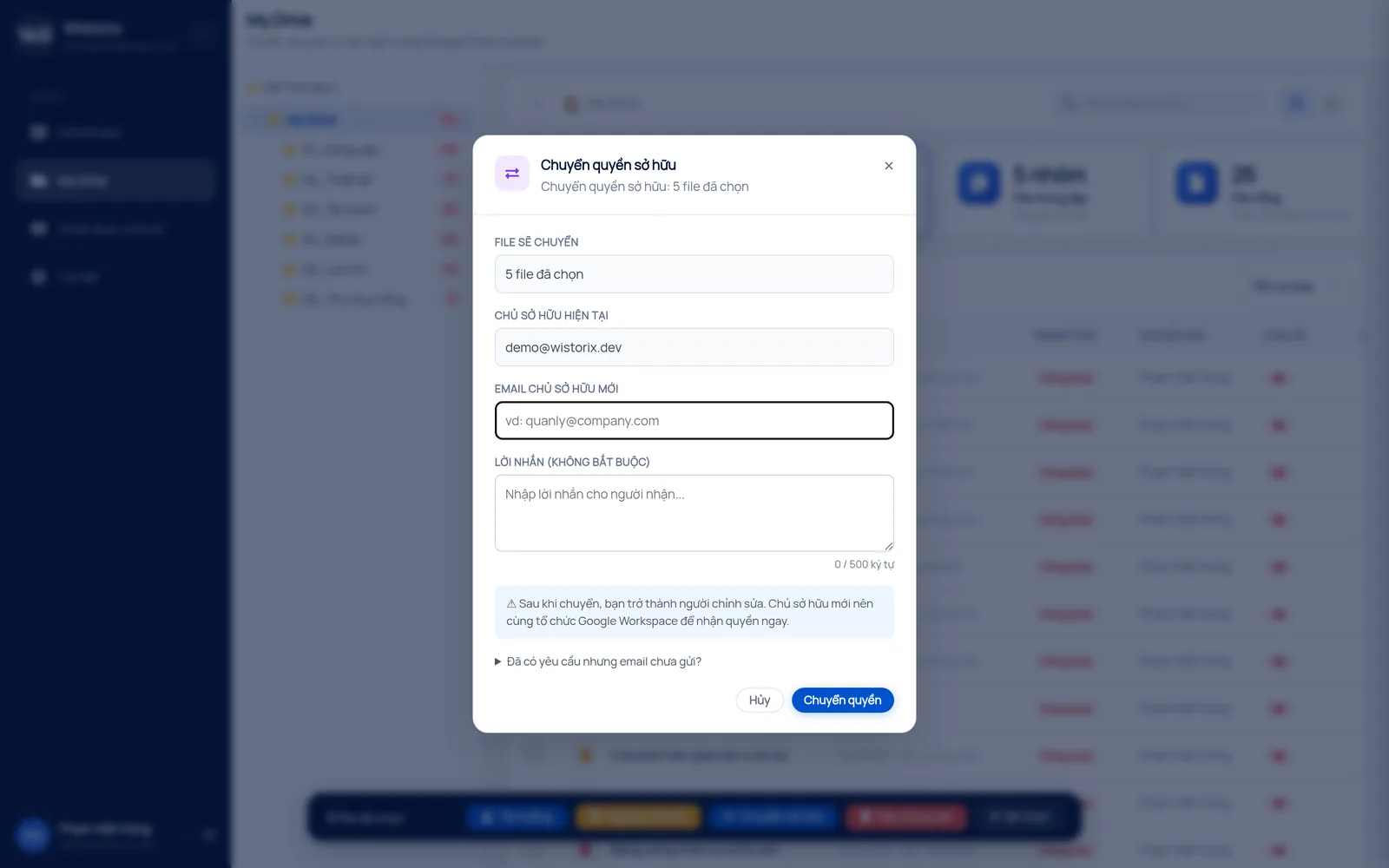
With method 1, opening the Share dialog for every file takes a long time when you have hundreds of files. In Wistorix, you select many files from many folders and transfer ownership to the receiving account in one action, within the limits Google allows. Wistorix reads file metadata such as names, owners and sharing settings, never file contents, and it only acts after you confirm.
The recipient only becomes the owner once they accept. Until then, you remain the owner and can cancel the request any time. Read more about bulk handovers on the ownership transfer page.
Check everything after you transfer Google Drive files
The job is not done when the files land in the new account. Spending one more session on checks helps you catch missing files while the old account still has all the data.
- Compare the number of files and the storage used by the main folders in both accounts
- Open a few important files in each folder, especially Takeout files that changed format
- Share the files moved by copy or by Takeout again with clients and colleagues
- Update Google Drive links pasted into documents, email templates or web pages
- Check sync settings on your computer and phone, and switch them to the new account
Do not delete the old account right after the move. Keep it for at least one more month, because it is the only place that still has the comments, version history and sharing settings if you used method 2 or method 3. Clean up or close the old account only when you are sure everything works in the new one.
When a team needs to transfer Google Drive data for several people at once, ask each person to check their own folders against the list above. The person in charge then only has to collect the missing files and handle them separately.
Transfer Google Drive files from a work account to a personal account
This is the situation that needs the most care. Data in a work account belongs to the organization, and many companies have clear rules about taking data outside. Before you move anything to a personal account, ask your administrator or direct manager what you are allowed to keep.
Personal documents such as your own pay slips, training records or portfolio pieces approved by the company are usually fine to keep. Client documents, contracts and internal data should be handed over to the person taking over your work instead of leaving with you. The full process is in the Google Drive handover guide.
Many work accounts also block ownership transfer and sharing outside the organization. If your administrator approves the move, they may export the approved files for you instead, which keeps the process clean on both sides.
In short, to transfer Google Drive files to another account: clean up first, use ownership transfer when you need to keep sharing settings, make copies when the two accounts belong to different organizations, and use Google Takeout when the data is large or you need a complete backup.
Frequently asked questions
Will moving my data delete files from the old account?
Transferring ownership makes the file belong to the new account, and the old account becomes an editor. Making copies and using Takeout both leave the original files in the old account.
Do transferred files count against the new account's storage?
Yes. Files count against their owner, so after you transfer ownership or make copies, the storage used by the new account goes up by the same amount.
Will the people I share with know the file has a new owner?
They can still open the file as before and see the new owner's name in the Share dialog. With copies, you need to share the files with them again.
Can I move my Google Photos at the same time?
Google Takeout lets you include Google Photos in the same export, but you still need to upload the photos to the new account afterward.



sharing publicly?