

Google Drive storage optimizer: get space back before you buy more

A Google Drive storage optimizer answers a question that Drive's Storage page leaves open: of all the gigabytes you use, how many are extra? Wistorix scans your whole Drive, sorts files into four common groups that take up space, and lets you act on them in bulk. This guide explains those four groups, how Wistorix finds them, and how to get space back without deleting files you still use.
In this guide
- Why Drive fills up faster than you think
- The four groups of files it finds
- How to get your space back
- Compared with manual cleanup and Google One
- Using it as a team
- Keep storage stable over time
- Frequently asked questions
Why you need a Google Drive storage optimizer
A free Google account has 15 GB shared by Drive, Gmail and Google Photos. For people who work in Drive a lot, that runs out quickly, but most of the space does not come from documents in active use. It comes from things that pile up: files downloaded again just in case, copies made to try out edits, videos exported in several versions, and folders synced from a computer.
Drive's Storage page gives you a list of files by size, but it does not tell you which files are duplicates, which are empty, or how long it has been since anyone opened them. That is the work a storage optimizer does for you. If your Drive is already full and you need to act fast, the guide on what to clean first when Google Drive is full gives you a clear order.
The difference matters because the largest file is not always the one to remove. A large video you still send to clients every week should stay, while a dozen small duplicates nobody needs can go without a second thought.
Four groups of files a storage optimizer finds
Wistorix splits your Drive into four groups that take up space. Each group shows its total size and a list of files with the reason they are there, so you know which group will free the most space.
1. Duplicate files
Wistorix uses file metadata to match identical copies, even when their names are different. Duplicates are listed next to each other so you can keep exactly one copy. In a Drive with many videos and design files, this group often takes the largest share of the extra space.
Before you remove a duplicate, check which copy is shared with other people. Keeping the shared copy means nobody loses access to a file they rely on.
2. Empty files and empty folders
The empty files group takes almost no space, but it clutters your folder tree and makes finding files slower. Clearing this group first makes the next steps easier, because what is left in your lists are files with real content.
3. Old, rarely used files
Files nobody has opened in a long time are candidates to archive to an external drive or to delete. Wistorix filters by how long a file has gone unopened, combined with size, so you can see right away which old videos and exports are taking space.
Old does not always mean useless. Contracts, invoices and final deliverables may need to stay for years, so review this group with your own retention rules in mind instead of deleting everything past a certain date.
4. Large files
A good storage optimizer needs to filter by size and show the owner and sharing status next to each file. Only files you own count against your storage, so Wistorix shows the owner beside every file and you do not waste time on files that belong to someone else.
Start with the 20 or 30 largest files. Below a few dozen megabytes, each deletion frees much less space, so the effort pays off less and you can stop there.
How to get space back with a storage optimizer
Getting space back with Wistorix takes five steps. Each step has a natural pause so you can check before moving on.
- Add the Wistorix extension to Chrome and sign in with your Google account
- Scan your whole Drive, which is free
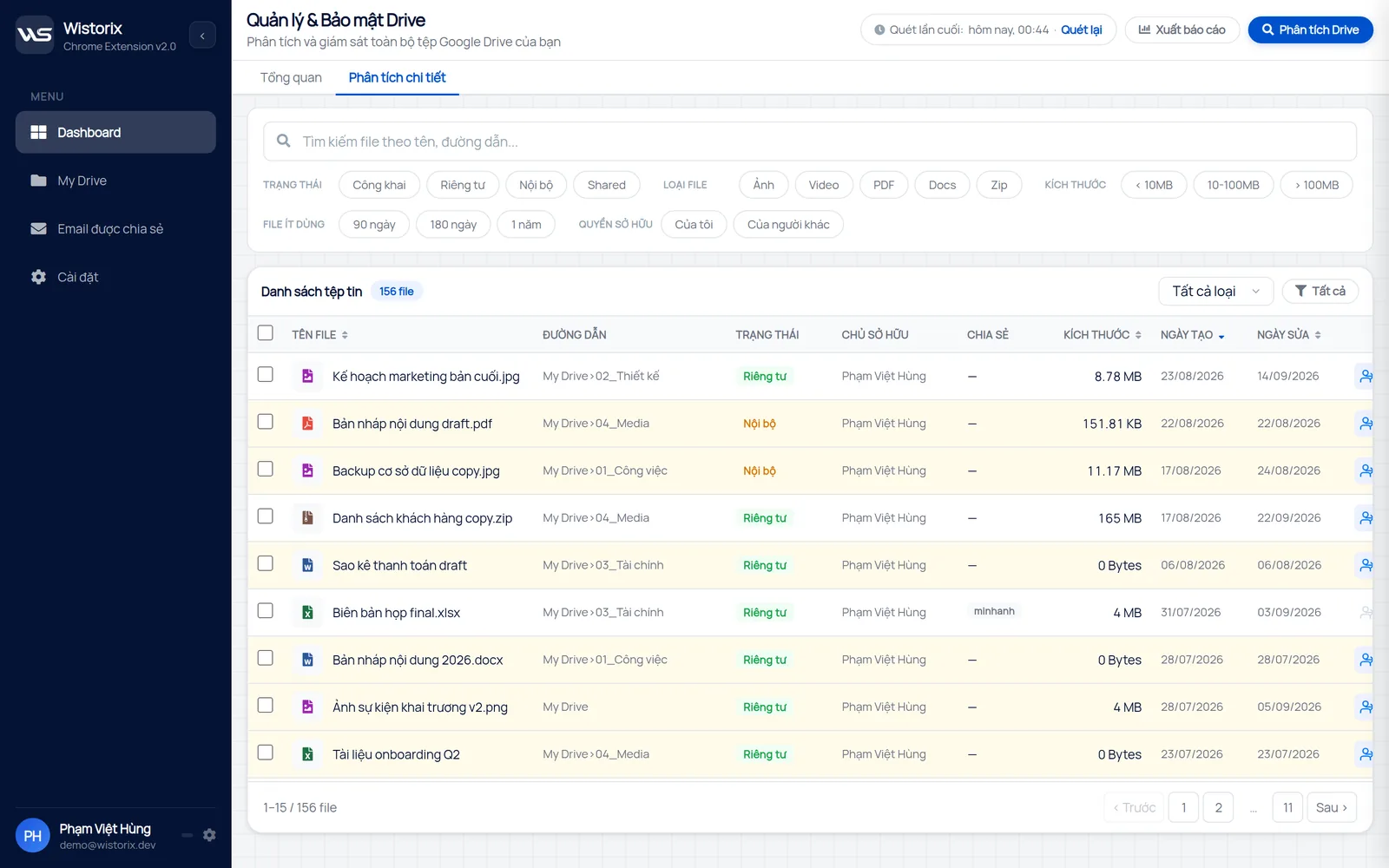
- Open the dashboard, look at the size of each group and pick the largest one
- Select files in that group in bulk and check the owner and sharing status
- Click Move to Trash, then empty the Google Drive Trash once you are sure
The last step matters. Files you delete with Wistorix go to the Google Drive Trash and are never permanently deleted by Wistorix, so you can restore them for 30 days. That is also why your storage only drops once the Trash is emptied, as explained in the guide to the Google Drive Trash.
According to Google's guide on how Google storage works, after you delete a large number of files, the system may need 48 to 72 hours to update your storage numbers. If the storage bar does not change right away, you only need to wait a little longer.
Nothing in these five steps happens without you. Wistorix never deletes a file or changes a permission until you confirm, and it works with both personal Gmail accounts and Google Workspace accounts without admin rights.
A storage optimizer compared with manual cleanup and Google One
These three ways to get space back differ in how they look at your Drive. The table below helps you choose one, or combine all three.
| Criteria | Manual cleanup in Drive | Google One | Wistorix |
|---|---|---|---|
| See large files | Yes | Yes | Yes |
| Find duplicate files | No | No | Yes |
| Empty files and empty folders | No | No | Yes |
| See sharing status | One file at a time | No | Yes |
| Select in bulk across folders | No | Yes | Yes |
Google One tells you which service is using the space, including Gmail and Photos. Wistorix focuses on Drive and answers the question of what in Drive is extra. Use Google One to know where to clean, then use a storage optimizer to clean inside Drive.
Manual cleanup still has its place. For a small Drive with a few hundred files, sorting by size in the Storage page and deleting a handful of large files may be all you need.
A storage optimizer for teams
When a team shares Drive, each person's storage is counted separately based on the files they own. That means one person cleaning carefully does not make anyone else's Drive lighter. The effective approach is for each member to scan their own Drive with a storage optimizer, then handle duplicates and old files in the part they are responsible for.
In Google Workspace shared drives, files belong to the organization rather than to a person. The manager of each shared drive should decide what to archive or delete, because they know which projects have closed. Before each team cleanup, post a message in your group so anyone who still needs a file can say so.
A few simple team rules help keep storage stable. Upload only the final export instead of every draft, delete compressed archives once the client has downloaded them, and spend 15 minutes each month reviewing the scan results. When the whole team takes part, a storage optimizer shows each person their own share of the work instead of leaving one person to handle the entire Drive.
Keep storage stable after the first optimization
The first time you run a storage optimizer there is always a lot to do. After that, you only need to scan again each month and handle what is new. Since most of the old clutter is already gone, each regular review takes only a few minutes.
- Scan again each month, or whenever a large project ends
- Handle duplicates and empty files as soon as they appear
- Move closed projects to an archive folder or an external drive
- Empty the Trash after a few days, once you are sure nobody needs the deleted files
Wistorix is building scheduled automatic scans with alerts (coming soon). Until then, a monthly reminder in your calendar is enough to keep optimization from slipping. For habits that keep Drive lean, read the guide to optimizing Google Drive storage.
In short, a Google Drive storage optimizer is worth using before you decide to buy more storage. Wistorix reads file metadata only, such as names, sizes and sharing settings, never file contents, and it only acts after you confirm.
Frequently asked questions
Is scanning my storage with Wistorix free?
Yes. Scanning your Drive is free. You can see every group of files and its size before you decide to do anything.
Can it optimize Gmail and Google Photos too?
Wistorix focuses on Google Drive. For Gmail and Photos, use the Google One storage page to review and clean up.
Will deleting duplicates break files I share with others?
No, as long as you keep the copy that is shared. Wistorix shows the sharing status next to each duplicate so you can choose the right one.
How long after deleting does my storage go down?
Storage goes down after the Trash is emptied, and the numbers may need 48 to 72 hours to update accurately.



sharing publicly?