

7 ways to optimize Google Drive storage for the long run, not only when it is full

To optimize Google Drive storage, you need more than one round of deleting files when Drive says it is full. Free storage is shared by Drive, Gmail and Google Photos, so the effective approach is to know where the space goes, deal with the right group of files and keep a few habits that stop storage from growing back. This guide brings together seven methods in the order you should apply them.
In this guide
- How optimizing differs from cleaning up
- What counts toward the 15 GB
- Seven ways to save space
- The right order for your situation
- Things that do not save space
- Frequently asked questions
How to optimize Google Drive storage, not just clean it
Cleaning up is a one-off job: you find unneeded files, delete them and stop. When you optimize Google Drive storage, you manage it over time: you know which type of data grows fastest, set rules for it and check again on a schedule. A cleanup ends with a number of free gigabytes. Optimizing keeps that number steady for months.
The two go together. If your Drive is full right now, deal with the urgent part first using the guide on what to clear first when Google Drive's 15 GB is full. Once you have some room, the methods below help you avoid ending up in the same place a few months later.
A simple way to think about it: a cleanup fixes the past, while optimizing shapes what comes next. Both start from the same question, which is where your space is actually going.
What counts when you optimize Google Drive storage
Before you start, it helps to know that the free 15 GB is shared by three services. According to Google's guide on how storage works across Google, the following count toward your storage:
- Files you own in Google Drive, including files in the Trash
- Docs, Sheets and Slides created or edited since June 1, 2021
- Gmail messages and attachments, including spam and deleted mail that has not been emptied
- Photos and videos backed up to Google Photos since June 1, 2021
- Meet recordings and Android phone backups
What does not count: files other people own and share with you in Shared with me. This matters when you optimize Google Drive storage, because deleting a file someone else owns does not give you any extra space. Only files you own are worth reviewing.
Seven ways to optimize Google Drive storage
The seven methods below run from the quickest results to long-term habits. You do not need to do them all in one sitting, but try to cover all of them in your first month.
1. See which service uses the space
Open the Google One storage page to see how much Drive, Gmail and Photos each use. Many people clean Drive thoroughly, only to find that most of the space was in Gmail or phone photos. This check takes a minute, but it decides where you optimize first.
2. Handle the 20 largest files first
In Drive, open Storage in the left sidebar to see files sorted by size, largest first. Often just a few dozen files at the top of the list, mostly videos, design files and archives, take up half the space. Dealing with this group first is many times more effective than deleting hundreds of small files.
Before you delete a large file, check whether it is the only copy anyone has. If a client or teammate may still need a video or design file, move it to an archive first. You can always share it again from there later.
3. Merge duplicate files into one copy
Duplicates appear when you upload the same file twice, sync from a computer or make a copy to try out edits. Drive has no built-in duplicate finder, so the manual approach is to search by name. Detailed steps for this group are in the guide to finding duplicate files in Google Drive.
4. Clear large attachments in Gmail
Type has:attachment larger:10M in the Gmail search box to list messages with large attachments. If the file in a message is already saved in Drive or no longer needed, delete the message, then empty the Gmail Trash. Old spam and promotional mail are worth clearing too, since they add up against the same 15 GB.
5. Choose the right backup quality for Google Photos
Phone photos and videos are the steadiest source of growing storage. If you do not need originals for printing or detailed editing, the storage saver setting in Photos makes each photo much lighter. It is also worth reviewing screenshots and long videos, two groups that often take a lot of space for little value.
6. Archive old files instead of keeping them in your active Drive
Projects that closed years ago do not need to sit next to the files you work on. Download an archive copy to an external drive, or gather old work into an Archive folder you review once a year. The guide to finding old files in Google Drive explains how to decide which files to archive and which can go.
7. Review on a fixed schedule
This is the habit that decides whether your effort to optimize Google Drive storage lasts. Set a monthly or quarterly reminder and repeat three steps: check the storage chart, deal with new large files and merge duplicates. Each later review only takes a few minutes because you only look at what is new.
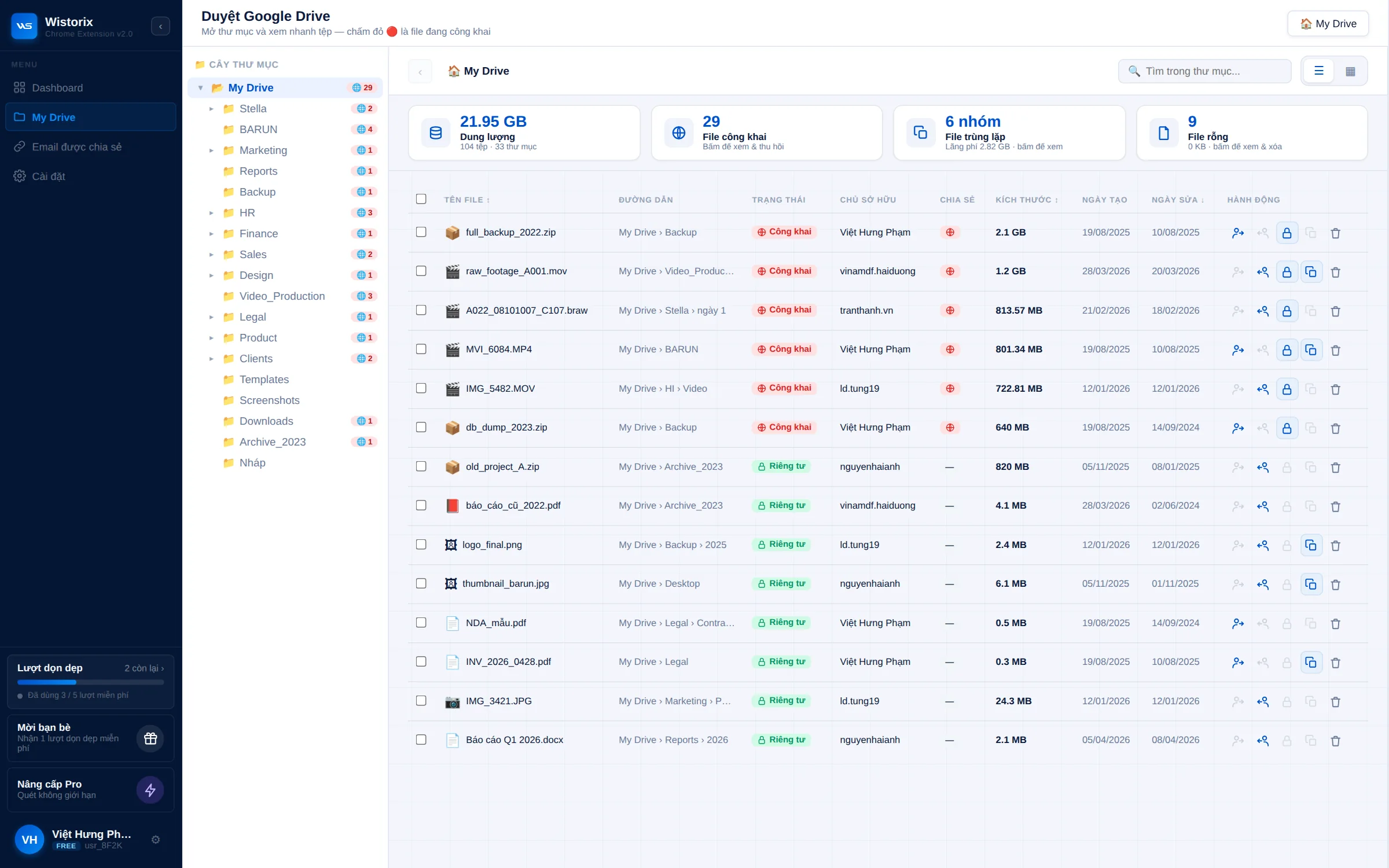
Wistorix makes this review faster. One scan sorts your files into groups such as duplicates, old files, empty files and orphaned files, with the size of each group. You choose the group to handle and confirm, and deleted files go to the Google Drive Trash, where you can restore them for 30 days. Wistorix reads file metadata only, such as names, sizes and sharing settings, never file contents.
The order to optimize Google Drive storage in your situation
Not every Drive needs all seven methods with the same priority. Choose the order that fits your situation to see results sooner.
- Drive is full and email has stopped arriving: do method 1 and method 2, then empty the Trash the same day
- Drive still has room but grows fast every month: use method 1 to find the growing service, then apply method 4 or method 5
- Drive is shared across many projects: focus on method 3 and method 6, since duplicates and old files pile up most here
- Drive is already tidy: keep up method 7 on schedule
For a work Drive with many client folders, optimize Google Drive storage project by project instead of the whole Drive at once. Each time you close a project, archive it, keep the final versions and delete the drafts. This keeps storage steady without long cleanup sessions.
Whichever situation you are in, note the storage number before and after each round. Over a few months, those notes show which method gives you the most space for the least effort.
Things that do not optimize Google Drive storage
Some actions look like they save space but do not change the storage number at all. Knowing them in advance saves you effort in the wrong place.
- Deleting files someone else owns: the file only disappears from your Drive, and your storage stays the same
- Moving files to another folder: the file still belongs to you and still counts
- Deleting files without emptying the Trash: files in the Trash count until they are permanently deleted
- Zipping files but keeping the originals: total storage actually goes up
Also, after you delete a large number of files, the storage number can take 48 to 72 hours to update accurately. If you just emptied the Trash and the number has not dropped yet, wait before you delete more.
If you are thinking about buying more storage through Google One, optimize Google Drive storage first so you know what you really need. Many Drives have enough room for a long time after merging duplicates and clearing Gmail, and a Drive that truly needs more space can pick a better-fitting plan.
In short, to optimize Google Drive storage you repeat three things: know where the space goes, deal with the groups of files that take the most and review on a schedule. For the full cleanup process from the start, read the guide to cleaning up Google Drive.
Frequently asked questions
Do Google Docs and Google Sheets use storage?
Yes, for files created or edited since June 1, 2021. Most text documents are very light, though, so the space usually goes to videos, photos and design files.
Do files other people share with me count toward my storage?
No. A file counts against its owner. If you create a file inside someone else's folder, that file still belongs to you and counts toward your storage.
How often should I review my storage?
Monthly for a Drive that grows fast, quarterly for a stable one. Add a review when a large project ends or before you buy more storage.
Is there a fully automatic way to manage storage?
Finding and grouping files can be automated, but the decision to delete should stay with you. Wistorix is building scheduled automatic scans with alerts (coming soon), and deleting will still always wait for your confirmation.


sharing publicly?