

How to use Wistorix: from your first scan to bulk fixes

This guide shows how to use Wistorix in the order a new user should follow: install the extension, scan your Google Drive, read your security score, then work through each group of files. Scanning is always free, so you can try it on your real Drive at no cost. Nothing in your Drive changes until you click to confirm.
In this guide
- Before you start
- Step 1: Install the extension in Chrome
- Step 2: Sign in and read the consent screen
- Step 3: Scan your Google Drive
- Step 4: Read the dashboard and security score
- Step 5: Work through the results by priority
- Use Wistorix every month
- Tips for different kinds of users
- Common mistakes when you start
- What is free
- Frequently asked questions
Before you start to use Wistorix
You need three things: a computer with Chrome, the Google account that holds the Drive you want to review, and about half an hour for the first session. Wistorix works with personal Gmail accounts and Google Workspace accounts, and you do not need admin rights.
If you are not sure yet what the extension can do, read what is Wistorix first. The rest of this guide focuses on how to use Wistorix in practice, one screen at a time. Each step builds on the one before it, so follow them in order the first time.
It also helps to decide in advance what you want from the first session. Some people mainly want to know which files are open to the public, others want storage back before their Drive fills up. Either goal works with the same five steps, only the place where you spend most of your time changes.
Step 1: Install the Wistorix extension in Chrome
The first step is to add the extension to your browser. Open the Wistorix homepage in Chrome on your computer, click the free install button and confirm Add extension in the Chrome dialog. The whole process takes less than a minute.
After installing, click the puzzle piece icon next to the address bar and pin Wistorix so its icon always shows in the toolbar. Google explains how to handle installed extensions in its guide to installing and managing Chrome extensions. Pinning saves you from hunting for the icon every time you want to use Wistorix.
Step 2: Sign in and read the consent screen
Click the Wistorix icon and choose the Google account that holds the Drive you want to review. Google then shows a consent screen that lists the permissions the extension requests for Drive. Read it carefully before you click Allow.
Wistorix needs access to Drive to read your file list and to carry out the actions you choose, such as moving files to the Trash, stopping sharing or transferring ownership. It reads file metadata only: name, size, owner, sharing settings and dates. File contents are never downloaded.
If you manage more than one Google account, take a second here to check that you picked the right one. Everything you see later belongs only to the account you sign in with, so a scan of the wrong account will not show the files you care about.
Step 3: Scan your Google Drive
Click Scan. For a typical personal account, the first scan of your Google Drive takes a few minutes, and a Drive with tens of thousands of files takes longer. Keep the Wistorix window open until the scan finishes.
Scanning is free, and you can run it as many times as you like. That makes it easy to scan again after each cleanup session to see how your score has changed. Many people run a second scan right after their first round of fixes, simply to confirm that the numbers moved.
Step 4: Read the dashboard and security score
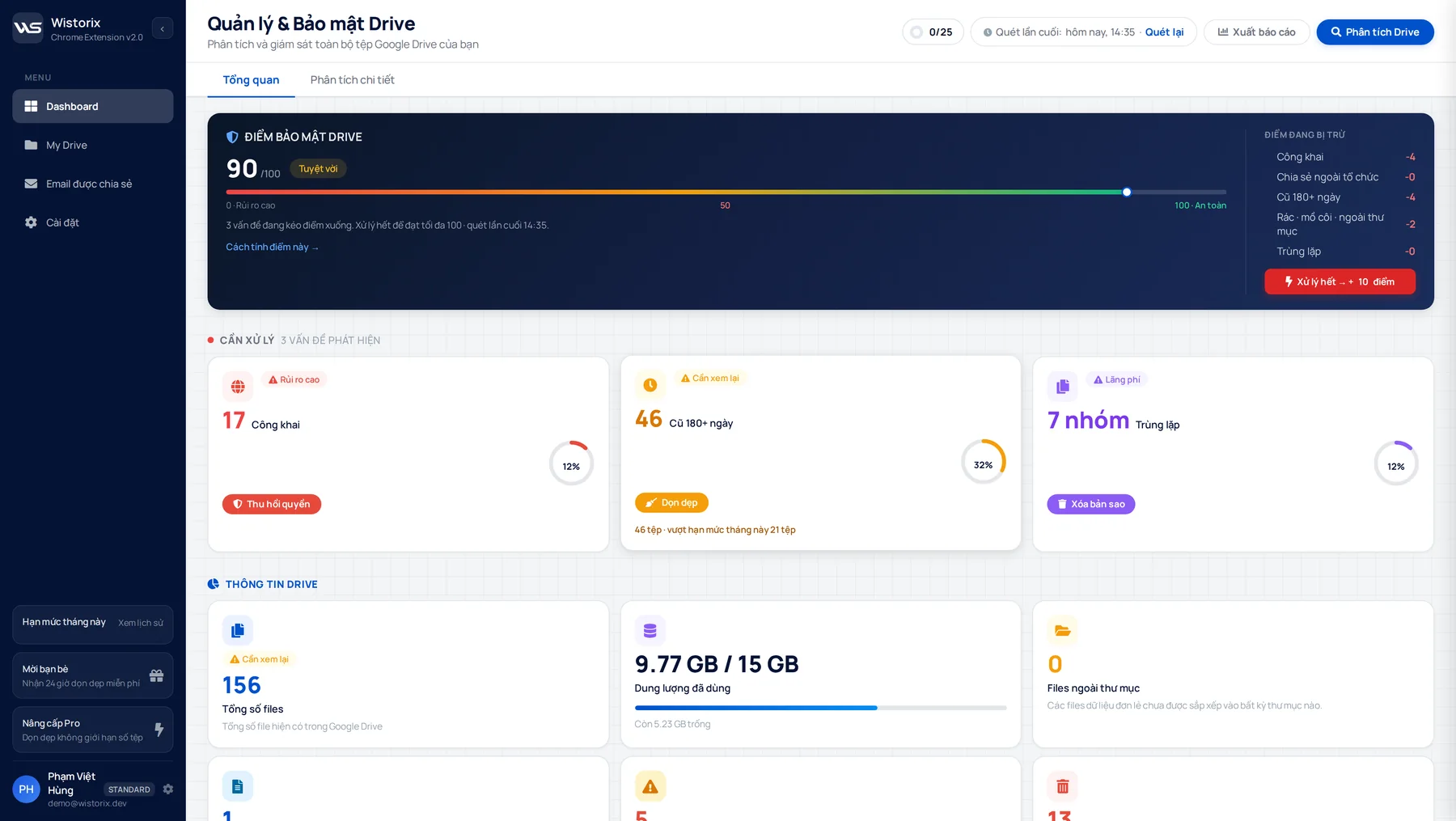
After the scan, the dashboard shows three blocks of information. Understanding them is the most important part of learning to use Wistorix, because they decide what you work on first.
- A security score from 0 to 100, with the risk groups that are currently lowering it
- Storage broken down by file type, by size, and by what you own compared with what others share with you
- Groups you can optimize: duplicate files, empty files, old files and orphaned files
The security score starts at 100 and drops for each risk the scan finds. Public files lower it more than files sitting outside any folder, because an open link matters more than a misplaced file. You can read how the score works on the Drive security score page.
Do not worry if your first score looks low. Almost every Drive that has been in use for a few years carries old links and old shares, and the score exists to show you where they are, not to judge you. What matters is the direction it moves after each session.
Step 5: Work through the results by priority
A common mistake when people first use Wistorix is to handle the results in the order they appear on screen. Work by risk level instead: lock the doors first, then tidy the house.
Close public links on sensitive files
Open the Public files group and sort by file type. If contracts, payroll sheets or customer data are set to anyone with the link, select them and click Stop sharing. People you invited by email keep their access, so your team is not interrupted.
Remove access for people you no longer work with
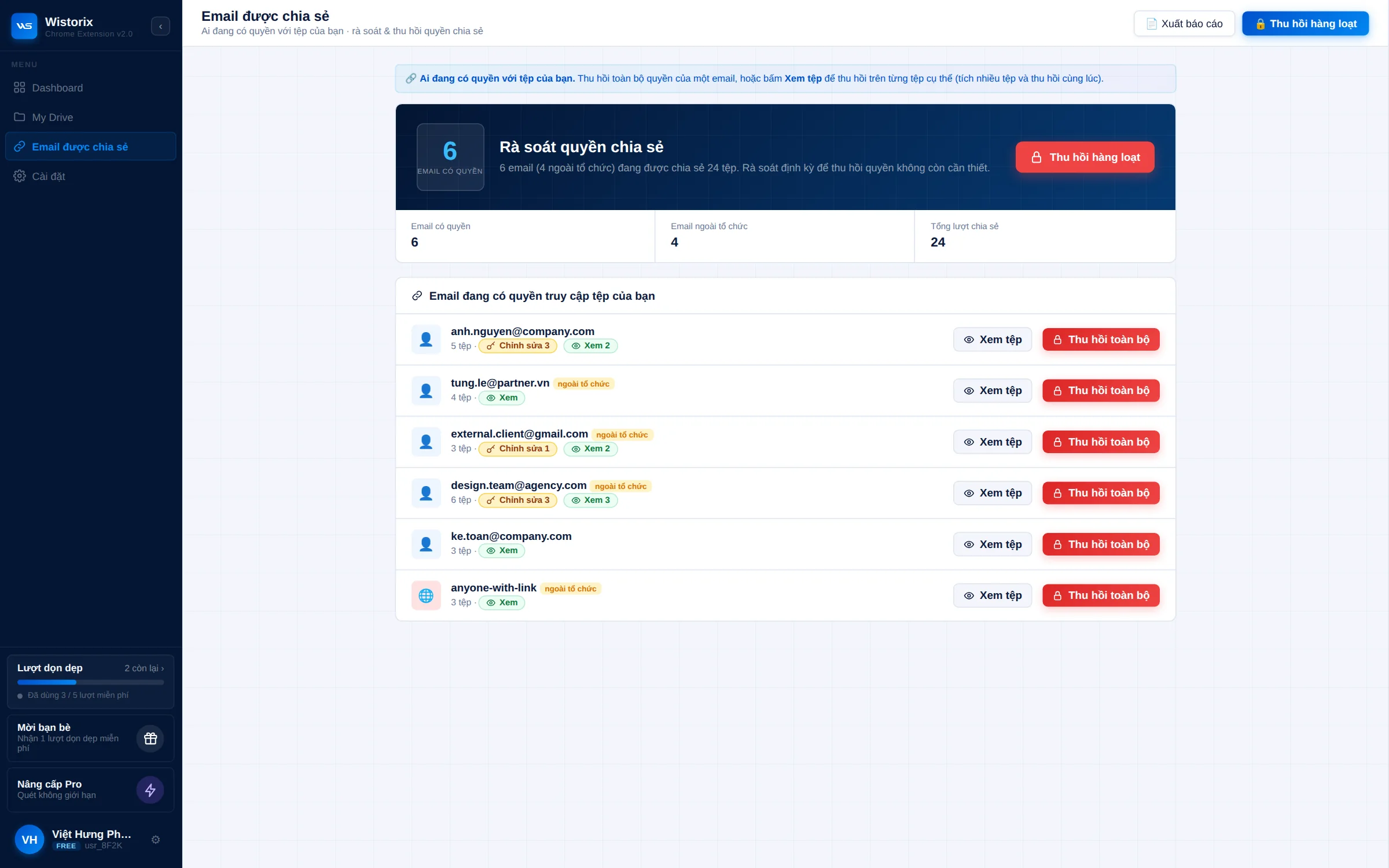
Open the shared emails list and filter for addresses outside your organization. For former clients and freelancers whose contracts have ended, select the address and click Revoke access to remove them from every file at once. Google Drive does not notify the people you remove, and you can share a file with them again anytime if they still need it.
Free up storage
Only then move on to duplicate, empty and old files. Open each duplicate group with Compare duplicates, keep the copy that is in use and select the extras. Click Move to trash: the files go to the Google Drive Trash and are never permanently deleted at this point, so you can restore them for 30 days.
Following this order means the most sensitive problems are fixed even if you only have ten minutes. Storage cleanup can always wait until next week, while an open link to a payroll sheet should not.
Use Wistorix every month
The first session always has the most work. From the second time on, the routine is much shorter, because each month you only deal with what is new.
- At the start of the month, open Wistorix and scan again
- Compare your security score with last month and see which group lost points
- Close new public links and revoke access for finished projects
- Handle new duplicate and empty files
The whole routine usually takes under 15 minutes. If your Drive serves many clients, add one more scan whenever a project ends. Scheduled automatic scans with alerts are in development (coming soon).
A short routine works because problems stay small. A public link you close two weeks after creating it is easy to judge, while one from three years ago often belongs to a project nobody can explain anymore.
How to use Wistorix for different kinds of users
The five steps above apply to every type of account. What changes is which group of files deserves the closest look, depending on your daily work.
- Freelancers: after each project, filter for the client you just finished with and revoke edit access, keeping view access if the client still needs to download files
- Agencies: review outside email addresses client by client, then compare them with your list of active clients
- In-house teams: before someone leaves, filter the files they own and transfer ownership in bulk to the person taking over
- Small businesses: run the first scan on the account of whoever holds the most documents, usually the accountant or a manager
For every group, the most effective way to use Wistorix is to tie each scan to an event that already exists: the end of a project, a resignation, closing the books at the end of the month. That way you never need to remember a separate schedule. For the full order of steps when a teammate leaves, see the Google Drive offboarding checklist.
Common mistakes when you first use Wistorix
Most first-time trouble comes from the process, not the extension. These four mistakes are the ones that come up most often.
- Deleting a duplicate that is shared with a client: always check the sharing status next to each copy before you select it
- Revoking access for a colleague you still work with: filter for outside addresses first and avoid selecting everything
- Emptying the Trash right after deleting: wait a few days to be sure you do not need to restore anything
- Scanning the wrong account: check the email shown in the corner of Wistorix before you take action
If your company's Google Workspace account blocks extensions, or blocks third-party apps from accessing Drive, you will not be able to sign in at step 2. In that case, talk to your administrator before trying anything else.
What is free when you use Wistorix
Every reading and viewing step above is free: scanning, the dashboard, the security score and every list. That alone shows you which sensitive links need attention first, before you change anything at all.
If you change your mind, you can remove the extension from Chrome and revoke the access you gave Wistorix in your Google Account anytime. Your files in Drive are not affected.
In short, the best way to use Wistorix is to scan first, read your security score, then act by risk. Following that order lowers your sharing risk fastest without taking much of your time.
Frequently asked questions
How long does the first scan take?
A few minutes for a typical personal account. A Drive with tens of thousands of files takes longer, so start the scan when you have a moment to keep the window open.
Do I need to keep Chrome open while scanning?
Yes. Keep the Wistorix window open until the scan is complete.
Can I use Wistorix with more than one Google account?
Yes. Sign out, sign in with the other account and scan again. Each account has its own results.
What if I delete a file by mistake through Wistorix?
Open the Google Drive Trash and restore it. Google keeps deleted files in the Trash for 30 days before removing them permanently.



sharing publicly?