

This part explains what is free and what uses credits, where to track your limit, what happens when you select more files than your remaining limit, and how to invite friends to earn more credits.
What is free and what uses credits
| Free, unlimited | Uses optimization credits |
|---|---|
| Scan and analyze your Drive, rescan as often as you like | Each file you act on: stop sharing, transfer or request ownership, move to Trash |
| View the security score, the Dashboard, every list and filter | |
| Preview files, compare duplicates, export reports |
Your current plan appears in the bottom left corner, next to your account name. In this version, the Standard plan (free) includes 25 optimized files per month, reset on the first day of each month. For the current plans, see Pricing.
Track your quota
Your quota shows in three places:
- The ring in the Dashboard top bar, for example 4/25.
- The This month's quota (Hạn mức tháng này) card in the bottom left corner. Click View history (Xem lịch sử) to open the Optimization credits page.
- The This month's quota bar in every confirmation dialog before an action runs.
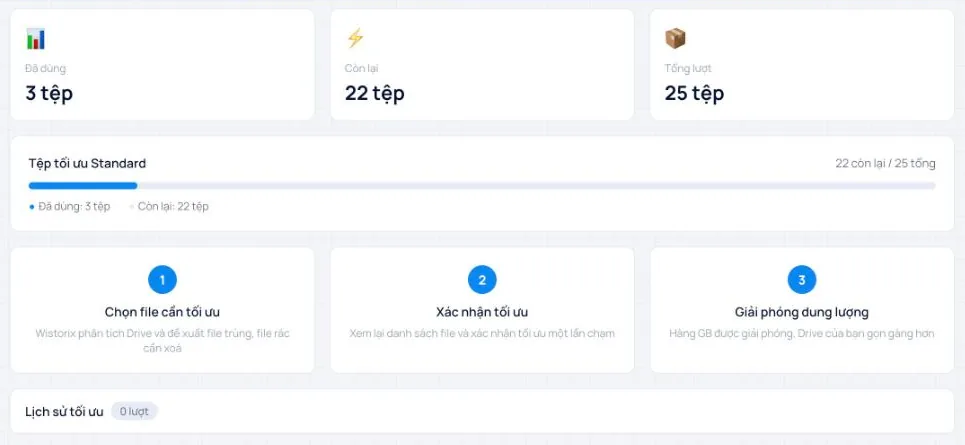
The Optimization credits (Lượt tối ưu) page has three counters, Used (Đã dùng), Remaining (Còn lại) and Total credits (Tổng lượt), a plan progress bar, three steps Choose files to optimize, Confirm optimization, Free up storage, and an Optimization history (Lịch sử tối ưu) section that records each action.
When you select more than your remaining quota
If you select more files than you have credits left, the confirmation dialog says so, for example You selected 46 files. You have 21 credits left this month, and lets you choose:
- Process N files now (Xử lý N tệp ngay): processes exactly as many files as you have credits left. The rest wait until next month.
- Upgrade your plan to process everything at once, or buy a 72-hour pass.
Cards in the Needs attention area warn you ahead of time too, for example 46 files · over this month's quota of 25 files, so you can prioritize the important files.
Tip for using your quota well: spend credits on sensitive public files and large duplicates first. Leave empty files and small files for later, since they have less effect on the security score and on storage.
Invite friends to earn more credits
- Click the Invite friends (Mời bạn bè) card in the bottom left corner.
- Click Copy link (Sao chép link) or share directly via Facebook, Zalo or email.
- When your friend installs Wistorix and scans their Drive for the first time, you both get extra free optimization credits.
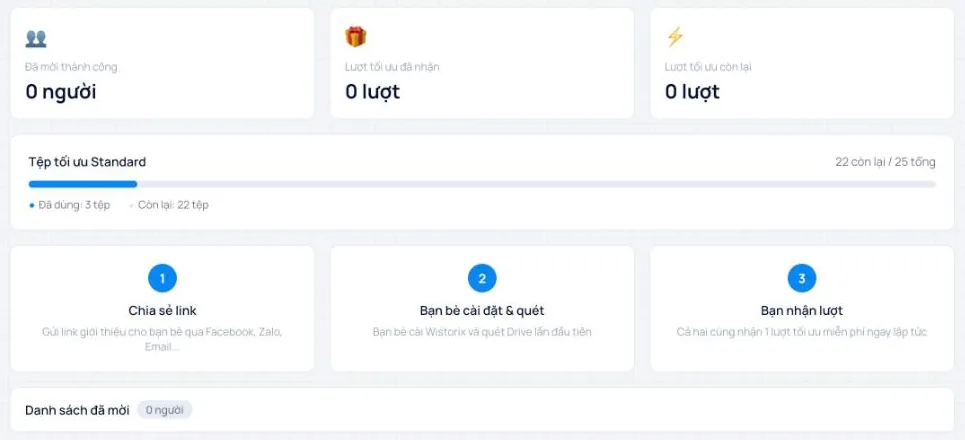
The Invite friends page has the counters Successful invites (Đã mời thành công), Credits earned (Lượt tối ưu đã nhận), Credits remaining (Lượt tối ưu còn lại) and an Invite list (Danh sách đã mời).
Billing and plans
Go to Settings (Cài đặt), then the Billing & Plans (Thanh toán & Gói dịch vụ) tab to see your current plan and change it.
Frequently asked questions
What is one optimization credit?
Each file you handle through Wistorix, such as stopping sharing, transferring ownership or moving it to the Trash, uses 1 credit.
When does my limit reset?
The Standard plan limit resets on the first day of each month.
Applies to: Wistorix Dashboard v2.0 (Chrome Extension v2.0) and Drive Widget 2.1, updated Oct 9, 2026. Screenshots and button names come from this version, whose interface is currently in Vietnamese. When a new Wistorix version ships, we write a new guide and record the changes in the changelog.